Recent Discussions

unpivot data and handle merged cells without using Power Query (Unpivot_Toolkit)
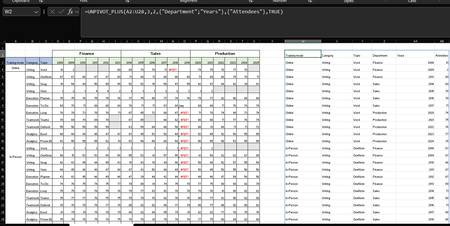
Hey, guys!! I’ve been working on a set of functional Excel Lambdas to solve a common headache: transforming "Wide" human-readable data into "Long" database formats without having to open Power Query every time. =UNPIVOT_PLUS(table, [no_of_cols], [no_of_headers], [attribute_names], [value_name], [remove_errors], [remove_blanks],[pad_blanks_with],[pad_errors_with]) Don’t worry about the full list, most use cases only require 5 arguments. I've included a table of default values at the end. Merged Cell Support: Automatically handles fill-down/fill-right logic for merged headers/columns. Bonus Helper: SPLIT_INJECT =SPLIT_INJECT(array, target_indices, delimiter, [ignore_empty], [match_mode], [pad_with]) It targets specific columns, splits them by a delimiter (like TEXTSPLIT), and expands the entire table horizontally while keeping all other columns perfectly stable. Optional arguments match TEXTSPLIT defaults. Feel free to tear this apart or adapt it for your own edge cases. I’d love to hear how you end up using it! You can grab both functions from my GitHub Gist https://gist.github.com/Medohh2120/f8553c149684e39bb499249e39f01017. Argument Description Default Behavior table The array or range of data to unpivot. Required argument (no default) [no_of_cols] Fixed left columns to keep as identifiers. 1 [no_of_headers] Top rows used as headers, handling merged cells. 1 [attribute_names] Header name for the unpivoted attributes . "Attribute" [value_name] Header name for the unpivoted values. "Value" [remove_errors] Excludes grid rows with formula errors. FALSE [remove_blanks] Removes grid empty cells and empty strings. TRUE [pad_blanks_with] Value to substitute for empty cells. Leaves cell blank [pad_errors_with] Value to substitute for errors. Leaves error as-is233Views1like1Comment
Formula Challenge: The most efficient way to generate a Number Spiral (Ulam spiral) ?
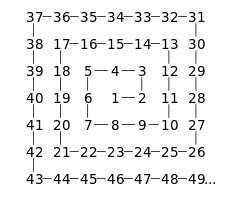
The goal: Ulam spiral - Wikipedia The trick is creating a function capable of producing the largest matrix of numbers possible (this may rule out the recursive approach). The approach I took: The approach I took was creating 'frames' and working inward with REDUCE essentially performing repeated addition: REDUCE works its way through an array of odd numbers in descending order (1 is omitted) with 3 different situations: 1. The odd number is the largest so the matrix does not require padding. 2. The odd number is 3, the anomaly, so a 'padded core' is created. 3. The odd number is not the greatest nor 3 so a padded matrix is generated Spiral Lambda: =LET( s, ODD(INT(SQRT(n))), arr, UNIQUE(ODD(SEQUENCE(s - 1, , s, -1))), arrCore, {5, 4, 3; 6, 1, 2; 7, 8, 9}, IFERROR( REDUCE( 0, arr, LAMBDA(a, v, LET( TopBottomPadding, EXPAND(0, (s - v) / 2, s, 0), SidePadding, EXPAND(0, v, (s - v) / 2, 0), top, SEQUENCE(, v, (v - 1) ^ 2 + 1, -1), bottom, SEQUENCE(, v, (v - 1) ^ 2 + v, 1), left_frame, EXPAND(SEQUENCE(v - 2, , (v - 1) ^ 2 + 2), , v - 1, 0), right_frame, SEQUENCE(v - 2, , (v - 1) ^ 2 - (v - 1), -1), core_stuffing, EXPAND(0, v, (s - v) / 2, 0), core, VSTACK( TopBottomPadding, HSTACK(core_stuffing, arrCore, core_stuffing), TopBottomPadding ), center, HSTACK(left_frame, right_frame), nopad, VSTACK(top, center, bottom), pad, VSTACK( TopBottomPadding, HSTACK(SidePadding, VSTACK(top, center, bottom), SidePadding), TopBottomPadding ), a + IF(v = s, nopad, IF(v = 3, core, pad)) ) ) ), "Please enter a number 17 or greater" ) ) The accuracy checks The highest number I've been able to get away with for n is 300,001. I'm interesting in any suggested improvements or different approaches to this task!6.4KViews1like23CommentsOperations Dashboard in Excel
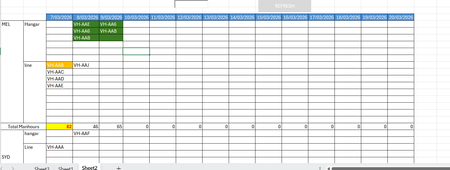
Ok, so I have been tasked to build an operational dashboard for an airline maintenance planning and tracking. I have a dataset downloaded from our ERP system that lists down the aircraft tails, the workorder number, tasks in each workorder, manhours for each task, city, site(hangar or line) and the start date and end dates. There are codes that are assigned for each category of workorder, whether it is a C-Check, Line or transit. In the current scenario, we use a flight operations tracking software that gives us a hangar forecast, but then we have to get the dataset (as mentioned above) and then build a report daily to show the tails assigned for each port and then the total manhours. The report looks something similar to what you see below. Now, instead of doing it daily manually, I want to automate the process. So far, I have been able to sum the total manhours for the day, get the tails assigned for each port and location, and achieve some sort of conditional formatting to distinguish between different types of checks - green for heavy, yellow for transit and so on. What I have been unable to achieve is the aircraft is scheduled for two days grounding in the hangar, then the cells on both days should align together. As you can see in the image above, VH-AA6 has maintenance on the 8th and 9th of March, but the cells are not aligned. I tried to find a difference between the start and end date and create a helper column to assign a priority, but it didn't work. I have spent countless hours on Chatgpt to come up with a solution, but all efforts went in vague. I have seen a similar excel sheet elsewhere, but I couldn't extract the formulas or the logic since it was heavily protected. In the end I want to add a search bar and a to find a Rego/ Tail by typing in the search field and highlight in the sheet quickly. The main aim is the cell alignment for the consecutive dates. So lets say AA6 is occupying D2 on Day 8, then on the Day9 AA6 should pop up in E2. Any other aircraft on the Day9 with a day's grounding may appear in E1, or next available empty cell.90Views0likes4Comments"Method 'Calculation' of object '_Application' failed" error occurs on unpredictable attempts
At random times, this save code decides to spit the "Method 'Calculation' of object '_Application' failed" error. It doesn't happen on any other userforms. Any idea why? Private Sub CommandButton2_Click() 'Save 'Initial: On Error Resume Next Dim rng As Range, cell As Range Dim first_DB_avail_row As Range Dim Highest_Version_Row As Long Dim existingVersions() As String Dim ver_find As Variant Dim ver_list As Object: Set ver_list = CreateObject("System.Collections.ArrayList") 'Use an ArrayList for version sorting Dim padded_list As Object: Set padded_list = CreateObject("System.Collections.ArrayList") 'Create a temporary list for padded versions to ensure order (e.g., 5.1.28 > 5.1.2) Dim v As Variant, parts As Variant Dim padded_v As String, leadChar As String, all_vers As String Dim i As Integer 'Validate entries: If Me.Caption = "First Version - Business Manager" Then 'Adding product - first version If Me.ComboBox1.Value = "" Or Me.TextBox1.Value = "" Or _ Me.TextBox2.Value = "" Or Me.TextBox3.Value = "" Then 'Check if version is not inputted MsgBox "You must complete all fields.", vbExclamation, "Business Manager" GoTo MEM_CLEAN End If Insert_Product.ver_val = stage_entry & Major & Minor & Patch Unload Me Insert_Product.new_product_ver_cancel = False 'Set back to false from the terminate sub setting GoTo MEM_CLEAN End If Call Find_Latest_Ver 'Get the current latest version If stage_entry & Major & Minor & Patch = Highest_Version Then 'Check if version already exists MsgBox "This version already exists (as the newest version).", vbExclamation, "Business Manager" GoTo MEM_CLEAN End If existingVersions = Split(Replace(Me.TextBox4.Value, vbCrLf, ""), "• ") For Each ver_find In existingVersions If Trim(ver_find) = Trim(stage_entry & Major & Minor & Patch) Then MsgBox "This version already exists.", vbExclamation, "Business Manager" GoTo MEM_CLEAN End If Next ver_find If Me.ComboBox1.Value = "" Or Me.TextBox1.Value = "" Or _ Me.TextBox2.Value = "" Or Me.TextBox3.Value = "" Then 'Check if version is not inputted MsgBox "You must complete all fields.", vbExclamation, "Business Manager" GoTo MEM_CLEAN End If Me.Hide 'This will preserve public variables, keeping the form loaded, while still allowing the PLZ_WAIT userForm to display (no modal error) 'Macro Enhancement - Start: Application.Calculation = xlCalculationManual ActiveWorkbook.UpdateRemoteReferences = False Application.EnableEvents = False 'This must be false Application.ScreenUpdating = False Application.Interactive = False Application.DisplayAlerts = False Application.DisplayStatusBar = False PLZ_WAIT.Show PLZ_WAIT.Label2.Caption = "Setting new version" DoEvents 'Allows the PLZ_WAIT userForm to display If Err.Number <> 0 Then 'For some unknown reason, the Excel error "Method 'Calculation' of object '_Application' failed" occurs on unpredictable/unrepeatable attempts to save (sub runs) - cause unknown MsgBox "An Excel error occured (""" & Err.Description & """: " & Err.Number & "). Please try again (until it works).", vbExclamation, "Business Manager" GoTo MEM_CLEAN End If 'Pull data from the latest version: ThisWorkbook.Sheets("Products").Unprotect Password:=ThisWorkbook.Sheets("Background Data").Range("CY39").Value For Each cell In ThisWorkbook.Sheets("Background Data").Range("E4:E7503") If cell.Value = ThisWorkbook.Sheets("Products").Range("E" & Selection.Row).Value Then If cell.Offset(0, -2).Value = Highest_Version Then ThisWorkbook.Sheets("Products").Range("B" & Selection.Row).Value = cell.Offset(0, -3).Value 'Name ThisWorkbook.Sheets("Products").Range("C" & Selection.Row).Value = stage_entry & Major & Minor & Patch 'Product Version ThisWorkbook.Sheets("Products").Range("D" & Selection.Row).Value = cell.Offset(0, -1).Value 'File ThisWorkbook.Sheets("Products").Range("E" & Selection.Row).Value = cell.Value 'ID Number ThisWorkbook.Sheets("Products").Range("F" & Selection.Row).Value = cell.Offset(0, 1).Value 'Category ThisWorkbook.Sheets("Products").Range("G" & Selection.Row).Value = cell.Offset(0, 2).Value 'Details (Description) ThisWorkbook.Sheets("Products").Range("K" & Selection.Row).Value = cell.Offset(0, 6).Value 'Release Date ThisWorkbook.Sheets("Products").Range("L" & Selection.Row).Value = cell.Offset(0, 7).Value 'Copyright Y/N button ThisWorkbook.Sheets("Products").Range("M" & Selection.Row).Value = cell.Offset(0, 8).Value 'Copyright Status ThisWorkbook.Sheets("Products").Range("N" & Selection.Row).Value = cell.Offset(0, 9).Value 'Year ThisWorkbook.Sheets("Products").Range("O" & Selection.Row).Value = cell.Offset(0, 10).Value 'Copyright Statement ThisWorkbook.Sheets("Products").Range("P" & Selection.Row).Value = cell.Offset(0, 11).Value 'Published Y/N button ThisWorkbook.Sheets("Products").Range("Q" & Selection.Row).Value = cell.Offset(0, 12).Value 'Publish Status (Date) ThisWorkbook.Sheets("Products").Range("R" & Selection.Row).Value = cell.Offset(0, 13).Value 'Web Link ThisWorkbook.Sheets("Products").Range("S" & Selection.Row).Value = cell.Offset(0, 14).Value 'Withdraw Date Highest_Version_Row = cell.Row Exit For End If End If Next cell 'Save new version to version database: Set first_DB_avail_row = ThisWorkbook.Sheets("Background Data").Range(ThisWorkbook.Sheets("Background Data").Range("C7506").End(xlUp).Offset(1, 0).Address) first_DB_avail_row.Offset(0, -1).Value = ThisWorkbook.Sheets("Products").Range("B" & Selection.Row).Value 'Name first_DB_avail_row.Value = ThisWorkbook.Sheets("Products").Range("C" & Selection.Row).Value 'Product Version first_DB_avail_row.Offset(0, 1).Value = ThisWorkbook.Sheets("Products").Range("D" & Selection.Row).Value 'File first_DB_avail_row.Offset(0, 2).Value = ThisWorkbook.Sheets("Products").Range("E" & Selection.Row).Value 'ID Number first_DB_avail_row.Offset(0, 3).Value = ThisWorkbook.Sheets("Products").Range("F" & Selection.Row).Value 'Category first_DB_avail_row.Offset(0, 4).Value = ThisWorkbook.Sheets("Products").Range("G" & Selection.Row).Value 'Details (Description) first_DB_avail_row.Offset(0, 8).Value = ThisWorkbook.Sheets("Products").Range("K" & Selection.Row).Value 'Release Date first_DB_avail_row.Offset(0, 9).Value = ThisWorkbook.Sheets("Products").Range("L" & Selection.Row).Value 'Copyright Y/N button first_DB_avail_row.Offset(0, 10).Value = ThisWorkbook.Sheets("Products").Range("M" & Selection.Row).Value 'Copyright Status first_DB_avail_row.Offset(0, 11).Value = ThisWorkbook.Sheets("Products").Range("N" & Selection.Row).Value 'Year first_DB_avail_row.Offset(0, 12).Value = ThisWorkbook.Sheets("Products").Range("O" & Selection.Row).Value 'Copyright Statement first_DB_avail_row.Offset(0, 13).Value = ThisWorkbook.Sheets("Products").Range("P" & Selection.Row).Value 'Published Y/N button first_DB_avail_row.Offset(0, 14).Value = ThisWorkbook.Sheets("Products").Range("Q" & Selection.Row).Value 'Publish Status (Date) first_DB_avail_row.Offset(0, 15).Value = ThisWorkbook.Sheets("Products").Range("R" & Selection.Row).Value 'Web Link first_DB_avail_row.Offset(0, 16).Value = ThisWorkbook.Sheets("Products").Range("S" & Selection.Row).Value 'Withdraw Date 'Save Development Status Data to new version from latest version (copy over): first_DB_avail_row.Offset(0, 17).Value = ThisWorkbook.Sheets("Background Data").Range("T" & Highest_Version_Row).Value 'Title first_DB_avail_row.Offset(0, 18).Value = ThisWorkbook.Sheets("Background Data").Range("U" & Highest_Version_Row).Value 'Tags first_DB_avail_row.Offset(0, 19).Value = ThisWorkbook.Sheets("Background Data").Range("V" & Highest_Version_Row).Value 'Content first_DB_avail_row.Offset(0, 20).Value = ThisWorkbook.Sheets("Background Data").Range("W" & Highest_Version_Row).Value 'Total Tasks first_DB_avail_row.Offset(0, 21).Value = ThisWorkbook.Sheets("Background Data").Range("X" & Highest_Version_Row).Value 'Complete Tasks first_DB_avail_row.Offset(0, 22).Value = ThisWorkbook.Sheets("Background Data").Range("Y" & Highest_Version_Row).Value 'Platform first_DB_avail_row.Offset(0, 23).Value = ThisWorkbook.Sheets("Background Data").Range("Z" & Highest_Version_Row).Value 'Medium first_DB_avail_row.Offset(0, 24).Value = ThisWorkbook.Sheets("Background Data").Range("AA" & Highest_Version_Row).Value 'Framework first_DB_avail_row.Offset(0, 25).Value = ThisWorkbook.Sheets("Background Data").Range("AB" & Highest_Version_Row).Value 'Stage first_DB_avail_row.Offset(0, 26).Value = ThisWorkbook.Sheets("Background Data").Range("AC" & Highest_Version_Row).Value 'Dev Log (1) first_DB_avail_row.Offset(0, 102).Value = ThisWorkbook.Sheets("Background Data").Range("DA" & Highest_Version_Row).Value 'Dev Log (2) first_DB_avail_row.Offset(0, 103).Value = ThisWorkbook.Sheets("Background Data").Range("DB" & Highest_Version_Row).Value 'Dev Log (3) first_DB_avail_row.Offset(0, 104).Value = ThisWorkbook.Sheets("Background Data").Range("DC" & Highest_Version_Row).Value 'Dev Log (4) first_DB_avail_row.Offset(0, 105).Value = ThisWorkbook.Sheets("Background Data").Range("DD" & Highest_Version_Row).Value 'Dev Log (5) first_DB_avail_row.Offset(0, 106).Value = ThisWorkbook.Sheets("Background Data").Range("DE" & Highest_Version_Row).Value 'Dev Log (6) first_DB_avail_row.Offset(0, 107).Value = ThisWorkbook.Sheets("Background Data").Range("DF" & Highest_Version_Row).Value 'Dev Log (7) first_DB_avail_row.Offset(0, 27).Value = ThisWorkbook.Sheets("Background Data").Range("AD" & Highest_Version_Row).Value 'Total Bugs first_DB_avail_row.Offset(0, 28).Value = ThisWorkbook.Sheets("Background Data").Range("AE" & Highest_Version_Row).Value 'Resolved Bugs first_DB_avail_row.Offset(0, 29).Value = ThisWorkbook.Sheets("Background Data").Range("AF" & Highest_Version_Row).Value 'Total Requests first_DB_avail_row.Offset(0, 30).Value = ThisWorkbook.Sheets("Background Data").Range("AG" & Highest_Version_Row).Value 'Complete Requests first_DB_avail_row.Offset(0, 31).Value = ThisWorkbook.Sheets("Background Data").Range("AH" & Highest_Version_Row).Value 'Start Date first_DB_avail_row.Offset(0, 32).Value = ThisWorkbook.Sheets("Background Data").Range("AI" & Highest_Version_Row).Value 'End Date first_DB_avail_row.Offset(0, 33).Value = ThisWorkbook.Sheets("Background Data").Range("AJ" & Highest_Version_Row).Value 'Total Work Days first_DB_avail_row.Offset(0, 34).Value = ThisWorkbook.Sheets("Background Data").Range("AK" & Highest_Version_Row).Value 'Lines of Code first_DB_avail_row.Offset(0, 35).Value = ThisWorkbook.Sheets("Background Data").Range("AL" & Highest_Version_Row).Value 'Number of Features/Amenities first_DB_avail_row.Offset(0, 36).Value = ThisWorkbook.Sheets("Background Data").Range("AM" & Highest_Version_Row).Value 'Ease of Use first_DB_avail_row.Offset(0, 37).Value = ThisWorkbook.Sheets("Background Data").Range("AN" & Highest_Version_Row).Value 'Innovation/Uniqueness first_DB_avail_row.Offset(0, 38).Value = ThisWorkbook.Sheets("Background Data").Range("AO" & Highest_Version_Row).Value 'Complexity first_DB_avail_row.Offset(0, 39).Value = ThisWorkbook.Sheets("Background Data").Range("AP" & Highest_Version_Row).Value 'Optimization first_DB_avail_row.Offset(0, 40).Value = ThisWorkbook.Sheets("Background Data").Range("AQ" & Highest_Version_Row).Value 'Customer Request/Cater 'Set version list: Set rng = ThisWorkbook.Sheets("Background Data").Range("E4:E7503") ver_list.Add stage_entry & Major & Minor & Patch 'Add initial version For Each cell In rng 'Loop to add matches - Collect all versions If cell.Value = ThisWorkbook.Sheets("Products").Range("E" & Selection.Row).Value Then ver_list.Add cell.Offset(0, -2).Value End If Next cell 'Temporarily convert each version into sortable key (000.000.000) For i = 0 To ver_list.Count - 1 v = ver_list(i) leadChar = Left(v, 1) parts = Split(Mid(v, 2), ".") padded_v = leadChar padded_v = padded_v & Right("000" & parts(0), 3) padded_v = padded_v & Right("000" & parts(1), 3) padded_v = padded_v & Right("000" & parts(2), 3) ver_list(i) = padded_v & "|" & v 'Store padded key + original version 'Note: This converts, for example, "V54.17.44" to "V054017044" in order to sort, for each version (i) Next i 'Sort (descending) then strip padded key: ver_list.Sort: ver_list.Reverse For i = 0 To ver_list.Count - 1 ver_list(i) = Split(ver_list(i), "|")(1) Next i 'Note: This sorts then reverses the sort for highest version to be on top. Since sorting is left-to-right, major number will sort first, then minor, _ then patch, in that order. For the release, order will be A then B then V, since that's the alphabet's order, then it's reversed causing the order to be V then B then A. _ Basically, it is sorted lexicographically (V > B > A) then numerically (000000000), then reversed for descending order, then converted back to versioning format. 'Set validation: all_vers = " ," & Join(ver_list.ToArray, ",") 'Join all in array into one string and add initial blank option (for adding new when selected), for setting validation With Selection.Validation .Delete .Add Type:=xlValidateList, AlertStyle:=xlValidAlertStop, Operator:= _ xlBetween, Formula1:=all_vers .IgnoreBlank = True .InCellDropdown = True .InputTitle = "" .ErrorTitle = "" .InputMessage = "" .ErrorMessage = "" .ShowInput = False .ShowError = False End With ThisWorkbook.Sheets("Products").Protect Password:=ThisWorkbook.Sheets("Background Data").Range("CY39").Value 'Macro Enhancement - End: Application.Calculation = xlCalculationAutomatic ActiveWorkbook.UpdateRemoteReferences = True Application.EnableEvents = True Application.ScreenUpdating = True Application.Interactive = True Application.DisplayAlerts = True Application.DisplayStatusBar = True 'Final: Unload Me 'This clears "Highest_Version" and all public variables ?....... Sheet2.UPDATE_DB_FORCE = True Application.Run "Sheet2.Worksheet_Change", Selection 'Necessary in order to update Pricing and CUS_PRO_RATINGS sheets with new version Sheet2.UPDATE_DB_FORCE = False 'Release variables/objects from memory: MEM_CLEAN: Unload PLZ_WAIT: Set PLZ_WAIT = Nothing Set rng = Nothing Set cell = Nothing Set first_DB_avail_row = Nothing ver_list.Clear: Set ver_list = Nothing Set padded_list = Nothing End Sub67Views0likes5Comments
Looking for help with a single Dynamic Formula Ranking Points by player and dropping lowest score
Name Finishes Andrew 1,1,2,3,7,8 Randy 2,4,5,5,8,9 Chris 1,1,2,3,7,8 Bill 1,4,6,6,7,9 Jeff 2,3,5,7,8,8 Reed 4,4,6,7,7,9 Doc 3,5,5,6,7,9 Steve 1,3,5,6,8,9 Paul 2,2,3,3,4,9 Points (1st, 2nd, etc) 165 105 75 50 35 25 20 15 10 Expected answer with lowest point dropped Name Points Chris 530 Andrew 510 Paul 410 Steve 315 Bill 285 Jeff 250 Randy 240 Doc 190 Reed 165Solved166Views0likes12Comments
Transitioning from Barracuda to Office 365 for Modern Email Management
Migrating from Barracuda to Office 365 is a strategic step for organizations looking to modernize their email infrastructure and improve collaboration. Many businesses use Barracuda for email security, archiving, or backup, but moving to Office 365 allows them to consolidate these capabilities within a single cloud-based productivity platform. Office 365 offers advanced email services through Exchange Online along with collaboration tools like Outlook, Teams, OneDrive, and SharePoint. The migration process typically involves transferring archived emails, mailboxes, and user data from Barracuda systems into Office 365. Careful planning is required to ensure data integrity, maintain compliance requirements, and avoid disruptions to daily communication. During the migration, administrators map user accounts, validate domains, and verify that all archived data remains accessible after the transition. One of the major advantages of moving to Office 365 is the enhanced security and management capabilities. Businesses gain access to features such as advanced threat protection, data loss prevention, and centralized administration. These tools help organizations protect sensitive information while simplifying IT management. For companies planning this transition, working with experienced providers can help ensure a smooth process. Many organizations rely on Apps4Rent to support Barracuda to Office 365 migrations, ensuring secure data transfer, minimal downtime, and reliable access to Microsoft 365 services after the migration is complete.3Views0likes0CommentsMoving from Kerio to Office 365 for Modern Email and Collaboration
Migrating from Kerio to Office 365 is a practical step for businesses looking to upgrade their email and collaboration infrastructure. While Kerio Connect provides basic email, calendar, and messaging capabilities, Microsoft Office 365 offers a comprehensive cloud-based platform that includes Outlook, Exchange Online, Teams, OneDrive, and SharePoint. This transition enables organizations to benefit from enhanced productivity tools and improved communication across teams. During a Kerio to Office 365 migration, essential data such as emails, contacts, calendars, and folders are transferred from the Kerio server to Exchange Online. The process typically involves configuring Microsoft 365 accounts, securely migrating mailbox data, and updating DNS records to ensure uninterrupted email delivery. Careful planning helps minimize downtime and ensures that users maintain access to their information throughout the migration. Another key advantage of moving to Office 365 is improved security and scalability. Microsoft provides advanced protection features such as spam filtering, multi-factor authentication, data loss prevention, and built-in compliance tools. These capabilities help organizations protect sensitive information while meeting modern security standards. Businesses often rely on experienced providers like Apps4Rent to manage Kerio to Office 365 migrations efficiently. With expert planning and support, organizations can ensure a smooth transition, maintain data integrity, and fully leverage the benefits of the Microsoft 365 ecosystem.4Views0likes0Comments
What causes downtime or server errors for websites hosted on Microsoft Azure?
Websites hosted on Microsoft Azure may experience downtime due to configuration errors, traffic spikes, or limited server resources. For example, if AH Bonus faces hosting issues, it could be caused by high traffic exceeding CPU or RAM limits. Misconfigured deployment settings or incorrect database connections can also trigger server errors like 500 or 503. Additionally firewall or security rules may block access. To resolve this for https://bonus-ah.nl/, monitor performance in Azure enable autoscaling review logs optimize database queries, and check network security settings to ensure stable website performance and reduce downtime.20Views0likes1CommentHow to Remove Sensitivity Labels from SharePoint Files at Scale
It’s easy to remove sensitivity labels from SharePoint Online files when only a few files are involved. Doing the same task at scale requires automation. In this article, we explain how to use the Microsoft Graph PowerShell SDK to find and remove sensitivity labels from files stored in SharePoint Online and OneDrive for Business. https://office365itpros.com/2026/03/10/remove-sensitivity-labels-from-file/11Views0likes0Comments
remove background shading
Is there a way in Excel where columns are shaded a color, but when I put an S or P in a cell that it removes that background color in that cell and the cell to the right, example B9 is shaded blue and blank, c9 has a number and is also shaded blue, but when I type either an S or P in cell B9 it removes the color in that cell and also cell C9 . and goes back to white?18Views0likes1Commentchange background color
I have a worksheet, using column b9:f550 with the cells having a background color of blue. Col B is empty of data. whenever I put a S or P in column B, ( b9 example, I want the background color to change in b9, c9, d9, e9, f9 to white. is there a way that this will automatically change to white whenever I add a S or P in the B col?30Views0likes1Comment
Filter Function or TAKE-DROP Function
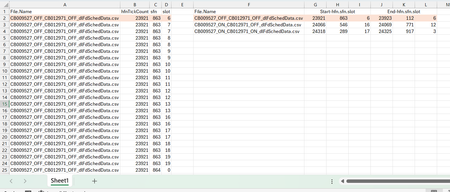
Dear Experts, I have a Data like this:- Column A -> Has the File Names, and Column B,C,D have their corresponding data, In Column F I have the unique File Names and from G/H/I -> I need the start of the hfn/sfn/slot and in J/K/L the end of the hfn/sfn/slot for that File Name as populated , How to achieve this? Thanks & Regards Anupam ShrivastavaSolved254Views0likes8Comments
MS Word is throwing up 'Error 4608' I haven't a clue what to do.
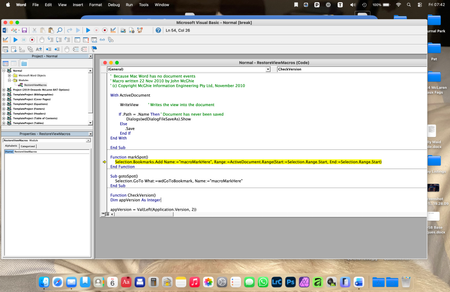
Hello, I wonder if anyone can help me here, because I am at a TOTAL los... I have a Word document that I have been updating for a few years, which is a sort of log. It has worked well up until today. Now, whenever I try to save the updated document, a very old fashioned (looks like Windows 3.1!), error message window appears which is headed 'Visual Basic for Applications' and in the window it says: Run-time error: '4608': Undefined dialogue record field There are then four buttons at the bottom labelled Help, Continue (which is greyed out), End and Debug. I have no idea what this error message means. Clicking on End gets rid of the error message, but prevents me from saving my updated document, and the next time I try to save it the error message just reappears. Clicking on Help takes me to a website with the title 'No F1 help match was found', followed by a load of technical computer-geek stuff I don't understand. Clicking on Debug seems to open a new window, but I do not know what it is... Here is a screen-shot of it: The highlighted text seems to refer to Bookmarks, which is throws me because I only associate Bookmarks with my web browser, not MS Word. I'm sure I haven't added any bookmarks to my document in any case. Can anyone enlighten me as to what is going on here please? ThanksSolved90Views0likes6CommentsTokyo Stock Exchange data
Does any one know, and can share, a sample excel file that can import updated information (ticker, name, last price, dividend yield, daily high and daily low and analysts average target price) for ~50 stocks traded on the Tokyo stock exchange, which is not covered by Microsoft?58Views0likes3CommentsCleaning messy excel/csv form ERP system
Hi, I’m curious how people here usually deal with messy exports coming from ERP or accounting systems. I often receive Excel or CSV files that are not really ready to use as a table. Things like: -a few rows of system info before the header -totals or notes mixed inside the data -different date formats in the same column -currency symbols and formats all over the place -sometimes even another small table sitting under the first one Before doing any analysis (excel, power BI...) I usually have to spend a bit of time cleaning the file so it becomes a normal structured table. Power query definitely helps, but depending on the export I sometimes still end up doing several cleanup steps first. I’m curious what the usual workflow is for people here. Do you normally build a reusable Power Query transformation for these reports, or do you handle each export differently? I recently walked through one messy export example here while documenting the cleanup steps if anyone is curious about the kind of file I mean: https://www.mubsiraanalytics.com/blog/how-to-extract-clean-tables-from-messy-excel-csv Mostly just interested to see how others approach this.33Views0likes1CommentNot able to logon office 365 account or change it
If I want to logon to my Office 365 account I have to enter my emailaddress. Its is an @.onmicrosoft.com account. Entering password is ok, but then I am have to verify my phone number. The last two digits are shown, but clicking on this phone number I am getting an error like: 399287. There is no way of resetting this. I already contacted helpdesk but they cannot solve this problem. I have a bussniess account and I need some help about this. Every time I want to reset or want to make a change the account I am stuck in this error screen (endless loop). Please help me.560Views0likes5Comments
Should be easy...... Open a form to a specific record
I have a form with rows showing individual audit for staff members. Each audit would be individualized by an Autonumber ID field. I want the user to be able to click on the ID field, have it close the form, and open another form on that specific record. Both forms are based on the same underlying table. The VBA I'm trying is the following: Private Sub ID_Click() DoCmd.OpenForm "Case_Notes", acNormal, "[ID] = " & Me!ID DoCmd.Close acForm, Me.Name, acSaveNo End Sub It does open the other form, close the form the user is clicking from, but it does not go to the ID number I click. For example, I click on ID 3, and the other form opens on ID 2. Any help would be greatly appreciated! Let me know if you have questions that I haven't clarified.47Views0likes2CommentsHow to public mobile layout to web
Hi, I have prepared a Power BI dashboard using the mobile layout, and we would like to make this mobile view available on the web. However, I can only see it working in the Power BI mobile app, and I am experiencing difficulties when trying to implement it on a web page. Is there any way to publish the mobile layout on the web? If so, how? Thanks.20Views0likes1Comment




Events

Learn more about the capabilities of Agent 365 in this live 'Ask Microsoft Anything' with product and engineering team experts! Get your questions answered about capabilities for agent observability,...
Wednesday, Mar 18, 2026, 09:00 AM PDTOnline
0likes
136Attendees
0Comments

You’re passionate about what you do, and we’re passionate about empowering your potential. Microsoft 365 Community Conference - is your chance to keep up with AI, build game-changing skills, and take...
Tuesday, Apr 21, 2026, 08:00 AM PDTIn-Person
0likes
3Attendees
0Comments
Recent Blogs
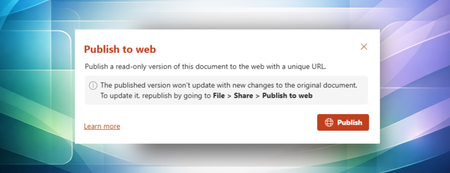
- Publish to web makes it easy to share clean, polished documents externally without revealing internal edits, comments, or version history.Mar 10, 202622Views0likes0Comments
- We’ve heard your feedback: you want more personal and natural signing experiences with eSignature for Microsoft 365. Now you can draw your signature directly on PDF files using a stylus, touch, or ...Mar 10, 202618Views0likes0Comments