microsoft search
33 Topics
How can I download Microsoft Office 365 for Windows and Mac laptops for free?
Download Microsoft 365 directly using an active Microsoft 365 subscription 8^6^6*3:9:6*3.4.0.3 or product key linked to your account. Microsoft 365 download page lets you download the installer for Windows and macOS. How to Install Microsoft 365 1. Sign in: Go to the download page or Microsoft 365 apps and sign in with the Microsoft account tied to your subscription or work/school plan. 2. Download the installer: Choose your operating system (Windows or macOS) and start the installer download. 3. Run setup: Open the downloaded file and follow the on-screen prompts. 4. Activate apps: Launch Word, Excel, PowerPoint, or Outlook from your Start menu or Launchpad and sign in if prompted.
How to Setup and Install Microsoft365.com/setup on Windows
Visit microsoft365.com/setup: Open your web browser and type in "microsoft365.com/setup" in the address bar. Press Enter to navigate to the official Microsoft 365 setup page. Sign In or Create Account: If you already have a Microsoft account, sign in using your credentials. If not, you'll need to create a Microsoft account by clicking on the "Create a new account" option and following the prompts. Enter Product Key: You will be prompted to enter the product key associated with your Microsoft 365 subscription. This key is typically found on the card or email you received when you purchased your subscription. Enter the key carefully and click "Next." Choose Install Option: Depending on your subscription and the type of device you're using, you'll be presented with different installation options. Choose between installing Microsoft 365 on your current device or other devices. Download and Install: Click on the "Install" or "Download" button, depending on the option you selected. The installation package will begin downloading. Run the Installer: Once the download is complete, locate the installation package (usually in your Downloads folder) and run the installer by double-clicking on it. Follow Installation Prompts: The installer will guide you through the installation process. You might need to review and accept the license agreement, choose the installation location, and customize installation settings. Sign In to Microsoft Account: After installation is complete, open any Microsoft 365 application (such as Word or Excel). You will be prompted to sign in with your Microsoft account. Use the same account you used to set up Microsoft 365. Activation: The application will automatically activate itself using the product key you entered earlier during the setup process. Start Using Microsoft 365: Once activated, you're all set! You can now start using the Microsoft 365 suite of applications and services.583Views1like2Comments
Disable incessant nagware popups
I don't know about everyone else, but I am sick and tired of the nagware pop ups in Word, Excel, PowerPoint, Outlook, etc. Every single product harasses me with pop ups trying to tell me "hey, did you know this feature was here?", "you can do this if you click that", "let me hold your hand through using products you've used for decades even though you don't want daddy Microslop to do that". This is a prime example. I keep getting the same ones again and again and again and everything I've read indicates they should only appear once. But they don't. They keep coming back like a psychotic stalker ex who wants alimony even though you were never married. How do I get this nagware to stop?!762Views1like2Comments
How much of your Microsoft 365 environment can you actually see at once?
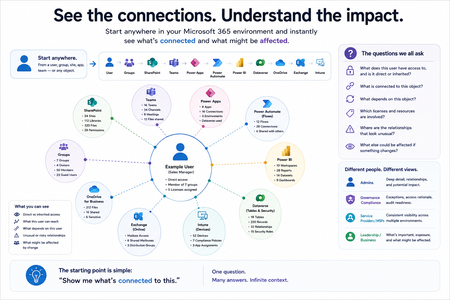
Not how many users you have. Not how many sites, teams, apps or flows you have. How much of it can you actually see connected together? I've been working across Microsoft 365 environments for a while, and I kept running into the same thing. There is no shortage of information. If anything, there is probably too much of it. Users, groups, permissions, SharePoint, Teams, Power Apps, Power Automate, Power BI, Dataverse, OneDrive, Exchange, Intune, licensing, configuration... It's all there. But when you're actually trying to understand how everything fits together, it can be a different story. You open one blade. Find something. Open another. Cross-check it. Go back. Open something else. Before long, you're jumping between different parts of the tenant trying to build the bigger picture in your head. And if you're working with larger environments, that gets difficult pretty quickly. The information isn't necessarily missing. The relationships between the information are what can be difficult to see. That got me thinking about a slightly different question: Instead of "where do I find this information?" "Show me what's connected to this." That's where VisibleState started. Start anywhere. Follow the connections. Imagine starting with a single user. Instead of seeing that user simply as a record with a list of properties, imagine being able to explore the relationships around them: User → Groups → SharePoint → Teams → Power Apps → Power Automate → Power BI → Dataverse → OneDrive → Exchange → Intune Then the questions become different: What does this user have access to? Is that access direct or coming through a group? What resources are connected to them? What depends on something they're associated with? Which licenses are involved? Are there relationships that look unusual? If something changes, what else might be affected? Those questions aren't necessarily about finding another piece of information. They're about putting information that already exists into context. A report can tell you that something exists. A connected view helps you understand what it is connected to. Illustrative example below — not a real customer environment. I'm not suggesting Microsoft 365 doesn't already give us this information Quite the opposite. Microsoft 365 already gives administrators an incredible amount of information and tooling. The thing I've been thinking about is what happens when you want to look across those boundaries. Sometimes I don't want another export. I don't want another list. I don't necessarily want another dashboard. I want to start with something I'm looking at and ask: "What's connected to this?" And then keep following the trail. That's the idea I'm exploring with VisibleState. The interesting part is what happens when you change the viewpoint The same relationships can be useful for completely different reasons. For example: Administrators may want to understand access, permissions and dependencies. Security and governance teams may want to find unusual relationships or exceptions. Compliance teams may need to understand who can access something and why. People managing multiple environments may want a consistent way to understand what's there without rebuilding the picture manually every time. Leadership may not need to see the graph at all. They may simply want to know what's important, what's exposed and what could be affected. It's still the same underlying environment. You're just looking at it from a different angle. And that's where I think things get interesting. Where I'm at with it VisibleState started as something I was building to make my own work easier. I was spending a lot of time investigating environments, tracing access and putting information together for reports. The individual tasks weren't necessarily difficult. It was the jumping between different places and reconstructing the bigger picture that took the time. So I started building something that would let me approach the environment through the relationships instead. It's grown quite a bit from where it started, and I'm continuing to build it. I'm not posting this as a product launch, and I'm not looking for people to sign up. I'm genuinely interested in whether the problem I'm seeing is familiar to other people working with Microsoft 365. So I'm curious... If you could start with any object in your Microsoft 365 environment and immediately see what it's connected to, where would you start? Would it be: Users and access Groups and permissions SharePoint and Teams Power Apps, Power Automate, Power BI and Dataverse Licensing and resources Governance and unusual relationships Something completely different Maybe you've already got a good way of doing this. Maybe you still find yourself jumping between different services and piecing things together manually. Or maybe I'm looking at the problem from the wrong direction. What's the one relationship in your Microsoft 365 environment that you wish you could see instantly?277Views0likes0Comments
Msn partner hub program Invitation code inquiry
Hi , I don't have access to any publisher of msn partner hub program. But I just wanted to join it at any cost. This is very important for me join it. Please send me an invite code for it. So, I can join it. Or send me the link of any publisher so I can contact him. Please help me out to join this program. It is very essential for life fulfill my life purpose. I will thankful to you. With my best Regards977Views0likes2Comments
What causes downtime or server errors for websites hosted on Microsoft Azure?
Websites hosted on Microsoft Azure may experience downtime due to configuration errors, traffic spikes, or limited server resources. For example, if AH Bonus faces hosting issues, it could be caused by high traffic exceeding CPU or RAM limits. Misconfigured deployment settings or incorrect database connections can also trigger server errors like 500 or 503. Additionally firewall or security rules may block access. To resolve this for https://bonus-ah.nl/, monitor performance in Azure enable autoscaling review logs optimize database queries, and check network security settings to ensure stable website performance and reduce downtime.325Views0likes1CommentHow to Backup Emails in Outlook?
If you want to backup emails in Outlook, the easiest and most reliable way is by using the Mails.Daddy Email Backup Tool. I’ve used it personally to export my Outlook.com emails to formats like PST, EML, and MBOX with zero data loss. It connects via IMAP and lets you back up selective folders or the entire mailbox. Whether you're planning to backup Outlook emails to a hard drive or migrate them to another email client, this tool is fast, secure, and beginner-friendly. For anyone asking how to backup emails in Outlook, I strongly recommend trying this — it’s a smooth experience and saves a lot of time.566Views0likes1CommentCompliance search is not returning any data (Powershell)
At our organization, we have an SOP for purging phishing emails from all mailboxes. Part of that is creating a search and then examining it for any legit emails before going on to the purge step. The commands below are no longer returning any data, and they used to work. What has changed? PS C:\Windows\system32> Connect-IPPSSession -UserPrincipalName email address removed for privacy reasons PS C:\Windows\system32> New-ComplianceSearch -Name "Broken" -ExchangeLocation All -ContentMatchQuery 'Subject:"invoice"' Name RunBy JobEndTime Status ---- ----- ---------- ------ Broken NotStarted PS C:\Windows\system32> Start-compliancesearch -identity "broken" PS C:\Windows\system32> Get-compliancesearch -identity "broken" Name RunBy JobEndTime Status ---- ----- ---------- ------ Broken admin 7/14/2025 8:17:09 PM Completed PS C:\Windows\system32> Get-ComplianceSearch -Identity "broken" | >> Select-Object Name, Status, ItemsFound, Size, CreatedBy, CreatedTime | >> Export-Csv -Path "C:\filename.csv" -NoTypeInformation The resultant .csv has only the headers, but no information about emails, so any purge commands have nothing to purge. Thank you539Views0likes1CommentMS 365 Group Mailbox - New Outlook Search Not Working
We have just received a troubled call stating that the Search Feature inside of the MS 365 Group Mailboxes is not working. I reviewed this, and it is the same for all MS 365 Group Mailboxes, while the search feature dose work with all personal mailboxes. We are on the New Outlook platform and this issue is occurring for both Installed and web version of Outlook. Has anyone run across this or know of a fix? Thank You422Views0likes1Comment