Recent Discussions
Teams Events Hosting Assistance (TEHA): Expert Guidance for Business-Critical Teams Events
Hosting a CEO Town Hall, CIO broadcast, company-wide announcement, webinar, or large-scale virtual event or a large meeting? TEHA provides direct access to Microsoft event specialists who help customers plan, prepare, deliver, monitor and optimize business-critical Teams events. From planning and technical readiness to live event monitoring and post-event analysis, TEHA works alongside your organization throughout the entire event lifecycle. How TEHA Can Help Event Planning and Readiness Event scoping and guidance Town Hall, Webinar, and Meeting selection Technical readiness assessments Network readiness reviews Microsoft eCDN guidance and validation Training and Rehearsals Producer and presenter training Moderator guidance Dry runs and event rehearsals Event production best practices Live Event Support Real-time event monitoring Operational guidance during the event Support for Town Halls, Webinars, and Meetings Assistance for executive broadcasts and large-scale events Post-Event Analysis Event summary reports Attendance and engagement insights Recording and playback guidance Quality and network observations Log analysis and issue investigation Recommendations for future events Who Typically Uses TEHA? Organizations frequently engage TEHA for: CEO and CIO Town Halls Leadership broadcasts Global employee communications High-visibility webinars Product launches and Critical meetings Company-wide announcements Business-critical virtual events How to Engage TEHA Customers with eligible Premier or Unified Support agreements can request assistance through the Microsoft Engage Centre: Teams Events Hosting Assistance Request Portal If the Engage Centre option is unavailable, contact your Customer Success Account Manager (CSAM) and request TEHA support for your upcoming event. For highly visible events, we recommend engaging early to maximize readiness and planning opportunities. Deliver your next Teams event with confidence.Dropped from meetings
Using Teams v. 26213.1006.5014.9784 on Win 11 laptop fully updated on OS and drivers. Translation: all components have been updated to the point at which there are no longer any updates available. Using mobile Teams Version : 8.15.0 Build : 8.15.77.2026152401/0820 (general) Calling Version: 2026.21.01.16 Release Branch : 2026Aug-T1 on iPhone 16 Pro which is, also, fully updated. Both connected to same 5G Wi-Fi network from same Wi-Fi 6 router with fiber service of 1G up and down. Speed tests from multiple sources on both laptop and phone are above 700 Mbps up and down. When joining meetings from phone, all is well. No call quality issues. No drops from meetings. When joining meetings from laptop, I am commonly disconnected and presented with "Please hold on while we try to reconnect you". The disconnection usually lasts about 10 seconds and I'm reconnected. I have performed a Reset through Windows Settings > Installed Apps. No joy. I have deleted all files in C:\Users\[MYUSERNAME]\AppData\Local\Packages\MSTeams_8wekyb3d8bbwe. No joy. I have removed and reinstalled MS Teams. No joy. Please, assist with the issue above. Thank you.40Views0likes1Comment
Teams Personal Bot Identity Cache issue
Hi all — looking for guidance on a Teams custom app + bot naming issue. We have a custom Teams app with a bot. The app catalog/admin/dev portal surfaces show the correct app name, and the manifest + Azure Bot configuration appear correctly aligned, but the Teams personal chat surfaces still show the old/wrong bot name. What looks correct: Teams app manifest name.short / name.full have the correct app name Manifest bots[0].botId points to the expected bot ID Azure Bot resource → Configuration → Microsoft App ID matches that bot ID Azure Bot resource → Bot profile display name has the correct name Teams Developer Portal basic information shows the correct name Teams Admin Center shows the correct app short name What is still wrong: Teams left sidebar chat name shows the old/wrong name Chat top header shows the old/wrong name Inline bot sender/name in the conversation shows the old/wrong name The issue reproduces for multiple users It persists after sign out/sign in, uninstall/reinstall, republish, and retesting We may also be seeing a package/version propagation issue: after publishing an updated app package with a newer manifest version, Teams Admin Center still appears to show the previous version. Has anyone seen this before with personal bot apps? Specifically trying to understand: What is the authoritative source for the personal bot chat roster/header/sender display name?80Views0likes1CommentTeams Clamps Down on MOERA-Only Tenants
The latest restriction on tenants using MOERA (service domain) addresses in production is that Teams will restrict external collaboration from September 2026. At this point, there is zero sense in any organization using a MOERA-only tenant for production purposes. Restrictions in Exchange Online and Teams should drive that point home, and the likelihood is that further clampdowns will follow in the future. https://office365itpros.com/2026/09/02/moera-only-tenants-external-collab/50Views0likes0Comments
Unable to submit Teams app update
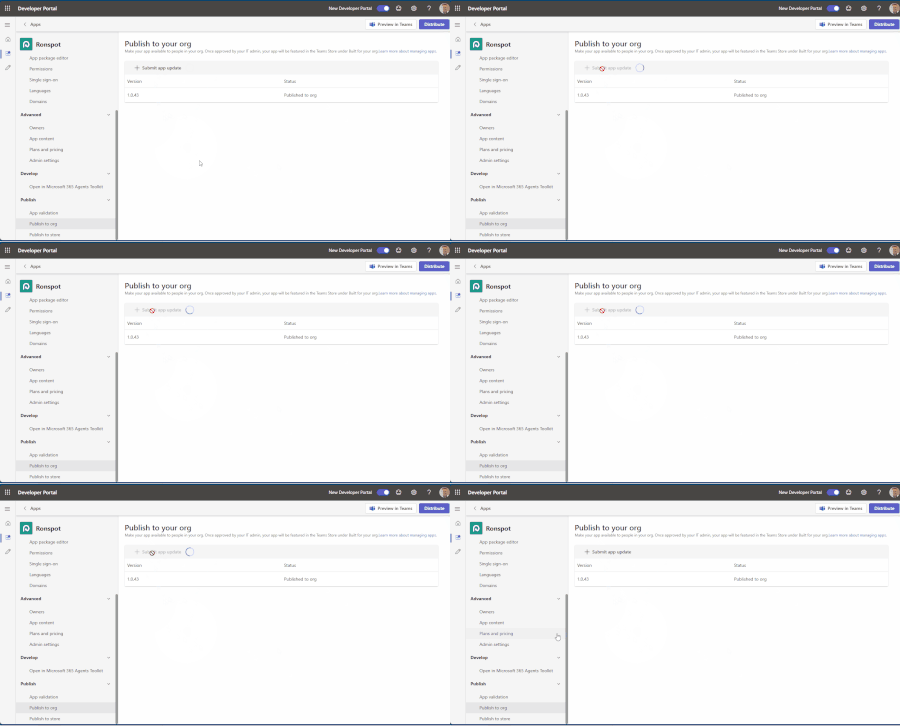
Hello, We have been attempting to submit an update to our Teams app, but we’re experiencing an issue with the submission process. When we click “+ Submit app update,” the loader appears for a few seconds, but then nothing happens. No error message is displayed, and the app update is not submitted. I’ve attached a short video demonstrating the issue. Could you please advise on how we can resolve this? Thank you for your help.78Views0likes1Comment
Sharing sound
Teams screen sharing does not show “Include sound” option for multiple users I’m having an issue with Microsoft Teams screen sharing that I haven’t been able to resolve. I work in a call center, and we use Teams for peer coaching and training. When an agent shares their screen, I need to be able to hear both the agent and the customer they are speaking with through our call-center application (Amazon Connect). The problem is that most of our agents do not have the “Include sound” / “Include computer sound” option when they click Share in Teams. They can share their screen normally, and I can hear the agent speaking, but I cannot hear the audio from the call they are handling. What makes this especially strange is that the option does appear for me when I share my screen. Or if it doesn't show I can simply re-download the desktop version and it will fix itself.... but that doesn't work for anyone else. We have already tried: Reinstalling Teams Using the Teams desktop application Using Teams in a web browser Trying different browsers Restarting the computers Having multiple affected agents repeat the same troubleshooting Nothing has brought the audio-sharing option back for them Any suggestions for what we should check would be greatly appreciated.65Views0likes2CommentsWhat if Teams isn’t too complicated — but simply being compared to the wrong product?
Many users first experience Microsoft Teams through meetings, chat, and file sharing. So it feels natural to compare Teams with messaging apps. But I’ve started to wonder whether that comparison itself shapes how people experience Teams. In markets such as Taiwan, Japan, and Thailand, LINE is deeply embedded in everyday communication. For those unfamiliar with it, LINE is a widely used consumer messaging app in these markets. When users bring that same mental model into Teams, a familiar question appears: “Why does Teams have to be so complicated?” But what if that isn’t quite the right question? I explored the idea in this short interactive page: Maybe We've Been Thinking About Teams the Wrong Way https://teams-vs-line-vinci.vinciwang.chatgpt.site/en/teams-vs-line One analogy sits at the center of it: LINE is like a speedboat. Teams is more like an aircraft carrier. I’m particularly interested in whether people here agree — or think this analogy actually proves the opposite. Is the problem mainly Teams itself, or the mental model we use to judge it?80Views0likes0CommentsTeams calls reporting as potentially scams incorrectly
Hey Teams Community, In the past 5 days I am seeing callers from external tenants that are trusted and in mto showing as suspected scam callers when they call me. They see.me as a suspected scam also when I call. These tenants are all trusted and most of them are.members of the same MTO. This only started happening in the last 7 days. What is causing this? Does anybody else see this happening recently with a similar setup?173Views0likes2CommentsTeams Events App / Plug-in, targeting events vs registration
Hi all, We would like to leverage Teams Events app in our organization, but find it is less than ideal due to a key function in choosing whether to use a registration form with an event. There is an audience targeting function, which we would like to leverage, that is disabled once a registration form is configured. In turn, that opens the event for people who may not find it relevant in the Events view (i.e. wrong language, wrong timezone). On the other hand, if no form is configured, we can elect to turn off notifications and not add an event automatically to a calendar. That's great, but then there is no option at all to add an event from the Events view. Is there a way to subdivide the teams Events app into organizations behind the scenes, without subdividing the entire M365 tenant? Is there a chance that further development on this resource will allow for audience targeting AND registration?112Views0likes1Comment
Feature Title: Ability to Transfer Ownership of a Recurring Meeting Series
Problem/Use Case: When a meeting organizer creates a recurring meeting series and later moves to a different team, role, or leaves the organization, there is currently no way to transfer ownership of that meeting series to another person. This creates several issues: The meeting series may need to be cancelled and recreated from scratch, causing stakeholders to lose the original meeting history, chat thread, shared files, and notes tied to that series. All previously invited stakeholders and the meeting's context/topic history become fragmented or lost. The new owner has to manually recreate invites, re-add all attendees, and re-link any associated channels or files. Requested Feature: Allow the original organizer (or an admin) to reassign/transfer ownership of an existing recurring meeting series to another user, while preserving: The full list of existing stakeholders/attendees The meeting's chat history, shared files, and notes The recurrence pattern, time slot, and associated channel (if applicable) Any linked agenda items or topics tied to past occurrences Suggested Implementation: Add a "Transfer Ownership" option within the meeting series settings (similar to file/document ownership transfer in SharePoint/OneDrive) Notify the new owner and all attendees when ownership changes, so context isn't lost Ensure calendar entries update automatically for all invitees without requiring them to accept a new invite Business Impact: This would reduce disruption during team transitions, org changes, or role handovers, and ensure continuity of important recurring discussions without manual recreation of meetings or loss of historical context.145Views0likes1Comment
Teams App for mobile - A message appears “This message has been deleted.”
In the Teams app for mobile, whenever I delete a message, a message now appears saying, “This message has been deleted.” Previously, this message did not appear. Please revert to the previous behavior. Thhank You.88Views0likes0CommentsNew Teams Policy Controls Meeting Recording and Notetaking Bots
Microsoft recognized the problem posed when users attempt to join recording or notetaking bots to Teams meetings in early 2026. Now a new Teams meeting policy setting is available to control whether bots can join meetings. Allied to smarter bot detection and a program to work with ISVs to identify bots, organizations have a better chance of stopping the unexpected export of confidential information for processing outside the tenant. https://office365itpros.com/2026/08/24/teams-meeting-notetaking-bots/84Views0likes0Comments
Teams Town Hall Q&A with Large in person audiences
Is anyone else struggling to offer q&a for large broadcasts with lots of rooms dialling with in-person large audiences? Currently, for anyone in large groups watching a Town Hall together in a large room, people need to join the Town Hall themselves on their phone. This can cause disturbances as their speaker may be on, and then it does take quite a few screen swipes to get to the q&a section. This is also true for any presenters on a stage who need to view a question/moderate. Our current solution is to use slido as it provides a nice qr code that takes people straight to the section they can ask a question, with no risk of disturbance, as well as a good login method for on stage moderation for an MC. Other times we just use a separate teams chat and an ipad. I would love to be able to use the native Q&A function, especially because it locks peoples teams identity to the question. I.e no anonymous. It would be amazing if their was a separate link/qr code people could scan/follow to view just the Q&A function, or chat function. Without showing the town hall output.33Views0likes0Comments
Multi-device Meeting and Synchronization Issues
Microsoft Teams Bug Report – Multi-device Meeting and Synchronization Issues Date: August 21, 2026 Approximate time of occurrence: 10:30 AM Platform: Microsoft Teams Devices involved: iPhone and desktop computers Issue type: Meeting connection, multi-device support and synchronization Summary I would like to report a possible bug in Microsoft Teams related to multi-device support, meeting connections and synchronization between different devices. The issue occurred during a group meeting on August 21, 2026, at approximately 10:30 AM. The meeting had been scheduled in the Teams calendar, and all participants joined using the same meeting link. However, when the meeting organizer joined the meeting from an iPhone, the organizer and the participants ended up in different meeting sessions, even though everyone had used the same meeting link. Observed behavior The following issues were observed: The Teams meeting was scheduled in the calendar and participants joined using the meeting link from different devices. When the meeting organizer joined the meeting from an iPhone, the organizer and the participants appeared to be placed in different meeting sessions. The participants remained waiting, while the organizer was alone in a separate meeting session. The organizer then had to call the participants directly from the meeting she had joined in order to connect everyone to the same meeting session. The organizer had only created one meeting link, and everyone had used the same link. One or more participants experienced problems starting or joining the meeting from their original device. At least one participant had to switch devices in order for the meeting to work correctly. The meeting chat did not appear to synchronize correctly between devices. One participant did not receive or see chat messages in Teams on their computer, while the same information was visible in the meeting chat on their phone. The behavior therefore appeared to differ depending on which device was being used, despite the users being signed in with the same Teams accounts and participating in the same meeting. Expected behavior A Teams meeting should allow participants to join the same meeting session regardless of whether they are using a desktop computer, iPhone or another supported device. Meeting-related information and functionality, including the meeting chat, should also remain synchronized between supported devices. If a user is signed in to Teams on multiple devices, the meeting experience should remain consistent and the relevant meeting information should be available across those devices. Actual behavior The meeting experience differed between devices. In some cases, participants could not properly join or start the meeting from their original device. In addition, the meeting organizer and participants were initially placed in separate meeting sessions despite using the same meeting link. The meeting chat also appeared to be out of sync between devices. Information that was visible in the meeting chat on a mobile device was not visible on the user’s computer. Possible cause The issue may be related to multi-device support and synchronization between the Teams clients on desktop and mobile devices. It may also involve how Teams handles meeting links, meeting sessions and meeting chat synchronization when users join meetings from different device types. Additional issue – Teams feedback function I also attempted to report this issue directly through the Teams iOS application. However, when selecting the feedback/help functionality, the application displays the error message: “Something went wrong.” This prevents me from submitting the feedback through the Teams application. Furthermore, the feedback interface does not provide me with a usable way to select an existing image from my photo library to document the error. The instructions appear to suggest taking a screenshot, but in this particular case that does not adequately document the problem because the relevant error occurs within the feedback interface itself. I would therefore like to be able to attach the screenshot showing the “Something went wrong” error directly from my photo library when submitting this bug report. Request Please investigate this as a possible Microsoft Teams bug, particularly regarding: Multi-device meeting support. Meeting links and meeting-session handling across different devices. Synchronization between desktop and mobile Teams clients. Meeting chat synchronization between devices. The Teams iOS feedback function displaying “Something went wrong”. The ability to attach existing screenshots/images when submitting feedback from the Teams iOS application. I would appreciate confirmation if this is a known issue or if additional diagnostic information is required. device Meeting and Synchronization Issues Date: August 21, 2026 Approximate time of occurrence: 10:30 AM Platform: Microsoft Teams Devices involved: iPhone and desktop computers Issue type: Meeting connection, multi-device support and synchronization Summary I would like to report a possible bug in Microsoft Teams related to multi-device support, meeting connections and synchronization between different devices. The issue occurred during a group meeting on August 21, 2026, at approximately 10:30 AM. The meeting had been scheduled in the Teams calendar, and all participants joined using the same meeting link. However, when the meeting organizer joined the meeting from an iPhone, the organizer and the participants ended up in different meeting sessions, even though everyone had used the same meeting link. Observed behavior The following issues were observed: The Teams meeting was scheduled in the calendar and participants joined using the meeting link from different devices. When the meeting organizer joined the meeting from an iPhone, the organizer and the participants appeared to be placed in different meeting sessions. The participants remained waiting, while the organizer was alone in a separate meeting session. The organizer then had to call the participants directly from the meeting she had joined in order to connect everyone to the same meeting session. The organizer had only created one meeting link, and everyone had used the same link. One or more participants experienced problems starting or joining the meeting from their original device. At least one participant had to switch devices in order for the meeting to work correctly. The meeting chat did not appear to synchronize correctly between devices. One participant did not receive or see chat messages in Teams on their computer, while the same information was visible in the meeting chat on their phone. The behavior therefore appeared to differ depending on which device was being used, despite the users being signed in with the same Teams accounts and participating in the same meeting. Expected behavior A Teams meeting should allow participants to join the same meeting session regardless of whether they are using a desktop computer, iPhone or another supported device. Meeting-related information and functionality, including the meeting chat, should also remain synchronized between supported devices. If a user is signed in to Teams on multiple devices, the meeting experience should remain consistent and the relevant meeting information should be available across those devices. Actual behavior The meeting experience differed between devices. In some cases, participants could not properly join or start the meeting from their original device. In addition, the meeting organizer and participants were initially placed in separate meeting sessions despite using the same meeting link. The meeting chat also appeared to be out of sync between devices. Information that was visible in the meeting chat on a mobile device was not visible on the user’s computer. Possible cause The issue may be related to multi-device support and synchronization between the Teams clients on desktop and mobile devices. It may also involve how Teams handles meeting links, meeting sessions and meeting chat synchronization when users join meetings from different device types. Additional issue – Teams feedback function I also attempted to report this issue directly through the Teams iOS application. However, when selecting the feedback/help functionality, the application displays the error message: “Something went wrong.” This prevents me from submitting the feedback through the Teams application. Furthermore, the feedback interface does not provide me with a usable way to select an existing image from my photo library to document the error. The instructions appear to suggest taking a screenshot, but in this particular case that does not adequately document the problem because the relevant error occurs within the feedback interface itself. I would therefore like to be able to attach the screenshot showing the “Something went wrong” error directly from my photo library when submitting this bug report. Request Please investigate this as a possible Microsoft Teams bug, particularly regarding: Multi-device meeting support. Meeting links and meeting-session handling across different devices. Synchronization between desktop and mobile Teams clients. Meeting chat synchronization between devices. The Teams iOS feedback function displaying “Something went wrong”. The ability to attach existing screenshots/images when submitting feedback from the Teams iOS application. I would appreciate confirmation if this is a known issue or if additional diagnostic information is required.134Views0likes1CommentTeams feedback function does not work
Additional issue – Teams feedback function does not work Microsoft’s support documentation currently directs users to submit feedback and report technical problems directly through the Teams application. I have attempted to follow this recommended procedure using the Microsoft Teams app on an iPhone in Sweden. However, the feedback function does not work. When attempting to submit feedback through the Teams iOS application, the application displays the error message: “Something went wrong.” As a result, I am unable to submit the bug report through the feedback function that Microsoft itself recommends. This appears to be an additional technical issue with the Teams feedback functionality, at least when using the Teams mobile application on iOS in Sweden. Furthermore, the feedback interface does not provide me with a usable way to select an existing image from my photo library to document the error. The instructions appear to suggest taking a screenshot, but in this particular case that does not adequately document the problem because the relevant error occurs within the feedback interface itself. I therefore have two related issues when attempting to report this problem: Microsoft’s recommended in-app feedback function fails with “Something went wrong.” The feedback interface does not provide a practical option to attach an existing screenshot from the iPhone photo library. I would therefore like Microsoft to investigate not only the original Teams meeting and multi-device synchronization issue, but also why the recommended feedback mechanism is not functioning correctly on the Teams iOS application. Please note that I am reporting this based on my experience using Microsoft Teams in Sweden on an iPhone on August 21, 2026.48Views0likes0Comments
Microsoft Teams Calendar Request
My US public k-12 school district would really love to integrate our Google Calendar with Microsoft Teams calendar. We don't have Exchange licenses, but we'd like to be able to still sync the calendars if possible. I found this support article: https://learn.microsoft.com/en-us/microsoftteams/setup-calendar-syncing-with-google-workspace but it looks like the feature is set to be deprecated later this year. I did try to get the feature working using the Admin app in Teams, but I ran into several issues and Microsoft Support stated development was paused. We would really love this feature to come back and work correctly if possible. Thanks.181Views0likes1CommentHas anyone successfully used "Hide attendee names" in Teams Meetings or Webinars with Teams Premium?
Hello, I'm trying to understand the current status of the**"Hide attendee names"** feature in Microsoft Teams. Our organization has Teams Premium, and according to Microsoft's documentation, the feature should be available for both Meetings and Webinars. The documentation even provides separate instructions for each scenario. However, during a recent Microsoft Support call, I was told that the feature is actually available only for Town Hall events and not for standard Teams Meetings or Webinars. This appears to contradict the current Microsoft documentation, so I'm looking for real-world feedback from other administrators. Questions: Has anyone successfully enabled Hide attendee names in a standard Teams Meeting? Has anyone used it in a Webinar? We have Teams Premium. If it works for you, what licenses are assigned to the organizer? Do you actually see the Hide attendee names option in Meeting Options? Is there any specific policy, rollout, or configuration required? Has Microsoft Support ever told you that the feature is Town Hall only? Microsoft documentation: https://support.microsoft.com/en-us/teams/meetings/hide-attendee-names-in-microsoft-teams-meetings-and-webinars At this point I'm trying to determine whether: The documentation is incorrect or outdated. The feature is being rolled out gradually. There is an undisclosed licensing or policy requirement. Microsoft Support provided incorrect information. The feature has been silently restricted to Town Hall events. Any feedback from tenants where this is actually working would be very helpful. Thanks! Giuseppe210Views0likes2Comments
Teams audio driver causing sound problems in WoW
hi, a couple of days ago I updated Teams on my Mac and since that moment I no longer had sound in World of Warcraft. This seems to be an issue that exists for years already. https://eu.forums.blizzard.com/en/wow/t/suddenly-no-sound-out-of-speakers-only-via-bluetooth-headphones/471188 Is anything being done to get this fixed? I mean Blizzard is basically owned by Microsoft now. It can't be rocket science to come up with a solution. rgds Igor87Views1like1CommentRecurring talking points on Teams meetings?
So I want to build this new meeting structure between some of the mentors and mentees in my team where they regularly meet up and have these structured conversations. I want to create almost these templates where talking points in meeting agendas keep recurring. I would also love to be able to set some non-recurring talking points alongside them so this wouldnt be a bulk thing. Does anyone know how I can do this in Teams meetings?118Views0likes1Comment







Events
Recent Blogs
- Microsoft Teams Rooms gives organizations the flexibility to create high-quality collaboration experiences across meeting spaces of every kind and size. Often we hear from customers, “which device or...Sep 03, 2026514Views1like1Comment
- Coding where context lives and collaboration happens The best prompt may be the conversation your team has already had or is currently having. Until now, using a coding agent often meant paying con...Aug 21, 20263.1KViews0likes1Comment