Recent Discussions
Teams Events Hosting Assistance (TEHA): Expert Guidance for Business-Critical Teams Events
Hosting a CEO Town Hall, CIO broadcast, company-wide announcement, webinar, or large-scale virtual event or a large meeting? TEHA provides direct access to Microsoft event specialists who help customers plan, prepare, deliver, monitor and optimize business-critical Teams events. From planning and technical readiness to live event monitoring and post-event analysis, TEHA works alongside your organization throughout the entire event lifecycle. How TEHA Can Help Event Planning and Readiness Event scoping and guidance Town Hall, Webinar, and Meeting selection Technical readiness assessments Network readiness reviews Microsoft eCDN guidance and validation Training and Rehearsals Producer and presenter training Moderator guidance Dry runs and event rehearsals Event production best practices Live Event Support Real-time event monitoring Operational guidance during the event Support for Town Halls, Webinars, and Meetings Assistance for executive broadcasts and large-scale events Post-Event Analysis Event summary reports Attendance and engagement insights Recording and playback guidance Quality and network observations Log analysis and issue investigation Recommendations for future events Who Typically Uses TEHA? Organizations frequently engage TEHA for: CEO and CIO Town Halls Leadership broadcasts Global employee communications High-visibility webinars Product launches and Critical meetings Company-wide announcements Business-critical virtual events How to Engage TEHA Customers with eligible Premier or Unified Support agreements can request assistance through the Microsoft Engage Centre: Teams Events Hosting Assistance Request Portal If the Engage Centre option is unavailable, contact your Customer Success Account Manager (CSAM) and request TEHA support for your upcoming event. For highly visible events, we recommend engaging early to maximize readiness and planning opportunities. Deliver your next Teams event with confidence.Teams Clamps Down on MOERA-Only Tenants
The latest restriction on tenants using MOERA (service domain) addresses in production is that Teams will restrict external collaboration from September 2026. At this point, there is zero sense in any organization using a MOERA-only tenant for production purposes. Restrictions in Exchange Online and Teams should drive that point home, and the likelihood is that further clampdowns will follow in the future. https://office365itpros.com/2026/09/02/moera-only-tenants-external-collab/50Views0likes0CommentsWhat if Teams isn’t too complicated — but simply being compared to the wrong product?
Many users first experience Microsoft Teams through meetings, chat, and file sharing. So it feels natural to compare Teams with messaging apps. But I’ve started to wonder whether that comparison itself shapes how people experience Teams. In markets such as Taiwan, Japan, and Thailand, LINE is deeply embedded in everyday communication. For those unfamiliar with it, LINE is a widely used consumer messaging app in these markets. When users bring that same mental model into Teams, a familiar question appears: “Why does Teams have to be so complicated?” But what if that isn’t quite the right question? I explored the idea in this short interactive page: Maybe We've Been Thinking About Teams the Wrong Way https://teams-vs-line-vinci.vinciwang.chatgpt.site/en/teams-vs-line One analogy sits at the center of it: LINE is like a speedboat. Teams is more like an aircraft carrier. I’m particularly interested in whether people here agree — or think this analogy actually proves the opposite. Is the problem mainly Teams itself, or the mental model we use to judge it?80Views0likes0Comments
Teams App for mobile - A message appears “This message has been deleted.”
In the Teams app for mobile, whenever I delete a message, a message now appears saying, “This message has been deleted.” Previously, this message did not appear. Please revert to the previous behavior. Thhank You.88Views0likes0CommentsNew Teams Policy Controls Meeting Recording and Notetaking Bots
Microsoft recognized the problem posed when users attempt to join recording or notetaking bots to Teams meetings in early 2026. Now a new Teams meeting policy setting is available to control whether bots can join meetings. Allied to smarter bot detection and a program to work with ISVs to identify bots, organizations have a better chance of stopping the unexpected export of confidential information for processing outside the tenant. https://office365itpros.com/2026/08/24/teams-meeting-notetaking-bots/84Views0likes0Comments
Teams Town Hall Q&A with Large in person audiences
Is anyone else struggling to offer q&a for large broadcasts with lots of rooms dialling with in-person large audiences? Currently, for anyone in large groups watching a Town Hall together in a large room, people need to join the Town Hall themselves on their phone. This can cause disturbances as their speaker may be on, and then it does take quite a few screen swipes to get to the q&a section. This is also true for any presenters on a stage who need to view a question/moderate. Our current solution is to use slido as it provides a nice qr code that takes people straight to the section they can ask a question, with no risk of disturbance, as well as a good login method for on stage moderation for an MC. Other times we just use a separate teams chat and an ipad. I would love to be able to use the native Q&A function, especially because it locks peoples teams identity to the question. I.e no anonymous. It would be amazing if their was a separate link/qr code people could scan/follow to view just the Q&A function, or chat function. Without showing the town hall output.33Views0likes0Comments
Teams feedback function does not work
Additional issue – Teams feedback function does not work Microsoft’s support documentation currently directs users to submit feedback and report technical problems directly through the Teams application. I have attempted to follow this recommended procedure using the Microsoft Teams app on an iPhone in Sweden. However, the feedback function does not work. When attempting to submit feedback through the Teams iOS application, the application displays the error message: “Something went wrong.” As a result, I am unable to submit the bug report through the feedback function that Microsoft itself recommends. This appears to be an additional technical issue with the Teams feedback functionality, at least when using the Teams mobile application on iOS in Sweden. Furthermore, the feedback interface does not provide me with a usable way to select an existing image from my photo library to document the error. The instructions appear to suggest taking a screenshot, but in this particular case that does not adequately document the problem because the relevant error occurs within the feedback interface itself. I therefore have two related issues when attempting to report this problem: Microsoft’s recommended in-app feedback function fails with “Something went wrong.” The feedback interface does not provide a practical option to attach an existing screenshot from the iPhone photo library. I would therefore like Microsoft to investigate not only the original Teams meeting and multi-device synchronization issue, but also why the recommended feedback mechanism is not functioning correctly on the Teams iOS application. Please note that I am reporting this based on my experience using Microsoft Teams in Sweden on an iPhone on August 21, 2026.48Views0likes0Comments
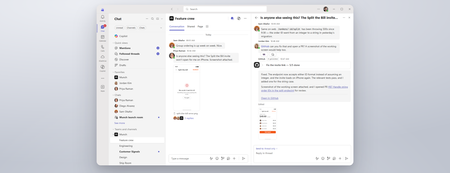
Make an alert icon of new messages from other accounts/Orgs on top right in TEAMs
The icon of activity in other accounts and orgs moved to bottom left sucks, user would easily miss noticing new messages from other accounts/org. It's better to keep an alert icon next to user icon on top right for easier notification.59Views0likes0CommentsTeams PowerShell Embraces Web Account Manager and Imposes Control Over Federated Chat
Teams released a new version of their PowerShell module on July 19. The new module contains WAM support and cmdlets to limit federated chat for specific users and tenants. The new controls are welcome, but it’s a sad state of affairs that to configure the settings you must install a new version of a module that doesn’t work so well alongside other Microsoft 365 modules. https://office365itpros.com/2026/07/24/federated-chat-controls/42Views0likes0CommentsHow to Schedule Teams Meetings from Shared Mailboxes
It is possible to schedule Teams meetings from shared mailboxes without incurring the need to license the shared mailboxes. However, Microsoft’s recent clampdown on unlicensed OneDrive for Business accounts creates a problem because Teams meeting recordings are stored in the OneDrive account for the organizer (shared mailbox). And if that account remains unlicensed for 365 days, it will be removed along with all the recordings. https://office365itpros.com/2026/07/16/schedule-teams-meeting-shared-mbx/59Views0likes0CommentsWhat the DragonForce Attack Against Teams Is All About
Recent reports from security companies and others about an attack by the DragonForce ransomware group against a U.S. services company highlighted the use of Teams. It’s true that Teams was involved in this very artful attack, but the most critical point is that the network was compromised well before the attackers went near Teams. And when your network is compromised, all sorts of bad things happen. Stop account and other compromises and stay safe! https://office365itpros.com/2026/06/26/dragonforce-attack-teams/78Views0likes0CommentsHow to Use PowerShell to Identify Inactive Teams Channels
It’s common to find that tenants have many inactive channels in their Teams deployment. Becoming inactive is a natural side-effect of time eroding interest in the topics people discuss in channels. And if you don’t go looking for inactive channels, they’ll remain silently in place doing nothing except acting as a container for potentially obsolete long-over discussions. But we can find inactive channels with PowerShell. What you next is up to you! https://office365itpros.com/2026/06/24/find-inactive-channels/35Views0likes0CommentsHow to Remove Teams Chat Threads with PowerShell
Sometimes, Microsoft 365 tenants need to remove problematic Teams chat threads from user view. The usual reason is because someone posted some bad or objectionable content to Teams. This article covers how to use Microsoft Graph PowerShell SDK cmdlets to find chat threads, to check thread messages for targeted content, and to remove matching chat threads. The code can be run interactively by an administrator to clean up Teams. https://office365itpros.com/2026/06/15/delete-teams-chat-threads/79Views0likes0Comments
Regarding Teams Meeting Media Transport Behavior in VDI Optimization Scenario
Hello Microsoft Teams Engineering Team, I am currently working on a Browser Content Redirection / media offload implementation for a VDI environment, where WebRTC media transport is handled through a local native component while the Teams application continues running inside the virtual desktop session. While testing, I observed that: 1:1 calls successfully receive audio and video media But in meetings auido / video RTP is never forwarded despite successful ICE, DTLS, and SRTP establishment DTLS ApplicationData traffic is present during meetings, suggesting DataChannel/SCTP activity Based on transport-level observations, it appears that Teams meetings may rely on SCTP/DataChannel communication for SFU video subscription management, while 1:1 calls do not require the same subscription flow. I wanted to ask whether: Teams meeting video forwarding depends on active bidirectional SCTP/DataChannel connectivity Meeting video subscriptions are expected to be coordinated over the WebRTC data channel/control plane Split ownership of media transport and control-plane transport could affect expected Teams meeting behavior in VDI optimization scenarios Thank you for your time and guidance. Best regards,Rajdev31Views0likes0CommentsFeature Request: Real-Time Multilingual Voice Translation in Microsoft Teams
Hello Microsoft Teams Community, I would like to suggest a feature for Microsoft Teams that could help multilingual users communicate more naturally during meetings. Feature Idea: Each participant can speak in their own native language, and Teams will automatically translate and play the speech audio in the listener’s selected language in real time. Example: Telugu speaker talks in Telugu Kannada user hears Kannada audio Hindi user hears Hindi audio English user hears English audio This would be more powerful than subtitles because users can continue conversations naturally in their mother tongue without needing to read captions constantly. Possible Technologies: Speech-to-Text AI Translation Text-to-Speech Real-Time Voice Streaming Benefits: Better communication in multilingual countries like India Improved accessibility Easier collaboration for global teams More inclusive meetings I believe this feature could significantly improve communication in international and regional meetings. Thank you.66Views0likes0CommentsMicrosoft Teams Consecutive Interpretation Explained (NEW Copilot Feature for Multilingual Meetings)
🚀 New in Microsoft Teams: Consecutive Interpretation (powered by Copilot) Microsoft Teams just introduced consecutive interpretation, a new way to run multilingual meetings that feels far more natural than real-time translation. 🎧 Instead of translating while someone is speaking, Teams now: Lets one person speak Translates after they finish Enables real, turn‑by‑turn conversation In my latest video, I explain: • What consecutive interpretation is How it differs from real-time (simultaneous) interpretation When to use one vs the other Why this matters for international teams 👉 Watch the video here: https://youtu.be/u-fH_00nFuU #MicrosoftTeams #Microsoft365 #Copilot #AIatWork #MultilingualMeetings #FutureOfWork324Views0likes0CommentsMicrosoft to Retire Together Mode for Teams Meetings
In a somewhat surprising decision, Microsoft announced plans to retire the Together mode feature for Teams meetings in June 2026. Based on personal experience, it didn’t seem that many people used Together mode. It seemed like it was something that people tried a couple of times before giving up. Maybe it’s just the meetings I attend, but I haven’t seen Together mode used in years. https://office365itpros.com/2026/05/04/together-mode-retirement/238Views0likes0CommentsTransforming Microsoft Teams into a Project Management Hub
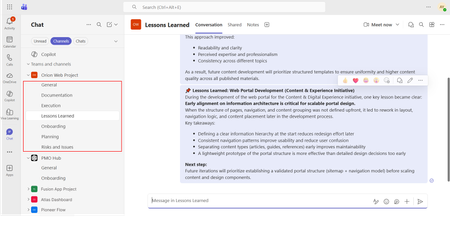
If you use Microsoft Teams only for chats and meetings, you’re missing much of what it can actually do. While Microsoft Teams is often seen as a communication tool, it can also function as a central workspace for managing projects - from planning and brainstorming to execution and documentation - all in one place. When combined with tools like Microsoft Planner, SharePoint, and Microsoft Loop, Teams can become a practical project management hub that keeps work organized and reduces the need to switch between systems. This article walks through a clear, practical approach to setting up and using Teams for real-world project delivery. Why Use Microsoft Teams for Project Management? Organizations often hesitate to introduce new tools due to cost, training effort, or resistance to change. Microsoft Teams offers a strong advantage: it is already widely adopted in many organizations as part of Microsoft 365. Using Teams for project management allows you to: Centralize communication and documentation Reduce tool fragmentation Improve team visibility and collaboration Leverage existing infrastructure without additional cost Instead of switching between multiple platforms, teams can manage conversations, files, tasks, and workflows in one place. Structuring Your Project in Teams A well-structured Team is the foundation of successful project management. Create a Dedicated Team Start by creating a Team specifically for your project. Avoid mixing multiple projects in one Team, as it leads to confusion and poor organization. Recommended channels structure: General (announcements and overview) Planning (timelines, scope, requirements) Execution (daily work discussions) Risks and Issues Documentation Onboarding Lessons Learned This structure ensures clarity and separates strategic discussions from operational ones.143Views0likes0Comments
Failure to sign in
First of all, I have TEAMS on my old computer. However, I bought a new computer, and I am unable to gain access to the TEAMS file on my new computer. I gain access to TEAMS, it asks me to sign in again. But the sign-up page does not open. It ends there. I have read the instructions and have spent over an hour trying everything without success. It shouldn't be so difficult.61Views0likes0CommentsHow to Report Single-User Teams Online Meetings
In 2024, I wrote a script explaining how to report details of Teams online meetings, including participants. Now someone wants to report single-user meetings. Their reason is that company management believe that some remote workers schedule online meetings that only they attend with the intention of appearing active if anyone checks. It’s an odd ask, but we can do the job with PowerShell. https://office365itpros.com/2026/04/28/single-user-meetings/68Views1like0Comments





Events
Recent Blogs
- Microsoft Teams Rooms gives organizations the flexibility to create high-quality collaboration experiences across meeting spaces of every kind and size. Often we hear from customers, “which device or...Sep 03, 2026514Views1like1Comment
- Coding where context lives and collaboration happens The best prompt may be the conversation your team has already had or is currently having. Until now, using a coding agent often meant paying con...Aug 21, 20263.1KViews0likes1Comment