Recent Discussions
The Great Loop Departed User Process
When employees leave a Microsoft 365 tenant, they might leave a user-owned Loop workspace behind which contains some valuable information that the organization wants to retain. Two years or so after announcing that a workflow to handle user-owned workspaces was coming, Microsoft is rolling out the update to tenants worldwide. The process is manual, but not much automation is possible to review and preserve workspace content. https://office365itpros.com/2026/06/04/user-owned-loop-workspaces/7Views0likes0Comments
Excel 365: Unexpected Predictive Behaviour Causing Retroactive Cell Changes in Structured Dataset
Hi everyone, I’m posting this to share an unusual and potentially important issue I encountered in Excel 365 this morning. I’ve already submitted a detailed report to Microsoft via the Feedback Hub, but I felt it would be useful to document it here for visibility and to see whether anyone else has experienced something similar. While entering data into a structured table (a parts‑catalogue workbook), Excel began exhibiting behaviour that did not match Flash Fill, AutoFill, or the standard predictive typing feature. Specifically: Grey predictive text appeared beyond the cursor and extended into cells below the active cell Excel began rewriting previously validated cells in the same column Each time I pressed Enter, Excel updated earlier rows based on its latest inferred pattern Attempts to correct earlier rows caused further cascading changes Undo did not revert all changes The behaviour resembled an AI‑style inference engine trying to “learn” my pattern, becoming progressively more confused This was not the normal predictive typing behaviour (which only shows grey text inside the active cell and does not affect other cells). The behaviour stopped only after I clicked the Flash Fill button twice, which suggests an internal state reset. I’m not seeing the issue now, and other workbooks behaved normally, so this appears to have been a transient internal mode rather than a persistent setting. I’m sharing this here because: it caused silent data corruption in a structured dataset it may indicate an experimental feature or feature‑flag activation others working with structured data may want to be aware I’d be interested to know if anyone else has seen similar behaviour If helpful, I can provide the reproduction steps, screenshots, and the engineering‑style report I submitted to Microsoft. Thanks, John15Views0likes0Comments
Series fill a formula down a column automatically skipping a set number of rows
I am trying to fill a formula down a column every 6th row but incrementing the variable in the formula ($A2) for each entry. The formula uses the Take command and inputs 5 rows of data, so to keep it from "spilling" I need the formula to increment every 6 rows, having one blank row between each section. I have been able to accomplish "copying" it each 6th row with VBA #1 and filling the series with VBA #2 but can't figure out how to combine the two. Any help would be appreciated. VBA #1: Sub FillEvery6thCell() Dim ws As Worksheet Dim startRow As Long, lastRow As Long, col As String Dim formulaText As String Dim r As Long ' Set your sheet and parameters Set ws = ThisWorkbook.Sheets("Top 5 Employees") col = "A" ' Column to fill startRow = 10 ' First row to start filling lastRow = 60000 ' Last row to fill ' Get the formula from the starting cell formulaText = ws.Range(col & startRow).Formula ' Fill every 6th cell For r = startRow + 6 To lastRow Step 6 ws.Range(col & r).Formula = formulaText Next r Range("A2:A60000" & iRow).Replace What:="@", Replacement:="", LookAt:=xlPart, _ SearchOrder:=xlByRows, MatchCase:=False, SearchFormat:=False, _ ReplaceFormat:=False, FormulaVersion:=xlReplaceFormula2 MsgBox "Formula copied to every 6th cell in column " & col End Sub VBA #2 Sub FillFormulasDown() Dim sourceCell As Range Dim fillRange As Range ' Define the cell containing the formula Set sourceCell = Range("A2") ' Define the target range Set fillRange = Range("A2:A5000") ' Fill formulas down sourceCell.AutoFill Destination:=fillRange, Type:=xlFillSeries End Sub46Views0likes3CommentsExcel table not using updated formula in new rows
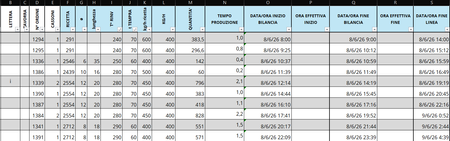
I have an Excel spreadsheet that keeps giving me the same issue with the formulas in column O. Originally, column O contained the following formula: Original formula: =IF(R4<>"", R4, Q4) + IF(ABS(I5-I4) < 30, 25/1440, IF(ABS(I5-I4) <= 50, 40/1440, IF(ABS(I5-I4) <= 150, 60/1440, IF(ABS(I5-I4) <= 250, 80/1440, IF(ABS(I5-I4) <= 300, 100/1440))))) The formula has since been updated to: Current formula: =IF(R4<>"", R4, Q4) + IF(ABS(I5-I4) < 30, 25/1440, IF(ABS(I5-I4) <= 50, 40/1440, IF(ABS(I5-I4) <= 150, 60/1440, IF(ABS(I5-I4) <= 250, 80/1440, IF(ABS(I5-I4) <= 300, 100/1440))))) + C5/24 However, whenever I insert a new row, Excel automatically fills it with the original formula instead of the updated one, even though I have been using the updated formula for quite some time now. How can I make Excel recognize and use the updated formula when new rows are inserted?52Views0likes1Comment
Regression in v2605: Subform with overlapping controls breaks timer in unrelated form
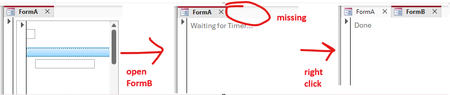
I found another issue (sorry) which might be caused by the zoom-related changes in 2605. The following repro example works fine in 2604 (Monthly Enterprise Channel) but breaks in 2605 (Current Channel). Again, this issue is unrelated to zooming itself. Prepare database The repro requires three forms and a few controls. Since those are tedious to get right manually, I wrote some VBA code to do that for us. Execute BuildRepro() in the Immediate Window to create the forms and controls. Option Compare Database Option Explicit Public Sub BuildRepro() CreateFormASubform CreateFormA CreateFormB End Sub Private Sub CreateFormASubform() Dim frm As Form Dim ctl As Control Set frm = CreateForm() Set ctl = CreateControl(frm.Name, acTextBox, acDetail, , , 345, 1140, 1746, 260) ctl.TabStop = False Const textBoxTop = 260 Set ctl = CreateControl(frm.Name, acTextBox, acDetail, , , 56, textBoxTop, 270, 270) ctl.TabStop = False Set ctl = CreateControl(frm.Name, acImage, acDetail, , , 56, 0, 270, 270) Set ctl = CreateControl(frm.Name, acCommandButton, acDetail, , , 60, 795, 5895, 260) SaveAndClose frm, "FormA_Subform" End Sub Private Sub CreateFormA() Dim frm As Form Dim ctl As Control Set frm = CreateForm() Set ctl = CreateControl(frm.Name, acSubform, acDetail, , , 100, 100, 3000, 3000) ctl.SourceObject = "FormA_Subform" SaveAndClose frm, "FormA" End Sub Private Sub CreateFormB() Dim frm As Form Dim ctl As Control Set frm = CreateForm() frm.TimerInterval = 1 Set ctl = CreateControl(frm.Name, acLabel, acDetail, , , 100, 100, 5000, 1000) ctl.Name = "my_label" ctl.Caption = "Waiting for Timer..." frm.HasModule = True frm.Module.InsertText _ "Private Sub Form_Timer()" & vbCrLf & _ " Me.TimerInterval = 0" & vbCrLf & _ " Me.my_label.Caption = ""Done""" & vbCrLf & _ "End Sub" frm.OnTimer = "[Event Procedure]" SaveAndClose frm, "FormB" End Sub Private Sub SaveAndClose(ByVal frm As Form, ByVal newname As String) Dim oldname As String oldname = frm.Name DoCmd.Save acForm, oldname DoCmd.Close acForm, oldname DoCmd.Rename newname, acForm, oldname End Sub Run repro 1. Open FormA. 2. Open FormB (while FormA is still open). Expected result: FormB opens completely, the timer runs and the label reads "Done". Actual result: FormB opens "halfway" (it's visible, but it's tab is still missing, see screenshot below) and the label still shows "Waiting for Timer...". As soon as you right-click anywhere, the form finishes opening and the timer runs, changing the label to "Done". Notes: I tried to make the repro as simple as possible. If you remove one of the controls from FormA_Subform (or enable TabStops), the problem disappears. It might have something to do with overlapping controls: If you change textBoxTop from 260 to 280, so that it no longer overlaps with the image, the problem also disappears. We need the overlapping controls because in our real code the subform is continuous and displays data at different indentation levels (like a treeview).66Views0likes2Commentsneed exchange se for hybrid environment
We have a hybrid Office 365 environment with an Exchange Server 2016 that no longer performs any role. It does not host any mailboxes and is not used as an SMTP relay. We would like to keep an Exchange installation solely for administrative purposes through the GUI. Questions: 1. Can we keep Exchange Server 2016 installed? 2. If we need to install Exchange Server Subscription Edition (SE), do we need licenses for this installation, considering that all our Office 365 licenses are Business licenses? Thank you.28Views0likes1CommentMicrosoft Launches Container Management Support for Security Groups
A recent blog from the Microsoft Digital (IT department) discusses the preview implementation of container management labels for security groups. The implementation is limited because it encompasses just one control: the ability to have guest accounts in the membership of security groups. However, just that limited control is sufficient to stop unintended access to sensitive information by guest accounts, and that’s a very good thing. https://office365itpros.com/2026/06/03/security-groups-labels/
Text get cut off on page switch if table spans across pages
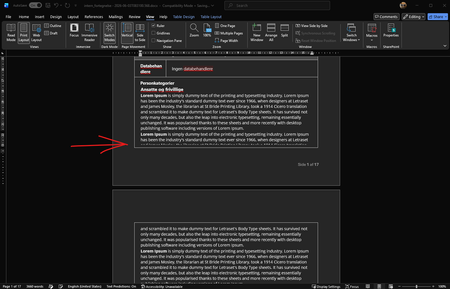
I have some code that creates a docx document that includes tables. At first i used some other code that could create doc files, through html, but to update it i now use docx instead, which is build differently. But the problem Im facing after the switch is that text gets cut off through the middle when the table spans across a page. See screenshot below. The only thing I've found to work, is if i change the table theme when the document is opened in word, but I cant find a way to do this via xml. It is also worth noting that the document is generated via code, that creates a html file holding the main content, and loaded via the <altChunk> tag in the xml If i upload the document to word online there is however no issue I've tried lots of things in the xml which is used in the docx generation, like padding, spacing, line-height etc. but haven't found anything yet that works, and at this point im out of ideas, hence why i reach out to the community.45Views0likes2Comments
vlookup error
i used vlookup in my spreadsheet, but doesnt work ... case: i have a column a of 151 vehicle number , now i have to find principal outstanding from two column b & c table containing 196 vehicle number with principal outstanding , as i insert formula of =vlookup(a1,b1:c196,2,false) and it gives the desired result but then the problem occurs whhen i drageed formula, the dragged formula also dragged the table_array cell (like in a9,b9:c207,false), and when the vehicle number is store before the table_array it shows #N/A, i.e. if a9 contain vehicle number x and if x is at b4, then formula doesnt work... pl help26Views0likes1Comment
Employee performance management tools in Microsoft 365?
So we are a relatively large organization and in drastic move, we've decided to shift from Google Workspace to Microsoft, primarily centering our employees around Microsoft Teams while trying to encourage them to use Copilot as effectively as possible. In this transition, one of the platforms we will be saying goodbye to will be our performance management software. Are there any Microsoft native performance management tools that can help us go through goal-setting, performance reviews, and feedback? Third party suggestions would also be good but only if they fit into the whole Microsoft workflow well.13Views0likes1Comment
Access selecting specific date on a calendar
I'm pulling my hair out because everything I've found through my research says my VBA code should work, but it doesn't! Here's the story. I have a calendar (form) that shows events going on for each month. What I want is for a person to click on a specific day and have a pop-up form appear showing more details of the events for whatever day they clicked on. I used the below code, which mostly works... When I click on a date, the month and year will be correct, but not the day of the month. The day of the month is always today's day. For example, let's say I click on the day Feb. 2, 2024 and today's date is May 21, 2026. My pop-up form will show the events for Feb. 21, 2024. This is the code I have: Private Sub lblTue3_Click() Dim txtSelectDate As Date (probably don't need this) Dim iDayOfMonth As Integer Dim iMonth As Integer Dim iYear As Integer Dim dSelectDate as Date iDayOfMonth= Format(Me.txtSelectDate.Value, "d") iMonth = Format(Me.txtSelectDate, "mm") iYear = Format(Me.txtSelectDate, "yyyy") dSelectDate = CDate(iMonth & "/" & iDayOfMonth & "/" & iYear) DoCmd.OpenForm "frmThatContainsMyData", acNormal, , "[DateOnFormUsedForFilter]=#" & dSelectDate & "#", , acDialog Update: I think I figured out where the problem is. When the calendar form is loaded, that's where txtSelectDate is defined. However, I don't know how to define txtSelectDate to whatever date I click on in the calendar. It defaults to today's date when I load the form. When I change the month or year, those number change in the txtSelectDate box, but not the day. This is the code I currently have. (DisplayMonthName displays the month and year; don't think it's part of my issue) Private Sub Form_Load() Me.txtSelectDate = Date Call DisplayMonthName End Sub Any help is greatly appreciated!177Views1like11CommentsIs Office 365 E3 Developer free
Hi, My tenant had a license named "Office 365 E3 Developer" which allowed us to use Outlook / Exchange (among other Microsoft Office products). This license isn't from the Microsoft 365 Developer Program, which come with free licenses. This license costed CA$11.60 a month per user when we initially purchased it. On May 2, 2026 it still costs $11.60, but when I received my monthly invoice for this tenant, this license was free. I searched around to see whether this license became free recently, but I couldn't find any info on this. The links I found all say it's a paid license. I was wondering if there's any info on this to see why it became free? Or is it a mistake and Microsoft'll be charging us the next billing cycle? Jason27Views0likes1Comment
Error on regression analysis
Hello everyone, I want to perform a regression analysis on my survey data, but I keep getting this error message: “Regression - The RGP() function returns an error value. Check the input ranges.” I’ve since figured out that it’s due to a specific row, but I couldn’t find any incorrect numbers, letters, or anything else in it that would trigger this message. Does anyone know what might be causing this and how I can fix the problem? Thanks in advance!22Views0likes0Comments
Word/PowerPoint are not suitable replacements for Publisher
I’m writing following the guidance that Word and PowerPoint can be used as replacements for Publisher. This feedback is based on completing a real production document, not theoretical use Having just completed a fairly complex, layout-heavy technical document, I thought it only fair to share how that works in practice. In theory, I can see the logic: Word handles documents PowerPoint handles layouts Therefore, between the two, everything should be covered Unfortunately, in reality, this appears to be more of a theoretical exercise than a practical solution. Publisher was clearly designed for: Fixed, page-based layouts Precise positioning of objects Efficient alignment of mixed content (text, images, tables) Producing consistent, professional multi-page documents By comparison: Word is admirably committed to reminding you that it would prefer everything to flow freely, regardless of whether you want it to or not PowerPoint, while better behaved, does seem to assume every page is a standalone slide rather than part of a structured document Both tools can, with enough persistence, be persuaded into doing the job. However, this involves a level of manual intervention, workaround, and general negotiation with the software that feels somewhat at odds with modern productivity software. To put it simply: They are not replacements in any meaningful, real-world sense. The end result can be achieved, but the process is unnecessarily time-consuming, fragile, and prone to unexpected layout changes—particularly when precision actually matters. Replacing a purpose-built publishing tool with two applications that were never designed for that role gives the impression that this use case has been… optimistically simplified. I would strongly encourage Microsoft to either: Provide a genuine page-layout solution within the Office suite, or Enhance existing applications so they can support fixed-layout publishing without constant workarounds At present, the gap left by Publisher is very noticeable for anyone producing structured documents beyond basic text. I appreciate the direction of Microsoft 365 overall, but in this particular area, the experience feels less like an evolution and more like working around a missing tool. Regards Andy11Views0likes0CommentsTaken over MS365 tenant, failed payment stuck
Hi all, I have taken over an MS365 tenant for a customer that took over another company. This was a tenant managed by an MSP, but they canceled the relationship. So I tried to purchase a Business Premium subscription for one month and couple it to my admin account, so that I can decoupled some devices from Intune, and also reinstate 1 or 2 accounts for the time being. I added a new billing profile (I could not add a billing account) while ordering from Microsoft directly. However the payment failed, there were 3 attempts in very quick succession. Probably because my card setting were too strict. So I switched the payment method to another card after this. However since then I have one product under "Your products" with the label "failed", the errors it gives: "We weren't able to create a subscription for one of your products. Update the selected filters and choose subscription status Failed to view the product in the list below." Clicking the product just shows "subscription failed". It does show renews on 1-7-2026. So it is expiring? How can I retry the payment? Unfortunately all support options keep pointing to the previous tenant owner so I'm posting here. So I'm trying here. I've been at this for way too long already.42Views0likes1CommentEquation editor renders properly on screen but does not print properly
For multiple people at my workplace, on both their home and work computers, Equation Editor expressions are often not printing properly, either to pdf or to physical printers. On screen, everything shows correctly. It's especially frustrating because equations are partially rendered -- cos x will be printed as co , a polynomial expression will be missing the last term, etc. -- which means that the errors don't jump out in a quick look at the printout or pdf. As far as we can tell, the longer you wait after opening the document in Word, the more renders properly, but there are no guarantees, and there are often a great many errors on a one- or two-page sheet with lots of formulas. I didn't see this problem before this last year or so. We are using version: Word for Microsoft 365 MSO (Version 2604 Build 16.0.19929.20164) 64-bit10Views0likes0Commentssort by column then by numbers in a row
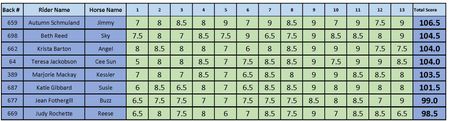
HI all I have a table of results pictured here. Once the results are in, I sort the table by the Total Score Column. When we have a tie (as in line 3 & 4, I need to sort by who has the most highest score... so, who has the most 9 (equal here), then by most 8.5 (line 4 wins the tiebreaker, 4 over 2) Can I do this so it doesn't affect the order of the columns but just the rows involved.199Views0likes7CommentsExcel Find / Command-F crashing on Mac Tahoe (Office 2019 / Excel 16.78) – anyone else?
Excel Find / Command-F crashing on Mac Tahoe (Office 2019 / Excel 16.78) – anyone else? Mac mini + Tahoe 26.5. Excel 16.78 (Office Home & Student 2019). Problem started after recent Tahoe update. Classic Find is behaving badly and often crashes Excel. Workflow: click/select a column Edit → Find → Find… or Command-F search for text or email fragments (ex: "kristin" or part of an email) Excel may crash or Find becomes unusable Things already tried: full Excel reinstall blank workbook test new macOS test user Office container reset / plist tests preference resets same Tahoe version confirmed Upper-right Microsoft Search appears, but that is not equivalent to classic worksheet Find for email-column workflow. Question: Is this a known Tahoe / Excel 16.78 Find bug or Search-routing issue? Has anyone fixed this or seen it resolved with a newer Excel build or update?30Views1like1CommentCannot install addins
I am a Microsoft 365 Personal user. When I try to add the Claude for Excel Addin (for the Desktop version of Excel), I get an error: "Error loading add-ins. One or more add-ins failed to load. See your add-ins.". However, this is not specific to the Claude addin, since every addin gives the same error. When I click on the My-Addins option and then "refresh", I get another error: "Access denied to catalog." Signing in and out of Office does not fix the issue. Clearing the Office 365 cache did not fix the problem. The issue extends to Powerpoint and Word as well. I cannot add any addins to the web versions of Office either. Interestingly, if I download an XML manifest file, I can use the "Manage my addins" option in the web versions of Office 365 to manually add the addins. But still no luck with the Desktop versions. Anyone have any thoughts on how to fix this? Do I need to manually reinstall Office 365? I also noticed that the "Get Add-ins" button in "Account" settings is disabled.80Views0likes1Comment

Events
Recent Blogs
- Bug Name Issue Fixed Edge Browser Control didn't render PDFs on some machines When the Edge Browser Control was used to display a PDF, on some machines the PDF would not render...Jun 03, 2026143Views2likes1Comment
- One of the biggest barriers to enterprise adoption is the lack of centralized controls. Before deploying an agent broadly, organizations need clear answers: What is this agent allowed to do? What dat...Jun 02, 2026607Views1like0Comments