bug
10 Topics
August 2026 RDP font display glitch
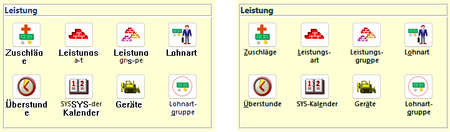
In the last days, we have received two independent reports of font display problems in our MS Access based application. The symptoms are as follows: Some labels or text boxes are shown in a legacy system font instead of the font specified in the control (Segoe UI). Also, the label/text box is shown with a white background instead of transparent. Moving the Access window "fixes" the glitch. It happens at seemingly random places in our application at seemingly random times. Both reports have in common that the Access application is running inside an RDP session. In report 1, a work-from-home user used Remote Desktop to connect to their office Windows 11 PC, and, in report 2, a user executed the application on a Windows Terminal Server. Here are a few screenshots to illustrate the problem. The left side is the glitch, the right side is how it is supposed to look. The first row shows labels, the second row text boxes in a continuous subform. Report 1 is 16.0.20228.20186, 32 bit, M365 SAEC. Report 2 is 16.0.14334.20848, 32 bit, Office 2021 LTSC. Is this a known issue, or shall we continue to collect data about this glitch? Unfortunately, we haven't found a reliable way to reproduce it, so our ability to test it with different versions is limited.Solved1.3KViews0likes5CommentsRegression in v2605: Subform with overlapping controls breaks timer in unrelated form
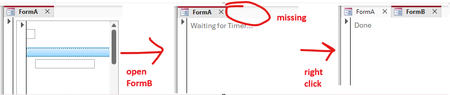
I found another issue (sorry) which might be caused by the zoom-related changes in 2605. The following repro example works fine in 2604 (Monthly Enterprise Channel) but breaks in 2605 (Current Channel). Again, this issue is unrelated to zooming itself. Prepare database The repro requires three forms and a few controls. Since those are tedious to get right manually, I wrote some VBA code to do that for us. Execute BuildRepro() in the Immediate Window to create the forms and controls. Option Compare Database Option Explicit Public Sub BuildRepro() CreateFormASubform CreateFormA CreateFormB End Sub Private Sub CreateFormASubform() Dim frm As Form Dim ctl As Control Set frm = CreateForm() Set ctl = CreateControl(frm.Name, acTextBox, acDetail, , , 345, 1140, 1746, 260) ctl.TabStop = False Const textBoxTop = 260 Set ctl = CreateControl(frm.Name, acTextBox, acDetail, , , 56, textBoxTop, 270, 270) ctl.TabStop = False Set ctl = CreateControl(frm.Name, acImage, acDetail, , , 56, 0, 270, 270) Set ctl = CreateControl(frm.Name, acCommandButton, acDetail, , , 60, 795, 5895, 260) SaveAndClose frm, "FormA_Subform" End Sub Private Sub CreateFormA() Dim frm As Form Dim ctl As Control Set frm = CreateForm() Set ctl = CreateControl(frm.Name, acSubform, acDetail, , , 100, 100, 3000, 3000) ctl.SourceObject = "FormA_Subform" SaveAndClose frm, "FormA" End Sub Private Sub CreateFormB() Dim frm As Form Dim ctl As Control Set frm = CreateForm() frm.TimerInterval = 1 Set ctl = CreateControl(frm.Name, acLabel, acDetail, , , 100, 100, 5000, 1000) ctl.Name = "my_label" ctl.Caption = "Waiting for Timer..." frm.HasModule = True frm.Module.InsertText _ "Private Sub Form_Timer()" & vbCrLf & _ " Me.TimerInterval = 0" & vbCrLf & _ " Me.my_label.Caption = ""Done""" & vbCrLf & _ "End Sub" frm.OnTimer = "[Event Procedure]" SaveAndClose frm, "FormB" End Sub Private Sub SaveAndClose(ByVal frm As Form, ByVal newname As String) Dim oldname As String oldname = frm.Name DoCmd.Save acForm, oldname DoCmd.Close acForm, oldname DoCmd.Rename newname, acForm, oldname End Sub Run repro 1. Open FormA. 2. Open FormB (while FormA is still open). Expected result: FormB opens completely, the timer runs and the label reads "Done". Actual result: FormB opens "halfway" (it's visible, but it's tab is still missing, see screenshot below) and the label still shows "Waiting for Timer...". As soon as you right-click anywhere, the form finishes opening and the timer runs, changing the label to "Done". Notes: I tried to make the repro as simple as possible. If you remove one of the controls from FormA_Subform (or enable TabStops), the problem disappears. It might have something to do with overlapping controls: If you change textBoxTop from 260 to 280, so that it no longer overlaps with the image, the problem also disappears. We need the overlapping controls because in our real code the subform is continuous and displays data at different indentation levels (like a treeview).722Views0likes9CommentsTab header font issue when the "new zoom" feature is enabled
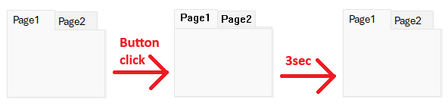
We found a curious font display issue, which can only be reproduced if the "new zoom" feature flag is active: We can reproduce it with build 20026.20076 with the zoom slider visible (e.g. in the "Current Channel (Preview)"), but we cannot reproduce it on the same build with the zoom slider invisible (e.g. on a freshly updated system in the Current Channel, which has not received the staged rollout yet) or with older builds (e.g. the current Monthly Channel build). The problem itself is unrelated to zooming. Repro 1. Create a new Access database. 2. Create a new form in Design View. 3. Add a Tab Control. 4. Set the tab control's "Use Theme" property to "No". 5. Add a button with the following code: Private Sub Command3_Click() Dim start As Double ' Localize the page name, if you use a non-English version of Access Me.Page2.Visible = True ' Simulate long-running operation (3 seconds) start = Timer Do Until Timer > start + 3: Loop End Sub 6. Save and open the form in Form View. 7. Click the button. Expected result: Nothing happens for 3 seconds. Actual result: The tab header's font switches to some old raster system font (MS Sans Serif?). After 3 seconds, the form returns to the 21st century. This issue is easy to work around: just do the long-running operation before setting the Visibility property, this will reduce the font-change to a short flicker. Still, this appears to be an unintended side effect of the changes made for the "new zoom" feature, so I thought it might be helpful to report it while that feature is still being worked on.Solved168Views0likes2CommentsOffice v2508 feature update (new vbe7.dll) breaks library compatibility with LTSC VL versions
Since the Jan 2026 updates, some `accde` or `mde` libraries built with the semi-annual enterprise channel (v2508, Build 19127.20484) can no longer be used with the volume-licensed version of Office LTSC (tested with the Jan 2026 release of Office 2024 LTSC VL, v2408, Build 17932.20638). The reason for this seems obvious: The v2508 feature update contains an updated vbe7.dll. Apparently, this change is backwards-compatible (code compiled with the old dll will run with the new dll) but not completely forwards-compatible (code compiled with the new dll might not run with the old dll, even if the new RegExp class is not used). That's a problem for us. We can't just tell our customers to upgrade, because those with an Office 2024 LTSC volume license already use the latest version available to them. Does Microsoft consider this a bug or "by design"? If the latter, what is Microsoft's recommendation for software vendors who want to build software that runs on all currently-supported versions of Access? We currently plan to work around this issue by installing v2502 of the semi-annual enterprise channel on our "build VMs" (32 and 64 bit) and use those to build our software. (Reverting dev machines to an old Office version is not an option for obvious security reasons.) Repro On a PC with v2508 or newer: 1. Create a new mylibrary.accdb with a module with the following code: Public Function GetColorCode() As Long GetColorCode = vbRed End Function 2. File/Save as/Create accde. 3. Copy mylibrary.accde to a PC with v2507 or older (for example, with the current version of Office 2024 LTSC volume license). On a PC with v2507 or older: 4. Create a new database. 5. Create/Module/Tools/References 6. Add a reference to mylibrary.accde 7. Add the following code to the module: Sub Test() Debug.Print GetColorCode() End Sub 8. Debug/Compile Expected result: The database compiles. Actual result: "Compile error: Can't find project or library". The "references" window opens automatically and highlights "mylibrary". Notes We are not library developers, but we are still impacted by this issue, since the software we ship consists of a (modifiable) startup mdb referencing an (unmodifiable) mde containing the business logic. If you want to try to reproduce this issue but don't have a volume license of Office 2024 LTSC lying around (we certainly don't), you can install a trial version with the Office Deployment Tool and the following configuration file: <Configuration> <Add OfficeClientEdition="64" Channel="PerpetualVL2024"> <Product ID="ProPlus2024Volume"> <Language ID="en-us" /> </Product> </Add> </Configuration>811Views0likes5CommentsThe return of the performance leak - this time with subreports
Anyone remember the v2405 bug that caused loading and closing forms to become slower over time? We found something similar in the current release (tested with semi-annual 2508 (19127.20484)), just with sub reports instead of forms. Here are the repro instructions: Repro instructions Table 1. Create a "numbers" table with a PK field "nr" (Long Integer). 2. Fill it with the numbers from 1 to 100: Dim i For i = 1 To 100 CurrentDb.Execute "INSERT INTO numbers (nr) VALUES (" & i & ")" Next i Sub report 3. Create a new empty report in design view, using the "numbers" table as the record source. 4. In the detail section, add two text boxes "Text1" and "Text2" next to each other, both with the "nr" field as their control source. 5. Reduce the size of the detail section to one "row", containing just the two text boxes. Remove the page header/footer. 6. Add an Format event handler to the detail section with the following content: Me.Text2.Visible = False 7. Save the report as "sub". Main report 8. Create another report "main", which contains nothing but the "sub" report as a subreport in its detail section. Set the record source of "main" to "SELECT * FROM numbers WHERE nr <= 10" Reproduce problem 9. Create the following method in a module: Sub report_loop() Dim i As Long Dim start_time As Single Dim report_name As String Dim path As String report_name = "main" For i = 1 To 40 path = Environ("Temp") & "\testreport.pdf" start_time = Timer DoCmd.OpenReport report_name, acViewPreview DoCmd.OutputTo acOutputReport, report_name, acFormatPDF, path DoCmd.Close acReport, report_name Debug.Print Timer - start_time Next End Sub 10. Run report_loop. Observe that each report export gets slower and slower. Analysis Compare the first and last number in the immediate window: on my machine it's 0.4s for the first report and 2.3s for the last. Note that if you run report_loop again, it will start slow! In other words, each report export causes MS Access to "leak performance" that is only regained after restarting Access. We were able to reproduce this issue with Microsoft 365 semi-annual channel, Version 2508 (19127.20484). I'll do more tests tomorrow and try different older versions to find out when this bug was introduced. Workarounds If you move the visibility code from the Format event to the Print event, the problem still occurs, but slower (0.4s -> 0.72s instead of 0.4s -> 2.3s). The workaround that worked for us was to use =IIf(...) in the control source instead of modifying the visibility. Obviously, that only works for text boxes, not for lines or other controls.311Views1like6Comments
Incorrect closing of the Split arrangement feature
Hi, I often refer to other parts of my document, and for that I enjoy using the Split view feature, to see different parts of my document at once. This feature has a clever function, which automatically chooses which one of the views to close, and which one to expand, based on which was last interacted with. Issue is, this feature works the other way around, always closing the window which I was working in, forcing me to find that place again by scrolling. I tried looking around the internet and I believe this is a bug (with a rather simple solution). If it could be fixed, I'd be grateful, thanks.213Views0likes3CommentsNewest Office365 word update damages tables
In newest Office365 Word table (one column) in table (many columns) with fixed width does not work. It works as "Adjust by content" even if I enforce fixed width. If document was correct, and you open with a new Word and save it - document becomes damaged. If you open with old word - it opens and saves as expected. Problem is that all Office365 became updated this week, and we can not fid how to revert to old version. This is critical issue - all words templates becomes damaged after saving. Is there any workaround to fix this issue?2.9KViews5likes12CommentsAn obscure (low-severity) bug involving AutoKeys, MouseMove and RunCommand
Setup 1. Create a new database. 2. Create a new module with the following content: Function myPaste() DoCmd.RunCommand acCmdPaste End Function and save it as "Module1". 3. Create a new macro with the following content: Submacro: ^b RunCode =myPaste() and save it as "AutoKeys". 4. Create a new Form with - a text box "Text0" and - a button "myButton" and save it as "Form1". 5. Add two event handlers ([Event Procedure]) to myButton with the following code: Private Sub myButton_Click() Text0.SetFocus DoCmd.OpenForm "Form2" End Sub Private Sub myButton_MouseMove(Button As Integer, Shift As Integer, X As Single, Y As Single) ' Deliberately empty End Sub 6. Create a new Form with - a text box "Text0" and save it as "Form2". Repro Copy text into the clipboard (for example, the word "test"). Open Form1. Click on the button. Don't do anything after clicking the button. In particular, do not move the mouse for a few seconds (so that it still hovers over the space where the button was while the new form opens). Hit Ctrl-b Expected result Text0 in Form2 now contains the content of the clipboard. Actual result Text0 in Form1 now contains the content of the clipboard. Notes This bug is more of a curiosity than a real problem. It can be reproduced with the current channel of Microsoft 365 (v2409, 18025.20160) and with various older versions of 365, but not with Access 2007, so it was probably introduced at some time during the last 17 years. There are more important bugs to fix in Access, so it's probably not worth investing more time in it, but I still felt the need to document this issue. On workaround to prevent the bug from happening is to add an (empty) KeyDown handler to either Text0 in Form2 or, after enabling Key Preview, to Form2 itself. The MouseMove event handler on the button is required to reproduce the bug. We discovered this issue because our applications use a "Ctrl-v" AutoKey that sanitizes the clipboard (replace tabs with spaces, remove unprintable characters, replace line breaks with spaces if the target is a single-line textbox) before executing the paste operation. One might assume that Text0.SetFocus is part of the problem, but it isn't. It just helps to demonstrate the issue. If you remove it, Access will try to paste the text on the button in Form1 instead of the text box in Form2.209Views0likes0Comments
Remove space after Chapter number in ToC and Navigation Headings
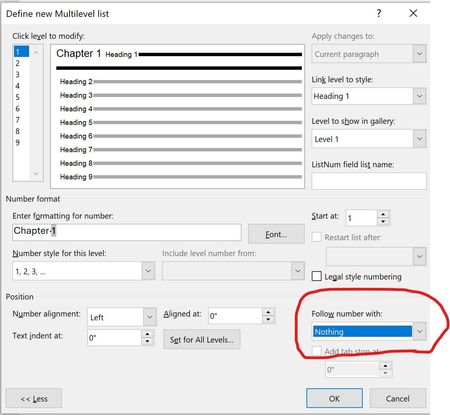
I define a "Multilevel list" for automatic chapter numbering that does not follow the number with a space, like this: That setting does apply to Heading 1 text, but it is not incorporated into the Table of Contents or Navigation Headings: As shown in the following screenshot (yellow highlighting), both of those still insert a space after the Chapter number: How can I get at least the ToC to not insert a space after the Chapter number? Ideally how can I get the Navigation pane to respect the setting also?1.2KViews0likes4Comments
MS Office 365 ProPlus - Excell: Scroll Bug.
Hi there. As i was creating my University Lectures Schedule, i noticed a Bug that happens when you're inside a Cell with Edit Mode; if it happens that you've changed some content text, and attempt to Scroll in the Sheet either by Clicking the Scroll Bar, or using the Mouse Wheel, then the content of the Cell will return back to its previous text for like 200ms, and then return back to normal. I've included a video recording of the bug with this message for you to check. Product Info.: Microsoft Office 365 ProPlus - Excell, Version 1808 (Build 10730.20127), 32-bit. on: Windows 10 Home.1.2KViews0likes0Comments