Recent Discussions
Invitation to March 9 Frontier Transformation event
Join us for a special event with Jared Spataro, Charles Lamanna, and Sumit Chauhan to learn how Microsoft delivers AI built for work. The live stream starts at 8 AM Pacific Time on March 9. aka.ms/MicrosoftFrontierTransformation20266Views0likes0Comments
Conditional Formatting or a Specific Filter Rule
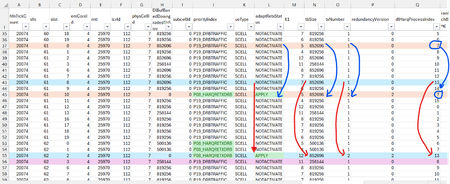
Dear Experts , I have a data like below:- here the Column-O, txNumber can go from 1,2,3 (txNum=2 and 3 means a Retransmission), I want to filter all the pairs for all Transmissions and their corresponding Retransmissions ( either by coloring them all using a conditional formatting) or using a specific filter Rule. How to identify the Transmission and it's corresponding Retransmission for a Specific HarqId( say for dlHarqProcessIndex ==7, the blue color Row-37 is my 1st transmission(txNumber ==1) for the dlHarqProcessIndex==7 with a tbSize of 852696, and adaptRetxStatus == NOTACTIVATE, and it's corresponding 2nd transmission( Retransmission , txNumber==2) Row-45, tbSize remains same(as it's corresponding 1st transmission) in all retransmissions and adaptRetxStatus changes to "APPLY" for all retrans txNumber==2,3) and similarly for other pairs like for dlHarqProcessIndex==13. Attached is the Worksheet.26Views0likes2Comments
Excel Map - One region is recognized but not showing up in color
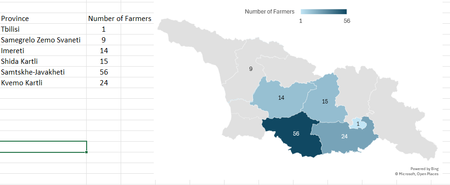
Hi, As shown below, I am trying to map out the number of farmers in our data in each of Georgia's regions. Samegrelo Zemo Svaneti is recognized and the data label appears but the color does not. If I change the map to show only the regions with data, it does show in color but I need the full country map.14Views0likes0Comments
Conditional Formatting a specific word
First post here, so hoping someone can help me. I work for a repair facility. I track our repairs in excel. I have an “order” tab that tracks all the important information for the repairs. I also have an “inventory” tab that shows what parts we have in stock in our inventory. Also on this tab I do a daily data dump of all the parts needed for each order. I use this dump to fill in a “parts needed” column on the repair tab to show what specific parts, based on part name, an order needs to be completed. Is there a way for me to condition the “Parts Needed” cells on the repair tab to highlight the part name if the part shows in stock on the inventory tab? I.E - Repair tab: order 0001 for Jane Doe Started work 1/23/45 needs parts: mouse, keyboard, monitor, hard drive Inventory Tab: Daily parts dump: order 0001 - part needed: mouse order 0001 - part needed: keyboard order 0001 - part needed: monitor order 0001 - part needed: hard drive In stock report: Mouse 10 Keyboard 0 Monitor 0 Hard drive 540Views0likes2CommentsMicrosoft Celebrates SharePoint 25th Anniversary with a Bunch of Announcements
Microsoft celebrated the 25th anniversary of SharePoint with a batch of announcements, including AI in SharePoint, intended to help administrators to manage all aspects of SharePoint Online through natural language. Other interesting announcements included department-level payments for Microsoft 365 Backup and the renaming of the Connections app in Teams as the SharePoint app. Well, the last wasn’t that interesting… https://office365itpros.com/2026/03/03/ai-in-sharepoint/22Views0likes0CommentsSharePoint 2013 Workflow Retirement: What It Means for Your Business
Microsoft has officially entered the final chapter of SharePoint 2013 workflows, and for many organizations, this update is more than just another lifecycle announcement — it’s a wake-up call. The retirement of SharePoint 2013 workflows in SharePoint Online marks a decisive shift away from legacy automation toward modern, cloud-first workflow platforms. For businesses that still rely on approval flows, notifications, and automated processes built years ago, the message is clear: those workflows will stop working, and planning can no longer be postponed. This updated news article explains what the retirement means, what changes technically after the deadline, and — most importantly — how organizations can migrate and modernize their workflows step by step. https://dellenny.com/sharepoint-2013-workflow-retirement-what-it-means-for-your-business/23Views0likes0Comments
Office365 Autoupdate on Mac
Last week I had an issue with Autoupdate on Microsoft365 where OneNote failed to update, other app were fine. I tried selecting just this app and updating it but got a download error. Autoupdate indicates "some apps have encountered errors" and retrying just repeats the download error. I've tried machine based fixes but none have worked and I suspect it's something else as I have a Mac mini and MacBook doing the same along with my wife who has a Mac desktop. The issue is still the same a week on.18Views0likes0Comments
Side load office add-in?
I've created an office.js add-in that I can test with debugging in VS Code. I have deployed it including the manifest to a web site, but now I can't find the option to add it to my Excel anymore, where has that option gone? I'm on Microsoft® Excel® for Microsoft 365 MSO (Version 2602 Build 16.0.19725.20126) 64-bit Thanks GJ40Views0likes1Comment
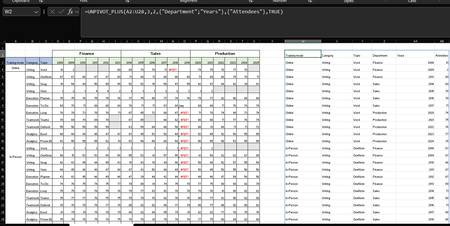
unpivot data and handle merged cells without using Power Query (Unpivot_Toolkit)
Hey, guys!! I’ve been working on a set of functional Excel Lambdas to solve a common headache: transforming "Wide" human-readable data into "Long" database formats without having to open Power Query every time. =UNPIVOT_PLUS(table, [no_of_cols], [no_of_headers], [attribute_names], [value_name], [remove_errors], [remove_blanks],[pad_blanks_with],[pad_errors_with]) Don’t worry about the full list, most use cases only require 5 arguments. I've included a table of default values at the end. Merged Cell Support: Automatically handles fill-down/fill-right logic for merged headers/columns. Bonus Helper: SPLIT_INJECT =SPLIT_INJECT(array, target_indices, delimiter, [ignore_empty], [match_mode], [pad_with]) It targets specific columns, splits them by a delimiter (like TEXTSPLIT), and expands the entire table horizontally while keeping all other columns perfectly stable. Optional arguments match TEXTSPLIT defaults. Feel free to tear this apart or adapt it for your own edge cases. I’d love to hear how you end up using it! You can grab both functions from my GitHub Gist https://gist.github.com/Medohh2120/f8553c149684e39bb499249e39f01017. Argument Description Default Behavior table The array or range of data to unpivot. Required argument (no default) [no_of_cols] Fixed left columns to keep as identifiers. 1 [no_of_headers] Top rows used as headers, handling merged cells. 1 [attribute_names] Header name for the unpivoted attributes . "Attribute" [value_name] Header name for the unpivoted values. "Value" [remove_errors] Excludes grid rows with formula errors. FALSE [remove_blanks] Removes grid empty cells and empty strings. TRUE [pad_blanks_with] Value to substitute for empty cells. Leaves cell blank [pad_errors_with] Value to substitute for errors. Leaves error as-is208Views0likes0Comments
File always corrupt
Anyone have the same problem with me? I use microsoft excel 365 on my mac. At the beginning everything alright, until i use formula and then save the file. When i want to re-open the file, the messagebox showed up "we found something wrong in your content...". It gives 2 option, yes and no. If i click no, the file wont open. If i click yes, the file open, the excel do the recovery, the file open but end up with all the formulas is gone, deleted by excel and just left the value. What should i do? Do the file can still be fixed?55Views0likes3CommentsCopy and Paste Will Not Using the Destination Formatting
I am writing a book in Wood and will submit it to Amazon KDP, and I have set up the document per KDP guidelines. I am working on an English version and a Spanish version at the same time as two separate documents. The text is justified. Both documents have Normal/Modify settings set up exactly the same. The Fonts and Paragraph settings are exactly the same. I have gone into the Options/Advanced area of Word and played with all of the Cut, Copy, and Paste settings to try to fix my problem. But I can't figure out what is going on. I created the Spanish document by using Google Translate to take English paragraphs, translate them, and pasted them into the Spanish document The Spanish document is completed, and all of the formatting looks fine. So I already have paragraphs that are a certain size in the document, meaning they take up a certain number of lines. I am now editing the book using the English document. Something has changed with the Spanish document! If I make a small edit in an English paragraph, use Google Translate to deal with the edit and do a new translation, and then copy and paste that edited Spanish paragraph from Google Translate back into the same place as the original paragraph in the Spanish document, the words are slightly more compressed together, so the paragraph gets shorter! This happens if I even change just a single word in a paragraph, which has not really changed the length of the translation. The paragraph will become shorte by a half of a line, or a full line on long paragraphs. This is all becasue the words are being spaced slightly closer toegether now, versus when I originally crated the document. Also, when I start to do the paste, from Paste Option only get the option for "Keep Text Only." I don't get the multi-paste option box. Something has changed in my setup of Word from the time I created the original Spanish document, and what is happening now. I can't figure out why the formatting of the destination, or using merge formatting, is not working! It's making up it's own jutification spacing all of a sudden. I can't figure out why now a cut and pasted paragraph from Google Translate is making the spread between the words just slightly tighter. The latest thing I tried was Review/Language and choosing Spanish for the Spanish document, and that did not work. Any ideas? Gordon24Views0likes0Comments
Link path update in Word fails for multiple fails in Office 2024
On my old PC i have created an excel file with data. I also have several doc and docx files on Word, that contain many links to the excel file. For each new project i have, I use this files as template and transfer them in a specific way to the new project's folder. Normally on my old PC with win 10 and office 2021 professional, for each of my projects i fill the project data in the excel file. After that I open the excel file, open the first word file and when it asks I click to update links at open. As soon as the update link bar at the bottom taskbar finishes I open the second word file, again update links in it and then the third file and so on. I do not close any files at that moment. After that I go into the opened excel file and click save as - to another location (my new project folder). This triggers in all open word files the system to begin update of all links paths. I wait some time (about 5-10 minutes) the update to finish an the word files to become responsive, and then I click -save as- for every word file and save it as a new file in the new project folder. This way worked for me - I had all the word files with updated links paths, linking to the new excel file for the new project. I moved to a new PC and recently installed windows 11 pro with Office 2024 LTSC. I transferred my word and excel files to a folder with the same name and path. And when i tried to do the same thing to create excel and word files for my new projects, it starts the procedure of updating link paths, but about half of the link paths finally are not updated in my word files! When i try with opening and updating and saving only 1 single word file, it works and updates all the link paths. But with multiple simultaneous word files it fails! I tried everything - trusted locations, different settings, even changing some registry. It was interesting that I managed to get it working 2 times. But immediately after that, without changing anything - it again was not working. I know i can do it manually - for every single link i have to choose the excel file - but imagine this for hundreds of links is too long. I can do it for a single word file, but i have to repeat it and wait for the word to become responsive - again very time consuming. This is not acceptable. I read this has something to do with the Office 2024 has changed the way to deal with links - it was synchronous in 2021 and olde, and now is asynchronous. The system gets something like timeout and does not finish the process or something. My question is how i can fix it? Or is there an option to choose between the two ways Office deals with links? Or is such an option coming out or should be planned for the next releases? This is the main part of my job and really troubles me. Now I am installing 2021 so i can do my job, but I really want to be using latest software and features. I appreciate your help and answers!59Views0likes2Comments
Can't access Microsoft Authenticator for business accounts
Hello. I am the tech support for a small church, where I am the admin for our MS 365 accounts, which are set up as "business accounts". I have been using Microsoft Authenticator for MFA for years. Recently I switched to a new phone and installed Microsoft Authenticator. All of my personal Authenticator accounts transferred over just fine, but all of the church's business accounts say "Scan the QR Code provided by your organization to finish recovering this account". The thing is, I am the "organization" and I don't know how to generate any QR code to recover the accounts. It was suggested that I could do something about this by logging into my Microsoft 365 administrator account, but when I try to log into my admin account, the only MFA option is "enter the code from Microsoft Authenticator". It's not offering a text or alternate email, only Microsoft Authenticator, which is what I'm locked out of. So I'm stuck in a loop. I opened a ticket with Microsoft Support nine days ago. I have received one phone call since then. The support person insisted that they needed to talk to the account's "alternate administrator", which I set up as my pastor, who is pretty computer savvy but not a deep IT person. They tried to call him one time, but he was not available to answer right then. There has been no communication since then. I'm hoping someone in this group can help me figure this out.34Views1like1CommentMicrosoft Teams – “Save this message” feature missing in both Desktop and Web clients
a { text-decoration: none; color: #464feb; } tr th, tr td { border: 1px solid #e6e6e6; } tr th { background-color: #f5f5f5; } Hello, We are experiencing an issue in our Microsoft 365 tenant where the “Save this message” feature in Microsoft Teams is not available, neither in the Teams desktop app nor in Teams Web. Details The feature should be available globally, as Microsoft planned full rollout between August and October 2025 (Microsoft 365 Roadmap ID 496369). This is confirmed in multiple official and community‑published sources. https://m365admin.handsontek.net/microsoft-teams-users-can-save-chats-channel-messages-later/, https://supersimple365.com/teams-save-chats-and-channel-messages-for-later/ Microsoft also stated that no admin controls exist to disable this feature and no configuration is required in the tenant. https://m365admin.handsontek.net/microsoft-teams-users-can-save-chats-channel-messages-later/ Despite this, the option does not appear at all in the message overflow menu (… → More actions) in both: Microsoft Teams Desktop (version 26032.206.4355.6508) Microsoft Teams Web (teams.microsoft.com) Troubleshooting already performed Full cache removal for the new Teams client under: %localappdata%\Packages\MSTeams_8wekyb3d8bbwe\LocalCache Log out / sign‑in cycle Full Teams desktop restart Verification across different clients (desktop + web) Verification from multiple messages and channels49Views0likes1CommentPlanner’s Newly Redesigned Interface
Microsoft has launched a redesigned user interface for the Planner app. The big news is the inclusion of task chat. Goals are also available, but only to people with a Microsoft 365 Copilot or Planner Premium licenses. Task Chat is a nice feature, and I am sure that it will be popular. UX redesigns often disappoint. At least this one offers new features. https://office365itpros.com/2026/02/27/planner-new-ux/30Views0likes0Comments
#Connect Error in Excel for StockHistory Function
Evening, I am an O365 subscriber and am trying to set up an Excel sheet as a VAR template, and I wanted to populate my workbook with some historical data without uploading a CSV. Figured I would try out the StockHistory function. I keep getting "#connect" for my cells, and I am not sure why. I am not in developer mode, do not have any crazy add-ins, I am signed in, and connected to the internet. Do I need to be connected to a source? I am fairly new to learning about the StockHistory Function. Any thoughts on the matter are welcome. I tried all that I could from this site below: https://support.microsoft.com/en-us/office/how-to-correct-a-connect-error-584f7de9-b238-480c-8e8f-de0ba2c1aac949Views0likes1CommentExcel Drag and Fill Handle not working as I would like
I am copying references from one workbook to another for organization. Both Workbooks are organized in tables. Earlier today I was able to filter table 2, by category in Column I, and paste the new Reference code in the correspoding Column M cell. For example I would filter by Column I in Book 2, Table 2, and the copy the reference from book 1, table 1. I would paste the reference into Cell M2. Because I had the filter applied I wanted to apply the reference to the end of the table in column M. So I was able to double click the drag and fill handle, and it would populate the rest of column M below in the table with identical references. Now, when I use the exact same method, double-clicking the drag and fill handle changes th reference entirely to previous reference no longer needed. The only options I have accessed were "Special" trying to clear formulas in other columns while leaving the text. Enable Fill handle and cell drag and drop, and Automatic Flash fill are both enabled. what is causing my issue, and how do I fix it?40Views0likes1Comment





Events

You’re passionate about what you do, and we’re passionate about empowering your potential. Microsoft 365 Community Conference - is your chance to keep up with AI, build game-changing skills, and take...
Tuesday, Apr 21, 2026, 08:00 AM PDTIn-Person
0likes
3Attendees
0Comments
Recent Blogs
- Here's a summary of bug fixes in the latest version of Access: Bug Name Issue Fixed Monaco query editor applied unwanted autoformatting to passthrough queries The Monaco SQL edit...Mar 02, 202671Views0likes0Comments
 As organizations continue to scale Microsoft 365, protecting data has become a technical and operational requirement. Microsoft 365 Backup delivers fast, native recovery for SharePoint, OneDrive, and...Mar 02, 2026265Views1like0Comments