Recent Discussions

Should be easy...... Open a form to a specific record
I have a form with rows showing individual audit for staff members. Each audit would be individualized by an Autonumber ID field. I want the user to be able to click on the ID field, have it close the form, and open another form on that specific record. Both forms are based on the same underlying table. The VBA I'm trying is the following: Private Sub ID_Click() DoCmd.OpenForm "Case_Notes", acNormal, "[ID] = " & Me!ID DoCmd.Close acForm, Me.Name, acSaveNo End Sub It does open the other form, close the form the user is clicking from, but it does not go to the ID number I click. For example, I click on ID 3, and the other form opens on ID 2. Any help would be greatly appreciated! Let me know if you have questions that I haven't clarified.2Views0likes0Comments
Tokyo Stock Exchange data
Does any one know, and can share, a sample excel file that can import updated information (ticker, name, last price, dividend yield, daily high and daily low and analysts average target price) for ~50 stocks traded on the Tokyo stock exchange, which is not covered by Microsoft?20Views0likes1Comment"Method 'Calculation' of object '_Application' failed" error occurs on unpredictable attempts
At random times, this save code decides to spit the "Method 'Calculation' of object '_Application' failed" error. It doesn't happen on any other userforms. Any idea why? Private Sub CommandButton2_Click() 'Save 'Initial: On Error Resume Next Dim rng As Range, cell As Range Dim first_DB_avail_row As Range Dim Highest_Version_Row As Long Dim existingVersions() As String Dim ver_find As Variant Dim ver_list As Object: Set ver_list = CreateObject("System.Collections.ArrayList") 'Use an ArrayList for version sorting Dim padded_list As Object: Set padded_list = CreateObject("System.Collections.ArrayList") 'Create a temporary list for padded versions to ensure order (e.g., 5.1.28 > 5.1.2) Dim v As Variant, parts As Variant Dim padded_v As String, leadChar As String, all_vers As String Dim i As Integer 'Validate entries: If Me.Caption = "First Version - Business Manager" Then 'Adding product - first version If Me.ComboBox1.Value = "" Or Me.TextBox1.Value = "" Or _ Me.TextBox2.Value = "" Or Me.TextBox3.Value = "" Then 'Check if version is not inputted MsgBox "You must complete all fields.", vbExclamation, "Business Manager" GoTo MEM_CLEAN End If Insert_Product.ver_val = stage_entry & Major & Minor & Patch Unload Me Insert_Product.new_product_ver_cancel = False 'Set back to false from the terminate sub setting GoTo MEM_CLEAN End If Call Find_Latest_Ver 'Get the current latest version If stage_entry & Major & Minor & Patch = Highest_Version Then 'Check if version already exists MsgBox "This version already exists (as the newest version).", vbExclamation, "Business Manager" GoTo MEM_CLEAN End If existingVersions = Split(Replace(Me.TextBox4.Value, vbCrLf, ""), "• ") For Each ver_find In existingVersions If Trim(ver_find) = Trim(stage_entry & Major & Minor & Patch) Then MsgBox "This version already exists.", vbExclamation, "Business Manager" GoTo MEM_CLEAN End If Next ver_find If Me.ComboBox1.Value = "" Or Me.TextBox1.Value = "" Or _ Me.TextBox2.Value = "" Or Me.TextBox3.Value = "" Then 'Check if version is not inputted MsgBox "You must complete all fields.", vbExclamation, "Business Manager" GoTo MEM_CLEAN End If Me.Hide 'This will preserve public variables, keeping the form loaded, while still allowing the PLZ_WAIT userForm to display (no modal error) 'Macro Enhancement - Start: Application.Calculation = xlCalculationManual ActiveWorkbook.UpdateRemoteReferences = False Application.EnableEvents = False 'This must be false Application.ScreenUpdating = False Application.Interactive = False Application.DisplayAlerts = False Application.DisplayStatusBar = False PLZ_WAIT.Show PLZ_WAIT.Label2.Caption = "Setting new version" DoEvents 'Allows the PLZ_WAIT userForm to display If Err.Number <> 0 Then 'For some unknown reason, the Excel error "Method 'Calculation' of object '_Application' failed" occurs on unpredictable/unrepeatable attempts to save (sub runs) - cause unknown MsgBox "An Excel error occured (""" & Err.Description & """: " & Err.Number & "). Please try again (until it works).", vbExclamation, "Business Manager" GoTo MEM_CLEAN End If 'Pull data from the latest version: ThisWorkbook.Sheets("Products").Unprotect Password:=ThisWorkbook.Sheets("Background Data").Range("CY39").Value For Each cell In ThisWorkbook.Sheets("Background Data").Range("E4:E7503") If cell.Value = ThisWorkbook.Sheets("Products").Range("E" & Selection.Row).Value Then If cell.Offset(0, -2).Value = Highest_Version Then ThisWorkbook.Sheets("Products").Range("B" & Selection.Row).Value = cell.Offset(0, -3).Value 'Name ThisWorkbook.Sheets("Products").Range("C" & Selection.Row).Value = stage_entry & Major & Minor & Patch 'Product Version ThisWorkbook.Sheets("Products").Range("D" & Selection.Row).Value = cell.Offset(0, -1).Value 'File ThisWorkbook.Sheets("Products").Range("E" & Selection.Row).Value = cell.Value 'ID Number ThisWorkbook.Sheets("Products").Range("F" & Selection.Row).Value = cell.Offset(0, 1).Value 'Category ThisWorkbook.Sheets("Products").Range("G" & Selection.Row).Value = cell.Offset(0, 2).Value 'Details (Description) ThisWorkbook.Sheets("Products").Range("K" & Selection.Row).Value = cell.Offset(0, 6).Value 'Release Date ThisWorkbook.Sheets("Products").Range("L" & Selection.Row).Value = cell.Offset(0, 7).Value 'Copyright Y/N button ThisWorkbook.Sheets("Products").Range("M" & Selection.Row).Value = cell.Offset(0, 8).Value 'Copyright Status ThisWorkbook.Sheets("Products").Range("N" & Selection.Row).Value = cell.Offset(0, 9).Value 'Year ThisWorkbook.Sheets("Products").Range("O" & Selection.Row).Value = cell.Offset(0, 10).Value 'Copyright Statement ThisWorkbook.Sheets("Products").Range("P" & Selection.Row).Value = cell.Offset(0, 11).Value 'Published Y/N button ThisWorkbook.Sheets("Products").Range("Q" & Selection.Row).Value = cell.Offset(0, 12).Value 'Publish Status (Date) ThisWorkbook.Sheets("Products").Range("R" & Selection.Row).Value = cell.Offset(0, 13).Value 'Web Link ThisWorkbook.Sheets("Products").Range("S" & Selection.Row).Value = cell.Offset(0, 14).Value 'Withdraw Date Highest_Version_Row = cell.Row Exit For End If End If Next cell 'Save new version to version database: Set first_DB_avail_row = ThisWorkbook.Sheets("Background Data").Range(ThisWorkbook.Sheets("Background Data").Range("C7506").End(xlUp).Offset(1, 0).Address) first_DB_avail_row.Offset(0, -1).Value = ThisWorkbook.Sheets("Products").Range("B" & Selection.Row).Value 'Name first_DB_avail_row.Value = ThisWorkbook.Sheets("Products").Range("C" & Selection.Row).Value 'Product Version first_DB_avail_row.Offset(0, 1).Value = ThisWorkbook.Sheets("Products").Range("D" & Selection.Row).Value 'File first_DB_avail_row.Offset(0, 2).Value = ThisWorkbook.Sheets("Products").Range("E" & Selection.Row).Value 'ID Number first_DB_avail_row.Offset(0, 3).Value = ThisWorkbook.Sheets("Products").Range("F" & Selection.Row).Value 'Category first_DB_avail_row.Offset(0, 4).Value = ThisWorkbook.Sheets("Products").Range("G" & Selection.Row).Value 'Details (Description) first_DB_avail_row.Offset(0, 8).Value = ThisWorkbook.Sheets("Products").Range("K" & Selection.Row).Value 'Release Date first_DB_avail_row.Offset(0, 9).Value = ThisWorkbook.Sheets("Products").Range("L" & Selection.Row).Value 'Copyright Y/N button first_DB_avail_row.Offset(0, 10).Value = ThisWorkbook.Sheets("Products").Range("M" & Selection.Row).Value 'Copyright Status first_DB_avail_row.Offset(0, 11).Value = ThisWorkbook.Sheets("Products").Range("N" & Selection.Row).Value 'Year first_DB_avail_row.Offset(0, 12).Value = ThisWorkbook.Sheets("Products").Range("O" & Selection.Row).Value 'Copyright Statement first_DB_avail_row.Offset(0, 13).Value = ThisWorkbook.Sheets("Products").Range("P" & Selection.Row).Value 'Published Y/N button first_DB_avail_row.Offset(0, 14).Value = ThisWorkbook.Sheets("Products").Range("Q" & Selection.Row).Value 'Publish Status (Date) first_DB_avail_row.Offset(0, 15).Value = ThisWorkbook.Sheets("Products").Range("R" & Selection.Row).Value 'Web Link first_DB_avail_row.Offset(0, 16).Value = ThisWorkbook.Sheets("Products").Range("S" & Selection.Row).Value 'Withdraw Date 'Save Development Status Data to new version from latest version (copy over): first_DB_avail_row.Offset(0, 17).Value = ThisWorkbook.Sheets("Background Data").Range("T" & Highest_Version_Row).Value 'Title first_DB_avail_row.Offset(0, 18).Value = ThisWorkbook.Sheets("Background Data").Range("U" & Highest_Version_Row).Value 'Tags first_DB_avail_row.Offset(0, 19).Value = ThisWorkbook.Sheets("Background Data").Range("V" & Highest_Version_Row).Value 'Content first_DB_avail_row.Offset(0, 20).Value = ThisWorkbook.Sheets("Background Data").Range("W" & Highest_Version_Row).Value 'Total Tasks first_DB_avail_row.Offset(0, 21).Value = ThisWorkbook.Sheets("Background Data").Range("X" & Highest_Version_Row).Value 'Complete Tasks first_DB_avail_row.Offset(0, 22).Value = ThisWorkbook.Sheets("Background Data").Range("Y" & Highest_Version_Row).Value 'Platform first_DB_avail_row.Offset(0, 23).Value = ThisWorkbook.Sheets("Background Data").Range("Z" & Highest_Version_Row).Value 'Medium first_DB_avail_row.Offset(0, 24).Value = ThisWorkbook.Sheets("Background Data").Range("AA" & Highest_Version_Row).Value 'Framework first_DB_avail_row.Offset(0, 25).Value = ThisWorkbook.Sheets("Background Data").Range("AB" & Highest_Version_Row).Value 'Stage first_DB_avail_row.Offset(0, 26).Value = ThisWorkbook.Sheets("Background Data").Range("AC" & Highest_Version_Row).Value 'Dev Log (1) first_DB_avail_row.Offset(0, 102).Value = ThisWorkbook.Sheets("Background Data").Range("DA" & Highest_Version_Row).Value 'Dev Log (2) first_DB_avail_row.Offset(0, 103).Value = ThisWorkbook.Sheets("Background Data").Range("DB" & Highest_Version_Row).Value 'Dev Log (3) first_DB_avail_row.Offset(0, 104).Value = ThisWorkbook.Sheets("Background Data").Range("DC" & Highest_Version_Row).Value 'Dev Log (4) first_DB_avail_row.Offset(0, 105).Value = ThisWorkbook.Sheets("Background Data").Range("DD" & Highest_Version_Row).Value 'Dev Log (5) first_DB_avail_row.Offset(0, 106).Value = ThisWorkbook.Sheets("Background Data").Range("DE" & Highest_Version_Row).Value 'Dev Log (6) first_DB_avail_row.Offset(0, 107).Value = ThisWorkbook.Sheets("Background Data").Range("DF" & Highest_Version_Row).Value 'Dev Log (7) first_DB_avail_row.Offset(0, 27).Value = ThisWorkbook.Sheets("Background Data").Range("AD" & Highest_Version_Row).Value 'Total Bugs first_DB_avail_row.Offset(0, 28).Value = ThisWorkbook.Sheets("Background Data").Range("AE" & Highest_Version_Row).Value 'Resolved Bugs first_DB_avail_row.Offset(0, 29).Value = ThisWorkbook.Sheets("Background Data").Range("AF" & Highest_Version_Row).Value 'Total Requests first_DB_avail_row.Offset(0, 30).Value = ThisWorkbook.Sheets("Background Data").Range("AG" & Highest_Version_Row).Value 'Complete Requests first_DB_avail_row.Offset(0, 31).Value = ThisWorkbook.Sheets("Background Data").Range("AH" & Highest_Version_Row).Value 'Start Date first_DB_avail_row.Offset(0, 32).Value = ThisWorkbook.Sheets("Background Data").Range("AI" & Highest_Version_Row).Value 'End Date first_DB_avail_row.Offset(0, 33).Value = ThisWorkbook.Sheets("Background Data").Range("AJ" & Highest_Version_Row).Value 'Total Work Days first_DB_avail_row.Offset(0, 34).Value = ThisWorkbook.Sheets("Background Data").Range("AK" & Highest_Version_Row).Value 'Lines of Code first_DB_avail_row.Offset(0, 35).Value = ThisWorkbook.Sheets("Background Data").Range("AL" & Highest_Version_Row).Value 'Number of Features/Amenities first_DB_avail_row.Offset(0, 36).Value = ThisWorkbook.Sheets("Background Data").Range("AM" & Highest_Version_Row).Value 'Ease of Use first_DB_avail_row.Offset(0, 37).Value = ThisWorkbook.Sheets("Background Data").Range("AN" & Highest_Version_Row).Value 'Innovation/Uniqueness first_DB_avail_row.Offset(0, 38).Value = ThisWorkbook.Sheets("Background Data").Range("AO" & Highest_Version_Row).Value 'Complexity first_DB_avail_row.Offset(0, 39).Value = ThisWorkbook.Sheets("Background Data").Range("AP" & Highest_Version_Row).Value 'Optimization first_DB_avail_row.Offset(0, 40).Value = ThisWorkbook.Sheets("Background Data").Range("AQ" & Highest_Version_Row).Value 'Customer Request/Cater 'Set version list: Set rng = ThisWorkbook.Sheets("Background Data").Range("E4:E7503") ver_list.Add stage_entry & Major & Minor & Patch 'Add initial version For Each cell In rng 'Loop to add matches - Collect all versions If cell.Value = ThisWorkbook.Sheets("Products").Range("E" & Selection.Row).Value Then ver_list.Add cell.Offset(0, -2).Value End If Next cell 'Temporarily convert each version into sortable key (000.000.000) For i = 0 To ver_list.Count - 1 v = ver_list(i) leadChar = Left(v, 1) parts = Split(Mid(v, 2), ".") padded_v = leadChar padded_v = padded_v & Right("000" & parts(0), 3) padded_v = padded_v & Right("000" & parts(1), 3) padded_v = padded_v & Right("000" & parts(2), 3) ver_list(i) = padded_v & "|" & v 'Store padded key + original version 'Note: This converts, for example, "V54.17.44" to "V054017044" in order to sort, for each version (i) Next i 'Sort (descending) then strip padded key: ver_list.Sort: ver_list.Reverse For i = 0 To ver_list.Count - 1 ver_list(i) = Split(ver_list(i), "|")(1) Next i 'Note: This sorts then reverses the sort for highest version to be on top. Since sorting is left-to-right, major number will sort first, then minor, _ then patch, in that order. For the release, order will be A then B then V, since that's the alphabet's order, then it's reversed causing the order to be V then B then A. _ Basically, it is sorted lexicographically (V > B > A) then numerically (000000000), then reversed for descending order, then converted back to versioning format. 'Set validation: all_vers = " ," & Join(ver_list.ToArray, ",") 'Join all in array into one string and add initial blank option (for adding new when selected), for setting validation With Selection.Validation .Delete .Add Type:=xlValidateList, AlertStyle:=xlValidAlertStop, Operator:= _ xlBetween, Formula1:=all_vers .IgnoreBlank = True .InCellDropdown = True .InputTitle = "" .ErrorTitle = "" .InputMessage = "" .ErrorMessage = "" .ShowInput = False .ShowError = False End With ThisWorkbook.Sheets("Products").Protect Password:=ThisWorkbook.Sheets("Background Data").Range("CY39").Value 'Macro Enhancement - End: Application.Calculation = xlCalculationAutomatic ActiveWorkbook.UpdateRemoteReferences = True Application.EnableEvents = True Application.ScreenUpdating = True Application.Interactive = True Application.DisplayAlerts = True Application.DisplayStatusBar = True 'Final: Unload Me 'This clears "Highest_Version" and all public variables ?....... Sheet2.UPDATE_DB_FORCE = True Application.Run "Sheet2.Worksheet_Change", Selection 'Necessary in order to update Pricing and CUS_PRO_RATINGS sheets with new version Sheet2.UPDATE_DB_FORCE = False 'Release variables/objects from memory: MEM_CLEAN: Unload PLZ_WAIT: Set PLZ_WAIT = Nothing Set rng = Nothing Set cell = Nothing Set first_DB_avail_row = Nothing ver_list.Clear: Set ver_list = Nothing Set padded_list = Nothing End Sub36Views0likes2Comments
line spacing
I'm creating a word doc (w/the help of ChatGPT). I copied and pasted from GPT into a Word doc, but I can't duplicate the spacing from one line to another. When I put the cursor behind a line and hit enter, the next line doesn't match up. Industries We Serve ✔ Medical & Clinical Laboratories ✔ Pharmaceutical & Biotech Facilities ✔ Research Laboratories ✔ Dialysis Centers ✔ Electronics Manufacturing ✔ Industrial Processing Facilities This is what happens when I put the cursor behind Laboratories. The spacing is way bigger and has no checkmark. What gives? ✔ Medical & Clinical Laboratories ✔ Pharmaceutical & Biotech Facilities ✔ Research Laboratories ✔ Dialysis Centers ✔ Electronics Manufacturing ✔ Industrial Processing FacilitiesSolved54Views0likes2Comments
Looking for help with a single Dynamic Formula Ranking Points by player and dropping lowest score
Name Finishes Andrew 1,1,2,3,7,8 Randy 2,4,5,5,8,9 Chris 1,1,2,3,7,8 Bill 1,4,6,6,7,9 Jeff 2,3,5,7,8,8 Reed 4,4,6,7,7,9 Doc 3,5,5,6,7,9 Steve 1,3,5,6,8,9 Paul 2,2,3,3,4,9 Points (1st, 2nd, etc) 165 105 75 50 35 25 20 15 10 Expected answer with lowest point dropped Name Points Chris 530 Andrew 510 Paul 410 Steve 315 Bill 285 Jeff 250 Randy 240 Doc 190 Reed 16597Views0likes4Comments
User input fields in power query
I have a power query table of employees from an employees worksheet in the current workbook. First Name Last Name Address Etc. Which I feed into Power Query. I want to generate other tables in the workbook using the first and last names from the above table as a starting point, but adding user input fields. I was able to do this initially by having power query generate the first two columns, and put another table next to it with the user input fields to "fake it" and combine everything in a subsequent query. I was wondering if there was a more elegant way of creating a new Excel table (and probably a new sheet to put it on) by using the two columns from the sheet I already have, plus any additional columns I need for users to fill in. Either using standard Excel or power query, if I can stop power query from zapping the user input fields on a refresh. Note: I don't know how to have Power Query add a column without assigning it an initial value like null. That is why my user input fields are getting zapped building the entire thing in Power Query at the start.Solved106Views0likes2CommentsWant to add a minus number, alongside the existing formula
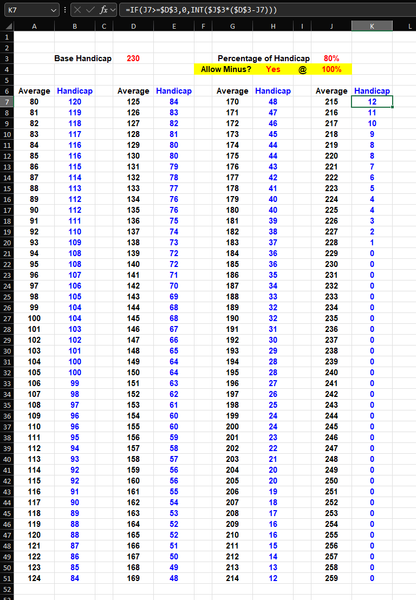
Hi all, I have here a handicap calculator that's primarily used for tenpin bowling and I would like to add an enable / disable (with Yes or No) a Minus Handicap along with the existing formula for each cell (in columns B, E, H & K), plus the option to adjust the percentage to affect only the minus numbers. Hope it all makes sense. Thanks in advance.68Views0likes1CommentAllow removal of "Copilot Suggestions" from right-click menu
I have been using Excel for decades and CONSTANTLY use the right-click menu for quick access to basic functions (e.g., "Insert"). Ever since "Copilot Suggestions" was added to the drop-down list, it always throws me off due to its placement. I have Microsoft 365 on Windows 11 Pro. I have searched for ways to remove this from appearing there and the result said "go to File > Options > Copilot and uncheck the 'Enable Copilot' box". However, when I attempt to do that, there is NO "Copilot" option available! PLEASE allow removal of "Copilot Suggestions" from the right-click menu OR at least the option to move it to the bottom (so it isn't in the way of things used ALL the time). I realize that Copilot is a great resource for many users, but I am confident in my Excel skills and in my ability to research/learn new skills the "old school" way, so I have little use for this feature now and would prefer to hide it.181Views3likes1Comment
MS Word is throwing up 'Error 4608' I haven't a clue what to do.
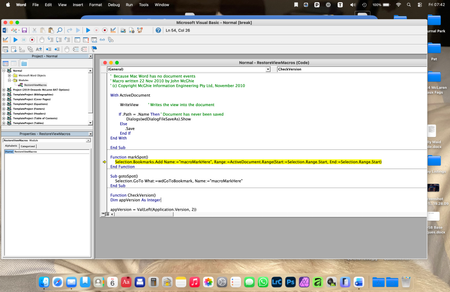
Hello, I wonder if anyone can help me here, because I am at a TOTAL los... I have a Word document that I have been updating for a few years, which is a sort of log. It has worked well up until today. Now, whenever I try to save the updated document, a very old fashioned (looks like Windows 3.1!), error message window appears which is headed 'Visual Basic for Applications' and in the window it says: Run-time error: '4608': Undefined dialogue record field There are then four buttons at the bottom labelled Help, Continue (which is greyed out), End and Debug. I have no idea what this error message means. Clicking on End gets rid of the error message, but prevents me from saving my updated document, and the next time I try to save it the error message just reappears. Clicking on Help takes me to a website with the title 'No F1 help match was found', followed by a load of technical computer-geek stuff I don't understand. Clicking on Debug seems to open a new window, but I do not know what it is... Here is a screen-shot of it: The highlighted text seems to refer to Bookmarks, which is throws me because I only associate Bookmarks with my web browser, not MS Word. I'm sure I haven't added any bookmarks to my document in any case. Can anyone enlighten me as to what is going on here please? Thanks65Views0likes2CommentsSharePoint Online Drops One Time Passcodes for External Access
From July 2026. SharePoint Online and OneDrive for Business will use Entra B2B Collaboration (guest accounts) to control external access to shared files. This change has been coming since 2021, but it takes time for organizations to get their heads around changing the way to grant external access. It’s time to embrace guest accounts, and that means doing some work to manage guest accounts on an ongoing basis. https://office365itpros.com/2026/03/06/guest-accounts-spo/66Views0likes0Commentsequation or function?
+0.3°c -0.1°c +0.4°c Looking for either an equation or function for this, in order to simply enter column A & B and have answer autofill. The number in column A is the constant number that I want column B to be ie: what must happen to column B to equal column A, as you can see in column C you add 0.4 so that column B equals +0.3. As seen below there is variation from positive and negative numbers in both columns therefore at any given time it will be adding or subtracting?? +0.2°c -0.2°c +0.4°c +0.3°c -0.3°c +0.6°c 0.0°c -0.1°c +0.1°c -0.1°c +0.3°c -0.4°c -0.2°c 0.0°c -0.2°c -0.1°c +0.2°c -0.3°c anyone help me out, could save some considerable productivity time?75Views0likes2Commentsmicrosoft excel import text file template
I used the Text Import Wizard to create an excel document from a text file. My data does not have nice commas, semicolons, tabs, or spaces. My data is a fixed width. My data is by the columns like 5, 10, 12, 14, 20 column. It takes a long time to set the correct columns. I then saved it as a .xltx file to create a template. Then I expected to be able to use the template in the future. I tried to create a new excel file with the .xltx template I just created. When I pasted data into the new excel document my data was not organized. What am I doing wrong? Save as an Excel Template: Go to File > Save As, and select Excel Template (*.xltx) from the "Save as type" dropdown. This saves your layout in the custom templates folder. Use the Template: When you want to import data in the future, open this template (File > New > Personal), then use the import steps above to place the external data into your predefined format.53Views0likes1Comment
Filter Function or TAKE-DROP Function
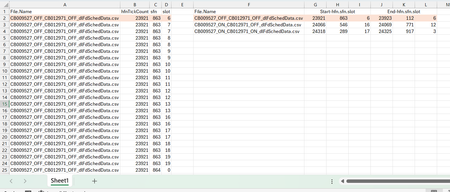
Dear Experts, I have a Data like this:- Column A -> Has the File Names, and Column B,C,D have their corresponding data, In Column F I have the unique File Names and from G/H/I -> I need the start of the hfn/sfn/slot and in J/K/L the end of the hfn/sfn/slot for that File Name as populated , How to achieve this? Thanks & Regards Anupam ShrivastavaSolved217Views0likes5CommentsVBA events stop working for one user when another user opens the shared workbook
Hi, I’m experiencing a strange issue with VBA in Excel. We use several Excel files as a CRM system, all with VBA (mainly worksheet events). The files are shared so that my employee and I can work on them. Recently, VBA events stopped working only on my computer in some of the files. Important observations: For my employee, everything works normally. Manual macros run correctly on my machine. Worksheet events (like Worksheet_Change) do not fire. Application.EnableEvents returns True. Macro security and Trusted Locations are already configured. The files are almost identical (same structure and VBA code). What makes it even stranger: A file that worked for me yesterday stopped working today immediately after my employee opened it. Since then, the VBA events no longer trigger on my computer in that file, while they still work perfectly for him. So it seems that when another user opens the shared workbook, VBA events stop working only on my machine. Has anyone seen something like this before? Thanks.46Views0likes1CommentLimited to 200 submissions
The helpdesk has confirmed that I have an m365 family subscription. This would allow me to receive 1000 responses in Forms. However, when I log in to Forms with my details, only 200 answers are accepted. In addition, I get a "buy button" on the screen. In other words, Forms "thinks" that I have a free plan. Who can solve this for me?34Views0likes1Comment





Events
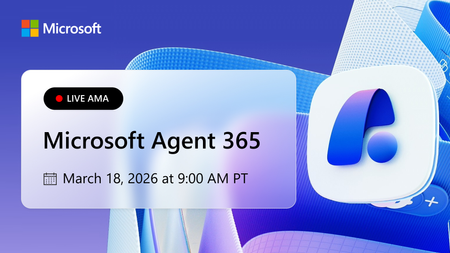
Learn more about the capabilities of Agent 365 in this live 'Ask Microsoft Anything' with product and engineering team experts! Get your questions answered about capabilities for agent observability,...
Wednesday, Mar 18, 2026, 09:00 AM PDTOnline
0likes
83Attendees
0Comments

You’re passionate about what you do, and we’re passionate about empowering your potential. Microsoft 365 Community Conference - is your chance to keep up with AI, build game-changing skills, and take...
Tuesday, Apr 21, 2026, 08:00 AM PDTIn-Person
0likes
3Attendees
0Comments
Recent Blogs
- Microsoft Most Valuable Professionals (MVPs) are the heartbeat of the Microsoft ecosystem—and at Microsoft 365 Community Conference 2026, your impact takes center stage. Imagine connecting face-to-...Mar 06, 2026222Views0likes0Comments
- Edit images directly in PowerPoint to enhance, refine, and perfect visuals without leaving your deck.Mar 06, 20262.9KViews5likes1Comment