Recent Discussions

Teams HAL driver update skips coreaudiod restart mediaremoted spins at 100% CPU
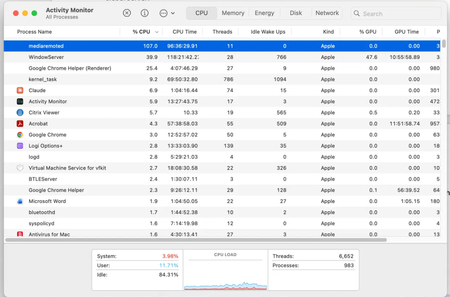
Environment: macOS 15.7.7 build 24G720, Apple M3 Max. Teams updated from 26183.1901.4874.5228 to 26198.202.4929.7171 via Microsoft AutoUpdate. What happens: The delta package installs the MSTeamsAudioDevice component into the system-wide CoreAudio HAL plug-ins folder. The system install log shows the bundle being atomically replaced, after which the postinstall script logs that it is a non-interactive command line installation and therefore will not restart coreaudiod, then exits. Because MAU always runs non-interactively, coreaudiod is never restarted and continues running against the replaced HAL bundle. Impact: Long-lived processes holding references to the Teams audio device never converge. In my case mediaremoted entered a permanent single-core spin at 107 percent CPU, sustained for days. A sample shows 100 percent of main-thread time inside AudioObjectGetPropertyData and AudioObjectGetPropertyDataSize, with the HALObjectMap CopyObjectByObjectID and ReleaseObject methods accounting for roughly 99 percent of top-of-stack samples. HALPlugIn ObjectHasProperty also emits an os_log call on every probe, so logd burns additional CPU. Teams itself was not running. Workaround: Force-quit the core audio daemon and then the media remote daemon; both relaunch automatically under launchd. Suggested fix: Restart coreaudiod from the postinstall regardless of interactivity whenever the HAL bundle payload actually changed, or defer the bundle swap until the next coreaudiod restart.35Views0likes1Comment
Folder created under Sharepoint can't be seen in Teams
Hi there, I have the following situation: I created a Group under Teams. A colleague created a folder under it via Sharepoint, that is, under the same group. The folder cannot be seen in Teams but all the folders created via Teams can be seen in Sharepoint. How can I see the folder in Teams? Thanks, DanielSolved48KViews0likes14Comments
App Validation failing for no clear reason
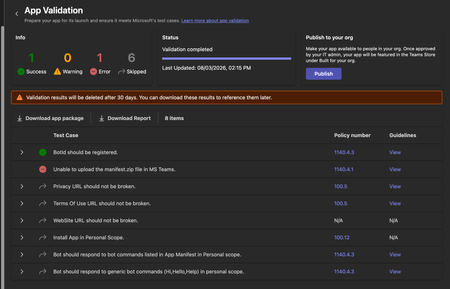
We're trying to get our (very simple) Teams App listed on the app store, but during the App Validation we keep getting the same error: "Unable to upload the manifest.zip file in MS Teams." as seen below: Downloading the report doesn't give any more information, it only lists the only successful validation step ("BotID should be registered") and the error doesn't appear there. I've validated the manifest.json file against the schema, tried reuploading the same manifest to a different org (creating a new app and bot) - validation fails there too. Does anyone have any pointers? Here is my (anonymized) manifest file: { "$schema": "https://developer.microsoft.com/en-us/json-schemas/teams/v1.19/MicrosoftTeams.schema.json", "manifestVersion": "1.19", "version": "1.1.1", "id": "[redacted]", "developer": { "name": "[redacted]", "websiteUrl": "https://www.[redacted].com", "privacyUrl": "[redacted]", "termsOfUseUrl": "[redacted]" }, "icons": { "color": "color.png", "outline": "outline.png" }, "name": { "short": "[redacted]", "full": "[redacted]" }, "description": { "short": "[redacted]", "full": "[redacted]" }, "accentColor": "#4A3AFF", "bots": [ { "botId": "[redacted]", "scopes": ["personal"], "supportsFiles": false, "isNotificationOnly": false, "commandLists": [ { "scopes": ["personal"], "commands": [ { "title": "help", "description": "Show what this bot does and how to connect your account" }, { "title": "connect", "description": "Get a fresh link to (re-)connect your account" } ] } ] } ], "staticTabs": [ { "entityId": "conversations", "scopes": ["personal"] }, { "entityId": "about", "scopes": ["personal"] } ], "permissions": ["identity", "messageTeamMembers"], "validDomains": ["app.[redacted].com", "auth.[redacted].com"] }38Views0likes1Comment
MC1317197 Microsoft Teams: simpler controls and a smarter share panel
Has anybody seen the end user visual guide supposedly to be published on July 9th, 2026, to the Microsoft Adoption site? Either they have not published the visual guide yet or I cannot find the guide on the site. We need to notify users this is coming, and it would be great to have the visual guide to use for the communications / messaging. https://adoption.microsoft.com/microsoft-teams/new-meeting-controls-experience https://admin.cloud.microsoft/?ref=MessageCenter/:/messages/MC1317197 Thank you Sharyn108Views1like3Comments
Why does Teams always strip indentation when pasting text?
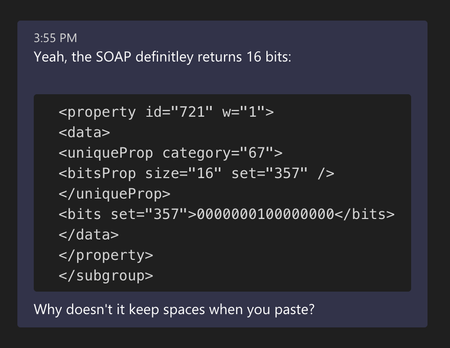
It's fairly common to want to post code in teams (without using the special formatting for code snippets). The markdown like syntax for code works pretty well when typing code and it preserves indentation. But when you paste XML or JSON all the indentation is removed. Why? Here's an example: That XML was indented in the source. But whenever we paste JSON or XML we lose indentation. Unless we take the extra effort to use a code snippet. Or manually type it for small examples.Solved66KViews16likes58CommentsWho verifies Teams Meeting summary accurately reflects what was actually agreed in the meeting
Can we really trust AI-generated meeting summaries? Microsoft Teams and Copilot can create impressive meeting summaries, action items, and insights. But a question remains: Who verifies that the summary accurately reflects what was actually agreed in the meeting? In many organisations, meeting notes become the basis for: project decisions customer commitments compliance records accountability for actions Yet when there is disagreement, we often hear: "That is not what I said." "I don't remember agreeing to that." "The summary missed the context." How is your organisation handling this today? Do you: Trust AI-generated summaries as they are? Have a human review process? Keep the original transcript/audio as evidence? Use another approach? Interested to hear how Teams users are managing this challenge.57Views0likes3Comments
Bug? Teams thread permalink does not show the full thread history (Desktop + Web)
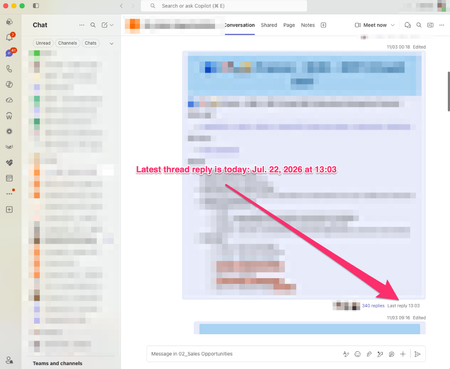
Hi everyone, I believe I've found a bug in the new Teams threaded channel experience and I'm trying to determine whether others can reproduce it. Scenario I have a long-running thread in a Teams channel. If I open the thread directly from the channel by clicking the reply count (e.g."340 replies"), I can see the complete conversation, including the most recent replies. However, if I: Open the thread Use Copy link Open the generated link Teams opens the thread, but only displays part of the conversation. Newer replies are missing even though they exist and are visible when opening the same thread directly from the channel. Note: I cannot share the permalink publicly because it points to content within my organisation. However, the link was generated by Teams itself using the thread's Copy link action. The issue is reproducible with any user who has access to the thread. What I've tested Teams Desktop Teams Web Same behaviour in both clients Opening via the channel reply count shows all recent replies Opening via the permalink shows only a partial thread Expected behaviour A thread permalink generated by Teams should open the same live thread view as clicking the reply count from within the channel. The full conversation history should be available and the latest replies should be visible. Ideally: The full thread history should be available. The latest replies should be visible. The link should open the current state of the thread, not an apparently truncated version. Actual behaviour The permalink opens the correct thread but appears to stop at an older point in the conversation, while newer replies remain accessible only when opening the thread from the channel itself. Has anybody else seen this behaviour with threaded channels? Screenshot 1 and 2: Correct behaviour Open thread via "340 replies" Show: Thread title Reply count (e.g. 340 replies) One or two recent messages (July 2026) Screenshot 3: Incorrect behaviour Open the same thread via the permalink Show: Same thread title Same thread Conversation stopping much earlier Missing recent replies101Views1like3Comments
Is Microsoft Teams a good Intranet?
Our company is fully on Microsoft 365, but employees still struggle to find basic information like policies, company updates, forms, department resources, and important links. Most of it is scattered across SharePoint sites, Teams channels, emails, and random folders. I want to turn Microsoft Teams into that hub where all of this lives, kind of like an intranet. Any suggestions?79Views0likes1CommentTeams Premium + Bookings : Automatic recording and transcription for Bookings meetings ?
Hello, I have a Teams Premium license, recording and transcription policies are enabled on the admin side, and Video Recap works correctly when both are active simultaneously in the same meeting. My use case : my clients book time slots via Microsoft Bookings. Teams meetings are therefore created automatically by Bookings and I have no control over their scheduling. According to Microsoft Learn documentation (https://learn.microsoft.com/microsoftteams/virtual-appointment-meeting-template and https://learn.microsoft.com/microsoft-365/bookings/bookings-overview), there is no documented mechanism to automatically apply a Teams meeting template, and therefore automatic recording and transcription, to meetings generated by Bookings. My question: has anyone found a workaround for this limitation (Power Automate, Graph API, or anything else)? And does Microsoft have a documented roadmap on this topic? This gap directly prevents Teams Premium users from accessing Video Recap on their client meetings, which is one of the core use cases Teams Premium is designed for. Thank you for your help49Views0likes1CommentShare content didn't appear or freeze during teams meeting.
Hi Everyone, I having an issue where when participant trying to share content during microsoft teams meeting, the content didn't show on the display and sometime the content is freeze. We join the meeting from Cisco Room Bar Pro on Cisco Room OS Platform. This issue also happen intermittently. Have reboot the device but it's still occurred. Anyone encounter this issue before? Thanks,47Views0likes2CommentsRunning engagement pulse checks in Teams, how do you track trends over time?
My lead asked me to start doing monthly pulse checks across our team of 20. I've been using Forms and dropping the link in the channel. Response rate sits around 50% which I can live with, but the real problem is that every survey is its own isolated result set. I can see this month's numbers fine. Comparing them to three months ago means exporting everything to Excel and rebuilding the comparison by hand.39Views0likes1Comment
Create event sometimes returns 201 but no Teams meeting link
Hello, I am creating calendar events through Microsoft Graph and setting them as Teams online meetings. Most of the time it works correctly, but very rarely the API returns 201 Created and the event is created without the Teams join link in the response. I have already checked the following: isOnlineMeeting is always set to true. The correct online meeting provider is being used. The issue is intermittent, not consistent. The same integration normally creates Teams meetings successfully. What I need to understand is: Why can Graph return 201 Created but still omit the Teams meeting link? Is this a known intermittent issue with event creation or Teams meeting provisioning? Is there anything I should check in the response, headers, permissions, or follow-up GET call to verify the meeting link was actually created42Views0likes1CommentTeam disappears from the side rail if a channel is in the section
This started around the time Communities have been added to the side rail (the one that shows recent chats, all your teams, etc.). I have a setup where i add channels that i need to a section called Favorites and in that section i enable to show only unread. I put this section above chats in Combined view. This way i see channels with unread messages on top and new chats also appear at the top of the Chats section. This way it is easy to notice unread messages without pesky notifications. Because there is no option to limit the size of Chats section (i would prefer it to show only last 10 chats or less). So, my Teams list is usually too far below to see channels with new messages. I had this setup since Combined view was introduced. But a few weeks ago behavior changed. Now, if a channel is in a section, the whole team is hidden from the side rail and under the Teams section it only shows a link "View all your teams". Which you need to click and it loads list of teams in the main window, then you click on a team and it loads a list of channels and so on. Very slow. It doesn't make sense to hide entire team if you add one of the channels to some section. I still might need to access other channels and i want it to be at my fingertips, not behind 3 clicks and UI loading time. It even looks more like a bug, but probably not many users run into it as i think sections are not as popular as Microsoft have hoped.67Views0likes3CommentsRemoval of Default Tabs - "Staff Notebook" & "Reflect"
I have a few users who would like to toggle these tabs off or hide them. I have not been able to find a way to do this. If I right-click on the tabs, "App Permission" is the only option. Is there a way to perform this function via Powershell or O365 Admin Center? See screenshot1KViews1like3CommentsStarLeaf + Teams integration
Hi all, I have a user that wants to integrate StarLeaf into one of his Microsoft Teams group. He is not the owner of the group. The issue he reported: "Currently, Starleaf for Teams is installed, but when there is any attempt to setup using the integration token generated from our systems admin in Starleaf, an error occurs." The link for instructions he used: https://support.starleaf.com/integrating/starleaf-for-microsoft-teams/#3-Install+StarLeaf+for One of the errors he gets: "Something went wrong. Reinstall StarLeaf for Teams." Any idea of what to do? Kind regards, Dino2.1KViews3likes9CommentsTEAMS - Extra Space between Keyboard and Typing Window
Dear All, I am also facing the issue in TEAMS. During the typing, a large space appears between Keyboard and Typing Window. This is happening only in TEAMS app. I moved from my Nothing phone to Vivo X200Fe, then this problem started. This may be a bug in TEAMS to be fixed for VIVO phones. I use VIVO X200 FE with Android 16 and Google Keyboard. It's very annoying to see this big gap and making us uncomfortable while typing. Please help me how to resolve this. Thanks for your help. Mobile : Vivo X200FE Operating System : Origin OS Android 16 Teams Version : 1416 / 1.0.0.2026123608 Keyboard : Google Keyboard - Version 17.7.4.93236420174Views1like4Comments
TeamsTab.ReadWriteSelfForTeam: deleting a tab fails with 400 "appId cannot be null or whitespace"
We have a published Teams app that pins a configurable tab into a team channel via Microsoft Graph and removes it again when the user uninstalls our app from that channel. Creating the tab works. Deleting it always fails with a 400 that looks like an unhandled null-argument exception inside the Graph Teams service rather than a permission problem. I reported this in October 2025 as https://github.com/MicrosoftDocs/msteams-docs/issues/13432, but that is a documentation repository and the issue has had no response, so I am reposting here, as we can still reproduce the issue. We're using a delegated token for the operation. The only tab-related scopes are `TeamsTab.Read.All` (read-only) and `TeamsTab.ReadWriteSelfForTeam`. According to the docs (https://learn.microsoft.com/en-us/graph/api/channel-delete-tabs), `TeamsTab.ReadWriteSelfForTeam` is the **least privileged** delegated permission for the delete, so the token should be ok. What works Creating the tab, with the same delegated user token: POST https://graph.microsoft.com/v1.0/teams/«teamId»/channels/«channelId»/tabs Content-Type: application/json { "displayName": "«AppName»", "email address removed for privacy reasons": "https://graph.microsoft.com/v1.0/appCatalogs/teamsApps/«teamsAppId»", "configuration": { "entityId": "«entityId»", "contentUrl": "https://«ourhost»/teams/tabs/channel/«entityId»", "websiteUrl": "https://«ourhost»/app/tickets?channel=«entityId»", "removeUrl": "https://«ourhost»/teams/remove-tab/«entityId»" } } → `201 Created`. The tab appears in the channel and renders correctly. Listing the tabs afterwards also works and returns our tab together with its `id`: GET https://graph.microsoft.com/v1.0/teams/«teamId»/channels/«channelId»/tabs?$expand=teamsApp Works as well and lists our tab. Might be served by the TeamsTab.Read.All permission. What fails DELETE https://graph.microsoft.com/v1.0/teams/«teamId»/channels/«channelId»/tabs/«tabId» → `400 Bad Request` { "error":{ "code":"BadRequest", "message":"appId cannot be null or whitespace. (Parameter 'appId')", "innerError":{ "date":"2026-07-27T13:45:31", "request-id":"f930c847-0b48-4a46-b17e-f0ee10ff8177", "client-request-id":"f930c847-0b48-4a46-b17e-f0ee10ff8177" } } } (leaving in the error details, maybe that helps diagnosing the issue) appID is not even part of the request, it's probably resolved against the TeamsTab.ReadWriteSelfForTeam permission on your side. Let me know if you need any more details.57Views0likes2CommentsCS agent OK in M365 Copilot; Teams chat silent / no Studio session
We are troubleshooting a Copilot Studio agent that works correctly in Microsoft 365 Copilot and in the Copilot Studio test surface, but does not receive inbound activities from Microsoft Teams personal chat. Environment and evidence: - Agent: Copilot Studio agent (custom business assistant) - Copilot Studio agent ID: 88901b10-… (truncated) - Teams/Entra app ID: 7e4a53cc-… (truncated) - Manifest version: 1.0.8 - Channel configuration: Microsoft 365 Copilot + Microsoft Teams - Publish: Succeeded / Channel state: Synchronized - Agent Registry: Available - Authentication: Integrated / Tool credentials: Maker-provided - MCP/custom connector runtime: working (Studio tool test HTTP 200) - Microsoft 365 Copilot routing: working Failure specific to Teams: - Messages in Teams web and desktop appear delivered in the agent personal chat - Agent never replies - Studio monitor has M365 Copilot sessions, but no Teams session for those timestamps - Teams Admin Center Manage apps returns 0 results by name or exact app ID despite Agent Registry Available - Intentionally not republishing / reconnecting OAuth / rewiring connectors because M365 Copilot path proves the same agent+connection works Classification: FAIL — Teams inbound activity is not reaching the Copilot Studio agent. Questions focused on Teams delivery: 1. Why would Teams personal 1:1 messages never create a Studio conversation while M365 Copilot does? 2. Is a missing TAC Manage apps row expected under Unified App Management when Registry shows Available? 3. Known gaps: Agent Registry Available + channel Synchronized, but Teams client chat bound to a non-runtime endpoint? 4. Best diagnostic if Monitor shows 0 Teams sessions after a confirmed client send? Looking for production experience / documented workaround. Redacted evidence available; no tokens/secrets.92Views0likes2CommentsBlinking red light on Poly CCX 500 Teams phones
I have a few users that have a Blinking red light on the phone, they have no missed call, or activity notices. I have tried - This is usually caused by a missed call, or activity notices on the account signed into the phone, on the phone I go to “Calls”, once looked at the light generally goes off.8.4KViews0likes4Comments





Events
Recent Blogs
- Most people don't need more meetings—they need meetings that lead to action. At their best, meetings drive decisions and keep work moving forward. But poorly managed meetings can actually slow progre...Aug 11, 202631Views0likes0Comments
- 8 MIN READMicrosoft has been recognized as a Leader in the 2026 Gartner® Magic Quadrant™ for Unified Communications as a Service—our eighth consecutive year with this recognition. We’re also excited to sha...Aug 06, 2026657Views0likes0Comments