Recent Discussions

Unable to submit Teams app update
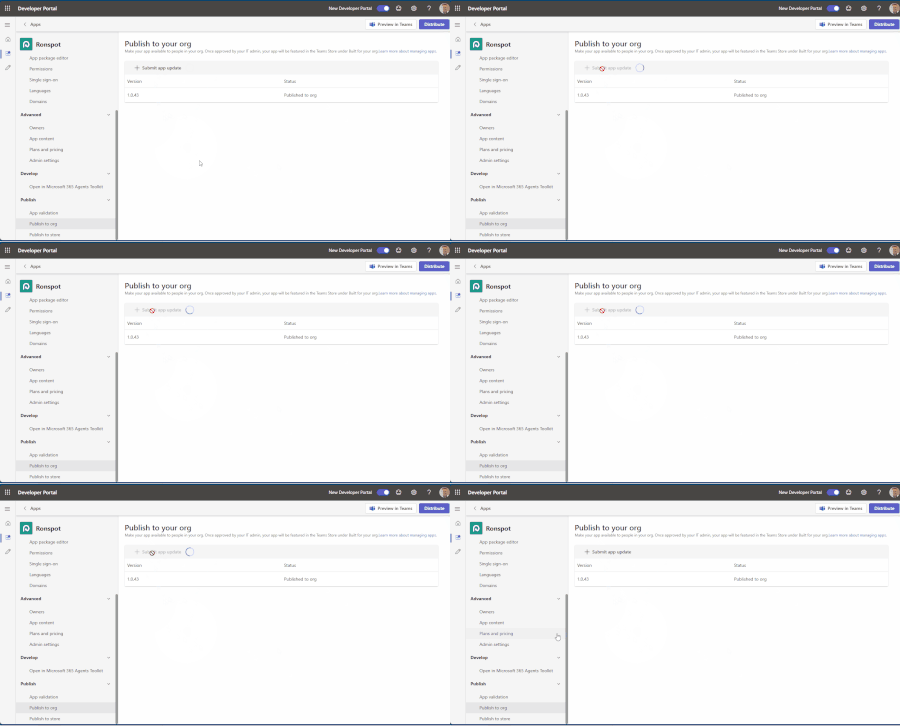
Hello, We have been attempting to submit an update to our Teams app, but we’re experiencing an issue with the submission process. When we click “+ Submit app update,” the loader appears for a few seconds, but then nothing happens. No error message is displayed, and the app update is not submitted. I’ve attached a short video demonstrating the issue. Could you please advise on how we can resolve this? Thank you for your help.19Views0likes0Comments
Teams Powershell Module: [Get|Set|New|Sync]-CsOnlineApplicationInstance and App-Based authentication
Hello there, as stated in the documentation: https://learn.microsoft.com/en-us/microsoftteams/teams-powershell-application-authentication it is not possible to create a new teams application using New-CsOnlineApplicationInstance, if application based authentication is used for the PS Module. Is this planed and/or on the roadmap to implement this? We would desperately need this. Thanks in advance!Solved1.5KViews0likes11Comments
Sharing sound
Teams screen sharing does not show “Include sound” option for multiple users I’m having an issue with Microsoft Teams screen sharing that I haven’t been able to resolve. I work in a call center, and we use Teams for peer coaching and training. When an agent shares their screen, I need to be able to hear both the agent and the customer they are speaking with through our call-center application (Amazon Connect). The problem is that most of our agents do not have the “Include sound” / “Include computer sound” option when they click Share in Teams. They can share their screen normally, and I can hear the agent speaking, but I cannot hear the audio from the call they are handling. What makes this especially strange is that the option does appear for me when I share my screen. Or if it doesn't show I can simply re-download the desktop version and it will fix itself.... but that doesn't work for anyone else. We have already tried: Reinstalling Teams Using the Teams desktop application Using Teams in a web browser Trying different browsers Restarting the computers Having multiple affected agents repeat the same troubleshooting Nothing has brought the audio-sharing option back for them Any suggestions for what we should check would be greatly appreciated.7Views0likes0Comments
Teams Copying text includes persons name
Hello, sometimes at my work we send each other links to files/folders on our internal server. The only problem is in teams when you do that you get the persons name instead of the link. So they sent me a link to a folder, I select the link in the text and copy it. However if past that into windows explorer I just get the time and their name. [15:12] Firstname Lastname Is there a way to get it to not include the Firstname Lastname when you copy a message? kind regards, AndrewSolved48KViews17likes61CommentsWhat if Teams isn’t too complicated — but simply being compared to the wrong product?
Many users first experience Microsoft Teams through meetings, chat, and file sharing. So it feels natural to compare Teams with messaging apps. But I’ve started to wonder whether that comparison itself shapes how people experience Teams. In markets such as Taiwan, Japan, and Thailand, LINE is deeply embedded in everyday communication. For those unfamiliar with it, LINE is a widely used consumer messaging app in these markets. When users bring that same mental model into Teams, a familiar question appears: “Why does Teams have to be so complicated?” But what if that isn’t quite the right question? I explored the idea in this short interactive page: Maybe We've Been Thinking About Teams the Wrong Way https://teams-vs-line-vinci.vinciwang.chatgpt.site/en/teams-vs-line One analogy sits at the center of it: LINE is like a speedboat. Teams is more like an aircraft carrier. I’m particularly interested in whether people here agree — or think this analogy actually proves the opposite. Is the problem mainly Teams itself, or the mental model we use to judge it?59Views0likes0Comments
Bug? Teams thread permalink does not show the full thread history (Desktop + Web)
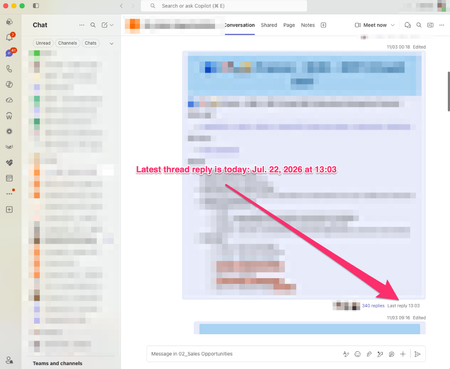
Hi everyone, I believe I've found a bug in the new Teams threaded channel experience and I'm trying to determine whether others can reproduce it. Scenario I have a long-running thread in a Teams channel. If I open the thread directly from the channel by clicking the reply count (e.g."340 replies"), I can see the complete conversation, including the most recent replies. However, if I: Open the thread Use Copy link Open the generated link Teams opens the thread, but only displays part of the conversation. Newer replies are missing even though they exist and are visible when opening the same thread directly from the channel. Note: I cannot share the permalink publicly because it points to content within my organisation. However, the link was generated by Teams itself using the thread's Copy link action. The issue is reproducible with any user who has access to the thread. What I've tested Teams Desktop Teams Web Same behaviour in both clients Opening via the channel reply count shows all recent replies Opening via the permalink shows only a partial thread Expected behaviour A thread permalink generated by Teams should open the same live thread view as clicking the reply count from within the channel. The full conversation history should be available and the latest replies should be visible. Ideally: The full thread history should be available. The latest replies should be visible. The link should open the current state of the thread, not an apparently truncated version. Actual behaviour The permalink opens the correct thread but appears to stop at an older point in the conversation, while newer replies remain accessible only when opening the thread from the channel itself. Has anybody else seen this behaviour with threaded channels? Screenshot 1 and 2: Correct behaviour Open thread via "340 replies" Show: Thread title Reply count (e.g. 340 replies) One or two recent messages (July 2026) Screenshot 3: Incorrect behaviour Open the same thread via the permalink Show: Same thread title Same thread Conversation stopping much earlier Missing recent replies151Views1like4CommentsAllow muting a person only for me
Sometimes I am in a meeting where one of the persons in the meeting is actually near me in the world outside the screen. In this case the sound is a bit maddening since there is a small delay between the sound from the person and the sound through the teams interface. In these cases, I would like to mute the person only for me since I am sitting near and can hear the person fine without headphones. Right now I need to takeoff headphones when the person is talking and putting it back as the person finishes talking.132KViews215likes159CommentsTeams user's webcam is showing black for remote participants
we have a user who has an issue with the teams client on Windows Whenever she participates in a call (one on one or group meeting), she can turn on her webcam, and sees herselves. In the Teams settings, the webcam is availlable under "devices" as well While she has her webcam turned off, other participants in the call see her initials. As soon as she turns on her webcam, the other parties involved just see a black screen. No video image, no user initials. as soon as she turns of her webcam, the remote participants get the users initials again. No other applications are using the webcam, and in the privacy settings of Windows Microsoft Teams has access to the camera When she uses teams on the web, the camera is working just fine. Also when using the ZOOM application for attending to a meeting, the camera is working just fine. Ath that time , other participants can see the videofeed. Troubleshooting done so far: - reinstalled webcam drivers - reinstalled Microsoft Teams - Teams client version on all sides: 1.6.00.4472 - Updated all available drivers for this computer - PC was originally running Windows 11 build 21H2 with patches installed up to the patches released on February's patch tuesday. - we formatted the hard drive and reinstalled Windows 11, but with build 22H2, and february's patch tuesday updates. Updated drivers again No difference. She is the only user in the company experiencing this. We are using a Microsoft 365 tennant with Microsoft 365 E3 licenses applied to the users. We don't have any custom policies applied to this user, nor to other users. All users are using the same settings. Any advices on this would be greatly appriciated.Solved3.1KViews0likes8CommentsVideo Tutorial: How To Use The Microsoft Teams Games For Work App
Microsoft recently added the ability to https://youtu.be/JxKLNVRtIJI. In this Microsoft Teams https://youtu.be/JxKLNVRtIJI, I will demonstrate how to use the Microsoft Teams Games For Work app. This app can be added to MS Teams meetings and allows participants to play from one of four games (at the time of release): Microsoft Solitaire, Microsoft Minesweeper, Wordament and IceBreakers. Note that you cannot use this app outside of meetings (i.e. you cannot play games directly in the MS Teams app) and each game supports 1-250 players. The app can also be used on the Microsoft Teams mobile application and is mobile responsive meaning meeting participants joining from their mobile device can also participate in the games. Lastly, the app can also be used in Microsoft Team meeting breakout rooms. To add the Games For Work App to a Microsoft Teams meeting: Click the “+ Add An App” button Search for and select “Games For Work” What are you thoughts about this app?Solved44KViews1like15CommentsTeams phone demo
I work in the IS Department at a school and we (IS Dept) use Teams regularly and others are slowly getting around. Due to a mixed environment of Google Docs/Zoom users and M365 users, there is a lot of push back or silence whenever the topic of Teams comes up. It is my opinion that key to getting everyone to buy in is to add the calling feature to our system. We have an existing controller that will work with it (Mitel). Ideally we would not change our current phone system, instead we can just add our existing system to Teams adding the ability to call users extensions and outbound numbers. Is it possible to set up a demonstration or enable this ability for a small group?Solved8.1KViews0likes7CommentsMouse button 'Back/Forward' not working in 'New Teams'
Though there are options to 'pop out' windows from Teams, Teams is a generally a single page app. As such, one of my most used features in 'Classic Teams' is switching back 'n forth between several 'tabs' I'm currently working with. Say I've got somebody on chat, but then have to quickly check something in Teams, then go back to chat. In Classic Teams this works just fine using the mouse's back & forward buttons. In 'New' Teams, this no longer registers any action at all. I assume the feature still exists, since left of the search bar there are still the back/forward UI buttons. But moving the mouse over for every time you need to switch back and forth is a lot slower and less intuitive than just using the mouse buttons. Current behavior: Mouse 'back'/'forward' buttons do not work in 'New Teams' Expected behavior: Mouse 'back/forward' buttons register the 'back' and 'forward' navigation commands as they did in 'Classic' Teams8KViews35likes25CommentsTeams calls reporting as potentially scams incorrectly
Hey Teams Community, In the past 5 days I am seeing callers from external tenants that are trusted and in mto showing as suspected scam callers when they call me. They see.me as a suspected scam also when I call. These tenants are all trusted and most of them are.members of the same MTO. This only started happening in the last 7 days. What is causing this? Does anybody else see this happening recently with a similar setup?139Views0likes2CommentsTeams Events App / Plug-in, targeting events vs registration
Hi all, We would like to leverage Teams Events app in our organization, but find it is less than ideal due to a key function in choosing whether to use a registration form with an event. There is an audience targeting function, which we would like to leverage, that is disabled once a registration form is configured. In turn, that opens the event for people who may not find it relevant in the Events view (i.e. wrong language, wrong timezone). On the other hand, if no form is configured, we can elect to turn off notifications and not add an event automatically to a calendar. That's great, but then there is no option at all to add an event from the Events view. Is there a way to subdivide the teams Events app into organizations behind the scenes, without subdividing the entire M365 tenant? Is there a chance that further development on this resource will allow for audience targeting AND registration?82Views0likes1Comment
Profile Picture not updating
Hi Community, Today I updated my profile picture on teams and picture gets updated as well but I am only able to see the updated picture on hovering over the profile, but unable to see the updated picture on my profile icon. Is this a bug or something? Please fix this @95KViews0likes11Comments
Feature Title: Ability to Transfer Ownership of a Recurring Meeting Series
Problem/Use Case: When a meeting organizer creates a recurring meeting series and later moves to a different team, role, or leaves the organization, there is currently no way to transfer ownership of that meeting series to another person. This creates several issues: The meeting series may need to be cancelled and recreated from scratch, causing stakeholders to lose the original meeting history, chat thread, shared files, and notes tied to that series. All previously invited stakeholders and the meeting's context/topic history become fragmented or lost. The new owner has to manually recreate invites, re-add all attendees, and re-link any associated channels or files. Requested Feature: Allow the original organizer (or an admin) to reassign/transfer ownership of an existing recurring meeting series to another user, while preserving: The full list of existing stakeholders/attendees The meeting's chat history, shared files, and notes The recurrence pattern, time slot, and associated channel (if applicable) Any linked agenda items or topics tied to past occurrences Suggested Implementation: Add a "Transfer Ownership" option within the meeting series settings (similar to file/document ownership transfer in SharePoint/OneDrive) Notify the new owner and all attendees when ownership changes, so context isn't lost Ensure calendar entries update automatically for all invitees without requiring them to accept a new invite Business Impact: This would reduce disruption during team transitions, org changes, or role handovers, and ensure continuity of important recurring discussions without manual recreation of meetings or loss of historical context.102Views0likes1Comment
Teams completely freezes after clicking on Contacts.
Hello, Is anyone else experiencing an issue when clicking on Contacts in the Teams desktop client? The Contacts section works without any problems in Teams Web, but not in the desktop application. Thank you in advance for your feedback.2.4KViews9likes4Comments
Default audio devices in teams
Hi All, I use a Lenovo X1 carbon 6th Generation laptop along with a Thunderbolt Docking station. (Windows 10 operating system) I use a usb headset for teams/ meetings and calls. When I unplug my headset, Teams defaults to my docking station. When I plug it back in, my docking station remains as default without automatically placing my headset back as default. (My headset is defaulted for all sound devices) My headset will appear in device options in Teams and I have to re-select it there in order to use it in -teams again. I've found that even after unplugging my docking station and only having my PC speakers and internal microphone as options, Teams will not automatically default back to my headset. It will remain defaulted to my PC speakers and internal microphone. Teams only defaults back if every other sound option is disabled from the sound control panel. However, other meeting software like Zoom and Cisco Webex automatically default to my headset (or whatever new sound device is plugged in) each time without me having to disable other sound devices or re-select it from the Zoom/Webex devices menu. I and many other users at my company have noticed this behavior. Does anyone have any hints or clues to help us out? Any help will be greatly appreciated. Thank you!70KViews15likes19CommentsTransforming Microsoft Teams into a Project Management Hub
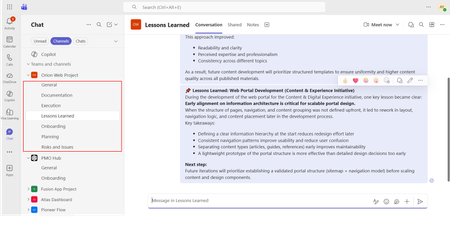
If you use Microsoft Teams only for chats and meetings, you’re missing much of what it can actually do. While Microsoft Teams is often seen as a communication tool, it can also function as a central workspace for managing projects - from planning and brainstorming to execution and documentation - all in one place. When combined with tools like Microsoft Planner, SharePoint, and Microsoft Loop, Teams can become a practical project management hub that keeps work organized and reduces the need to switch between systems. This article walks through a clear, practical approach to setting up and using Teams for real-world project delivery. Why Use Microsoft Teams for Project Management? Organizations often hesitate to introduce new tools due to cost, training effort, or resistance to change. Microsoft Teams offers a strong advantage: it is already widely adopted in many organizations as part of Microsoft 365. Using Teams for project management allows you to: Centralize communication and documentation Reduce tool fragmentation Improve team visibility and collaboration Leverage existing infrastructure without additional cost Instead of switching between multiple platforms, teams can manage conversations, files, tasks, and workflows in one place. Structuring Your Project in Teams A well-structured Team is the foundation of successful project management. Create a Dedicated Team Start by creating a Team specifically for your project. Avoid mixing multiple projects in one Team, as it leads to confusion and poor organization. Recommended channels structure: General (announcements and overview) Planning (timelines, scope, requirements) Execution (daily work discussions) Risks and Issues Documentation Onboarding Lessons Learned This structure ensures clarity and separates strategic discussions from operational ones. Managing Tasks with Planner Task management is a critical part of any project. Inside Microsoft Teams, you can add a Planner tab to manage tasks visually within the same workspace where communication and files are stored. How to use Planner effectively: Create buckets (e.g., To Do, In Progress, Completed, or structured by topic) Assign tasks to team members for clear ownership Set due dates and priorities Attach files and add comments directly to tasks Use labels to categorize work (e.g., Design, Frontend, Backend, Testing) for better filtering and tracking Planner also provides multiple views beyond the basic board: Board view (Kanban-style) for workflow tracking Charts view for progress and workload overview Schedule (Calendar) view to track deadlines visually across time This combination allows teams to switch between operational tracking and higher-level planning depending on the need. This visual approach improves accountability, transparency, and makes task tracking easier even for non-technical users. Document Management with SharePoint Every Team in Microsoft Teams is backed by a SharePoint site. This means all files shared in Teams are stored and managed through SharePoint. Using SharePoint effectively allows you to: Structured storage of project documentation through folders and metadata Maintain version control Role-based access management Centralized file organization Control access permissions Enable real-time collaboration Best practices: Create clear folder & metadata structures (e.g., Contracts, Designs, Reports) Avoid duplicate files Use naming conventions Instead of sending documents via email, teams can collaborate directly within Teams, ensuring everyone works on the latest version. SharePoint Lists in Microsoft Teams SharePoint Lists in Microsoft Teams provide a structured way to store, manage, and track information directly within the collaboration workspace. A SharePoint List is essentially a flexible data table, where each item represents a record with defined fields (such as status, owner, due date, priority, or category). They are especially useful for: Project roadmaps and milestone tracking Action item tracking with ownership and status Checklists for delivery and execution steps Simple status registers and progress tracking Unlike free-form messages or documents, SharePoint Lists keep information structured, filterable, and easy to update, which makes them suitable for ongoing tracking and reporting. When used inside Microsoft Teams, Lists help teams move from discussion to execution by turning decisions into trackable items with clear ownership, status, and visibility. Embedding SharePoint Pages in Teams Beyond file storage, Microsoft 365 allows SharePoint pages to be embedded as tabs within Teams, making key project information easily accessible in one place. SharePoint pages can be added as tabs inside Microsoft Teams channels, providing structured and persistent access to key project information without leaving the collaboration space. In practice, organizations often use SharePoint pages for: Project home page with key links and overview Governance page with rules and standards Onboarding page for new team members Documentation hub for core resources Centralized knowledge hubs This helps ensure that essential information is not scattered across chats or files, but is instead organized and always available within the project workspace. SharePoint is better suited for structured, stable, and long-term information. Microsoft Loop for Real-Time Collaboration Microsoft Loop introduces a more dynamic layer of collaboration inside Microsoft Teams, designed for fast, interactive work where content is continuously evolving. Loop components (such as notes, tables, task lists, and meeting agendas) can be embedded directly into Teams conversations and edited in real time by all participants. It is especially useful for: Live meeting notes Quick decision-making and feedback collection (including simple polls or inputs) 1:1 discussions and follow-ups Brainstorming sessions and idea capture Shared task tracking during discussions In practice, teams can collaborate on meeting notes or brainstorming pages during calls, with updates visible instantly to everyone. This removes the need to switch between documents or wait for post-meeting summaries. Unlike structured tools like SharePoint, Loop is designed for fluid, real-time collaboration, where information is shaped and refined as the discussion happens. Automating Workflows with Power Automate Manual processes can slow down project execution. With Power Automate, you can streamline repetitive tasks. Common automation examples: Notify the team when a task is completed Send reminders for upcoming deadlines Automatically save email attachments to SharePoint Trigger approval workflows Example scenario: When a task in Planner is marked as “Completed,” a notification is sent to the project manager and logged in a tracking list. This reduces manual follow-ups and improves efficiency. Power BI Dashboards Power BI can be integrated into Teams as a tab, allowing teams to access real-time reporting directly within their project workspace. It is commonly used for: Project status dashboards KPI and performance tracking Resource and workload visibility Financial or delivery reporting Instead of switching to a separate reporting tool, teams can monitor progress and insights directly inside Teams, ensuring better visibility and faster decision-making. Microsoft Whiteboard Microsoft Whiteboard provides a visual collaboration space for real-time ideation and planning. It is especially useful for: Brainstorming sessions Process mapping and flow design Workshop facilitation Visual planning during meetings Whiteboard supports freehand drawing, sticky notes, and structured diagrams, making it effective for capturing ideas during live discussions and workshops. Integration with Other Tools (Microsoft & Third-Party) Microsoft Teams can be extended with a wide range of Microsoft 365 services and external applications, allowing it to function as a central hub for project work, reporting, and collaboration. Teams also supports many external tools, allowing organizations to align existing systems without fully replacing them. Common examples include: Jira – agile project and issue tracking Trello – lightweight task and board management ServiceNow – IT service management workflows GitHub – development and repository tracking Salesforce – CRM data and customer-related workflows Communication and Collaboration Effective communication is essential for project success. Microsoft Teams provides multiple ways to facilitate this: Channel Conversations Keep discussions organized by topic instead of using scattered chats. Meetings and Calls Schedule regular check-ins, sprint reviews, or stakeholder updates directly within Teams. Mentions and Tags Use @mentions to notify specific team members and ensure accountability. Practical Use Case Consider a company implementing a new internal intranet. Using Microsoft Teams: A Team is created for the project Planner tracks tasks such as design, content migration, and testing SharePoint stores documents and site assets Power Automate sends reminders for deadlines Teams meetings are used for weekly progress reviews This setup enables the team to manage the entire project lifecycle without introducing additional tools. Best Practices for Success To maximize the effectiveness of Microsoft Teams for project management: Keep your structure simple and consistent Avoid creating too many channels Encourage team members to use channel conversations instead of private chats Regularly review and clean up tasks Use automation where it adds clear value Adoption is just as important as functionality. A well-designed system only works if the team actively uses it. Limitations to Consider While Microsoft Teams is powerful, it has limitations: Not suitable for highly complex project scheduling Limited dependency management compared to dedicated PM tools Reporting capabilities are basic without Power BI For large-scale or highly regulated projects, a dedicated project management tool may still be required. Professional Context and Applied Perspective The approach described in this article reflects practical experience in designing and implementing collaboration environments using Microsoft Teams within real organizational settings. It is based on applied use of integrated Microsoft 365 capabilities, including SharePoint, Microsoft Planner, and Microsoft Loop, to support structured project execution and improve cross-functional collaboration. Rather than relying on isolated tools, this approach focuses on designing a unified digital workspace that aligns communication, task management, documentation, and automation within a single environment. Microsoft Teams is more than just a communication platform. When used strategically, it becomes a practical and efficient tool for managing projects. By combining Teams with Planner, SharePoint, and Power Automate, organizations can create a unified workspace that supports collaboration, task management, and process automation. For teams looking to simplify their toolset while maintaining productivity, Microsoft Teams offers a compelling solution for modern project management.1.6KViews1like1CommentTeams App for mobile - A message appears “This message has been deleted.”
In the Teams app for mobile, whenever I delete a message, a message now appears saying, “This message has been deleted.” Previously, this message did not appear. Please revert to the previous behavior. Thhank You.73Views0likes0Comments




Events
Recent Blogs
- Coding where context lives and collaboration happens The best prompt may be the conversation your team has already had or is currently having. Until now, using a coding agent often meant paying con...Aug 21, 20262.8KViews0likes1Comment
- Most people don't need more meetings—they need meetings that lead to action. At their best, meetings drive decisions and keep work moving forward. But poorly managed meetings can actually slow progre...Aug 11, 20261.6KViews0likes1Comment