
Forum Widgets
Latest Discussions

Feature Request: Custom Status Labels for Calendar Events (e.g., 'In a Training')
Hey Teams Community! 👋 I have a small but impactful feature idea and would love your votes and feedback. --- 🔴 The Problem Right now, every calendar block in Microsoft Teams shows the same status to colleagues: "In a Meeting." Whether you're in a 10-minute standup or a 3-hour mandatory training — it all looks identical. This creates ambiguity, leads to unnecessary interruptions, and doesn't reflect how modern workplaces actually function. --- 💡 The Feature Request Allow users to assign a custom status label to a calendar event when creating it — visible to colleagues who check availability — without exposing private event details. Something as simple as a dropdown when creating an event: ✅ In a Meeting (default) 🎓 In a Training 🎯 Focus Time 📋 In a Workshop The chosen label would appear: → In the chat status indicator → On the calendar availability hover card → When someone tries to @mention or call you --- ✅ Why This Matters - Reduces interruptions during high-focus or learning sessions - Helps colleagues make smarter decisions about whether to wait or escalate - Especially valuable for schools, hospitals, training teams, and L&D departments - Lightweight to implement — no privacy concerns since it doesn't reveal event titles --- 🗳️ If you've ever been interrupted during a training because someone thought you were just "in a meeting" — please upvote and share your experience below! Let's get this on the Teams roadmap. 🚀 Tags: Feature Request, Calendar, Status, Availability, Training, Teams, Microsoft Teamstarun1992May 05, 2026Occasional Reader8Views0likes0Comments
Mute/unmute hotkey stopped working in main windows during presentation
In recent versions I have been able to press CTRL + SHIFT+ M when I was presenting (sharing) something from my Teams main window. Recently this stopped working and I need to go forth and back from main window to the my call window to mute myself. Could you please restore the old behavior. Thank you! Best regards TomTom_F73May 05, 2026Copper Contributor9.9KViews1like10CommentsUpdate to disabling Teams meeting recording expiration notification emails
Hello, Thank you to everyone who shared their thoughts and feedback regarding the planned Upcoming change: disabling Teams meeting recording expiration notification emails. After carefully reviewing the feedback from this discussion, survey responses, and support channels, we have decided to pause the rollout of this change. The updates originally planned for June 1st will not take effect on that date. What this means for you: - Email notifications for expired Teams meeting recordings will continue as they do today. - No action is required on your part. - Recording expiration and deletion policies remain unchanged. Your input along with ongoing, internal engineering discussions helped shaped this decision. We want to make sure that any changes we make to the notification experience truly work for your organizations, and the feedback we received made it clear that we need more time to get this right. We're still committed to improving the notification experience for Teams meeting recordings and will provide updates here and through the Message Center when we have more to share. In the meantime, please continue to share your thoughts in this discussion. Thank you for your patience and for being part of our community.Eddie_HarmonMay 04, 2026Microsoft77Views1like1CommentMicrosoft to Retire Together Mode for Teams Meetings
In a somewhat surprising decision, Microsoft announced plans to retire the Together mode feature for Teams meetings in June 2026. Based on personal experience, it didn’t seem that many people used Together mode. It seemed like it was something that people tried a couple of times before giving up. Maybe it’s just the meetings I attend, but I haven’t seen Together mode used in years. https://office365itpros.com/2026/05/04/together-mode-retirement/63Views0likes0CommentsUpcoming change: disabling Teams meeting recording expiration notification emails
Hello, We wanted to share an important update regarding email notifications for expired Microsoft Teams meeting recordings. Based on valuable feedback from our community, we’ve decided to make a change to how notifications are handled. What’s changing: Starting June 1st, we will stop sending email notifications for expired Microsoft Teams meeting recordings. We are making this change due to complaints we received from many customers about the high volume of notifications which they deemed low value. This change allows us to respect your preferences while ensuring critical communications remain accessible. Recording expiration and deletion policies remain unchanged and items that expire will be deleted even when notifications are not being sent. How to keep receiving notifications: For those customers that would like to continue receiving email notifications, we will create a new setting and make it available before June 1st. This will be a per-tenant setting. We will send another message center post once this setting is available and update our documentation in this discussion and on our support page. After June 1st: If you didn’t change notification settings before the deadline, you can still re-enable them at any time by running the PowerShell command. Note: Our original message center post incorrectly asked recipients to fill out a survey and failed to include a link to the survey. We are committed to providing options that work for your organization, and we would like to hear from you. If you have questions or additional feedback about this change, please complete this survey and join the discussion: Teams Meeting Recording Notification Changes – Fill out form Thank you for being part of our community.Eddie_HarmonMay 01, 2026Microsoft2.2KViews4likes4CommentsMaking shifts not visible to all team members
Is there anyway to make shifts private, where only the specific team member that the shift is intended for can see it I can not seem to find a setting to restrict team members to only viewing their own shifts. Short of creating a team for each individual member....is there a way I am missing?
Set the visibility of allocated shifts only to the person allocated to it and owners?
I am wondering if it is possible to set visibility of allocated shift only to the assigned person and the owner of the schedule/disable the ability to view the entire teams shifts if you are only a "member"? I know there is an option to only send out notifications to the affected people but not actually set visibility for the shifts. //TobiasTobiasRudinApr 30, 2026Copper Contributor1.2KViews1like1CommentTransforming Microsoft Teams into a Project Management Hub
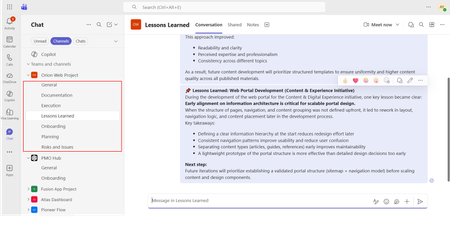
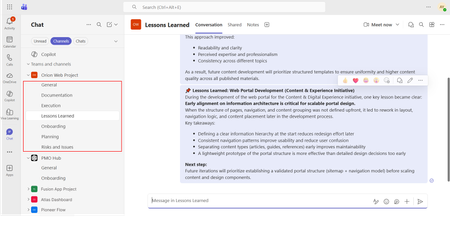
If you use Microsoft Teams only for chats and meetings, you’re missing much of what it can actually do. While Microsoft Teams is often seen as a communication tool, it can also function as a central workspace for managing projects - from planning and brainstorming to execution and documentation - all in one place. When combined with tools like Microsoft Planner, SharePoint, and Microsoft Loop, Teams can become a practical project management hub that keeps work organized and reduces the need to switch between systems. This article walks through a clear, practical approach to setting up and using Teams for real-world project delivery. Why Use Microsoft Teams for Project Management? Organizations often hesitate to introduce new tools due to cost, training effort, or resistance to change. Microsoft Teams offers a strong advantage: it is already widely adopted in many organizations as part of Microsoft 365. Using Teams for project management allows you to: Centralize communication and documentation Reduce tool fragmentation Improve team visibility and collaboration Leverage existing infrastructure without additional cost Instead of switching between multiple platforms, teams can manage conversations, files, tasks, and workflows in one place. Structuring Your Project in Teams A well-structured Team is the foundation of successful project management. Create a Dedicated Team Start by creating a Team specifically for your project. Avoid mixing multiple projects in one Team, as it leads to confusion and poor organization. Recommended channels structure: General (announcements and overview) Planning (timelines, scope, requirements) Execution (daily work discussions) Risks and Issues Documentation Onboarding Lessons Learned This structure ensures clarity and separates strategic discussions from operational ones. Managing Tasks with Planner Task management is a critical part of any project. Inside Microsoft Teams, you can add a Planner tab to manage tasks visually within the same workspace where communication and files are stored. How to use Planner effectively: Create buckets (e.g., To Do, In Progress, Completed, or structured by topic) Assign tasks to team members for clear ownership Set due dates and priorities Attach files and add comments directly to tasks Use labels to categorize work (e.g., Design, Frontend, Backend, Testing) for better filtering and tracking Planner also provides multiple views beyond the basic board: Board view (Kanban-style) for workflow tracking Charts view for progress and workload overview Schedule (Calendar) view to track deadlines visually across time This combination allows teams to switch between operational tracking and higher-level planning depending on the need. This visual approach improves accountability, transparency, and makes task tracking easier even for non-technical users. Document Management with SharePoint Every Team in Microsoft Teams is backed by a SharePoint site. This means all files shared in Teams are stored and managed through SharePoint. Using SharePoint effectively allows you to: Structured storage of project documentation through folders and metadata Maintain version control Role-based access management Centralized file organization Control access permissions Enable real-time collaboration Best practices: Create clear folder & metadata structures (e.g., Contracts, Designs, Reports) Avoid duplicate files Use naming conventions Instead of sending documents via email, teams can collaborate directly within Teams, ensuring everyone works on the latest version. SharePoint Lists in Microsoft Teams SharePoint Lists in Microsoft Teams provide a structured way to store, manage, and track information directly within the collaboration workspace. A SharePoint List is essentially a flexible data table, where each item represents a record with defined fields (such as status, owner, due date, priority, or category). They are especially useful for: Project roadmaps and milestone tracking Action item tracking with ownership and status Checklists for delivery and execution steps Simple status registers and progress tracking Unlike free-form messages or documents, SharePoint Lists keep information structured, filterable, and easy to update, which makes them suitable for ongoing tracking and reporting. When used inside Microsoft Teams, Lists help teams move from discussion to execution by turning decisions into trackable items with clear ownership, status, and visibility. Embedding SharePoint Pages in Teams Beyond file storage, Microsoft 365 allows SharePoint pages to be embedded as tabs within Teams, making key project information easily accessible in one place. SharePoint pages can be added as tabs inside Microsoft Teams channels, providing structured and persistent access to key project information without leaving the collaboration space. In practice, organizations often use SharePoint pages for: Project home page with key links and overview Governance page with rules and standards Onboarding page for new team members Documentation hub for core resources Centralized knowledge hubs This helps ensure that essential information is not scattered across chats or files, but is instead organized and always available within the project workspace. SharePoint is better suited for structured, stable, and long-term information. Microsoft Loop for Real-Time Collaboration Microsoft Loop introduces a more dynamic layer of collaboration inside Microsoft Teams, designed for fast, interactive work where content is continuously evolving. Loop components (such as notes, tables, task lists, and meeting agendas) can be embedded directly into Teams conversations and edited in real time by all participants. It is especially useful for: Live meeting notes Quick decision-making and feedback collection (including simple polls or inputs) 1:1 discussions and follow-ups Brainstorming sessions and idea capture Shared task tracking during discussions In practice, teams can collaborate on meeting notes or brainstorming pages during calls, with updates visible instantly to everyone. This removes the need to switch between documents or wait for post-meeting summaries. Unlike structured tools like SharePoint, Loop is designed for fluid, real-time collaboration, where information is shaped and refined as the discussion happens. Automating Workflows with Power Automate Manual processes can slow down project execution. With Power Automate, you can streamline repetitive tasks. Common automation examples: Notify the team when a task is completed Send reminders for upcoming deadlines Automatically save email attachments to SharePoint Trigger approval workflows Example scenario: When a task in Planner is marked as “Completed,” a notification is sent to the project manager and logged in a tracking list. This reduces manual follow-ups and improves efficiency. Power BI Dashboards Power BI can be integrated into Teams as a tab, allowing teams to access real-time reporting directly within their project workspace. It is commonly used for: Project status dashboards KPI and performance tracking Resource and workload visibility Financial or delivery reporting Instead of switching to a separate reporting tool, teams can monitor progress and insights directly inside Teams, ensuring better visibility and faster decision-making. Microsoft Whiteboard Microsoft Whiteboard provides a visual collaboration space for real-time ideation and planning. It is especially useful for: Brainstorming sessions Process mapping and flow design Workshop facilitation Visual planning during meetings Whiteboard supports freehand drawing, sticky notes, and structured diagrams, making it effective for capturing ideas during live discussions and workshops. Integration with Other Tools (Microsoft & Third-Party) Microsoft Teams can be extended with a wide range of Microsoft 365 services and external applications, allowing it to function as a central hub for project work, reporting, and collaboration. Teams also supports many external tools, allowing organizations to align existing systems without fully replacing them. Common examples include: Jira – agile project and issue tracking Trello – lightweight task and board management ServiceNow – IT service management workflows GitHub – development and repository tracking Salesforce – CRM data and customer-related workflows Communication and Collaboration Effective communication is essential for project success. Microsoft Teams provides multiple ways to facilitate this: Channel Conversations Keep discussions organized by topic instead of using scattered chats. Meetings and Calls Schedule regular check-ins, sprint reviews, or stakeholder updates directly within Teams. Mentions and Tags Use @mentions to notify specific team members and ensure accountability. Practical Use Case Consider a company implementing a new internal intranet. Using Microsoft Teams: A Team is created for the project Planner tracks tasks such as design, content migration, and testing SharePoint stores documents and site assets Power Automate sends reminders for deadlines Teams meetings are used for weekly progress reviews This setup enables the team to manage the entire project lifecycle without introducing additional tools. Best Practices for Success To maximize the effectiveness of Microsoft Teams for project management: Keep your structure simple and consistent Avoid creating too many channels Encourage team members to use channel conversations instead of private chats Regularly review and clean up tasks Use automation where it adds clear value Adoption is just as important as functionality. A well-designed system only works if the team actively uses it. Limitations to Consider While Microsoft Teams is powerful, it has limitations: Not suitable for highly complex project scheduling Limited dependency management compared to dedicated PM tools Reporting capabilities are basic without Power BI For large-scale or highly regulated projects, a dedicated project management tool may still be required. Professional Context and Applied Perspective The approach described in this article reflects practical experience in designing and implementing collaboration environments using Microsoft Teams within real organizational settings. It is based on applied use of integrated Microsoft 365 capabilities, including SharePoint, Microsoft Planner, and Microsoft Loop, to support structured project execution and improve cross-functional collaboration. Rather than relying on isolated tools, this approach focuses on designing a unified digital workspace that aligns communication, task management, documentation, and automation within a single environment. Microsoft Teams is more than just a communication platform. When used strategically, it becomes a practical and efficient tool for managing projects. By combining Teams with Planner, SharePoint, and Power Automate, organizations can create a unified workspace that supports collaboration, task management, and process automation. For teams looking to simplify their toolset while maintaining productivity, Microsoft Teams offers a compelling solution for modern project management.141Views0likes0CommentsTransforming Microsoft Teams into a Project Management Hub
If you use Microsoft Teams only for chats and meetings, you’re missing much of what it can actually do. While Microsoft Teams is often seen as a communication tool, it can also function as a central workspace for managing projects - from planning and brainstorming to execution and documentation - all in one place. When combined with tools like Microsoft Planner, SharePoint, and Microsoft Loop, Teams can become a practical project management hub that keeps work organized and reduces the need to switch between systems. This article walks through a clear, practical approach to setting up and using Teams for real-world project delivery. Why Use Microsoft Teams for Project Management? Organizations often hesitate to introduce new tools due to cost, training effort, or resistance to change. Microsoft Teams offers a strong advantage: it is already widely adopted in many organizations as part of Microsoft 365. Using Teams for project management allows you to: Centralize communication and documentation Reduce tool fragmentation Improve team visibility and collaboration Leverage existing infrastructure without additional cost Instead of switching between multiple platforms, teams can manage conversations, files, tasks, and workflows in one place. Structuring Your Project in Teams A well-structured Team is the foundation of successful project management. Create a Dedicated Team Start by creating a Team specifically for your project. Avoid mixing multiple projects in one Team, as it leads to confusion and poor organization. Recommended channels structure: General (announcements and overview) Planning (timelines, scope, requirements) Execution (daily work discussions) Risks and Issues Documentation Onboarding Lessons Learned This structure ensures clarity and separates strategic discussions from operational ones.29Views0likes0Comments


Tags
- microsoft teams13,501 Topics
- How-to2,944 Topics
- Administrator2,656 Topics
- meetings2,564 Topics
- Settings2,305 Topics
- User Interface1,657 Topics
- tips & tricks1,501 Topics
- calling1,254 Topics
- teams1,038 Topics
- best practices996 Topics