best practices
1010 Topics
Planner task comments no longer send email notifications – critical regression
This change removed a previously existing core functionality without providing an adequate replacement. With the new Planner experience, task comments no longer trigger automatic email notifications to assigned users. This breaks a critical communication mechanism that many teams relied on for reliable task coordination. As a result, assigned users are no longer consistently informed about updates, introducing a high risk of missed information and operational issues in day-to-day work. There is currently no supported or enforceable alternative to ensure users are notified. Previous behavior: Task comments triggered automatic email notifications Assigned users were reliably informed Communication was traceable and consistent Current behavior: No automatic email notifications No configuration to restore this @mentions required (manual, error-prone, not enforceable) Microsoft Support has confirmed that this is by design and cannot be reverted. From an enterprise perspective, this is not just a design change, but a regression of critical functionality without an equivalent replacement. Request: Please restore automatic email notifications for task discussions or provide a reliable, enforceable alternative for notifying assigned users. Question to the community: How are you handling this change in real-world scenarios? Switching tools? Enforcing @mentions? Moving communication out of Planner? Would appreciate hearing how others are dealing with this.1.7KViews5likes9CommentsThe New Unified Events Experience in Microsoft Teams: Webinars & Town Halls in One Place
Hi everyone 👋 Microsoft has redesigned the Meet app in Teams into a new unified Events app. Webinars, town halls and custom events now share a single workflow for creating, discovering and managing events. I recorded a step-by-step video walkthrough, and I'd like to share the key points here for anyone planning the transition in their organization. 🔍 What's new • Discover tab: attendees, presenters and organizers can find upcoming events, register, and watch past recordings without relying only on calendar invites • Manage tab: a central hub to create, edit and track events across every stage • Templates: schedule webinars, town halls and custom events faster • Create from scratch: custom events follow Town hall policies for broadcast-style events and Webinar policies for collaborative ones • Event landing pages with integrated Q&A and Polls • Scheduling from shared and delegate mailboxes ⚙️ Admin & licensing notes • Existing Webinar and Town hall policies continue to apply, and no admin action is required for the rollout • Since April 1, 2026, several event features that used to require Teams Premium are included in Teams Enterprise • Events with up to 3,000 interactive attendees are supported; larger events (up to 100,000) require an attendee capacity pack • Teams Live Events was retired on June 30, 2026, so town halls are now the way to run large broadcast-style events 💬 I'd love to hear from you: • Have you already moved from Live Events to town halls? • Which do you use more in your organization, webinars or town halls? • Any tips or gotchas from your rollout? Thanks for reading, and feel free to share your experience in the replies! Giuliano De Luca Solutions Architect | Microsoft 36548Views0likes0Comments
Shared Channels: @Channel mentions fail to trigger activity notifications for team-shared members
Hello everyone, I am facing a persistent issue regarding notification behavior in Microsoft Teams Shared Channels that I hope someone can clarify or help with. Scenario: We have a Shared Channel that is shared with multiple teams (e.g., 17 teams in total). Note: I know that this way of communicating is not the recommended way, but we are not allowed to use any Viva products etc. Users accessing the channel are members of those shared-in teams, but they are not listed as direct individual members in the Shared Channel's own member list. Users have their channel notification settings correctly configured to receive notifications (e.g., "All new posts" or standard banner/activity settings). The Problem: When someone uses a channel mention (e.g., @ChannelName) in this shared channel, the users who have access via the team-sharing mechanism do not receive any activity feed notifications. The workaround/oddity: They only receive the activity notification if we explicitly add each user as a direct individual member to the Shared Channel. The dilemma: Since the channel is shared with 17 teams, adding hundreds of users manually or via scripts as direct members creates massive redundancy and clutters the UI (users see the team and the channel redundantly). Inconsistency: We noticed that in older shared channels created some time ago, channel mentions worked across team shares without needing direct individual memberships. It seems newer shared channels behave differently and strictly require direct membership to trigger activity feed notifications for @Channel mentions. Questions: Is this a known design limitation or a recent backend change in Microsoft Teams for newer Shared Channels regarding how @Channel mentions resolve indirect team members? How are organizations supposed to utilize @Channel mentions effectively in large-scale collaborations involving multiple shared teams without bloating the direct membership list? Any insights or workarounds would be greatly appreciated. Thank you!188Views0likes2Comments
Meeting setup in teams Channel is not allowing me to update the Agenda and send updates
I am interested to understand why when I have setup a meeting from A channel I am not able to change the invitation to all the team members. When I go into teams Calendar ,. I update the agenda description, the send updates at the top right view shows up when I do the changes , however , When I click it , the changes don't take effect.170Views0likes1Comment
Management of unsupported WFH Teams-certified desk phones
Hello, I'm looking for best practice or suggestions on management of unsupported WFH Teams-certified desk phones for company with Microsoft enterprise E3 and E5 licensed users. We're a Microsoft shop with Teams for messaging, but not for desk phones. So far, we've had only one employee buy their own Yealink Teams-certified desk phone for WFH use. It showed up as an incident in our MTR Pro Management portal for Account management Sign in (Teams) and we found out it was for a personal Yealink Teams-certified desk phone they setup and logged into at home. I asked multiple IT groups at the company I work for, and this is the answer they gave me "This device was allowed to enroll into Intune/Entra/MTR Pro portal because the user is a user in our Microsoft Tenant. The Android AOSP enrollment does not have any method of limiting what devices are allowed to enroll or of identifying that it is either personal or corporate. I was unable to find any Microsoft documentation that would have prevented this from occurring. If another user finds a used Teams Room device at a garage sale and thinks it would be cool to have one at home, the same thing will happen again." What are our options to manage unsupported Teams-certified desk phones in our environment? TIA163Views0likes1CommentNEW Teams Feature: Test Your Mic & Speaker BEFORE Joining a Meeting!
🎙️ No more "Can you hear me?" moments in Microsoft Teams! Microsoft just rolled out a small but genuinely useful feature: you can now test your microphone and speaker directly from the Teams pre-join screen — before you even enter the meeting. ✅ Test your speaker with a quick tone ✅ Record and play back your mic ✅ Get a green checkmark confirming you're ready to join No more digging through Settings > Devices > Make a test call every time. Have you tried it yet? Let me know in the comments if this feature has saved you from an awkward audio moment in a meeting 👇 #MicrosoftTeams #Microsoft365 #TeamsUpdate #Productivity #RemoteWork #M365Insider205Views0likes0Comments
Is Teams especially the class notebook being very slow?
Has anyone else noticed Teams being slower this last two weeks? What about class notebooks? Ours are taking more than an hour to distribute a simple page. Is that just us, or is anyone else experiencing that? What can you suggest to make it faster, how it was previously? Thank you.122Views0likes0Comments
How are you handling performance review data across Teams, Outlook, and SharePoint?
We just wrapped up our mid-year review cycle and it was a mess. Managers had to go through old Teams chat messages to find feedback they gave or go through our sharepoint documents to see where everyones goals were. You think there is a way I can use copilot inside Microsoft Teams to somehow parse through all of this before reviews? I saw this app performance 365 or something like that in the app store but I dont think its an official Microsoft app. Any ideas?320Views0likes2Comments
Transforming Microsoft Teams into a Project Management Hub
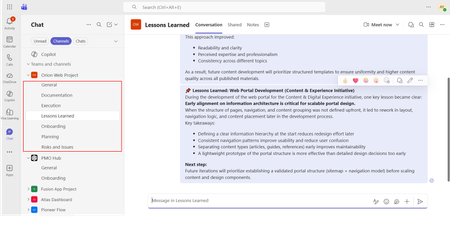
If you use Microsoft Teams only for chats and meetings, you’re missing much of what it can actually do. While Microsoft Teams is often seen as a communication tool, it can also function as a central workspace for managing projects - from planning and brainstorming to execution and documentation - all in one place. When combined with tools like Microsoft Planner, SharePoint, and Microsoft Loop, Teams can become a practical project management hub that keeps work organized and reduces the need to switch between systems. This article walks through a clear, practical approach to setting up and using Teams for real-world project delivery. Why Use Microsoft Teams for Project Management? Organizations often hesitate to introduce new tools due to cost, training effort, or resistance to change. Microsoft Teams offers a strong advantage: it is already widely adopted in many organizations as part of Microsoft 365. Using Teams for project management allows you to: Centralize communication and documentation Reduce tool fragmentation Improve team visibility and collaboration Leverage existing infrastructure without additional cost Instead of switching between multiple platforms, teams can manage conversations, files, tasks, and workflows in one place. Structuring Your Project in Teams A well-structured Team is the foundation of successful project management. Create a Dedicated Team Start by creating a Team specifically for your project. Avoid mixing multiple projects in one Team, as it leads to confusion and poor organization. Recommended channels structure: General (announcements and overview) Planning (timelines, scope, requirements) Execution (daily work discussions) Risks and Issues Documentation Onboarding Lessons Learned This structure ensures clarity and separates strategic discussions from operational ones. Managing Tasks with Planner Task management is a critical part of any project. Inside Microsoft Teams, you can add a Planner tab to manage tasks visually within the same workspace where communication and files are stored. How to use Planner effectively: Create buckets (e.g., To Do, In Progress, Completed, or structured by topic) Assign tasks to team members for clear ownership Set due dates and priorities Attach files and add comments directly to tasks Use labels to categorize work (e.g., Design, Frontend, Backend, Testing) for better filtering and tracking Planner also provides multiple views beyond the basic board: Board view (Kanban-style) for workflow tracking Charts view for progress and workload overview Schedule (Calendar) view to track deadlines visually across time This combination allows teams to switch between operational tracking and higher-level planning depending on the need. This visual approach improves accountability, transparency, and makes task tracking easier even for non-technical users. Document Management with SharePoint Every Team in Microsoft Teams is backed by a SharePoint site. This means all files shared in Teams are stored and managed through SharePoint. Using SharePoint effectively allows you to: Structured storage of project documentation through folders and metadata Maintain version control Role-based access management Centralized file organization Control access permissions Enable real-time collaboration Best practices: Create clear folder & metadata structures (e.g., Contracts, Designs, Reports) Avoid duplicate files Use naming conventions Instead of sending documents via email, teams can collaborate directly within Teams, ensuring everyone works on the latest version. SharePoint Lists in Microsoft Teams SharePoint Lists in Microsoft Teams provide a structured way to store, manage, and track information directly within the collaboration workspace. A SharePoint List is essentially a flexible data table, where each item represents a record with defined fields (such as status, owner, due date, priority, or category). They are especially useful for: Project roadmaps and milestone tracking Action item tracking with ownership and status Checklists for delivery and execution steps Simple status registers and progress tracking Unlike free-form messages or documents, SharePoint Lists keep information structured, filterable, and easy to update, which makes them suitable for ongoing tracking and reporting. When used inside Microsoft Teams, Lists help teams move from discussion to execution by turning decisions into trackable items with clear ownership, status, and visibility. Embedding SharePoint Pages in Teams Beyond file storage, Microsoft 365 allows SharePoint pages to be embedded as tabs within Teams, making key project information easily accessible in one place. SharePoint pages can be added as tabs inside Microsoft Teams channels, providing structured and persistent access to key project information without leaving the collaboration space. In practice, organizations often use SharePoint pages for: Project home page with key links and overview Governance page with rules and standards Onboarding page for new team members Documentation hub for core resources Centralized knowledge hubs This helps ensure that essential information is not scattered across chats or files, but is instead organized and always available within the project workspace. SharePoint is better suited for structured, stable, and long-term information. Microsoft Loop for Real-Time Collaboration Microsoft Loop introduces a more dynamic layer of collaboration inside Microsoft Teams, designed for fast, interactive work where content is continuously evolving. Loop components (such as notes, tables, task lists, and meeting agendas) can be embedded directly into Teams conversations and edited in real time by all participants. It is especially useful for: Live meeting notes Quick decision-making and feedback collection (including simple polls or inputs) 1:1 discussions and follow-ups Brainstorming sessions and idea capture Shared task tracking during discussions In practice, teams can collaborate on meeting notes or brainstorming pages during calls, with updates visible instantly to everyone. This removes the need to switch between documents or wait for post-meeting summaries. Unlike structured tools like SharePoint, Loop is designed for fluid, real-time collaboration, where information is shaped and refined as the discussion happens. Automating Workflows with Power Automate Manual processes can slow down project execution. With Power Automate, you can streamline repetitive tasks. Common automation examples: Notify the team when a task is completed Send reminders for upcoming deadlines Automatically save email attachments to SharePoint Trigger approval workflows Example scenario: When a task in Planner is marked as “Completed,” a notification is sent to the project manager and logged in a tracking list. This reduces manual follow-ups and improves efficiency. Power BI Dashboards Power BI can be integrated into Teams as a tab, allowing teams to access real-time reporting directly within their project workspace. It is commonly used for: Project status dashboards KPI and performance tracking Resource and workload visibility Financial or delivery reporting Instead of switching to a separate reporting tool, teams can monitor progress and insights directly inside Teams, ensuring better visibility and faster decision-making. Microsoft Whiteboard Microsoft Whiteboard provides a visual collaboration space for real-time ideation and planning. It is especially useful for: Brainstorming sessions Process mapping and flow design Workshop facilitation Visual planning during meetings Whiteboard supports freehand drawing, sticky notes, and structured diagrams, making it effective for capturing ideas during live discussions and workshops. Integration with Other Tools (Microsoft & Third-Party) Microsoft Teams can be extended with a wide range of Microsoft 365 services and external applications, allowing it to function as a central hub for project work, reporting, and collaboration. Teams also supports many external tools, allowing organizations to align existing systems without fully replacing them. Common examples include: Jira – agile project and issue tracking Trello – lightweight task and board management ServiceNow – IT service management workflows GitHub – development and repository tracking Salesforce – CRM data and customer-related workflows Communication and Collaboration Effective communication is essential for project success. Microsoft Teams provides multiple ways to facilitate this: Channel Conversations Keep discussions organized by topic instead of using scattered chats. Meetings and Calls Schedule regular check-ins, sprint reviews, or stakeholder updates directly within Teams. Mentions and Tags Use @mentions to notify specific team members and ensure accountability. Practical Use Case Consider a company implementing a new internal intranet. Using Microsoft Teams: A Team is created for the project Planner tracks tasks such as design, content migration, and testing SharePoint stores documents and site assets Power Automate sends reminders for deadlines Teams meetings are used for weekly progress reviews This setup enables the team to manage the entire project lifecycle without introducing additional tools. Best Practices for Success To maximize the effectiveness of Microsoft Teams for project management: Keep your structure simple and consistent Avoid creating too many channels Encourage team members to use channel conversations instead of private chats Regularly review and clean up tasks Use automation where it adds clear value Adoption is just as important as functionality. A well-designed system only works if the team actively uses it. Limitations to Consider While Microsoft Teams is powerful, it has limitations: Not suitable for highly complex project scheduling Limited dependency management compared to dedicated PM tools Reporting capabilities are basic without Power BI For large-scale or highly regulated projects, a dedicated project management tool may still be required. Professional Context and Applied Perspective The approach described in this article reflects practical experience in designing and implementing collaboration environments using Microsoft Teams within real organizational settings. It is based on applied use of integrated Microsoft 365 capabilities, including SharePoint, Microsoft Planner, and Microsoft Loop, to support structured project execution and improve cross-functional collaboration. Rather than relying on isolated tools, this approach focuses on designing a unified digital workspace that aligns communication, task management, documentation, and automation within a single environment. Microsoft Teams is more than just a communication platform. When used strategically, it becomes a practical and efficient tool for managing projects. By combining Teams with Planner, SharePoint, and Power Automate, organizations can create a unified workspace that supports collaboration, task management, and process automation. For teams looking to simplify their toolset while maintaining productivity, Microsoft Teams offers a compelling solution for modern project management.2.7KViews1like1Comment