Recent Discussions

Should be easy...... Open a form to a specific record
I have a form with rows showing individual audit for staff members. Each audit would be individualized by an Autonumber ID field. I want the user to be able to click on the ID field, have it close the form, and open another form on that specific record. Both forms are based on the same underlying table. The VBA I'm trying is the following: Private Sub ID_Click() DoCmd.OpenForm "Case_Notes", acNormal, "[ID] = " & Me!ID DoCmd.Close acForm, Me.Name, acSaveNo End Sub It does open the other form, close the form the user is clicking from, but it does not go to the ID number I click. For example, I click on ID 3, and the other form opens on ID 2. Any help would be greatly appreciated! Let me know if you have questions that I haven't clarified.20Views0likes2Comments"Method 'Calculation' of object '_Application' failed" error occurs on unpredictable attempts
At random times, this save code decides to spit the "Method 'Calculation' of object '_Application' failed" error. It doesn't happen on any other userforms. Any idea why? Private Sub CommandButton2_Click() 'Save 'Initial: On Error Resume Next Dim rng As Range, cell As Range Dim first_DB_avail_row As Range Dim Highest_Version_Row As Long Dim existingVersions() As String Dim ver_find As Variant Dim ver_list As Object: Set ver_list = CreateObject("System.Collections.ArrayList") 'Use an ArrayList for version sorting Dim padded_list As Object: Set padded_list = CreateObject("System.Collections.ArrayList") 'Create a temporary list for padded versions to ensure order (e.g., 5.1.28 > 5.1.2) Dim v As Variant, parts As Variant Dim padded_v As String, leadChar As String, all_vers As String Dim i As Integer 'Validate entries: If Me.Caption = "First Version - Business Manager" Then 'Adding product - first version If Me.ComboBox1.Value = "" Or Me.TextBox1.Value = "" Or _ Me.TextBox2.Value = "" Or Me.TextBox3.Value = "" Then 'Check if version is not inputted MsgBox "You must complete all fields.", vbExclamation, "Business Manager" GoTo MEM_CLEAN End If Insert_Product.ver_val = stage_entry & Major & Minor & Patch Unload Me Insert_Product.new_product_ver_cancel = False 'Set back to false from the terminate sub setting GoTo MEM_CLEAN End If Call Find_Latest_Ver 'Get the current latest version If stage_entry & Major & Minor & Patch = Highest_Version Then 'Check if version already exists MsgBox "This version already exists (as the newest version).", vbExclamation, "Business Manager" GoTo MEM_CLEAN End If existingVersions = Split(Replace(Me.TextBox4.Value, vbCrLf, ""), "• ") For Each ver_find In existingVersions If Trim(ver_find) = Trim(stage_entry & Major & Minor & Patch) Then MsgBox "This version already exists.", vbExclamation, "Business Manager" GoTo MEM_CLEAN End If Next ver_find If Me.ComboBox1.Value = "" Or Me.TextBox1.Value = "" Or _ Me.TextBox2.Value = "" Or Me.TextBox3.Value = "" Then 'Check if version is not inputted MsgBox "You must complete all fields.", vbExclamation, "Business Manager" GoTo MEM_CLEAN End If Me.Hide 'This will preserve public variables, keeping the form loaded, while still allowing the PLZ_WAIT userForm to display (no modal error) 'Macro Enhancement - Start: Application.Calculation = xlCalculationManual ActiveWorkbook.UpdateRemoteReferences = False Application.EnableEvents = False 'This must be false Application.ScreenUpdating = False Application.Interactive = False Application.DisplayAlerts = False Application.DisplayStatusBar = False PLZ_WAIT.Show PLZ_WAIT.Label2.Caption = "Setting new version" DoEvents 'Allows the PLZ_WAIT userForm to display If Err.Number <> 0 Then 'For some unknown reason, the Excel error "Method 'Calculation' of object '_Application' failed" occurs on unpredictable/unrepeatable attempts to save (sub runs) - cause unknown MsgBox "An Excel error occured (""" & Err.Description & """: " & Err.Number & "). Please try again (until it works).", vbExclamation, "Business Manager" GoTo MEM_CLEAN End If 'Pull data from the latest version: ThisWorkbook.Sheets("Products").Unprotect Password:=ThisWorkbook.Sheets("Background Data").Range("CY39").Value For Each cell In ThisWorkbook.Sheets("Background Data").Range("E4:E7503") If cell.Value = ThisWorkbook.Sheets("Products").Range("E" & Selection.Row).Value Then If cell.Offset(0, -2).Value = Highest_Version Then ThisWorkbook.Sheets("Products").Range("B" & Selection.Row).Value = cell.Offset(0, -3).Value 'Name ThisWorkbook.Sheets("Products").Range("C" & Selection.Row).Value = stage_entry & Major & Minor & Patch 'Product Version ThisWorkbook.Sheets("Products").Range("D" & Selection.Row).Value = cell.Offset(0, -1).Value 'File ThisWorkbook.Sheets("Products").Range("E" & Selection.Row).Value = cell.Value 'ID Number ThisWorkbook.Sheets("Products").Range("F" & Selection.Row).Value = cell.Offset(0, 1).Value 'Category ThisWorkbook.Sheets("Products").Range("G" & Selection.Row).Value = cell.Offset(0, 2).Value 'Details (Description) ThisWorkbook.Sheets("Products").Range("K" & Selection.Row).Value = cell.Offset(0, 6).Value 'Release Date ThisWorkbook.Sheets("Products").Range("L" & Selection.Row).Value = cell.Offset(0, 7).Value 'Copyright Y/N button ThisWorkbook.Sheets("Products").Range("M" & Selection.Row).Value = cell.Offset(0, 8).Value 'Copyright Status ThisWorkbook.Sheets("Products").Range("N" & Selection.Row).Value = cell.Offset(0, 9).Value 'Year ThisWorkbook.Sheets("Products").Range("O" & Selection.Row).Value = cell.Offset(0, 10).Value 'Copyright Statement ThisWorkbook.Sheets("Products").Range("P" & Selection.Row).Value = cell.Offset(0, 11).Value 'Published Y/N button ThisWorkbook.Sheets("Products").Range("Q" & Selection.Row).Value = cell.Offset(0, 12).Value 'Publish Status (Date) ThisWorkbook.Sheets("Products").Range("R" & Selection.Row).Value = cell.Offset(0, 13).Value 'Web Link ThisWorkbook.Sheets("Products").Range("S" & Selection.Row).Value = cell.Offset(0, 14).Value 'Withdraw Date Highest_Version_Row = cell.Row Exit For End If End If Next cell 'Save new version to version database: Set first_DB_avail_row = ThisWorkbook.Sheets("Background Data").Range(ThisWorkbook.Sheets("Background Data").Range("C7506").End(xlUp).Offset(1, 0).Address) first_DB_avail_row.Offset(0, -1).Value = ThisWorkbook.Sheets("Products").Range("B" & Selection.Row).Value 'Name first_DB_avail_row.Value = ThisWorkbook.Sheets("Products").Range("C" & Selection.Row).Value 'Product Version first_DB_avail_row.Offset(0, 1).Value = ThisWorkbook.Sheets("Products").Range("D" & Selection.Row).Value 'File first_DB_avail_row.Offset(0, 2).Value = ThisWorkbook.Sheets("Products").Range("E" & Selection.Row).Value 'ID Number first_DB_avail_row.Offset(0, 3).Value = ThisWorkbook.Sheets("Products").Range("F" & Selection.Row).Value 'Category first_DB_avail_row.Offset(0, 4).Value = ThisWorkbook.Sheets("Products").Range("G" & Selection.Row).Value 'Details (Description) first_DB_avail_row.Offset(0, 8).Value = ThisWorkbook.Sheets("Products").Range("K" & Selection.Row).Value 'Release Date first_DB_avail_row.Offset(0, 9).Value = ThisWorkbook.Sheets("Products").Range("L" & Selection.Row).Value 'Copyright Y/N button first_DB_avail_row.Offset(0, 10).Value = ThisWorkbook.Sheets("Products").Range("M" & Selection.Row).Value 'Copyright Status first_DB_avail_row.Offset(0, 11).Value = ThisWorkbook.Sheets("Products").Range("N" & Selection.Row).Value 'Year first_DB_avail_row.Offset(0, 12).Value = ThisWorkbook.Sheets("Products").Range("O" & Selection.Row).Value 'Copyright Statement first_DB_avail_row.Offset(0, 13).Value = ThisWorkbook.Sheets("Products").Range("P" & Selection.Row).Value 'Published Y/N button first_DB_avail_row.Offset(0, 14).Value = ThisWorkbook.Sheets("Products").Range("Q" & Selection.Row).Value 'Publish Status (Date) first_DB_avail_row.Offset(0, 15).Value = ThisWorkbook.Sheets("Products").Range("R" & Selection.Row).Value 'Web Link first_DB_avail_row.Offset(0, 16).Value = ThisWorkbook.Sheets("Products").Range("S" & Selection.Row).Value 'Withdraw Date 'Save Development Status Data to new version from latest version (copy over): first_DB_avail_row.Offset(0, 17).Value = ThisWorkbook.Sheets("Background Data").Range("T" & Highest_Version_Row).Value 'Title first_DB_avail_row.Offset(0, 18).Value = ThisWorkbook.Sheets("Background Data").Range("U" & Highest_Version_Row).Value 'Tags first_DB_avail_row.Offset(0, 19).Value = ThisWorkbook.Sheets("Background Data").Range("V" & Highest_Version_Row).Value 'Content first_DB_avail_row.Offset(0, 20).Value = ThisWorkbook.Sheets("Background Data").Range("W" & Highest_Version_Row).Value 'Total Tasks first_DB_avail_row.Offset(0, 21).Value = ThisWorkbook.Sheets("Background Data").Range("X" & Highest_Version_Row).Value 'Complete Tasks first_DB_avail_row.Offset(0, 22).Value = ThisWorkbook.Sheets("Background Data").Range("Y" & Highest_Version_Row).Value 'Platform first_DB_avail_row.Offset(0, 23).Value = ThisWorkbook.Sheets("Background Data").Range("Z" & Highest_Version_Row).Value 'Medium first_DB_avail_row.Offset(0, 24).Value = ThisWorkbook.Sheets("Background Data").Range("AA" & Highest_Version_Row).Value 'Framework first_DB_avail_row.Offset(0, 25).Value = ThisWorkbook.Sheets("Background Data").Range("AB" & Highest_Version_Row).Value 'Stage first_DB_avail_row.Offset(0, 26).Value = ThisWorkbook.Sheets("Background Data").Range("AC" & Highest_Version_Row).Value 'Dev Log (1) first_DB_avail_row.Offset(0, 102).Value = ThisWorkbook.Sheets("Background Data").Range("DA" & Highest_Version_Row).Value 'Dev Log (2) first_DB_avail_row.Offset(0, 103).Value = ThisWorkbook.Sheets("Background Data").Range("DB" & Highest_Version_Row).Value 'Dev Log (3) first_DB_avail_row.Offset(0, 104).Value = ThisWorkbook.Sheets("Background Data").Range("DC" & Highest_Version_Row).Value 'Dev Log (4) first_DB_avail_row.Offset(0, 105).Value = ThisWorkbook.Sheets("Background Data").Range("DD" & Highest_Version_Row).Value 'Dev Log (5) first_DB_avail_row.Offset(0, 106).Value = ThisWorkbook.Sheets("Background Data").Range("DE" & Highest_Version_Row).Value 'Dev Log (6) first_DB_avail_row.Offset(0, 107).Value = ThisWorkbook.Sheets("Background Data").Range("DF" & Highest_Version_Row).Value 'Dev Log (7) first_DB_avail_row.Offset(0, 27).Value = ThisWorkbook.Sheets("Background Data").Range("AD" & Highest_Version_Row).Value 'Total Bugs first_DB_avail_row.Offset(0, 28).Value = ThisWorkbook.Sheets("Background Data").Range("AE" & Highest_Version_Row).Value 'Resolved Bugs first_DB_avail_row.Offset(0, 29).Value = ThisWorkbook.Sheets("Background Data").Range("AF" & Highest_Version_Row).Value 'Total Requests first_DB_avail_row.Offset(0, 30).Value = ThisWorkbook.Sheets("Background Data").Range("AG" & Highest_Version_Row).Value 'Complete Requests first_DB_avail_row.Offset(0, 31).Value = ThisWorkbook.Sheets("Background Data").Range("AH" & Highest_Version_Row).Value 'Start Date first_DB_avail_row.Offset(0, 32).Value = ThisWorkbook.Sheets("Background Data").Range("AI" & Highest_Version_Row).Value 'End Date first_DB_avail_row.Offset(0, 33).Value = ThisWorkbook.Sheets("Background Data").Range("AJ" & Highest_Version_Row).Value 'Total Work Days first_DB_avail_row.Offset(0, 34).Value = ThisWorkbook.Sheets("Background Data").Range("AK" & Highest_Version_Row).Value 'Lines of Code first_DB_avail_row.Offset(0, 35).Value = ThisWorkbook.Sheets("Background Data").Range("AL" & Highest_Version_Row).Value 'Number of Features/Amenities first_DB_avail_row.Offset(0, 36).Value = ThisWorkbook.Sheets("Background Data").Range("AM" & Highest_Version_Row).Value 'Ease of Use first_DB_avail_row.Offset(0, 37).Value = ThisWorkbook.Sheets("Background Data").Range("AN" & Highest_Version_Row).Value 'Innovation/Uniqueness first_DB_avail_row.Offset(0, 38).Value = ThisWorkbook.Sheets("Background Data").Range("AO" & Highest_Version_Row).Value 'Complexity first_DB_avail_row.Offset(0, 39).Value = ThisWorkbook.Sheets("Background Data").Range("AP" & Highest_Version_Row).Value 'Optimization first_DB_avail_row.Offset(0, 40).Value = ThisWorkbook.Sheets("Background Data").Range("AQ" & Highest_Version_Row).Value 'Customer Request/Cater 'Set version list: Set rng = ThisWorkbook.Sheets("Background Data").Range("E4:E7503") ver_list.Add stage_entry & Major & Minor & Patch 'Add initial version For Each cell In rng 'Loop to add matches - Collect all versions If cell.Value = ThisWorkbook.Sheets("Products").Range("E" & Selection.Row).Value Then ver_list.Add cell.Offset(0, -2).Value End If Next cell 'Temporarily convert each version into sortable key (000.000.000) For i = 0 To ver_list.Count - 1 v = ver_list(i) leadChar = Left(v, 1) parts = Split(Mid(v, 2), ".") padded_v = leadChar padded_v = padded_v & Right("000" & parts(0), 3) padded_v = padded_v & Right("000" & parts(1), 3) padded_v = padded_v & Right("000" & parts(2), 3) ver_list(i) = padded_v & "|" & v 'Store padded key + original version 'Note: This converts, for example, "V54.17.44" to "V054017044" in order to sort, for each version (i) Next i 'Sort (descending) then strip padded key: ver_list.Sort: ver_list.Reverse For i = 0 To ver_list.Count - 1 ver_list(i) = Split(ver_list(i), "|")(1) Next i 'Note: This sorts then reverses the sort for highest version to be on top. Since sorting is left-to-right, major number will sort first, then minor, _ then patch, in that order. For the release, order will be A then B then V, since that's the alphabet's order, then it's reversed causing the order to be V then B then A. _ Basically, it is sorted lexicographically (V > B > A) then numerically (000000000), then reversed for descending order, then converted back to versioning format. 'Set validation: all_vers = " ," & Join(ver_list.ToArray, ",") 'Join all in array into one string and add initial blank option (for adding new when selected), for setting validation With Selection.Validation .Delete .Add Type:=xlValidateList, AlertStyle:=xlValidAlertStop, Operator:= _ xlBetween, Formula1:=all_vers .IgnoreBlank = True .InCellDropdown = True .InputTitle = "" .ErrorTitle = "" .InputMessage = "" .ErrorMessage = "" .ShowInput = False .ShowError = False End With ThisWorkbook.Sheets("Products").Protect Password:=ThisWorkbook.Sheets("Background Data").Range("CY39").Value 'Macro Enhancement - End: Application.Calculation = xlCalculationAutomatic ActiveWorkbook.UpdateRemoteReferences = True Application.EnableEvents = True Application.ScreenUpdating = True Application.Interactive = True Application.DisplayAlerts = True Application.DisplayStatusBar = True 'Final: Unload Me 'This clears "Highest_Version" and all public variables ?....... Sheet2.UPDATE_DB_FORCE = True Application.Run "Sheet2.Worksheet_Change", Selection 'Necessary in order to update Pricing and CUS_PRO_RATINGS sheets with new version Sheet2.UPDATE_DB_FORCE = False 'Release variables/objects from memory: MEM_CLEAN: Unload PLZ_WAIT: Set PLZ_WAIT = Nothing Set rng = Nothing Set cell = Nothing Set first_DB_avail_row = Nothing ver_list.Clear: Set ver_list = Nothing Set padded_list = Nothing End Sub49Views0likes3Comments
Tokyo Stock Exchange data
Does any one know, and can share, a sample excel file that can import updated information (ticker, name, last price, dividend yield, daily high and daily low and analysts average target price) for ~50 stocks traded on the Tokyo stock exchange, which is not covered by Microsoft?35Views0likes2Comments
Looking for help with a single Dynamic Formula Ranking Points by player and dropping lowest score
Name Finishes Andrew 1,1,2,3,7,8 Randy 2,4,5,5,8,9 Chris 1,1,2,3,7,8 Bill 1,4,6,6,7,9 Jeff 2,3,5,7,8,8 Reed 4,4,6,7,7,9 Doc 3,5,5,6,7,9 Steve 1,3,5,6,8,9 Paul 2,2,3,3,4,9 Points (1st, 2nd, etc) 165 105 75 50 35 25 20 15 10 Expected answer with lowest point dropped Name Points Chris 530 Andrew 510 Paul 410 Steve 315 Bill 285 Jeff 250 Randy 240 Doc 190 Reed 165118Views0likes5CommentsFormula Challenge: The most efficient way to generate a Number Spiral (Ulam spiral) ?
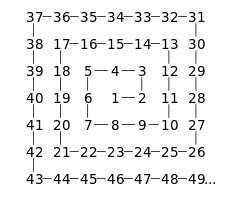
The goal: Ulam spiral - Wikipedia The trick is creating a function capable of producing the largest matrix of numbers possible (this may rule out the recursive approach). The approach I took: The approach I took was creating 'frames' and working inward with REDUCE essentially performing repeated addition: REDUCE works its way through an array of odd numbers in descending order (1 is omitted) with 3 different situations: 1. The odd number is the largest so the matrix does not require padding. 2. The odd number is 3, the anomaly, so a 'padded core' is created. 3. The odd number is not the greatest nor 3 so a padded matrix is generated Spiral Lambda: =LET( s, ODD(INT(SQRT(n))), arr, UNIQUE(ODD(SEQUENCE(s - 1, , s, -1))), arrCore, {5, 4, 3; 6, 1, 2; 7, 8, 9}, IFERROR( REDUCE( 0, arr, LAMBDA(a, v, LET( TopBottomPadding, EXPAND(0, (s - v) / 2, s, 0), SidePadding, EXPAND(0, v, (s - v) / 2, 0), top, SEQUENCE(, v, (v - 1) ^ 2 + 1, -1), bottom, SEQUENCE(, v, (v - 1) ^ 2 + v, 1), left_frame, EXPAND(SEQUENCE(v - 2, , (v - 1) ^ 2 + 2), , v - 1, 0), right_frame, SEQUENCE(v - 2, , (v - 1) ^ 2 - (v - 1), -1), core_stuffing, EXPAND(0, v, (s - v) / 2, 0), core, VSTACK( TopBottomPadding, HSTACK(core_stuffing, arrCore, core_stuffing), TopBottomPadding ), center, HSTACK(left_frame, right_frame), nopad, VSTACK(top, center, bottom), pad, VSTACK( TopBottomPadding, HSTACK(SidePadding, VSTACK(top, center, bottom), SidePadding), TopBottomPadding ), a + IF(v = s, nopad, IF(v = 3, core, pad)) ) ) ), "Please enter a number 17 or greater" ) ) The accuracy checks The highest number I've been able to get away with for n is 300,001. I'm interesting in any suggested improvements or different approaches to this task!6.3KViews1like19Comments
How to public mobile layout to web
Hi, I have prepared a Power BI dashboard using the mobile layout, and we would like to make this mobile view available on the web. However, I can only see it working in the Power BI mobile app, and I am experiencing difficulties when trying to implement it on a web page. Is there any way to publish the mobile layout on the web? If so, how? Thanks.13Views0likes1CommentHow do I get repeating part numbers (data) to auto fill data.
Sorry I am not very Excel savy but I was tasked with filling a spreadsheet with data of our part numbers, their description, the supplier we get them from, our assigned supplier numbers, and our suppliers part number for kits we make in our company, there are over 9000 but I have noticed that there are a lot of repeating part numbers so I was hoping there was a way so that I could have that data auto fill. I can post a link to the document it does not have any proprietary data that I can see. https://gpcompinc-my.sharepoint.com/:x:/g/personal/zachv_gpcompanies_com/IQAYSdPfHYQvRp6TRW4hg_xjAYh_4Jjl2Z_aCXX_64zMf50?e=MKDtrRSolved129Views0likes4Comments
equation or function?
+0.3°c -0.1°c +0.4°c Looking for either an equation or function for this, in order to simply enter column A & B and have answer autofill. The number in column A is the constant number that I want column B to be ie: what must happen to column B to equal column A, as you can see in column C you add 0.4 so that column B equals +0.3. As seen below there is variation from positive and negative numbers in both columns therefore at any given time it will be adding or subtracting?? +0.2°c -0.2°c +0.4°c +0.3°c -0.3°c +0.6°c 0.0°c -0.1°c +0.1°c -0.1°c +0.3°c -0.4°c -0.2°c 0.0°c -0.2°c -0.1°c +0.2°c -0.3°c anyone help me out, could save some considerable productivity time?76Views0likes2Comments
Creating a live document
Hi All, I wonder if anyone could help me please or guide me in the right direction. We are a small charity who provides free transport for Cancer clients in our area as our nearest hospital is over 60 miles away. Once a week we produce a 'Run Sheet' in Word, convert it to a PDF and email the link of the file to all our drivers for their duties the following week. The problem we have is the sheet is out of date the minute we send it out as clients call continually and new 'runs' are added. We prefer PDF as our drivers (some with limited tech skills) have PDF Readers by default on their smart phones. Whether it's word or PDF, how could we create a 'live' run sheet so that when the co-ordinators add or change the 'run sheet' within our OneDrive the drivers can see this. I know the basic level of this is to just create a Word document and create a share link and send that but I am sure there will be a better way of doing it so that we can point 'one' link and not have to share the a different file each week. Is there something within the Microsoft Family that would do the job better? We have a full non-profit licence. Sorry if that is confusing. Any ideas are most welcome. Thanks, Andrew4.4KViews0likes3Comments
MS Word is throwing up 'Error 4608' I haven't a clue what to do.
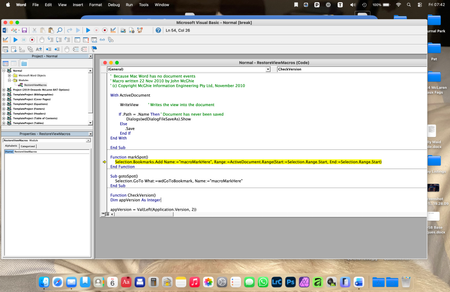
Hello, I wonder if anyone can help me here, because I am at a TOTAL los... I have a Word document that I have been updating for a few years, which is a sort of log. It has worked well up until today. Now, whenever I try to save the updated document, a very old fashioned (looks like Windows 3.1!), error message window appears which is headed 'Visual Basic for Applications' and in the window it says: Run-time error: '4608': Undefined dialogue record field There are then four buttons at the bottom labelled Help, Continue (which is greyed out), End and Debug. I have no idea what this error message means. Clicking on End gets rid of the error message, but prevents me from saving my updated document, and the next time I try to save it the error message just reappears. Clicking on Help takes me to a website with the title 'No F1 help match was found', followed by a load of technical computer-geek stuff I don't understand. Clicking on Debug seems to open a new window, but I do not know what it is... Here is a screen-shot of it: The highlighted text seems to refer to Bookmarks, which is throws me because I only associate Bookmarks with my web browser, not MS Word. I'm sure I haven't added any bookmarks to my document in any case. Can anyone enlighten me as to what is going on here please? Thanks68Views0likes4Comments
Copy and Paste Will Not Using the Destination Formatting
I am writing a book in Wood and will submit it to Amazon KDP, and I have set up the document per KDP guidelines. I am working on an English version and a Spanish version at the same time as two separate documents. The text is justified. Both documents have Normal/Modify settings set up exactly the same. The Fonts and Paragraph settings are exactly the same. I have gone into the Options/Advanced area of Word and played with all of the Cut, Copy, and Paste settings to try to fix my problem. But I can't figure out what is going on. I created the Spanish document by using Google Translate to take English paragraphs, translate them, and pasted them into the Spanish document The Spanish document is completed, and all of the formatting looks fine. So I already have paragraphs that are a certain size in the document, meaning they take up a certain number of lines. I am now editing the book using the English document. Something has changed with the Spanish document! If I make a small edit in an English paragraph, use Google Translate to deal with the edit and do a new translation, and then copy and paste that edited Spanish paragraph from Google Translate back into the same place as the original paragraph in the Spanish document, the words are slightly more compressed together, so the paragraph gets shorter! This happens if I even change just a single word in a paragraph, which has not really changed the length of the translation. The paragraph will become shorte by a half of a line, or a full line on long paragraphs. This is all becasue the words are being spaced slightly closer toegether now, versus when I originally crated the document. Also, when I start to do the paste, from Paste Option only get the option for "Keep Text Only." I don't get the multi-paste option box. Something has changed in my setup of Word from the time I created the original Spanish document, and what is happening now. I can't figure out why the formatting of the destination, or using merge formatting, is not working! It's making up it's own jutification spacing all of a sudden. I can't figure out why now a cut and pasted paragraph from Google Translate is making the spread between the words just slightly tighter. The latest thing I tried was Review/Language and choosing Spanish for the Spanish document, and that did not work. Any ideas? Gordon66Views0likes1CommentCleaning messy excel/csv form ERP system
Hi, I’m curious how people here usually deal with messy exports coming from ERP or accounting systems. I often receive Excel or CSV files that are not really ready to use as a table. Things like: -a few rows of system info before the header -totals or notes mixed inside the data -different date formats in the same column -currency symbols and formats all over the place -sometimes even another small table sitting under the first one Before doing any analysis (excel, power BI...) I usually have to spend a bit of time cleaning the file so it becomes a normal structured table. Power query definitely helps, but depending on the export I sometimes still end up doing several cleanup steps first. I’m curious what the usual workflow is for people here. Do you normally build a reusable Power Query transformation for these reports, or do you handle each export differently? I recently walked through one messy export example here while documenting the cleanup steps if anyone is curious about the kind of file I mean: https://www.mubsiraanalytics.com/blog/how-to-extract-clean-tables-from-messy-excel-csv Mostly just interested to see how others approach this.9Views0likes0CommentsThe future of Windows 11 on x86-64 based systems
First of all, I love the design and modernisation approach Microsoft first had with the idea of Windows 11, and i'm sure we all know what's been happening lately with the latest OS Patches, so here's my question: Is Windows 11 on x86 fundamentally repairable from the ground up, or are its stability issues baked into legacy architecture? Why does Windows 11 on ARM appear so much more stable compared to the current x86 experience, and what concrete steps are being taken to close that gap? And what is Microsoft's strategy to bring back trust from long time users who've switched over to other platforms? Also, to finish my question, let's say that Microsoft will hopefully fix and improve the overall experience with Windows 11, will the user in the future have more flexibility and freedom over customisation, telemetry and privacy options, and even account options in future improved Windows 11 updates?4Views0likes0CommentsOperations Dashboard in Excel
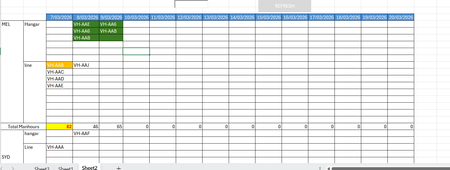
Ok, so I have been tasked to build an operational dashboard for an airline maintenance planning and tracking. I have a dataset downloaded from our ERP system that lists down the aircraft tails, the workorder number, tasks in each workorder, manhours for each task, city, site(hangar or line) and the start date and end dates. There are codes that are assigned for each category of workorder, whether it is a C-Check, Line or transit. In the current scenario, we use a flight operations tracking software that gives us a hangar forecast, but then we have to get the dataset (as mentioned above) and then build a report daily to show the tails assigned for each port and then the total manhours. The report looks something similar to what you see below. Now, instead of doing it daily manually, I want to automate the process. So far, I have been able to sum the total manhours for the day, get the tails assigned for each port and location, and achieve some sort of conditional formatting to distinguish between different types of checks - green for heavy, yellow for transit and so on. What I have been unable to achieve is the aircraft is scheduled for two days grounding in the hangar, then the cells on both days should align together. As you can see in the image above, VH-AA6 has maintenance on the 8th and 9th of March, but the cells are not aligned. I tried to find a difference between the start and end date and create a helper column to assign a priority, but it didn't work. I have spent countless hours on Chatgpt to come up with a solution, but all efforts went in vague. I have seen a similar excel sheet elsewhere, but I couldn't extract the formulas or the logic since it was heavily protected. In the end I want to add a search bar and a to find a Rego/ Tail by typing in the search field and highlight in the sheet quickly. The main aim is the cell alignment for the consecutive dates. So lets say AA6 is occupying D2 on Day 8, then on the Day9 AA6 should pop up in E2. Any other aircraft on the Day9 with a day's grounding may appear in E1, or next available empty cell.12Views0likes0Commentsline spacing
I'm creating a word doc (w/the help of ChatGPT). I copied and pasted from GPT into a Word doc, but I can't duplicate the spacing from one line to another. When I put the cursor behind a line and hit enter, the next line doesn't match up. Industries We Serve ✔ Medical & Clinical Laboratories ✔ Pharmaceutical & Biotech Facilities ✔ Research Laboratories ✔ Dialysis Centers ✔ Electronics Manufacturing ✔ Industrial Processing Facilities This is what happens when I put the cursor behind Laboratories. The spacing is way bigger and has no checkmark. What gives? ✔ Medical & Clinical Laboratories ✔ Pharmaceutical & Biotech Facilities ✔ Research Laboratories ✔ Dialysis Centers ✔ Electronics Manufacturing ✔ Industrial Processing FacilitiesSolved55Views0likes2Commentschange background color
I have a worksheet, using column b9:f550 with the cells having a background color of blue. Col B is empty of data. whenever I put a S or P in column B, ( b9 example, I want the background color to change in b9, c9, d9, e9, f9 to white. is there a way that this will automatically change to white whenever I add a S or P in the B col?8Views0likes0CommentsAllow removal of "Copilot Suggestions" from right-click menu
I have been using Excel for decades and CONSTANTLY use the right-click menu for quick access to basic functions (e.g., "Insert"). Ever since "Copilot Suggestions" was added to the drop-down list, it always throws me off due to its placement. I have Microsoft 365 on Windows 11 Pro. I have searched for ways to remove this from appearing there and the result said "go to File > Options > Copilot and uncheck the 'Enable Copilot' box". However, when I attempt to do that, there is NO "Copilot" option available! PLEASE allow removal of "Copilot Suggestions" from the right-click menu OR at least the option to move it to the bottom (so it isn't in the way of things used ALL the time). I realize that Copilot is a great resource for many users, but I am confident in my Excel skills and in my ability to research/learn new skills the "old school" way, so I have little use for this feature now and would prefer to hide it.203Views3likes3CommentsWord Writing Problem
Hello, I am experiencing a problem with the web version of Microsoft Word on my Android phone and tablet. For about a week, I have noticed issues when typing in Word. After typing something and pressing the Enter key, the text I wrote sometimes disappears. In some cases, even though I press Enter, the cursor does not move to the next line and the words start overlapping each other. This issue occurs both when I use the on-screen keyboard and when I use a physical keyboard. I have tried several different browsers and devices, but the problem still persists. I also tested it with a different Microsoft account and the same issue occurred. What could be causing this problem, and how can I fix it?1View0likes0Comments



Events
Learn more about the capabilities of Agent 365 in this live 'Ask Microsoft Anything' with product and engineering team experts! Get your questions answered about capabilities for agent observability,...
Wednesday, Mar 18, 2026, 09:00 AM PDTOnline
0likes
94Attendees
0Comments

You’re passionate about what you do, and we’re passionate about empowering your potential. Microsoft 365 Community Conference - is your chance to keep up with AI, build game-changing skills, and take...
Tuesday, Apr 21, 2026, 08:00 AM PDTIn-Person
0likes
3Attendees
0Comments
Recent Blogs
- Microsoft Most Valuable Professionals (MVPs) are the heartbeat of the Microsoft ecosystem—and at Microsoft 365 Community Conference 2026, your impact takes center stage. Imagine connecting face-to-...Mar 06, 2026231Views0likes0Comments
- Edit images directly in PowerPoint to enhance, refine, and perfect visuals without leaving your deck.Mar 06, 20263KViews5likes1Comment