
Forum Widgets
Latest Discussions
Update to disabling Teams meeting recording expiration notification emails
Hello, Thank you to everyone who shared their thoughts and feedback regarding the planned Upcoming change: disabling Teams meeting recording expiration notification emails. After carefully reviewing the feedback from this discussion, survey responses, and support channels, we have decided to pause the rollout of this change. The updates originally planned for June 1st will not take effect on that date. What this means for you: - Email notifications for expired Teams meeting recordings will continue as they do today. - No action is required on your part. - Recording expiration and deletion policies remain unchanged. Your input along with ongoing, internal engineering discussions helped shaped this decision. We want to make sure that any changes we make to the notification experience truly work for your organizations, and the feedback we received made it clear that we need more time to get this right. We're still committed to improving the notification experience for Teams meeting recordings and will provide updates here and through the Message Center when we have more to share. In the meantime, please continue to share your thoughts in this discussion. Thank you for your patience and for being part of our community.Eddie_HarmonMay 07, 2026Microsoft85Views1like2Comments
Feature Request: Custom Status Labels for Calendar Events (e.g., 'In a Training')
Hey Teams Community! 👋 I have a small but impactful feature idea and would love your votes and feedback. --- 🔴 The Problem Right now, every calendar block in Microsoft Teams shows the same status to colleagues: "In a Meeting." Whether you're in a 10-minute standup or a 3-hour mandatory training — it all looks identical. This creates ambiguity, leads to unnecessary interruptions, and doesn't reflect how modern workplaces actually function. --- 💡 The Feature Request Allow users to assign a custom status label to a calendar event when creating it — visible to colleagues who check availability — without exposing private event details. Something as simple as a dropdown when creating an event: ✅ In a Meeting (default) 🎓 In a Training 🎯 Focus Time 📋 In a Workshop The chosen label would appear: → In the chat status indicator → On the calendar availability hover card → When someone tries to @mention or call you --- ✅ Why This Matters - Reduces interruptions during high-focus or learning sessions - Helps colleagues make smarter decisions about whether to wait or escalate - Especially valuable for schools, hospitals, training teams, and L&D departments - Lightweight to implement — no privacy concerns since it doesn't reveal event titles --- 🗳️ If you've ever been interrupted during a training because someone thought you were just "in a meeting" — please upvote and share your experience below! Let's get this on the Teams roadmap. 🚀 Tags: Feature Request, Calendar, Status, Availability, Training, Teams, Microsoft Teamstarun1992May 07, 2026Occasional Reader21Views0likes2CommentsMicrosoft Teams Consecutive Interpretation Explained (NEW Copilot Feature for Multilingual Meetings)
🚀 New in Microsoft Teams: Consecutive Interpretation (powered by Copilot) Microsoft Teams just introduced consecutive interpretation, a new way to run multilingual meetings that feels far more natural than real-time translation. 🎧 Instead of translating while someone is speaking, Teams now: Lets one person speak Translates after they finish Enables real, turn‑by‑turn conversation In my latest video, I explain: • What consecutive interpretation is How it differs from real-time (simultaneous) interpretation When to use one vs the other Why this matters for international teams 👉 Watch the video here: https://youtu.be/u-fH_00nFuU #MicrosoftTeams #Microsoft365 #Copilot #AIatWork #MultilingualMeetings #FutureOfWork9Views0likes0Comments
Win32_DeviceGuard and Win32_TpmProvider triggering errors and network spikes since 20H2!
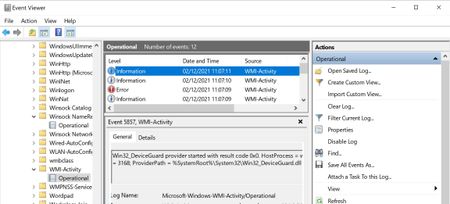
Hello, since upgrading to Windows 10 Pro 20H2 from 1903. The following start up after 5 minutes. These are... Win32_TpmProvider provider started with result code 0x0. HostProcess = wmiprvse.exe; ProcessID = 3188; ProviderPath = C:\Windows\System32\wbem\Win32_TPM.dll And Win32_DeviceGuard provider started with result code 0x0. HostProcess = wmiprvse.exe; ProcessID = 3188; ProviderPath = %SystemRoot%\System32\Win32_DeviceGuard.dll Unfortunately they are triggering massive network activity even if it is for a few seconds.. This is triggering this error Id 5858 = {00000000-0000-0000-0000-000000000000}; ClientMachine = DESKTOP-XXXXX; User = NT AUTHORITY\SYSTEM; ClientProcessId = 4912; Component = Unknown; Operation = Start IWbemServices::ExecQuery - ROOT\CIMV2 : SELECT ID FROM Win32_ServerFeature; ResultCode = 0x80041010; PossibleCause = Unknown After restarting computer, no more errors and this doesn't occur again until the next day, back to square one again. But this is just like UPFC.exe. I think this is some sort of telemetry that Microsoft implemented every day to happen once at least.BLaZiNgSPEEDMay 06, 2026Copper Contributor6.2KViews1like6Comments
Mute/unmute hotkey stopped working in main windows during presentation
In recent versions I have been able to press CTRL + SHIFT+ M when I was presenting (sharing) something from my Teams main window. Recently this stopped working and I need to go forth and back from main window to the my call window to mute myself. Could you please restore the old behavior. Thank you! Best regards TomTom_F73May 05, 2026Copper Contributor9.9KViews1like10CommentsMicrosoft to Retire Together Mode for Teams Meetings
In a somewhat surprising decision, Microsoft announced plans to retire the Together mode feature for Teams meetings in June 2026. Based on personal experience, it didn’t seem that many people used Together mode. It seemed like it was something that people tried a couple of times before giving up. Maybe it’s just the meetings I attend, but I haven’t seen Together mode used in years. https://office365itpros.com/2026/05/04/together-mode-retirement/69Views0likes0CommentsUpcoming change: disabling Teams meeting recording expiration notification emails
Hello, We wanted to share an important update regarding email notifications for expired Microsoft Teams meeting recordings. Based on valuable feedback from our community, we’ve decided to make a change to how notifications are handled. What’s changing: Starting June 1st, we will stop sending email notifications for expired Microsoft Teams meeting recordings. We are making this change due to complaints we received from many customers about the high volume of notifications which they deemed low value. This change allows us to respect your preferences while ensuring critical communications remain accessible. Recording expiration and deletion policies remain unchanged and items that expire will be deleted even when notifications are not being sent. How to keep receiving notifications: For those customers that would like to continue receiving email notifications, we will create a new setting and make it available before June 1st. This will be a per-tenant setting. We will send another message center post once this setting is available and update our documentation in this discussion and on our support page. After June 1st: If you didn’t change notification settings before the deadline, you can still re-enable them at any time by running the PowerShell command. Note: Our original message center post incorrectly asked recipients to fill out a survey and failed to include a link to the survey. We are committed to providing options that work for your organization, and we would like to hear from you. If you have questions or additional feedback about this change, please complete this survey and join the discussion: Teams Meeting Recording Notification Changes – Fill out form Thank you for being part of our community.Eddie_HarmonMay 01, 2026Microsoft2.2KViews4likes4CommentsMaking shifts not visible to all team members
Is there anyway to make shifts private, where only the specific team member that the shift is intended for can see it I can not seem to find a setting to restrict team members to only viewing their own shifts. Short of creating a team for each individual member....is there a way I am missing?
Set the visibility of allocated shifts only to the person allocated to it and owners?
I am wondering if it is possible to set visibility of allocated shift only to the assigned person and the owner of the schedule/disable the ability to view the entire teams shifts if you are only a "member"? I know there is an option to only send out notifications to the affected people but not actually set visibility for the shifts. //TobiasTobiasRudinApr 30, 2026Copper Contributor1.2KViews1like1Comment




Tags
- microsoft teams13,502 Topics
- How-to2,944 Topics
- Administrator2,656 Topics
- meetings2,564 Topics
- Settings2,305 Topics
- User Interface1,657 Topics
- tips & tricks1,502 Topics
- calling1,254 Topics
- teams1,038 Topics
- best practices996 Topics