Recent Discussions

List Styles & Style Sets
Does anyone know if it is possible to include a list style within a style set? I know to add the styles I want to include in a style set into the style gallery, then save the style set under the design tab. However, even though the styles in my style set are linked to list styles for the numbering, those list styles do not get transferred to a document I add the style set to. I really need the list styles to also transfer to the document I'm adding the style set to. Of course, list styles do not show up in the styles pane or the style gallery (or at least I cannot determine how to get them to). Thoughts?Solved124Views0likes9CommentsSpellcheck Not Working for Some Words?
I have a workbook with misspelled names like Tangirs, Manilla, Aisa, Santigo. These are places. Spellcheck caught Tangiers but missed Manila, Asia, and Santiago. Any idea on what's going on and how I can prevent this? These words seem obvious. Full Name Region and Sub-Region Bonita Sykes North America - New York Cairo Pemberton Aisa - Manilla Chante Devlin Africa - Tangier Erica Prince Europe - Santigo Florrie Greenaway North America - Chicago Frederic Holman Europe - London19Views0likes1Comment
Unable to remove Office Store applicaitons in admin center:
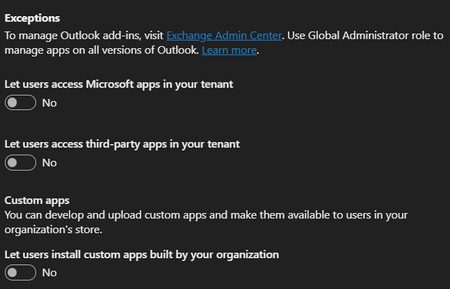
Hi! Yesterday I changed the settings in the screenshot below and it worked. It showed that IT blocked access when clicking on the Add-Ins button in Word and Excel. Today it shows the list off add ins and nothing was changed in the settings. Users can install add ins again: Google shows results of an Org setting in M365 admin panel that doesn't exist anymore. Any help would be appreciated.21Views0likes1Comment
combine multiple text into single line of text
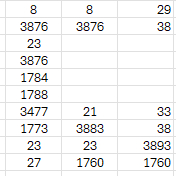
Hi is there a way to combine all the cells into a single cell (of text) ignoring the duplicates/repeat values. i know concatenate but that function becomes very lengthy as ill have to define every cell into the function individually. is there any other function where i simply select the entire data (like an array) and it can do the required.Solved109Views0likes3Comments
Help Clean Up This Formula
Hello, I am looking for a way to compact this formula more. I have about 20 rows I need to do. =C25-IF(OR(COUNTIF(D3,{"A","B","C"})),C3,0)-IF(OR(COUNTIF(D4,{"A","B","C"})),C4,0)-IF(OR(COUNTIF(D5,{"A","B","C"})),C5,0) I am trying to minus the amounts in column C# if Column D# = conditions A, B or C from C25. The math is all happening in one cell. Both columns are 3 through 24. I am hoping there is a way or am I SOL and have to do each row by hand? Thank you, CaseySolved61Views0likes2CommentsTable Styles and the Ribbon Table Design>Table Option Checkboxes
I have been dabbling in Word VBA for almost three decades but have a fairly limited practical use for Word so I rarely find myself dealing with Tables. However, the other day I got interested in Charles Kenyon's post on creating a table style with VBA and that led to my discovery of some very odd behavior with both the Table Option Checkboxes on the Ribbon and table style visibility. Specifically a) What triggers which of those six buttons is checked when a table style is applied, b) Why can't one or more of the plethora of "Table Styles" be removed from the Table Style Gallery on the Table Design Ribbon and c) Why can't the table style visibility be modified in the Style Manager "Recommended Dialong ("Show, Hide, Hide Until Used" is dimmed). First, I took Charles' recorded macro and modified it to focused on only two conditional formatting object “Header Row” and “Total Row” Option Explicit Sub TableStyleCreate() Dim oStyle As Style Dim oTS As TableStyle On Error Resume Next If ActiveDocument.Tables.Count = 1 Then ActiveDocument.Tables(1).Delete 'For testing. DoEvents Set oStyle = ActiveDocument.Styles.Add("Table with Just One Condtional Style Element", wdStyleTypeTable) If Err.Number <> 0 Then 'The named style already exists. Delete it. ActiveDocument.Styles("Table with Just One Condtional Style Element").Delete DoEvents Set oStyle = ActiveDocument.Styles.Add("Table with Just One Condtional Style Element", wdStyleTypeTable) End If oStyle.BaseStyle = "Table Grid" On Error GoTo 0 Set oTS = oStyle.Table With oTS.Condition(wdFirstRow) 'Associated with Header Row Checkbox .Shading.BackgroundPatternColor = wdColorLightTurquoise DefineBorder .Borders(wdBorderLeft), wdLineStyleSingle, wdLineWidth150pt, wdColor:=wdColorBlue DefineBorder .Borders(wdBorderRight), wdLineStyleSingle, wdLineWidth150pt, wdColorBlue DefineBorder .Borders(wdBorderTop), wdLineStyleSingle, wdLineWidth150pt, wdColorBlue DefineBorder .Borders(wdBorderBottom), wdLineStyleSingle, wdLineWidth150pt, wdColorBlue DefineBorder .Borders(wdBorderVertical), wdLineStyleSingle, wdLineWidth150pt, wdColorBlue End With With oTS.Condition(wdLastRow) 'Associated with Total Row Checkbox .Shading.BackgroundPatternColor = wdColorRose DefineBorder .Borders(wdBorderLeft), wdLineStyleSingle, wdLineWidth150pt, wdColorRed DefineBorder .Borders(wdBorderRight), wdLineStyleSingle, wdLineWidth150pt, wdColorRed DefineBorder .Borders(wdBorderTop), wdLineStyleSingle, wdLineWidth150pt, wdColorRed DefineBorder .Borders(wdBorderBottom), wdLineStyleSingle, wdLineWidth150pt, wdColorRed DefineBorder .Borders(wdBorderVertical), wdLineStyleSingle, wdLineWidth150pt, wdColorRed End With ActiveDocument.Tables.Add Selection.Range, 5, 7 Selection.Tables(1).Style = "Table with Just One Condtional Style Element" lbl_Exit: Exit Sub End Sub Sub DefineBorder(oBorder As Object, Optional LineStyle As WdLineStyle = wdLineStyleSingle, Optional LineWidth As WdLineWidth, _ Optional wdColor As wdColor = wdColorAutomatic) On Error Resume Next With oBorder .LineStyle = LineStyle .LineWidth = LineWidth .Color = wdColor End With On Error GoTo 0 lbl_Exit: Exit Sub End Sub TABLE STYLE OPTION CHECKBOXES After the macro runs, there is a five row, seven column table inserted into the document with conditional formatting displayed only on the “Header Row.” The reason for this is because when the table is inserted the Table Style Options on the Table Design tab are configured with “Header Row, Last Column, and Banded Rows” checked with “Total Row, Last Column and Banded Columns” unchecked. When I then checked “Total Row,” my style defined last row formatting was displayed. My style is formatted with only “Header Row and Total Row” formatting. Why was “First Column and Banded Rows” checked and “Total Row” not? I mean, if I go to the trouble of creating a style with conditional formatting, it seems to reason that I would want to see that formatting applied when I apply that style to a table. Why would I need to take the extra steps of selecting the table, clicking Table Design tab, and checking unchecked boxes? While investigating, I read that: "Set as Default" Function: If you modify a table (e.g., check "Total Row") and right-click to select "Set as Default," those specific check marks will appear on all future tables. So, I selected the table, and checked “Header Row and Total” and unchecked the other four boxes, then selected the style in the Table Styles Gallery, right clicked and applied "Set as Default." I inserted another table, applied the style but still, the formatting was incorrect for the second table. I had to again, select it, select Table Design and check the unchecked box for Total Row. I also read that the default configuration of the Table Style Option buttons is set as Header Row, First Column and Banded Rows checked whenever a new table is inserted in a document. That seems a bit illogical as I believe the default table style when a new table is inserted using Insert>Tables>Table is "Table Grid". The built-in Table Grid style doesn't have conditional formatting applied to either the Header Row, First Column or Banded Rows. One may wonder why are the boxes checked in that case? But they are. However, that theory is debunked because if you insert a table using a simple VBA procedure: Sub InsertSimpleTable() Dim oTbl As Table Set oTbl = ActiveDocument.Tables.Add(Selection.Range, 8, 6) MsgBox oTbl.Style.NameLocal End Sub ... which again has no conditional formatting applied, the Table Style Option boxes checked are "Banded Rows" and "Banded Columns" (the Header Row and First Column boxes are unchecked). Where is the logic in that? What triggered this change? It seems to me that the logical behavior would be that whenever a Conditional Formatting is defined in the table style that the associated Table Style Option button would be checked and the others unchecked when the table is inserted and that style applied. If a user then wants to then turn off the display of one or more conditions, then they uncheck it. Scenario: I need to create a document with 100 tables with conditional formatting applied to the Header Row and Total row. First table contains 3 rows, the second 4 four rows, third 5 row … the one hundredth 102 rows. I create a style with conditional Header and Total row formatting. I insert the first table apply the style, select the table, click Table Design Tab, check Total Row in table design options. I shouldn’t have to repeat those ridiculous steps for each of the next 99 tables. Madness!! TABLE STYLES IN GENERAL Next is table styles in general. The Table Design>Table Gallery has a plethora (a hundred or more) table styles displayed. Shauna Kelly discusses this absurdity in her page on tables styles (can't seem to post link) and how to remove some or all of them. She is right. Despite the artificial idiot solution to the prompt Word Table Design>Table Style Gallery remove a displayed style: To remove a displayed table style from the gallery in Word, right-click the specific style in the Table Design tab's gallery and select Remove form Style Gallery. This instantly removes the style from view in the current document, although it remains available in the full style list. There is no "Remove from Style Gallery" and as she states, there is no apparent way in the user interface to remove these built-in table table styles. Unfortunately, her suggested VBA method for doing so (in which I think there are typos): Sub HideATableStyleButMakeItVisibleWhenUsed() With ActiveDocument.Styles(Word.wdStyleTableLightShading) .Visibility = True 'Yes, True. .UnhideWhenUsed = True End With End Sub nor my altered version makes any difference. Sub MyAlteredVersion() With ActiveDocument.Styles(Word.wdStyleTableLightGrid) .Visibility = False .UnhideWhenUsed = False .Hidden = True End With lbl_Exit: Exit Sub End Sub At other places on the web, I have read that you can perhaps "hide" these styles with the Manage Styles "Restrict" dialog or Manage Styles "Recommended" Dialog. I applied restriction to all List Tables styles and still all 49 List Table type styles doggedly persist in the Table Style gallery. Attempts to hide using the visibility settings with the Style Manager Recommended Tab also fails: You can select Table Styles that are visible in the Table Style Pane and try to make them hidden but the associated visibility buttons are dimmed. All of my testing has been done with Word 2019. Does anyone have any evidence that any of these oddities/anomalies are resolved in new versions? Thank you.41Views0likes1Comment
Allow removal of "Copilot Suggestions" from right-click menu
I have been using Excel for decades and CONSTANTLY use the right-click menu for quick access to basic functions (e.g., "Insert"). Ever since "Copilot Suggestions" was added to the drop-down list, it always throws me off due to its placement. I have Microsoft 365 on Windows 11 Pro. I have searched for ways to remove this from appearing there and the result said "go to File > Options > Copilot and uncheck the 'Enable Copilot' box". However, when I attempt to do that, there is NO "Copilot" option available! PLEASE allow removal of "Copilot Suggestions" from the right-click menu OR at least the option to move it to the bottom (so it isn't in the way of things used ALL the time). I realize that Copilot is a great resource for many users, but I am confident in my Excel skills and in my ability to research/learn new skills the "old school" way, so I have little use for this feature now and would prefer to hide it.2.8KViews21likes9CommentsHow do you run engagement surveys with Forms, effectively?
We run quarterly engagement surveys through Forms and the response rate is decent. But the problem is what happens after. The results go into a PowerPoint, leadership discusses it once, and then nothing changes until next quarter when we ask the same questions again. My boss asked me to find a way to make survey results more actionable - like automatically flagging teams with low scores, triggering follow-up 1:1s, or at least giving managers a dashboard they'll actually look at. Is anyone doing engagement surveys inside Teams in a way that connects to real follow-up actions?23Views0likes1CommentMIN function exclude "Zero" values - Non Consecutive group of cells
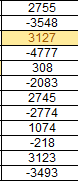
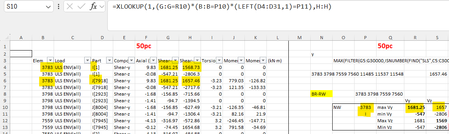
I am struggling with ignore zero values when the group of cells to be tested is not a consecutive range The function "=MIN(D7,M7,V7,AE7,AN7)" works fine but I want to ignore lowest value if AE7 and AN7 are zero. All the examples for MINIFS require the group of cells to be tested to be a consecutive Range (D7:AN7) however, I have values in the 7th row that I do not want factored in. Thanks in advance and I apologize for my nube-ness...37KViews0likes24CommentsSTOCKHISTORY and Stock Data not working
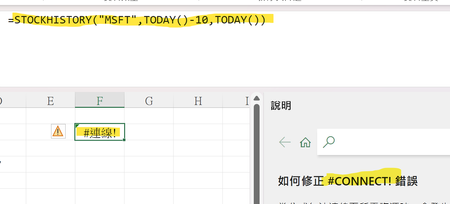
Is it only me? Or everyone else having the same problem? My Excel 365 cannot use STOCKHISTORY Function anymore. It shows #connect! Error. Also, I cannot use the stock data anymore. (The other data types are not functioning as well.) (The error message says "Sorry, we are having a temporary server error. We are trying to fix this problem.") Is it only me? Or everyone else is having this problem?Solved1.2KViews14likes30Commentsfilter and find
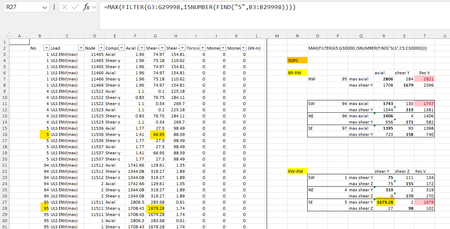
hi I am using filter and find function but the function is returning wrong results. cell R27 should return value from column G for No. '5' (B column) but instead its returning value for No. '95'. how do i fix this. on a side note while posting queries how do i remove this ribbon; its a bit annoying57Views0likes2CommentsM365 only admin locked out MFA error 53003
I am learning this the hard way....so here it goes. Currently I am locked out of as the only admin on the tenant with error 53003. I was updating some Microsoft MFA default policy settings in Entra and mistakenly deleted the admin user from the exclusions list, and got locked out. Thankfully I have another tenant, not as big the one locked out. Initiated several support tickets for which everyone calls, and despite of subline mentioning the issue says that they have to assign this ticket to Entra. Then the ticket gets updated and noone has been assigned every since. I have initiated severity A support tickets from Azure portal but no one has called in last 24 hours to help. We area business with Business Premium licenses with over 20 users, and now completely locked out. I have looked almost everywhere online. There is no phone number that takes you to a support agent - PLEASE HELP........45Views0likes2Comments
Disabling Copilot in Forms not possible
Hi everyone, Not sure if this has been addressed before - I couldn’t find anything about it in this forum. Since Copilot is now integrated into Microsoft Forms, there doesn’t seem to be any option to disable it (like in Word, Excel, Powerpoint). What I find frustrating is that every time I open a previously saved form, Copilot automatically runs checks and generates recommendations—which, in my experience, aren’t particularly useful. More concerning is that this process does consume AI credits. I'm on a personal plan with 60 credits, I’d prefer to have control over how and when those are used, rather than having them spent automatically on features I didn’t explicitly choose to use. Microsoft support has confirmed that there’s currently no way to turn Copilot off in Forms. Is anyone else experiencing this, and isn't this something Microsoft should address? Thanks!67Views0likes1CommentLeverage User and Group Assignments to Limit User Access to Apps
User and Group assignments can be added to Entra ID applications. Once assignments exist for an application, only assigned users can access that application. This method is a good way to secure access to applications that have consent to use high-profile permissions like Sites.FullControl.All or Mail.Read. Microsoft 365 tenants should consider how to use assignments to control user access to applications. https://office365itpros.com/2026/04/10/user-and-group-assignments/23Views0likes0Comments
OneNote breaks if I move it onto an external display
Hi guys I use OneNote extensively for work as my virtual notepad. At most of my working locations, I use my laptop - Dell Latitude 7440 - connected to either a Dell Docking station + 2 monitors, or a pair of samsung monitors which have an inbuilt hub, connect via USB-C and are daisychained together. I've never had any issues with OneNote in the past, but recently have found that if I try and move my OneNote window onto either external monitor, it seems to break OneNote - the whole window becomes just the index list which is normally a column on the left (where it shows all your notebooks and pages) and it won't actually display any of the content from the notebooks/pages. If I try minimizing that column, it has a complete breakdown as if its unable to properly load the actual page content. The only way to fix this is to drag the window back to my laptop screen and then close it and reopen. Has anyone else experienced this? It's really frustrating and affecting my productivity as I often need it side-by-side with other screens.25Views0likes0Comments
Formula for Complex Matrices
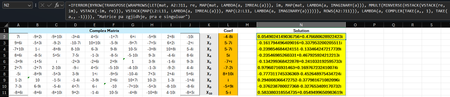
Hi Microsoft Community Hub, I am excited to share a new method I have developed for solving matrices with complex numbers. As many of you know, handling complex matrix operations in environments like Excel or during manual computation often requires separating real and imaginary parts, which increases complexity and the margin for error. I have conceptualized the formula which streamlines this process by providing a more direct approach. This is a dynamic formula and this formula works for any dimension of matrix (see the screenshot below). =IFERROR( BYROW(TRANSPOSE(WRAPROWS(LET( mat, A2:J11, coef, L2:L11, re, MAP(mat, LAMBDA(a, IMREAL(a))), im, MAP(mat, LAMBDA(a, IMAGINARY(a))), MMULT(MINVERSE(HSTACK(VSTACK(re, im), VSTACK(-im, re))), VSTACK(MAP(coef, LAMBDA(a, IMREAL(a))), MAP(coef, LAMBDA(a, IMAGINARY(a)))))), ROWS(A2:J11))), LAMBDA(a, COMPLEX(TAKE(a,, 1), TAKE(a,, -1)))), "Singular Matrix") Linkedin GitHub I hope this solution helps someone. Best regards, IlirU114Views0likes4CommentsHello from New Hampshire 👋
Hi everyone, I’m Lissette. I work in enterprise HR technology and project delivery, with a strong focus on using Microsoft 365 and AI to help teams work more efficiently and scale what’s working. A lot of my day‑to‑day work sits at the intersection of technology, structure, and enablement, translating complex requirements into practical solutions, and using AI and automation to accelerate delivery and reduce friction for teams. I’m here to learn from the community, share practical experiences, and exchange ideas around modern ways of working. Looking forward to learning from you all and contributing where I can. I’m especially interested in real‑world M365 practices that improve collaboration, governance, and adoption at scale.23Views1like1Comment




Events

You’re passionate about what you do, and we’re passionate about empowering your potential. Microsoft 365 Community Conference - is your chance to keep up with AI, build game-changing skills, and take...
Tuesday, Apr 21, 2026, 08:00 AM PDTIn-Person
0likes
7Attendees
0Comments
Recent Blogs
- 2 MIN READOne of the best ways to get value from the Microsoft 365 Community Conference isn’t just attending sessions, it’s helping shape what gets built next. The Research sessions at Microsoft 365 Communit...Apr 10, 2026124Views0likes0Comments
- Inspired by real work, this video series will show you how Copilot can help you with everyday tasks.Apr 10, 2026332Views1like0Comments