User Profile

newtotechcom-J
Brass Contributor
Joined Sep 17, 2023


User Widgets
Recent Discussions
Unable to delete Archived users from Viva Engage/yammer using powershell script
I want to delete Archived users who are there in VivaEnage/Yammer. I'm able to export the list but not able to delete users. Probably, some issues with this uri: $uri = "https://graph.microsoft.com/v1.0/yammer/users/$userId" Please suggest, what should I do. I have created this script, but getting this error in csv: Failed to remove: Response status code does not indicate success: BadRequest (Bad Request). Script: Set-ExecutionPolicy RemoteSigned $cred = Import-CliXml -Path 'C:\Script\Vaut\cred2.xml' $cert_graph = Get-ChildItem Cert:\LocalMachine\My\49054ea0593c0920e42b99fe99e9892833e651ec $appid_graph="MY_APPID_GRAPH" $tenantid="MY_TENANT_ID" $certid="MY_CERT_ID" $appid="MY_APP_ID" Connect-MgGraph -ClientID $appid_graph -TenantId $tenantid -Certificate $cert_graph # Fetch users whose display name contains "Archive" $users = Get-MgUser -Filter "startswith(displayName, 'Archive')" -All # Initialize a list to store operation results $results = @() # Loop through each user and remove from Viva Engage foreach ($user in $users) { $userId = $user.Id # Attempt to remove the user from Viva Engage (assuming correct API endpoint) try { # API endpoint might need modification based on exact requirements $uri = "https://graph.microsoft.com/v1.0/yammer/users/$userId" Invoke-MgGraphRequest -Method DELETE -Uri $uri $results += [PSCustomObject]@{ UserId = $userId UserPrincipalName = $user.UserPrincipalName Status = "Removed" } } catch { $errorDetails = $_.Exception.Message $results += [PSCustomObject]@{ UserId = $userId UserPrincipalName = $user.UserPrincipalName Status = "Failed to remove" ErrorDetails = $errorDetails # Add this line to record the error details } } } # Export results to CSV $results | Export-Csv -Path "C:\UserRemovalResults.csv" -NoTypeInformation # Disconnect the session Disconnect-MgGraphRe: Need help with Azure VM reboot which checks users logged in.
Kidd_Ip I created this script and tested it in Runbook. But getting an error. The script: workflow Restart-AVDVMsIfNoUser { param ( [Parameter(Mandatory = $true)] [string] $ResourceGroupName, [Parameter(Mandatory = $true)] [string[]] $VMNames, [Parameter(Mandatory = $true)] [string] $HostPoolName ) InlineScript { # Authenticate to Azure Connect-AzAccount -Identity # Loop through each VM name foreach ($VMName in $using:VMNames) { # Retrieve active user sessions on the VM $userSessions = Get-AzWvdUserSession -ResourceGroupName $using:ResourceGroupName -HostPoolName $using:HostPoolName -Name $VMName # Check if there are any active user sessions if ($userSessions.Count -eq 0) { # No users are logged in, restart the VM Write-Output "Restarting VM: $VMName as no users are logged in" Restart-AzVM -ResourceGroupName $using:ResourceGroupName -Name $VMName } else { # Users are logged in, do not restart the VM Write-Output "Not restarting VM: $VMName as users are logged in" } } } } # Example usage of the workflow Restart-AVDVMsIfNoUser -ResourceGroupName "YourResourceGroupName" -VMNames @("VM1Name", "VM2Name", "VM3Name") -HostPoolName "YourHostPoolName" Getting error: A parameter cannot be found that matches parameter name 'Name'. Sharing Output: PSComputerName : localhost PSSourceJobInstanceId : aab7e04e-c0d7-47f2-a8d4-a66f23ba8550 Environments : {AzureCloud, AzureUSGovernment, AzureChinaCloud, AzureGermanCloud} Context : Microsoft.Azure.Commands.Profile.Models.Core.PSAzureContext A parameter cannot be found that matches parameter name 'Name'. Restarting VM: VM1Name as no users are logged in PSComputerName : localhost PSSourceJobInstanceId : aab7e04e-c0d7-47f2-a8d4-a66f23ba8550 OperationId : 0310417d-d60f-4c0e-805a-b4360e2de05f Status : Succeeded StartTime : 3/11/2024 4:35:10 PM EndTime : 3/11/2024 4:37:09 PM Error : Name : A parameter cannot be found that matches parameter name 'Name'. Restarting VM: VM2Name as no users are logged in PSComputerName : localhost PSSourceJobInstanceId : aab7e04e-c0d7-47f2-a8d4-a66f23ba8550 OperationId : 6cd1cce4-a54a-4f66-8fc0-8b39d136af15 Status : Succeeded StartTime : 3/11/2024 4:37:09 PM EndTime : 3/11/2024 4:40:06 PM Error : Name : A parameter cannot be found that matches parameter name 'Name'. Restarting VM: VM3Name as no users are logged in PSComputerName : localhost PSSourceJobInstanceId : aab7e04e-c0d7-47f2-a8d4-a66f23ba8550 OperationId : f80f81b4-735e-4314-8b1c-2ec888a3ef44 Status : Succeeded StartTime : 3/11/2024 4:40:06 PM EndTime : 3/11/2024 4:42:01 PM Error : Name :641Views0likes0CommentsNeed help with Azure VM reboot which checks users logged in.
Hi guys, I have been looking for methods to restart AVD using runbooks and automation. I have info on how to restart VMS, but I want to restart the VMs such that it checks if any users are logged in and if the users are logged in. It won't restart. This is the script that I found to restart from linkedin: https://www.linkedin.com/pulse/scheduling-reboot-azure-virtual-machines-using-automation-rabea/: workflow demo { InlineScript { Connect-AzAccount -Identity Restart-AzVM -ResourceGroupName "Resource Group name" -Name "VM1 name" Restart-AzVM -ResourceGroupName "Resource Group name" -Name "VM2 name" Restart-AzVM -ResourceGroupName "Resource Group name" -Name "VM3 name" } }1KViews0likes4CommentsAddress List created in Global Address List is not showing emails/contacts from other org
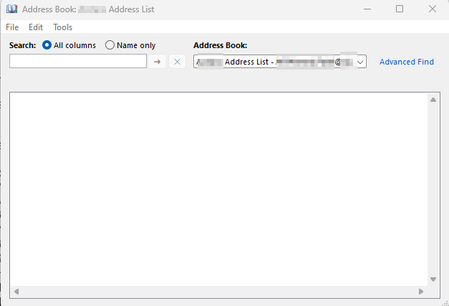
Hi Guys, I used the following command to create a new address so that the address list will have emails from other organizations as per our multi-tenant setup. New-AddressList -Name "XYZ Address List2" -RecipientFilter {((Alias -ne $null) -and (EmailAddresses -like '*@xyz.com'))} This is what I see in Address list Get-AddressList Name DisplayName RecipientFilter ---- ----------- --------------- XYZ Address List XYZ Address List ((Alias -ne $null) -and (EmailAddresses -like '*@xyz.com')) And I check the Address Book for the XYZ Address List it is completely empty. Could someone please help me?Re: Mail retention policy for Archive M365 Data Lifecycle Management
Thank you so much for sharing this, it is helpful. I'll implement this, I just have one concern, if I applied my new custom policy and I want to exclude some users, is there a way? And, if I want to exclude them should I do this before making my custom policy as default or after? Sorry for too many last questions!2.3KViews0likes2CommentsMail retention policy for Archive M365 Data Lifecycle Management
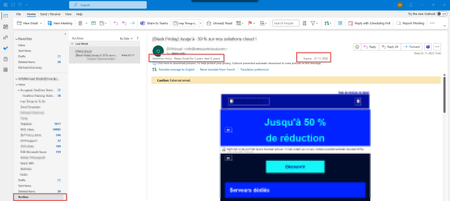
Hi, I want to apply an email retention policy such that, the emails in the mailbox are retained for 3 years and get deleted and the mail in the archive is there for 5 years and get deleted. Now, I have enabled a retention policy through Data lifecycle management-> Microsoft 365. The policy will retain emails for 3 years and after that, the emails will be deleted. But, the issue is that this policy is being applied to the archive as well and I want to exclude the archive so that the archive will have a different policy- email retention for 5 years, could someone please suggest how to achieve that using Data lifecycle management-> Microsoft 365? This is what the policy looks like in my archive email:SolvedRe: Turn on Memory Integrity via Intune
rahuljindal Yes, I did. I have Memory Integrity turned ON for me. And these are the registry values for me: PS C:\WINDOWS\system32> Get-ItemProperty -Path Registry::\HKEY_LOCAL_MACHINE\SYSTEM\CurrentControlSet\Control\DeviceGuard\Scenarios\HypervisorEnforcedCodeIntegrity Enabled : 1 HVCIMATRequired : 0 Locked : 1 PSPath : Microsoft.PowerShell.Core\Registry::\HKEY_LOCAL_MACHINE\SYSTEM\CurrentControlSet\Control\DeviceGuard\Scenarios\HypervisorEnforcedCodeIntegrity PSParentPath : Microsoft.PowerShell.Core\Registry::\HKEY_LOCAL_MACHINE\SYSTEM\CurrentControlSet\Control\DeviceGuard\Scenarios PSChildName : HypervisorEnforcedCodeIntegrity PSProvider : Microsoft.PowerShell.Core\Registry And, this is the registry value for the user where it is not turned ON using my script: PS C:\Users\XX> Get-ItemProperty -Path Registry::\HKEY_LOCAL_MACHINE\SYSTEM\CurrentControlSet\Control\DeviceGuard\Scenarios\HypervisorEnforcedCodeIntegrity Enabled : 1 PSPath : Microsoft.PowerShell.Core\Registry::\HKEY_LOCAL_MACHINE\SYSTEM\CurrentControlSet\Control\DeviceGuard\Scenarios\HypervisorEnforcedCodeIntegrity PSParentPath : Microsoft.PowerShell.Core\Registry::\HKEY_LOCAL_MACHINE\SYSTEM\CurrentControlSet\Control\DeviceGuard\Scenarios PSChildName : HypervisorEnforcedCodeIntegrity PSProvider : Microsoft.PowerShell.Core\Registry How can I have the registry value same as me for the users where it is not turned ON.3.2KViews0likes0CommentsRe: Turn on Memory Integrity via Intune
JosvanderVaart I have Memory Integrity turned ON for me. And these are the registry values for me: PS C:\WINDOWS\system32> Get-ItemProperty -Path Registry::\HKEY_LOCAL_MACHINE\SYSTEM\CurrentControlSet\Control\DeviceGuard\Scenarios\HypervisorEnforcedCodeIntegrity Enabled : 1 HVCIMATRequired : 0 Locked : 1 PSPath : Microsoft.PowerShell.Core\Registry::\HKEY_LOCAL_MACHINE\SYSTEM\CurrentControlSet\Control\DeviceGuard\Scenarios\HypervisorEnforcedCodeIntegrity PSParentPath : Microsoft.PowerShell.Core\Registry::\HKEY_LOCAL_MACHINE\SYSTEM\CurrentControlSet\Control\DeviceGuard\Scenarios PSChildName : HypervisorEnforcedCodeIntegrity PSProvider : Microsoft.PowerShell.Core\Registry And, this is the registry value for the user where it is not turned ON using my script: PS C:\Users\XX> Get-ItemProperty -Path Registry::\HKEY_LOCAL_MACHINE\SYSTEM\CurrentControlSet\Control\DeviceGuard\Scenarios\HypervisorEnforcedCodeIntegrity Enabled : 1 PSPath : Microsoft.PowerShell.Core\Registry::\HKEY_LOCAL_MACHINE\SYSTEM\CurrentControlSet\Control\DeviceGuard\Scenarios\HypervisorEnforcedCodeIntegrity PSParentPath : Microsoft.PowerShell.Core\Registry::\HKEY_LOCAL_MACHINE\SYSTEM\CurrentControlSet\Control\DeviceGuard\Scenarios PSChildName : HypervisorEnforcedCodeIntegrity PSProvider : Microsoft.PowerShell.Core\Registry How can I have the same registry value for the users where it is not turned ON.3.3KViews0likes0CommentsTurn on Memory Integrity via Intune
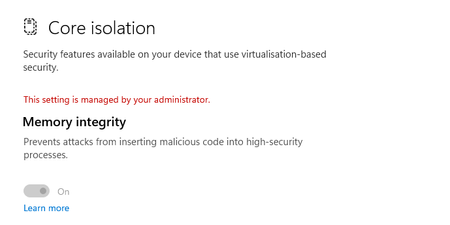
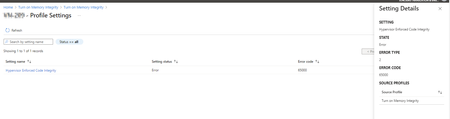
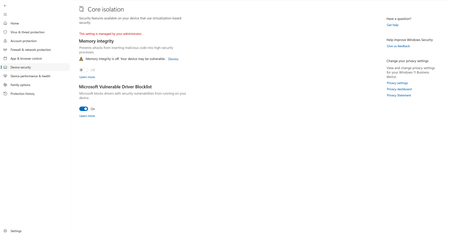
Hi, I want to turn on Memory Integrity via Intune. I used the following script to turn on Memory Integrity, but it didn't. Also, there are no errors or failure statuses on the Intune Scripts Status page. Could someone please suggest This is the script I used: # Registry key path $registryPath = "HKLM:\SYSTEM\CurrentControlSet\Control\DeviceGuard\Scenarios\HypervisorEnforcedCodeIntegrity" # Desired value for Memory Integrity (1 for enabled with UEFI lock) $desiredValue = 1 # Initialize exit code $exitCode = 0 # 0 indicates success by convention try { # Check if the key exists if (Test-Path -Path $registryPath) { $currentValue = Get-ItemProperty -Path $registryPath | Select-Object -ExpandProperty "Enabled" # Check if the value is already set to the desired value if ($currentValue -eq $desiredValue) { Write-Host "Memory Integrity is already enabled with UEFI lock. No changes made." } else { # If the key exists but the value is not as desired, set it to the desired value Set-ItemProperty -Path $registryPath -Name "Enabled" -Value $desiredValue Write-Host "Memory Integrity enabled with UEFI lock successfully." } } else { # If the key does not exist, create it and set it to the desired value New-Item -Path $registryPath -Force Set-ItemProperty -Path $registryPath -Name "Enabled" -Value $desiredValue Write-Host "Memory Integrity enabled with UEFI lock successfully." } } catch { Write-Host "An error occurred: $_" $exitCode = 1 # 1 indicates failure } # Exit with the specified exit code exit $exitCode Output of the regedit: Enabled : 1 PSPath : Microsoft.PowerShell.Core\Registry::\HKEY_LOCAL_MACHINE\SYSTEM\CurrentControlSet\Control\DeviceGuard\Scenarios\HypervisorEnforcedCodeIntegrity PSParentPath : Microsoft.PowerShell.Core\Registry::\HKEY_LOCAL_MACHINE\SYSTEM\CurrentControlSet\Control\DeviceGuard\Scenarios PSChildName : HypervisorEnforcedCodeIntegrity PSProvider : Microsoft.PowerShell.Core\RegistryRe: Script status showing failed however, the desktop Icon is installed. Deployed script via Intune
Rudy_Ooms_MVP I also used Chatgpt and used a script and it worked. This is what I used: # Variables creating local folder and download .ico file $LocalIconFolderPath = "C:\Intune\xxxxxxxxIntranet" $SourceIcon = "https://xxxxxxxxxxxxxxxxxxxxxxxxxxxxxxx/xxxxxxxxlogo-wo-wb/xxxxxxxxlogo-wo-wb.ico" $DestinationIcon = "C:\Intune\xxxxxxxxIntranet\xxxxxxxxlogo-wo-wb.ico" # Initialize exit code $exitCode = 0 # Check if the desktop shortcut already exists try { $new_object = New-Object -ComObject WScript.Shell $destination = $new_object.SpecialFolders.Item('AllUsersDesktop') $source_path = Join-Path -Path $destination -ChildPath '\\Global Intranet.lnk' if (Test-Path $source_path) { Write-Host "Desktop shortcut already exists. Skipping installation." } else { # Step 1 - Create a folder to place the URL icon try { New-Item $LocalIconFolderPath -Type Directory -ErrorAction Stop } catch { Write-Host "Error creating folder: $_" $exitCode = 1 # Set exit code to indicate an error } # Step 2 - Download an ICO file from a website into the previously created folder try { curl $SourceIcon -o $DestinationIcon -ErrorAction Stop } catch { Write-Host "Error downloading ICO file: $_" $exitCode = 2 # Set exit code to indicate an error } # Step 3 - Add the custom URL shortcut to your Desktop with a custom icon if ($exitCode -eq 0) { try { $new_object = New-Object -ComObject WScript.Shell $destination = $new_object.SpecialFolders.Item('AllUsersDesktop') $source_path = Join-Path -Path $destination -ChildPath '\\Global Intranet.lnk' $source = $new_object.CreateShortcut($source_path) $source.TargetPath = 'https://xxxxxxxxxxxxx.sharepoint.com/sites/GlobalIntranet?web=1' $source.IconLocation = "C:\Intune\xxxxxxxxIntranet\xxxxxxxxlogo-wo-wb.ico" $source.Save() } catch { Write-Host "Error creating shortcut: $_" $exitCode = 3 # Set exit code to indicate an error } } } } catch { Write-Host "Error checking for desktop shortcut: $_" $exitCode = 4 # Set exit code to indicate an error } # Exit the script with exit code 0 to indicate success, even if steps were skipped Exit 01.4KViews0likes0CommentsScript status showing failed however, the desktop Icon is installed. Deployed script via Intune
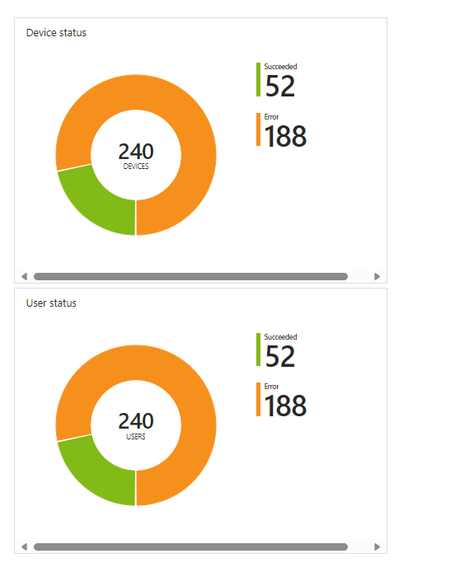
I have the following script deployed in Intune. The script is working fine- it is deploying the desktop icon that I want. But the issue is even though the desktop icon is there- it is still showing as status failed in Intune status page #Variables creating local folder and download .ico file $LocalIconFolderPath = "C:\Intune\Xxxxxxxxxxxxxxx" $SourceIcon = "https://xxxxxxxx/xxxxxxxxlogo-wo-wb/xxxxxxxxlogo-wo-wb.ico" $DestinationIcon = "C:\Intune\Xxxxxxxxxxxxxxx\xxxxxxxxlogo-wo-wb.ico" #Step 1 - Create a folder to place the URL icon New-Item $LocalIconFolderPath -Type Directory #Step 2 - Download a ICO file from a website into previous created folder curl $SourceIcon -o $DestinationIcon #Step 3 - Add the custom URL shortcut to your Desktop with custom icon $new_object = New-Object -ComObject WScript.Shell $destination = $new_object.SpecialFolders.Item('AllUsersDesktop') $source_path = Join-Path -Path $destination -ChildPath '\\Global Intranet.lnk' $source = $new_object.CreateShortcut($source_path) $source.TargetPath = 'https://xxxxxxxxxxxxx.sharepoint.com/sites/GlobalIntranet?web=1' $source.IconLocation = ”C:\Intune\Xxxxxxxxxxxxxxx\xxxxxxxxlogo-wo-wb.ico” $source.Save()Solved
Recent Blog Articles
No content to show