
Forum Widgets
Latest Discussions

Customize the Basic Approval Request
Is there any way that I can customize the Basic Approval Request in Teams? For example, at the top, it states Approvals. Can this be changed to state Acknowledgement instead? Is there anything else that can be customized just by using the MS Teams Basic Approval template?EAB1977Mar 06, 2026Copper Contributor28Views0likes0Comments
Does editing a chat group name affect all participants?
I have a number of chats open with various combinations of team members. Since Teams insists on using full names and not "goes by" names, I've edited the chat names for myself to make it easier to locate the appropriate chat on the fly. For example, a co-worker named Albert J. Swingleton goes by Jack, so I changed the name of the chat with Jack and Jill to "Jack & Jill" instead of the default "Albert and Jillian". This is great for me, but if it changed the way that the chat is named for Jack and Jill too, that's a major issue, because now they can't tell by looking at it that I'm a participant.tbrophyMar 05, 2026Copper Contributor11KViews2likes3Comments
Teams Voice Migration Checklist for IT Leaders
✅ Microsoft Teams Voice Migration Requires the Right Strategy Moving from a traditional PBX or legacy VoIP system to Microsoft Teams Phone offers flexibility, cost savings, and better integration with Microsoft 365. But successful migrations require careful planning across infrastructure, licensing, and user readiness. 🔑 Key Steps in a Teams Voice Migration • Assess Your Current Telephony Environment – Review your PBX, phone numbers, call flows, and existing voice infrastructure before migrating. • Choose the Right Calling Option – Decide between Microsoft Calling Plans, Direct Routing, or Operator Connect based on your organization’s needs. • Prepare Your Network – Ensure bandwidth, QoS, and connectivity are optimized for high-quality voice and video communication. • Plan User and Device Readiness – Confirm compatible devices, configure policies, and train users to ensure a smooth transition. 🚀 Why This Matters • Reliability – Proper planning ensures stable voice performance • User Adoption – Clear preparation improves the transition experience • Operational Efficiency – Consolidate communication tools into Microsoft 365 • Scalability – Modern cloud telephony supports hybrid and global teams 🔒 Plan the Migration Before You Move A structured migration checklist helps IT teams avoid disruptions, reduce risk, and ensure a successful transition to Microsoft Teams Phone.WMEMar 05, 2026Copper Contributor36Views0likes0Comments
How do you track 1-on-1 meeting notes anywhere in Microsoft Teams?
Hey everyone! How are you all keeping track of your meeting notes? Are you using the built in meeting features? Are you using a seperate app? I've noticed most of our employees are just using their Teams chats as a notepad and it doesn't seem very efficient...SolvedNorahFromHRMar 05, 2026Brass Contributor104Views0likes3CommentsTeams duplicates contacts until it maxed out at 15000
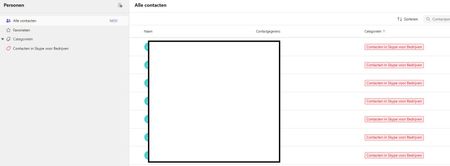
Hi, I have a weird issue with some users, Teams seems to be duplicating old Skype for Business contacts until it maxes out at 15000 contacts. I have been digging into it a bit and found out the location of the folder through Exchange powershell but I can't clear or delete it. Skype for Business is phased out and disabled in my tenant for a long time now so I couldn't do much there, I can't login to it through powershell. We've had Teams since like 2017 so I suspect this is a niche legacy issue popping up recently somehow. Manual deleting is possible through the browser environment but that is such a hassle because it keeps glitching if you delete per 100 and skipping pages and stuff, need to refresh constantly. Just a pain, it would take days. And no guarentee its not coming back either. See screenshots. Does anyone know why this is happening and how to fix this? Thanks for reading, cheers!Tiger8Mar 05, 2026Copper Contributor51Views0likes3CommentsGroup email addresses for Teams sometimes contain “+” or “/” characters
We are using Microsoft Teams in our organization. When creating multiple Teams with exactly the same team name, using ASCII alphanumeric characters only, we occasionally see that the automatically generated group email address contains unexpected characters such as “+” or “/”. I would like to know whether this behavior is expected or if it is specific to our environment. This issue seems to have been occurring since around August 2025. We manually create Teams using the Windows Teams client. For example, if we create several Teams with a simple name such as “example2026”, the corresponding group email addresses are generated in the following format: email address removed for privacy reasons However, in some cases, the XXXXXX portion includes characters like “+” or “/”. When creating around 50 Teams, this issue appears in a few of them. This causes two problems for us: A “+” character interferes with plus-addressing behavior. When a “/” is included, we cannot create events inside the Team. Has anyone else encountered this issue or knows why this happens? Any insights would be appreciated.CodeNishMar 04, 2026Copper Contributor31Views0likes2Comments
New Teams: No notification badges in system tray
SOLVED BY THE FOLLOWING: NEW TEAMS IS NOT READY FOR PRIME TIME. When I activate New Teams, I give up having a notification badge in my system tray. I do get notification badges in the taskbar when Teams is minimized there, but not when it's closed and in the system tray. Notifications are turned on in Teams, but interestingly, the System > Notifications & actions setting has a toggle only for "Microsoft Teams Classic." Is that what's missing? I'm still getting the option to switch between new and old Teams. Not sure if that's a Microsoft thing or an organization thing. Will that right itself once New Teams is the only option?SolvedASFMar 04, 2026Brass Contributor74KViews8likes28CommentsAuto-saving transcription files in a folder?
I'm currently working in a project which requires the usage of meeting transcription files (not recordings!), and I couldn't find a foulder at OneDrive, or Sharepoint that contains the transcription files (.vtt), I know I can manually download it at the meeting recap but manually downloading it would make my project kinda pointless, is there any way that I can configure it to automatically save the transcription file at a folder like it happens with recordings? Thank you!yuliakimerling13Mar 04, 2026Copper Contributor20Views0likes0Comments
How Do I Run Workflows in New Workflows App V2 in Teams?
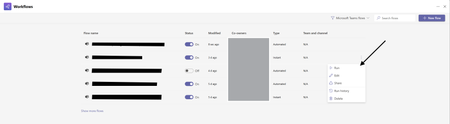
Hello All! I want to give feedback about issues workflow V2 experience in Teams. In the old version of Teams Workflows we could run workflows via this: But now in the New Version I have No Way to Run Workflows Am I Missing something Here? this has been a step back in functionality and ive trained users to use this as a way to run workflows and ive also used this at large in teams.kritchensMar 04, 2026Copper Contributor44Views1like1Comment
Teams auto selecting "Missed Calls"
I have the calls tab selected. On that tab I have "All" selected. I then click the Activity tab. Teams is selecting "Missed" on that tab. Why is it selecting "Missed"? The issue is when I click back to the calls tab Teams then selects the "Missed" on the calls area. Now if I click on "All" on the Activity tab and then click back to the Calls tab everything is fine. Seems like it is auto selecting stuff for me I didn't ask it to do.heimlich1Mar 03, 2026Copper Contributor19Views0likes0Comments

Tags
- microsoft teams13,474 Topics
- How-to2,938 Topics
- Administrator2,646 Topics
- meetings2,552 Topics
- Settings2,294 Topics
- User Interface1,649 Topics
- tips & tricks1,494 Topics
- calling1,252 Topics
- teams1,038 Topics
- best practices991 Topics