
Forum Widgets
Latest Discussions

Copy and Paste Will Not Using the Destination Formatting
I am writing a book in Wood and will submit it to Amazon KDP, and I have set up the document per KDP guidelines. I am working on an English version and a Spanish version at the same time as two separate documents. The text is justified. Both documents have Normal/Modify settings set up exactly the same. The Fonts and Paragraph settings are exactly the same. I have gone into the Options/Advanced area of Word and played with all of the Cut, Copy, and Paste settings to try to fix my problem. But I can't figure out what is going on. I created the Spanish document by using Google Translate to take English paragraphs, translate them, and pasted them into the Spanish document The Spanish document is completed, and all of the formatting looks fine. So I already have paragraphs that are a certain size in the document, meaning they take up a certain number of lines. I am now editing the book using the English document. Something has changed with the Spanish document! If I make a small edit in an English paragraph, use Google Translate to deal with the edit and do a new translation, and then copy and paste that edited Spanish paragraph from Google Translate back into the same place as the original paragraph in the Spanish document, the words are slightly more compressed together, so the paragraph gets shorter! This happens if I even change just a single word in a paragraph, which has not really changed the length of the translation. The paragraph will become shorte by a half of a line, or a full line on long paragraphs. This is all becasue the words are being spaced slightly closer toegether now, versus when I originally crated the document. Also, when I start to do the paste, from Paste Option only get the option for "Keep Text Only." I don't get the multi-paste option box. Something has changed in my setup of Word from the time I created the original Spanish document, and what is happening now. I can't figure out why the formatting of the destination, or using merge formatting, is not working! It's making up it's own jutification spacing all of a sudden. I can't figure out why now a cut and pasted paragraph from Google Translate is making the spread between the words just slightly tighter. The latest thing I tried was Review/Language and choosing Spanish for the Spanish document, and that did not work. Any ideas? GordonFoxwoodMar 01, 2026Occasional Reader16Views0likes0Comments
I am getting the message "WORD did not save the document C:\...\AutoRecovery save of...
Recently I am getting the message "WORD did not save the document C:\...\AutoRecovery save of..." This happens when I am working on large WORD documents, of about 700 pages. I have gotten the message when using WORD on two computers, in different locations. I have worked on these large documents for months without getting this message. I will appreciate advice.RobertGJudgeMar 01, 2026Copper Contributor73Views0likes6Comments
Link path update in Word fails for multiple fails in Office 2024
On my old PC i have created an excel file with data. I also have several doc and docx files on Word, that contain many links to the excel file. For each new project i have, I use this files as template and transfer them in a specific way to the new project's folder. Normally on my old PC with win 10 and office 2021 professional, for each of my projects i fill the project data in the excel file. After that I open the excel file, open the first word file and when it asks I click to update links at open. As soon as the update link bar at the bottom taskbar finishes I open the second word file, again update links in it and then the third file and so on. I do not close any files at that moment. After that I go into the opened excel file and click save as - to another location (my new project folder). This triggers in all open word files the system to begin update of all links paths. I wait some time (about 5-10 minutes) the update to finish an the word files to become responsive, and then I click -save as- for every word file and save it as a new file in the new project folder. This way worked for me - I had all the word files with updated links paths, linking to the new excel file for the new project. I moved to a new PC and recently installed windows 11 pro with Office 2024 LTSC. I transferred my word and excel files to a folder with the same name and path. And when i tried to do the same thing to create excel and word files for my new projects, it starts the procedure of updating link paths, but about half of the link paths finally are not updated in my word files! When i try with opening and updating and saving only 1 single word file, it works and updates all the link paths. But with multiple simultaneous word files it fails! I tried everything - trusted locations, different settings, even changing some registry. It was interesting that I managed to get it working 2 times. But immediately after that, without changing anything - it again was not working. I know i can do it manually - for every single link i have to choose the excel file - but imagine this for hundreds of links is too long. I can do it for a single word file, but i have to repeat it and wait for the word to become responsive - again very time consuming. This is not acceptable. I read this has something to do with the Office 2024 has changed the way to deal with links - it was synchronous in 2021 and olde, and now is asynchronous. The system gets something like timeout and does not finish the process or something. My question is how i can fix it? Or is there an option to choose between the two ways Office deals with links? Or is such an option coming out or should be planned for the next releases? This is the main part of my job and really troubles me. Now I am installing 2021 so i can do my job, but I really want to be using latest software and features. I appreciate your help and answers!smoothy1Feb 28, 2026Copper Contributor53Views0likes2CommentsWord Mail Merge document will not print.
I have created a mail merge document using an Excel s/s as my list of recipients. The merge completed successfully and I saved the completed document of 50+ pages. I want to print page 23 of the document and find it will not print. As a matter of fact, the whole document will not print. Please do not tell me I have to go back and set up the document over again...it has many fields and I never had this problem with Mail Merge before. PS I am returning to work after 2 years. Did Word 2016 change something in Mail Merge?? Thank you, GayeGaye DoughertyFeb 25, 2026Copper Contributor37KViews0likes13Comments
Word - Same Line Page Breaks Visibly Change Formatting
Within the last week or so, Word suddenly has started changing the formatting of visible text when a page break is used on the same line. How can this be corrected? (To be clear, yes, a page break could moved to the next line or deleted if there is not room for the extra line, but this impacts dozens of templates I have been using for years and I just want to set the formatting back to how it has worked in the past, where a page break inserted at the end of a line with centered text did not change the formatting of the visible text in said line.) Example 1 below is how it always used to appear whether the page break was on the same line as the centered title text or not. Example 2 below is how it looks now when the page break is on the same line.RebsFeb 24, 2026Copper Contributor213Views2likes6CommentsTrying to create a form field that uses images (but not a simple one!)...
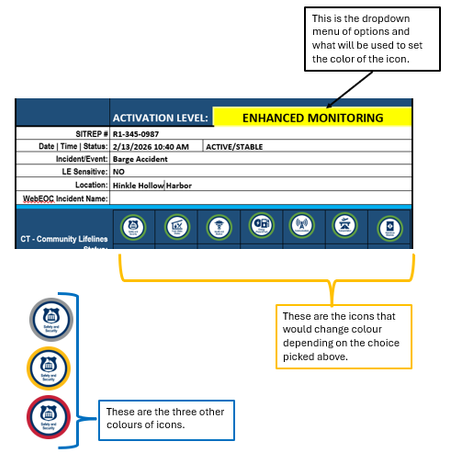
I have a Word form that uses a https://www.fema.gov/emergency-managers/practitioners/lifelines-toolkit/lifelines-icons used in the public safety community. For each icon, there are four different border colours, indicating a certain level of urgency, using the TLP model - green, yellow, red, grey. What I would like to do is create a dropdown (elsewhere on the form) where someone chooses an option in that field, and depending on the choice, the icon with the corresponding colour displays. Example: Any assistance is appreciated!Solvedjspeck1Feb 23, 2026Copper Contributor56Views0likes4Comments
Cannot turn off Copilot in MS Word for Windows as "Enable Copilot" is missing...
This is ridiculous. I have spent over 2 hours trying to turn off Copilot in MS Word O365 version. I am running MS Word in I I Windows 11 (updated) and running what I believe is the most current version. I have been able to go into Excel => Options and uncheck the "Enable Copilot". I do not see such a box in Powerpoint (thank God - I don't see it in the app at all) and have been able to turn it off on my Mac Office Apps. I have an O365 account. When I open Word in Windows and then select the Options I get what is displayed below. Do not see the enable coPilot option, but CoPilot is on. This is ridiculous. I have cleaned the registry and I have seen hacks on how to turn off coPilot by butchering the registry, which I refuse to do. I even removed the coPolite App. MS, I DO NOT WANT TO USE AI TO WRITE. How do I get rid of this? I am EXTREMELY frustrated with this. BryanbschmiedelertempconnetFeb 19, 2026Copper Contributor1.6KViews1like4CommentsSearch and replace can't seem to delete \o or \t in URLs
I am trying to delete specific text that has been added to all of the URLs in a Word document. The added text follows a specific format: "random characters" \t "_blank" \o protect" Using search and replace (with wildcards) and show field codes (so I can see the URLs) hasn't been successful. This approach -- searching for "random*protect" and replacing it with [blank] -- does nothing. Trying to delete just the \t and \o entries by surrounding them with parentheses deletes all the t's and o's in the document. Any help getting rid of these additions would be greatly appreciated. pjsSolvedpjs15Feb 17, 2026Copper Contributor47Views0likes2CommentsSearch a specific string in URLs across multiple Word documents
I would like to search for a specific string ("urldefense") in URLs across multiple Word documents that are all in the same folder. (I use Word on a Windows 11 desktop.) If it's possible to do this, I'd be grateful for directions. pjspjs15Feb 17, 2026Copper Contributor135Views0likes7CommentsImport Images using MetaData
How can I import a bunch of images based on metadata (date) or (time) or both of the image ?Reprobus RFeb 17, 2026Iron Contributor28Views0likes1Comment

Tags
- office 365329 Topics
- Word Online130 Topics
- Office Apps116 Topics
- 201683 Topics
- word74 Topics
- Apps38 Topics
- Online32 Topics
- 201324 Topics
- VBA12 Topics
- mobile11 Topics