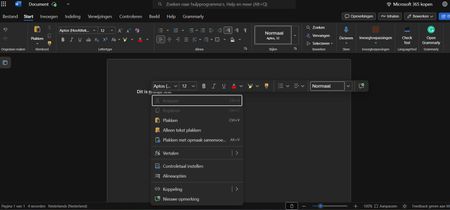
online
36 Topics
Finding the recycling bin on Microsoft word
I have had to go on a wild goose chase, to be quite frank with you, for the recycling bin on word. I was about to lock in and have my “academic comeback”, as the bairns say on social media platforms such as TikTok and Instagram, and I was taken off my track to find this stupid recycling bin. I am still yet to find and it and I am very unhappy, not only was google no help but so was Microsoft. 1/ Micro out of 10. Very upset need I remind you. Those special documents are now swimming in the land of the meta, in the river of the Zuckerberg and I can’t do anything about it. Get with the programme Microsoft. sincerely, disappointed.89Views0likes2Comments
Add-in Error of complements in Word Online with my Personal Account
Hi, I am getting an error when trying to insert any add-in (such as Mendeley Cite) in Word Online using my personal account. Error message: "Add-in Error: We couldn't connect to the catalog server for this document" (Original Spanish error: "Error de complemento: no pudimos conectarnos con el servidor del catálogo {0} para este documento") Here are the details and the troubleshooting I've already done: - Account-specific: It works perfectly with my old University account, but fails with my new Personal account. - Platform-specific: The add-in works fine on the Word Desktop App, but fails on Word Online (web browser). - Browsers: I have tried different browsers (Chrome, Firefox) and the issue persists. It seems to be a configuration or permission restriction specific to my personal account on the web version. How can I fix this? Thank you!206Views0likes1Comment
Equations not rendering in Word
Hi everyone, I have an Office 365 Subscription and so I use the online version of Word for my work, I've done so for a number of months. All of a sudden today all of my maths equations stopped rendering. Now all I see, if I try to use the equation editor, is a grey box that says [Equation]. This is true for new documents and also all of my old documents that included equations. I've tried logging in and out again and tried on Chorome and Safari. I lean on this function quite heavily for my work so any help would be appreciated.Solved42KViews1like18Comments
Word Similarity Checker fails in desktop and web: “Something went wrong”
Hello, I am having an issue with Microsoft Word Similarity Checker. The Similarity Checker consistently fails with the message: “Something went wrong. Try again.” This happens in both: - Microsoft Word desktop - Word for the web / Microsoft 365 web version Product/account details: - Microsoft 365 subscription is active - Word shows activated under File > Account - Connected experiences are enabled - Word desktop version: Microsoft 365 Apps, Version 2606, Build 20131.20112 Click-to-Run Current Channel Troubleshooting already completed: 1. Confirmed Word is activated under File > Account. 2. Confirmed connected experiences are enabled: - Experiences that analyze your content: ON - Experiences that download online content: ON - All connected experiences: ON 3. Ran Office Update Now. 4. Restarted Windows. 5. Ran Quick Repair. 6. Ran Online Repair. 7. Tested in a brand-new blank Word document. 8. Tested on mobile hotspot instead of normal network. 9. Confirmed ProtonVPN was turned off. 10. Cleared Office Wef cache contents at: %LOCALAPPDATA%\Microsoft\Office\16.0\Wef\ 11. Checked Microsoft Edge WebView2 Runtime. The installer says it is already installed for the system. 12. Signed out of Word/Microsoft 365, restarted Windows, and signed back in. 13. Tested again in Word desktop. 14. Tested again in Word for the web. 15. The same “Something went wrong. Try again” Similarity Checker error still occurs. I also previously saw a script error when clicking Update License in Word: URL shown included: https://oc.officeapps.live.com/odc/v2.1/hrd Error: 'Hrd' is undefined Because the issue occurs in both desktop Word and Word for the web after these troubleshooting steps, this seems like a Microsoft 365/Word Similarity Checker service-side or account-side issue rather than a local installation problem. Can someone from Microsoft confirm whether there is a known issue with Similarity Checker right now, or whether this needs to be escalated as an account/service-side problem?356Views0likes1Comment
TechCommunity Report — Word extremely slow to open files (now resolved)
Issue summary Starting on March 22nd, Word became extremely slow when opening any .docx file (even new empty files). A document that normally opens in 5 seconds suddenly required 8–10 minutes. The issue affected all my devices (Windows PC, mobile, and Word Online). Symptoms observed Word took several minutes to open any file, including newly created ones Word Online displayed “servers are busy” errors My Microsoft account portals sometimes failed to load or did not recognize my identity The issue appeared immediately after an Office update on March 22nd PowerPoint and other Office apps were unaffected Another software opened the same files much quicker Reinstalling Office, repairing Office, and attempting System Restore did not fix the issue Key diagnostic findings The problem was not related to my files (another free online software opened them much quicker) The problem was not local to my PC (same behavior on mobile and Word Online) The issue was clearly linked to Microsoft cloud services or the March 22nd Word build System Restore failed, but the issue persisted exactly the same afterward The problem disappeared suddenly without any local change Resolution The issue resolved itself spontaneously. A document that previously took 10 minutes to open now opens in 5 seconds again. This strongly suggests that the root cause was on Microsoft’s side (cloud service dependency or faulty build). Current configuration After reinstalling Office, I am now on: Microsoft Word for Microsoft 365 Version 2408 — Build 16.0.17928.20148 (64-bit) This build is stable and does not exhibit the issue Request If possible, could Microsoft confirm whether there was a service degradation or a problematic build released around March 22nd? This would help users understand the root cause and avoid unnecessary troubleshooting. Thank you.549Views0likes1Comment
Word Document Scrambled
I have been using the online version of Microsoft Word via Onedrive.com. The document I have been working on does not exist on my harddrive. It only exists on my OneDrive. The word document is 67 pages long and 31,788 words in total. It is a cumbersome document to review, to say the least. So, of course I was devastated when I discovered that Microsoft Word had glitched. Its not a minor glitch either. Its a radnomized duplication glitch. In some places one sentence is duplicated, one after the other. In some places a paragraph is duplicated, one full paragraph after the other. In other places, its all messed up. It has copied a single sentence and pasted it in the middle of another paragraph 1 or 2 pages away. One paragraph I saw was composed of sentences copied from at least 2 other paragraphs. This glitch has made a chimera out of a year of hard work. I had a chat message conversation with a customer support agent today while I was at work. We were unable to fix it. Although, he only offered me two things to try. He wanted me to log onto Onedrive.com from a different computer (in private web browser) and then log onto Onedrive.com from a different internet source. I was unable to log onto Onedrive.com from a different computer (in private web browser). It wanted me to either insert a USB passkey or scan a QR code with my phone for the pass key. I don't have the USB and when I tried my phone it just said that my phone doesn't have a passkey. My passkey is stored on my laptop. So, I was only able to log onto Onedrive.com on my laptop. Next, I tried a different internet source (in private web browser). It didn't work. The document is still scrambled eggs. After that, the customer support agent was all out of suggestions. He sent me here. The customer support agent did seem to think he knew what the glitch was from. He listed a few things. The ones that sounded possible were either Onedrive.com/word document timed out (maybe when the PC went to sleep) or the internet connect dropped. And supposedly those can cause a duplication problem. Does any of this sound familar to anyone? Suggestions? I'm begging for a quck fix so I don't have to scrutinize 67 pages and 31,788 words.240Views0likes1CommentWord Web Version Text disappears after closing
I wrote text in a document, and it appeared to save successfully (indicated by the "Saved" icon). However, after closing the tab and reopening the document, the text had disappeared. In its place are blank spaces that preserve the exact formatting of the original text—for example, if the original text had a paragraph structure, the blank spaces repeat the same pattern. The text is no longer accessible. I've attempted to: Copy the disappeared text to another document or notepad Select it Change the text color However, no text appears in any of these actions—only the blank spaces are visible and selectable.379Views0likes1Comment
Spellcheck problem
Since a few days, my Word Online refuses to give suggestions for spellchecking. I already contacted support, but they cant help me. I will add a screenshot for clarity. Can anyone please help me out? I've tried all standard things already and it always used to work.Solved847Views1like18CommentsPlease help - creating word document in Office online & Office app on computer launching problem
Microsoft Login There's a problem and you can't sign in right now. Please try again later. The Microsoft account sign-in server detected too many repeated authentication attempts. Wait a while and try again. this message is displayed in edge after logging in here: https://www.microsoft.com/pl-pl/microsoft-365/free-office-online-for-the-web to https://www.microsoft365.com/?auth=1 when I click on Word Blank document on my computer In firefox it is Unable to open document We created a document, but it can't be opened. Copy the link below and open it in your web browser. Correlation ID: 9195e098-7298-478c-a60c-17cf7ece4ee6 (changes every time I try) and when I click on Microsoft 356 (Office) in the start menu bar it quickly flashes the messages "Unfortunately, There was a problem loading this app." with subsequent "id"s and "correlation ID"s The Office app on my phone allows me to log in and create a word document with my credentials. As instructed during a chat with Microsoft technical support I cleared cache and cookies in my browser, restarted my computer and the above described problems persist. Technical support instructed me to post here and left the chat. Can you help? Thank you853Views0likes1CommentAdd a signature field and restrict editing
Hi, We're looking for a way to add a signature box where a user can draw or sign while the document is restricted. The user should be able to sign using Word Online, Desktop App, Tablet and Mobile. Please let us know the best way to achieve this.762Views0likes1Comment