
Forum Widgets
Latest Discussions
Optimizing Network and Connectivity for Copilot Performance
In today’s AI-driven workplace, tools like Microsoft Copilot are quickly becoming essential for productivity. Whether you’re drafting documents, analyzing spreadsheets, summarizing meetings, or generating code, Copilot relies heavily on fast, stable network connectivity. Yet many organizations focus on licensing and deployment while overlooking one critical component: network optimization. If Copilot feels slow, inconsistent, or unreliable, the issue is often not the AI itself it’s the network. In this guide, we’ll walk through how to optimize network and connectivity for Copilot performance, explore technical configuration steps, and share practical best practices to ensure your users experience seamless AI assistance. https://dellenny.com/optimizing-network-and-connectivity-for-copilot-performance/12Views0likes0Comments
Microsoft's Copilot: A Frustrating Flop in AI-Powered Productivity
Microsoft's Copilot was supposed to be the game-changer in productivity, but it's quickly proving to be a massive disappointment. The idea was simple: integrate AI directly into Word, Excel, PowerPoint, and other Office tools to make our lives easier. But when it comes to actually performing specific functions, Copilot falls flat. Here’s the problem: when you ask Copilot to alter a document, modify an Excel file, or adjust a PowerPoint presentation, it’s practically useless. Instead of performing the tasks as requested, it often leaves you hanging with vague suggestions or instructions. Users don't want to be told how to perform a task—they want it done. This is what an AI assistant should do: execute commands efficiently, not just offer advice. What makes this even more frustrating is that other AI tools, like ChatGPT, can handle these tasks effortlessly. When you ask ChatGPT to perform a specific function, it does so without hesitation. It’s able to understand the request and deliver exactly what’s needed. But Copilot? It struggles with the basics, and that’s unacceptable, especially from a company like Microsoft. It’s frankly embarrassing that Microsoft can’t get this right. The whole point of integrating AI into these tools was to streamline workflows and boost productivity. But if Copilot can’t even manage simple tasks like formatting a document or adjusting a spreadsheet, then what’s the point? Users don’t need another tool that tells them how to do something—they need one that does it for them. Microsoft, you’ve missed the mark with Copilot. It's not just a minor inconvenience; it's a serious flaw that undermines the value of your Office suite. When other AI tools can easily accomplish what Copilot can't, it's time to reevaluate. Users expect more, and frankly, they deserve more for their investment. What’s been your experience with Copilot? Is anyone else finding it as frustrating as I am? Let’s talk about it.Stephanie HobackFeb 19, 2026Iron Contributor27KViews49likes68CommentsCopilot Chat vsus. Microsoft 365 Copilot What's the difference?
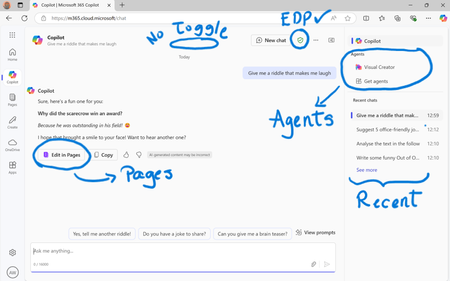
While their names sound similar at first glance - Microsoft 365 Copilot and Microsoft 365 Copilot Chat - they differ in several aspects. And more importantly, one can't be without another. What is Microsoft 365 Copilot Chat? First since first. Microsoft 365 Copilot Chat is also called Copilot Chat. Copilot Chat generates answers based on web content, while Microsoft 365 Copilot is also grounded on users' data, like emails, meetings, files, and more. Since January 15, Microsoft 365 Copilot Chat is available for everyone. Everyone in organizations. Also customers with a Microsoft 365 Business Basic subscriptions can enjoy using Copilot Chat securily. The screenshot below shows how Copilot Chat looks like and highlights its main capabilities. Note that EDP - Enterprise Data Protection is available. What is Microsoft 365 Copilot? Microsoft 365 Copilot is an add-on available for specific Microsoft 365 Subscriptions: Microsoft 365 E3, E5, A3, A5, and Business Standard & Premium. It includes Copilot Chat in addition to other Copilot features: Microsoft 365 Copilot also includes a chat grounded on users' meetings, emails, chats, and documents. It integrates into Microsoft 365 apps, like Outlook, Teams, Word, Excel, and more. It brings the capability to create agents and additional Copilot management features such as SharePoint Advanced Management and Copilot Dashboard. The screenshot below shows how the Copilot chat experience for those users who got the Microsoft 365 Copilot license. Note that EDP - Enterprise Data Protection is available here too. Copilot Chat can be pinned in MS Teams and MS Outlook as App. How can I access Microsoft 365 Copilot Chat? Copilot Chat is nowadays accessible via m365copilot.com using your Entra account. In contrast to Microsoft 365 Copilot licensed users, Microsoft 365 Copilot Chat users cannot see, by default, Copilot Chat pinned on the Microsoft 365 homepage. Microsoft 365 Copilot Administrators will have to pin the chat in the admin center so it is easy for Copilot Chat users to access it. What's the difference? There are some aspects, such as licensing requirements, subscription fees, data sources, or access to organization content, that determine the differences between Copilot Chat and Microsoft 365 Copilot. I have listed it in the screenshot below. 👇 Image showing a 3-column table: Aspect, Microsoft 365 Copilot Chat, and Microsoft 365 Copilot.Solved47KViews37likes40Comments
Copilot on Word App on iPad - how to turn off?
I’ve managed to turn the wretched thing off on Word on my desktop and laptop after updating to latest versions and the “disable co-pilot “ checkbox finally appearing in settings. but how on earth do I turn it off on my iPad as it doesn’t have a whole load of settings for the app? I have office 365 personal subscription. #co-pilotaj2wilsonFeb 16, 2026Brass Contributor6KViews9likes10Comments
Agents don't work after upgrade off LLM
We have experienced that several of our personal agents no longer provide the same output after the upgrade to the new language model. The agents are now making mistakes and, for example, say that they can no longer complete the task. Has anyone else experienced the same issue?SissekitpedersenFeb 16, 2026Copper Contributor34Views0likes0Comments
Unexpected forced‑citation behavior in Copilot (making minutes from transcript)
Hi everyone, I’d like to raise a problem I encountered recently when using Copilot for meeting‑minutes generation. I’m curious whether others are seeing the same behavior, and whether this is an intentional change or a bug. What happened While generating meeting minutes, Copilot was provided with: an agenda (Word document), a set of personal notes (Word), a meeting transcript (Word). and a Standard Operating Procedure on what I exactly want (style of writing, abbreviations etc.) This is a workflow that previously worked flawlessly. Copilot could combine the content and produce a clean, citation‑free output suitable for direct use in official documentation. However, during my most recent session, Copilot suddenly enforced mandatory citation insertion for any content derived from uploaded files or tool‑accessed data. The system required inline citation markers for everything — even routine content like agenda headings, contextual expansions, or narrative descriptions drawn from the transcript. Why this is a problem For many users, especially in environments where: minutes must follow a strict template, output must be clean and ready for distribution, citations, footnotes, tags, metadata, or brackets are not permitted, …the new forced‑citation behavior creates several issues: 1. Copilot can no longer produce clean narrative minutes Even when instructed explicitly to: avoid citations, avoid file references, avoid metadata, Copilot still attempts to insert forced citation tags if it believes the content originates from a file or tool call. 2. Copilot refuses to proceed if citations are disallowed When asked to generate the minutes without citations (as required), Copilot stops and reports that it cannot continue because the system now requires citations for any file‑based content. 3. Workarounds are impractical Possible workarounds offered by Copilot included: manually pasting tens of pages of transcript text into the chat, accepting citations and manually removing them afterwards, or reconstructing content without referencing the original documents. These options either cause significant manual work or lead to loss of accuracy. Impact This effectively means that Copilot can no longer: merge agenda + notes + transcript into a single clean output, produce minutes using uploaded source documents, deliver professional documentation without embedded reference markers. For scenarios where clean formatting is mandatory (e.g., governance documentation, legal minutes, internal councils, compliance‑driven reporting), this makes Copilot unusable for meeting‑minute generation under the previous workflow. Questions for the community Has anyone else noticed this new forced‑citation requirement when working with uploaded files or transcripts? Is this an intentional design change, a temporary system rule, or an unintended side‑effect of a recent update? Is there a supported method to allow Copilot to generate narrative content from uploaded documents without inserting citation tags? Are there recommended best practices for producing clean, citation‑free procedural minutes using Copilot under the current rules? I would really appreciate insights from others who rely on Copilot for structured meeting‑minute generation, as this change has significantly disrupted a previously stable workflow. Thanks in advance for any thoughts or experiences you can share. (and yes, Copilot drafted this message for me ;-) )77Views0likes1CommentHuman-in-the-Loop: Where Copilot Agents Should (and Shouldn’t) Act Alone
In the fast-evolving world of artificial intelligence, the term “Copilot agent” has become almost ubiquitous. These intelligent assistants—whether guiding developers in code completion, helping customer service teams respond to emails, or assisting radiologists interpreting scans—are transforming how work gets done. But as with any powerful tool, the key question isn’t just what these agents can do, but when they should act alone and when humans must stay in the loop. This is where the concept of Human-in-the-Loop (HITL) becomes essential. It’s not about limiting AI; it’s about responsible collaboration between humans and machines. https://dellenny.com/human-in-the-loop-where-copilot-agents-should-and-shouldnt-act-alone/101Views0likes1CommentCopilot for Planner and To Do Automating Task Management
In today’s fast-paced digital workplace, managing tasks effectively is one of the most important skills for productivity and team success. Between meetings, emails, chats, and deadlines, it’s easy for key action items to fall through the cracks. Microsoft’s latest innovation—Copilot for Planner and To Do—aims to change that by using artificial intelligence to automate and simplify task management. This powerful integration between Microsoft 365 Copilot, Planner, and To Do allows individuals and teams to automatically generate, organize, and monitor tasks using natural language. Instead of spending hours setting up task lists or following up manually, you can let Copilot do the heavy lifting. https://dellenny.com/copilot-for-planner-and-to-do-how-ai-automates-task-management/691Views0likes1Comment
IME does not work in the app version of "M365 Copilot Chat" (only hiragana can be entered)
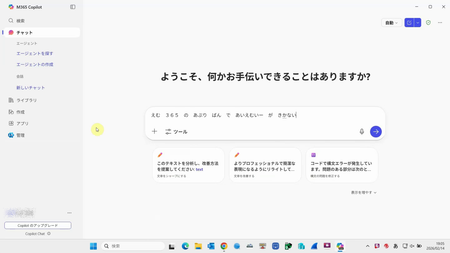
Hi,Everyone. Please help me with my problem. Environment Windows Ver : Windows 11 Pro 24H2 M365 Copilot Chat Ver : bizchat.20260210.47.1 Situation For the past few days, IME conversion has not worked and I can only input hiragana. The IME works properly on the web version, so you can input kanji characters as well. Question Is this a known bug? How can I solve this? Thank you, best regards.hiro-gjFeb 14, 2026Copper Contributor30Views0likes0Comments



Tags
- tips and tricks241 Topics
- microsoft 365 copilot219 Topics
- Getting Started197 Topics
- troubleshooting184 Topics
- copilot chat175 Topics
- copilot in teams101 Topics
- Copilot in SharePoint68 Topics
- management and extensibility67 Topics
- training and resources66 Topics
- accessibility60 Topics