
Forum Widgets
Latest Discussions

Word VBA, Unreachable table style setting?
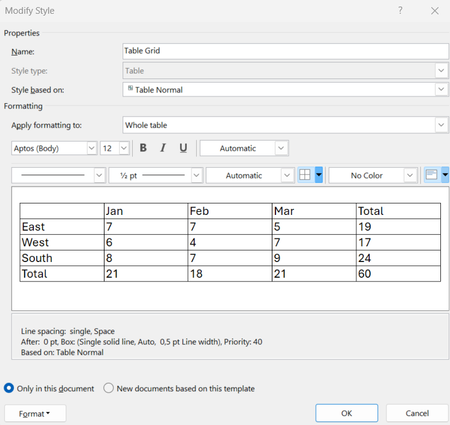
I've noticed something that may be a missing feature in the Word VBA Object model. Styles in word can be of different kinds set by the WdStyleType when adding a style via expression.Add (Name, Type) method of the Styles Object (https://learn.microsoft.com/en-us/office/vba/api/word.styles.add). Using wdStyleTypeTable gives a Table Style. Table styles differ somewhat from other styles since you build up the style of a table by setting the formatting for different parts/features of the table. E.g. the first, or last row may differ in their style compared to the rest of the table. These kind of settings are reached via the Condition method of the TableStyle object (reachable from the Style.Table property). Specifying different "conditions" (of data type WdConditionCode) give you access to ConditionalStyle objects handling the settings for different parts of the table. In word you can modify the table styles by for example <right-clicking> a table style and selecting "Modify Table Style" This presents you with the following UI. The setting I am unable to reach via VBA is tied to the Condition "First Row" which can be reached by selecting the pull-down menu "Apply formatting to:" to Header Row, then clicking the button menu "Format" at the lower left and selecting "Table Properties...". This gives us the "Table Properties" UI in which we in the tab "Row" is given the options to enable "Repeat as header row at the top of each page". The effect of this can be seen in the "Description field" in the previous "Modify Style (Table Edition)" view. (You might have to select something else in "!Apply formatting to:" menu and then re-select "Header row" again to get the description field to update). We now have a "Repeat as header row" shown in the description for "Header rows". This is a setting which in VBA can be reached for an inserted Table via a Rows property: table.rows.HeadingFormat https://learn.microsoft.com/en-us/office/vba/api/word.row.headingformat However, it should be possible to set for the table style as well. In the resulting XML file (styles.xml) of the .docx file we find it in a <w:trPr> block as a <w:tblHeader/> tag. Note that this is the definition of a style in the styles.xml, not the declaration of an inserted table. Have anyone managed to reach this style setting via VBA or know of how it can be done? I've scanned through the methods and properties of Style, TableStyle, and ConditionalStyle object definitions and not found anything allowing me to set this "Table property" as part of the style. It would make most sense if it was available in the TableStyle object (https://learn.microsoft.com/en-us/office/vba/api/word.tablestyle) since that is where properties such as "AllowBreakAcrossPage" can be found. Maybe something they missed in the Word VBA model.HakanaApr 07, 2026Copper Contributor84Views0likes8Comments
2 spacing after every full stop of a sentence
Hi, I believe the old norm is to have two spacing after the end of a sentence before starting a new sentence. But nowadays many people are using only one spacing. I need to try to make it a consistent way to follow. Is there an easy way to scan through all the document and make sure changes are applied to follow at least one norm.JennyTanApr 07, 2026Copper Contributor4Views0likes0Comments
Word Document Scrambled
I have been using the online version of Microsoft Word via Onedrive.com. The document I have been working on does not exist on my harddrive. It only exists on my OneDrive. The word document is 67 pages long and 31,788 words in total. It is a cumbersome document to review, to say the least. So, of course I was devastated when I discovered that Microsoft Word had glitched. Its not a minor glitch either. Its a radnomized duplication glitch. In some places one sentence is duplicated, one after the other. In some places a paragraph is duplicated, one full paragraph after the other. In other places, its all messed up. It has copied a single sentence and pasted it in the middle of another paragraph 1 or 2 pages away. One paragraph I saw was composed of sentences copied from at least 2 other paragraphs. This glitch has made a chimera out of a year of hard work. I had a chat message conversation with a customer support agent today while I was at work. We were unable to fix it. Although, he only offered me two things to try. He wanted me to log onto Onedrive.com from a different computer (in private web browser) and then log onto Onedrive.com from a different internet source. I was unable to log onto Onedrive.com from a different computer (in private web browser). It wanted me to either insert a USB passkey or scan a QR code with my phone for the pass key. I don't have the USB and when I tried my phone it just said that my phone doesn't have a passkey. My passkey is stored on my laptop. So, I was only able to log onto Onedrive.com on my laptop. Next, I tried a different internet source (in private web browser). It didn't work. The document is still scrambled eggs. After that, the customer support agent was all out of suggestions. He sent me here. The customer support agent did seem to think he knew what the glitch was from. He listed a few things. The ones that sounded possible were either Onedrive.com/word document timed out (maybe when the PC went to sleep) or the internet connect dropped. And supposedly those can cause a duplication problem. Does any of this sound familar to anyone? Suggestions? I'm begging for a quck fix so I don't have to scrutinize 67 pages and 31,788 words.JedifootApr 07, 2026Copper Contributor19Views0likes1CommentStyle for Heading - Adding a straight line on the second row of the text
Is it possible to set a style that is meant for heading 1 and it has a straight line on the second row of the text? how can I do that so that it will appear automatically based on style updates?JennyTanApr 07, 2026Copper Contributor6Views0likes0Comments
Simply cannot delete a section break. It is impossible. Cannot be done. Please prove me wrong.
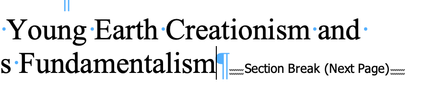
So I was introduced to section breaks as a means of getting page numbering up-to-spec for book I've written (roman. numerals in the front material, arabic numerals in the book itself). I'm using the latest version of Word (16.8?) on Mac. To my horror, I've found that it is impossible to delete section breaks once they're in my document. I have spend an entire day in Google on this subject, and every single suggestion fails. So I have enabled showing markup, so I can see page breaks, section breaks, paragraphs I cannot select a section break. Word will not allow that. So I can't select and delete it. I cannot put the cursor after a section break and then hit the delete button as many suggest. Word will not allow the cursor to be placed after a section break. Putting the cursor before the section break, as other articles recommend, is just wrong. All you're doing there is deleting text before the section break. Why is this so hard? I've lost a whole day on something that should be simple. In the screenshot from my document below, The section break simply cannot be touched.markaaronky1390Apr 06, 2026Copper Contributor237KViews6likes48CommentsPrinting/exporting messes up the document
I have a 67-page document with a lot of pictures too, and I use multilevel headings. When I try to print or export to .pdf, it messes up the whole document, I have now 102 pages, sometimes 92, the approx. 5000 word count is now 7000, and the order of the headings is messed up, so some parts of the document are moved across the document. What on Earth is this? I changed all the fonts to Arial. Tried every kind of printing setting. Nothing works.KanyoDApr 06, 2026Copper Contributor573Views0likes3Comments
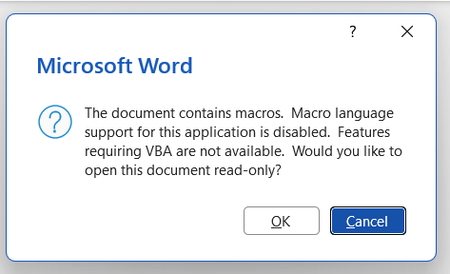
VBA concern: support for macros or controls not installed
Background: installed Zotero, a citation manager, to use on Word but it uses macros My Word doesn't seem to have VBA installed. Every time I open the app, error boxes appear. Screenshotted below: I have tried a few things to fix this but without benefit: Macros enabled in the trust centre VBA enabled in the trust centre Rapid and online repair completed I have attempted to 'change' the program in the Control Panel in order to access the 'expand/add features' option but this does not exist as an option for me. When I press 'change' only repair options appear for me. Screenshotted below: My impression is that somehow VBA was not installed when I downloaded Office form my account. I appreciate VBA is downloaded automatically but this has not been the case for me. Please advise on next steps. Thanks in advance.SA3Apr 06, 2026Copper Contributor37Views0likes2CommentsThere seems to be a bug in the WORD Index.
Hello, I'm writing a document with an index. There are several Latin based names that require symbols, most notably a small e with an acute accent. The problem name is "Vélez." It will not index correctly putting a separate line for each entry. In troubleshooting the problem, I find that if I replace the symbol "é" with "e," it works okay. Interestingly, the name "Frémont" works okay too. Any ideas?Sheri2Apr 06, 2026Copper Contributor19Views0likes0Comments
List Styles & Style Sets
Does anyone know if it is possible to include a list style within a style set? I know to add the styles I want to include in a style set into the style gallery, then save the style set under the design tab. However, even though the styles in my style set are linked to list styles for the numbering, those list styles do not get transferred to a document I add the style set to. I really need the list styles to also transfer to the document I'm adding the style set to. Of course, list styles do not show up in the styles pane or the style gallery (or at least I cannot determine how to get them to). Thoughts?bkhenleyApr 06, 2026Copper Contributor22Views0likes2Comments
Can a font become 'corrupted,' and how to replace?
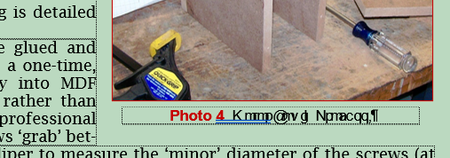
This refers to MS Word from Office 2019, running under Windows 10 Pro. I have a somewhat large (10MB) Word .docx I've been adding to as time permits. It has text, illustrations, pictures and captions for the pictures in text boxes. suddenly, when I open the file, some of the captions are garbled. The font I used is Arial 10pt, bold and regular. The bold is just fine, the regular is garbled. However, if I highlight the garbled text and change it to bold, italic or any other font, it appears just fine. Here is an example of what I'm talking about. First the .docx as it appears on my screen: Then if I highlight that garbled text and change it to Bold, or any other font, it looks good: If I change point size the problem persists. It's just Arial Regular that garbles, and only in this document, and . Other .docx files using that same font display fine. Also, I can take this file and open it on my other computer, which is running Office 2010 under Windows 10 Pro, and it opens properly. I do have Word programmed to embed non-system fonts in the document, so I'm assuming that Word is fetching Arial Regular to display when opening the file on this computer, and that my other computer maybe has a good Arial Regular installation, which is why it looks good there. Something else I just noticed, referring to the two screenshots that follow. Other 10pt. Arial Regular that was NOT in a text box seemed okay in this document. But on close examination, the kerning seemed a bit off. So I changed that non-text box text to another Helvetica-style font and it did look better, but then when I set it back to Arial, it was garbled too. So do I have a bad Arial Regular on this computer? If so, why don't other documents show this problem. And, most important, how do I fix it? Thanks in advance, and... HELP!SolvedInojimApr 05, 2026Copper Contributor81Views0likes3Comments
Tags
- office 365334 Topics
- Word Online134 Topics
- Office Apps117 Topics
- word84 Topics
- 201683 Topics
- Apps38 Topics
- Online34 Topics
- 201324 Topics
- VBA13 Topics
- mobile11 Topics