User Profile

CzkLTPR
Copper Contributor
Joined Nov 23, 2023


User Widgets
Recent Discussions
Attack simulation training, Credential Harvest - flag real login credentials
Hello, Is it possible in Attack simulation training, Credential Harvest to flag users who have entered their real login details in the login screen ? Unfortunately, currently the user is marked as "Compromised" for both - false credentials and real credentials. I have not found any information to highlight the entry of true login credentials.Teams shows working hours incorrectly, e.g. 15:00 as 3:00
Hello, I have changed in bulk via PowerShell for all users in Microsoft 365 tenant - working hours from 8:0 to 16:00 (Central European Standard Time). I have noticed that in Teams the working hours have updated, but shows now 8:00 to 4:00. This 4:00 looks like 4 PM (for example, for another user I set 15:00 and it shows 3:00 (sort of like 3 PM) Teams: Info from PS:656Views0likes0CommentsHow to get working hours information for all users in a Microsoft 365 organisation
Hello, I am looking for a way to download, preferably to a .csv file, information about the currently set working hours for all users in the organisation in Microsoft 365. Can anyone help? 🙂Solved1.9KViews0likes1CommentPST file size not changed after archiving
Hello, in Outlook (Microsoft 365 version), I performed an archive of a 56GB .pst file by archiving messages older than 31.12.2018 to a separate .pst file. Outlook created a separate archive file with a size of 17GB. After archiving, I used the "Compact" option, after which in Outlook the old file (that had a 56GB) shows in the "PST data file properties" a size of 39GB, but in windows explorer the file still has a size of 56GB. What could be the cause and how to update the file size in the explorer to the actual size of 39GB ?7.6KViews0likes2CommentsRe: How to check the number of Windows Server 2022 Standard Core License Pack used
Hi Dave, thanks for the information. Please let me know if I understand correctly - I can use the same 2-core license key to activate all instances of WS 2022 Standard, even if this key is for 24 core (10x 2-core) and activates with it 8 VMs with 2 vCPU each? (I have 32x 2-core license keys)6.6KViews0likes1CommentHow to check the number of Windows Server 2022 Standard Core License Pack used
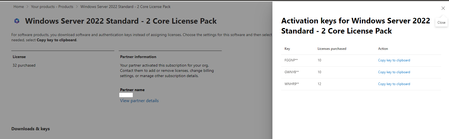
I have Windows Server 2022 Standard - 2 Core License Pack (32 pieces, 3 different license keys), which are assigned to a physical machine with Hyper-V role hosted on Windows Server 2022 standard, on which there are virtual machines with Windows Server 2022 standard. Is it possible to check how many licenses have been consumed and which keys have been used for this ? The licenses are assigned in the Microsoft 365 tenant:Solved7.3KViews0likes3CommentsSharepoint mobile, android - downloads files locally instead of opening them live
Hello, Is it normal that the Sharepoint Mobile app (up to date, android, Galaxy S23), after selecting a file on the site immediately downloads it to the device instead of opening it for live viewing and editing - just like on PC? Is it possible to get a solution that the application opens the file in live mode by default ?410Views0likes0CommentsRe: Update Azure AD / Microsoft 365 users information - Office Phone numbers from a CSV file
Harm_Veenstra This is what I was looking for. Thank you. I had to edit the author's script by changing "MgBetaUser" to "Get-MgUser". After this change it works as expected. In addition, I added: # Check if BusinessPhones is empty if ([string]::IsNullOrEmpty($BusinessPhones)) { Write-Host "BusinessPhones is empty for user '$userPrincipalName'. Skipping update." -ForegroundColor Yellow continue # Skip to the next user in the loop } Working code to update multiple user business phones: # Connect to Microsoft Graph Connect-MgGraph -Scope User.ReadWrite.All # Read the CSV file $users = Import-Csv -Path "C:\Temp\AzureADUserAttributes.csv" # Go through each user in the CSV and update the BusinessPhones foreach ($user in $users) { $userPrincipalName = $user.UserPrincipalName $BusinessPhones = $user.BusinessPhones # Check if BusinessPhones is empty if ([string]::IsNullOrEmpty($BusinessPhones)) { Write-Host "BusinessPhones is empty for user '$userPrincipalName'. Skipping update." -ForegroundColor Yellow continue # Skip to the next user in the loop } # Check if the user exists $existingUser = Get-MgUser -UserId $userPrincipalName -ErrorAction SilentlyContinue if ($existingUser) { # Check if the existing BusinessPhones matches the new value if ($existingUser.BusinessPhones -eq $BusinessPhones) { # BusinessPhones already set with the same value Write-Host "User '$userPrincipalName' already has BusinessPhones '$BusinessPhones'." -ForegroundColor Cyan } else { # Update the BusinessPhones Update-MgUser -UserId $userPrincipalName -BusinessPhones $BusinessPhones Write-Host "User '$userPrincipalName' updated BusinessPhones to '$BusinessPhones' successfully." -ForegroundColor Green } } else { # User not found Write-Host "User '$userPrincipalName' not found. BusinessPhones field is empty." -ForegroundColor Yellow } }4KViews1like1CommentUpdate Azure AD / Microsoft 365 users information - Office Phone numbers from a CSV file
Hello, I am trying to update the Office Phone numbers of my Microsoft 365 users using a list in a CSV file. Generally, the code works - it successfully updates all other attributes that are in the code (JobTitle, City, Office, etc.). Code: # Connect to Azure using the Az module Connect-AzAccount # Import the CSV file $csvPath = 'C:\Temp\AzureADUserAttributes.csv' $users = Import-Csv -Path $csvPath # Iterate through each user in the CSV and update their information foreach ($user in $users) { $userPrincipalName = $user.UserPrincipalName # Retrieve the user using Az module $existingUser = Get-AzADUser -UserPrincipalName $userPrincipalName # Check if the user exists if ($existingUser) { # Construct a hashtable of properties to update $userProperties = @{} # Update properties if they exist in the CSV if ($user.JobTitle) { $userProperties['JobTitle'] = $user.JobTitle } if ($user.Department) { $userProperties['Department'] = $user.Department } if ($user.CompanyName) { $userProperties['CompanyName'] = $user.CompanyName } if ($user.City) { $userProperties['City'] = $user.City } if ($user.Country) { $userProperties['Country'] = $user.Country } if ($user.PostalCode) { $userProperties['PostalCode'] = $user.PostalCode } if ($user.State) { $userProperties['State'] = $user.State } if ($user.StreetAddress) { $userProperties['StreetAddress'] = $user.StreetAddress } if ($user.Office) { $userProperties['Office'] = $user.Office } # Update user information only if there are properties to update if ($userProperties.Count -gt 0) { # Update user information using Az module Set-AzADUser -UserPrincipalName $userPrincipalName @userProperties Write-Host "User information updated for $userPrincipalName" } else { Write-Host "No properties to update for $userPrincipalName" } } else { Write-Host "User not found: $userPrincipalName" } } # Disconnect from Azure session (if needed) Disconnect-AzAccount However, when I add a new line after line 29 (if ($user.Office) { $userProperties['Office'] = $user.Office }) new line if ($user.TelephoneNumber) { $userProperties['TelephoneNumber'] = $user.TelephoneNumber } it throws an error: Update-AzADUser : A parameter cannot be found that matches parameter name 'TelephoneNumber'. At C:\Path\Update Bulk Azure AD Users information.ps1:36 char:64 + ... Set-AzADUser -UserPrincipalName $userPrincipalName @userProperties + ~~~~~~~~~~~~~~~ + CategoryInfo : InvalidArgument: (:) [Update-AzADUser], ParameterBindingException + FullyQualifiedErrorId : NamedParameterNotFound,Update-AzADUser In the CSV File, the column with the phone number is called the same as in the code i.e. "TelephoneNumber". I tried different names: OfficeNumber BusinessPhones PhoneNumber Phone etc., but with each there is the same error.Solved

Recent Blog Articles
No content to show