User Profile

Bogdanofff
Brass Contributor
Joined Dec 13, 2021


User Widgets
Recent Discussions
Re: Microsoft Lists Tab in Teams APP not pulling list
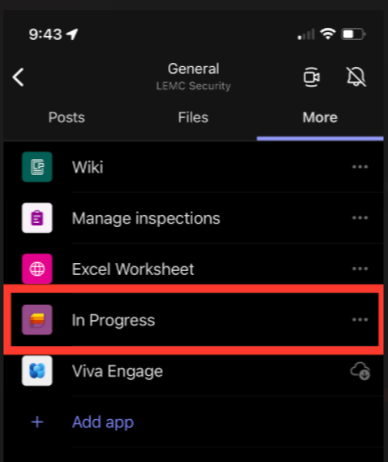
Sinner4lif3 Hello! We are met with the same issue at my organization. We reached out to Microsoft and they stated: We've confirmed that is an ongoing outage, and the team has already fixed the issue in the iOS app. To set you the expectation, it will take around ~3 weeks to reach the App Store. In the meantime, we have the standalone Microsoft lists app available for iOS. I recommend installing it as a workaround. Another workaround we used was creating a SharePoint tab and accessing the list that way. This issue appears to be only impacting IOS users. Example List: Error shown: Teams version: I hope this helps!2.2KViews0likes0CommentsRe: Teams Meeting Notes missing from Meetings detail screen
For future onlookers - related thread in MS Answers regarding this issue: https://answers.microsoft.com/en-us/msteams/forum/all/teams-meeting-notes-missing-from-meetings-detail/aa99e567-708b-4da8-818f-3b2441ec6afa?page=24.4KViews1like0CommentsRe: Teams Meeting Notes missing from Meetings detail screen
Jane_Dapkus Hello Jane, I met with Microsoft support regarding this issue, and I wanted to share their findings. This appears to be a bug related to a new feature that will utilize OneNote for the meeting notes and depreciate Wiki Meeting notes. This has not been released but above is showcasing some behavior of this new feature. MS Support is supplying details back to the production team and will follow up with any information. More details on the impact of this issue for me - it seems a few users in our organization are experiencing this and the issue can also appear intermittently3.9KViews0likes0CommentsTeams Meeting Notes missing from Meetings detail screen
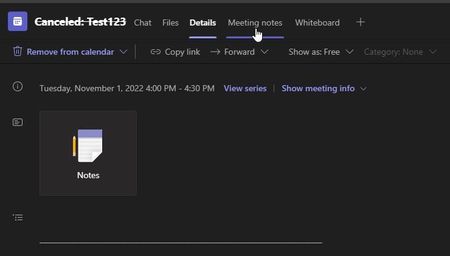
I am working out an issue for user regarding the meeting notes sections in Teams. Specifically, when they view the meeting details from their team's personal calendar - the Meeting Notes section is missing (example from my calendar): The users: Version of teams: 1.5.00.28567 Meeting type: Private meeting on personal calendar The user can access the meeting notes by opening the chat for the meeting. The Meeting notes tab is visible, and they can access the content. I had the user create a meeting as well as create the meeting notes for that meeting, but they still don't have the associated meeting notes tab when looking at the meeting details page in teams. They do have the pencil and paper icon shown below the date, but when they click it, nothing happens. This issue is also not isolated to one meeting - it appears to be an issue on all their recent meetings. We tried on another computer as well as in the browser - we can't seem to get the Meeting Notes tab to appear on the meetings details page. The only way we can open the notes is by searching for the chat associated with the meeting. The meeting notes tab is visible there and we can open the notes with no issue. We have already tried clearing the Teams cache, reinstalled Teams as well, and repaired Office. Additionally, I verified the "Microsoft Teams Data" folder and wiki folder existed in the users OneDrive and that all looks good. There is no issue opening the content, just a missing meeting notes tab. To me, it seems like the issue is either with the Wiki app or something on the Account / policy level. Since the problem follows them to the browser and to different computers. I'm not sure what setting would control if notes show up or not in the meeting details. I May need to submit an MS ticket but wanted to check here first 🙂Solved4.9KViews0likes4CommentsRe: Exchange Outlook Settings Cloud Save
I didn't expect to be back so soon - but this fixed the issue for me: Deleting the \HKEY_CURRENT_USER\SOFTWARE\Microsoft\Office\Outlook\Settings\Data folder Starting Outlook and toggling off "Store Outlook settings in the cloud" and closing outlook running command line switch C:\Program Files (x86)\Microsoft Office\root\Office16\OUTLOOK.EXE /cleanroamedprefs restarting Outlook and toggling on "Store Outlook settings in the cloud" and closing outlook and relaunching. Listed description for it the command line switch: All previous roamed preferences are deleted and copied again from the local settings on the computer where this switch is used. This includes the roaming settings for reminders, free/busy grid, working hours, calendar publishing, and RSS rules. I will do more testing to be sure - but holy moly this is dumb 😛7.1KViews1like1CommentRe: Exchange Outlook Settings Cloud Save
KarriS I have been experiencing the same issues - I wish there was more information on how to reset these settings or how to resync them. I was able to correct the issue by complete uninstalling Office, restarting and then reinstalling. Its not clear to me if a network problem caused a sync issue with outlook and the settings. I had the same behavior where settings would uncheck themselves if store in cloud was enabled. Also from that article - this is not very clear to me: Cloud stored settings synchronize when you start Outlook, and then at hourly intervals and the data is cached on the local PC in the following registry location: Computer\HKEY_CURRENT_USER\Software\Microsoft\Office\Outlook\Settings\Data Does this mean after changing the settings we should wait an hour before closing for it to sync or every hour will the options deselect themselves based on the cloud settings. I feel it's the latter - because users have enabled their missing options and then they would uncheck themselves in the same session. Looking at Computer\HKEY_CURRENT_USER\Software\Microsoft\Office\Outlook\Settings\Data on the affected user and this is the global_Advanced_Sendimmediately key (this option kept un-checking) value: {"name":"Advanced_SendImmediately","itemClass":"","id":"","scope":"global","parentSetting":"","secondaryKey":"","status":"LOCAL","type":"Bool","timestamp":0,"metadata":"","value":"true","isFirstSync":"false","source":"UserOverride"} Here is global_Advanced_Sendimmediately on an unaffected user: {"name":"Advanced_SendImmediately","itemClass":"","id":"","scope":"global","parentSetting":"","secondaryKey":"","status":"SYNCEDTOSERVICE","type":"Bool","timestamp":0,"metadata":"","value":"true","isFirstSync":"false","source":"UserOverride"} And then the same value on after recently reinstalling office and opening Outlook: {"name":"Advanced_SendImmediately","itemClass":"","id":"","scope":"global","parentSetting":"","secondaryKey":"","status":"PENDINGSYNC","type":"Bool","timestamp":0,"metadata":"","value":"true","isFirstSync":"true","source":"UserOverride"} Repairing Office or creating a new mail profile didn't change anything. These settings are cached on the local machine - so is there a place on line the live - or is it safe to remove these reg values or reset the cloud settings to stop going through what seems like a sync loop. I guess I could just edit the reg values and see what happens - changing isFirstSync to true to see what happens I'm gonna run more test and will follow up here - I thought I would share my recent fun with this 😛6.6KViews1like0CommentsMeeting Invites Teams workflow help
Recently, my organization has been struggling with finding the best workflow to manage invites / notifications for reoccurring meetings. I was hoping to gain some insight for a workflow that will help us organize meetings for adding and removing new team members that limits notifying everyone when we add or remove someone. We have a channel meeting scheduled on the group calendar. When someone is added to the Team, how can we add this meeting to their personal calendar in Outlook? Should we forward the meeting or should we rely on using the Office 365 group settings and 'Subscribe New Members' so they receive they receive the notification in their inbox? We have several reoccurring meetings that we add people to as they are join the organization or if members switch departments. It has been a struggle to limit unnecessary notifications for current attendees but also making sure new members will receive reminders for the meetings they are added to. When scheduling a channel meeting, should we add the team as an attendee? Will this notify new team members when they are added to the team for recurring meetings that were organized before they were added? or should we keep the attendees list blank, and then forward the meeting to new teams members? We are hoping to manage meetings invite via Team membership - If they get added to the team then they receive an invite to the meetings - I'm not sure if it works exactly like that. We have a mix use of teams with some employees - some will focus on Outlook only for all their upcoming meetings where others will use teams. Additionally, some are aware of the group calendar in outlook and how to add channel meetings to their personal calendar. The nuances of teams / Outlook has made this difficult to solve and I do apologize if this all over the place. We have been going in circles with trying to figure this out and I appreciate any advice 🙂1.5KViews0likes1CommentOutlook duplicated a meeting 16000 times
Long time reader - first time poster. I helped a user who was an organizer of a meeting and they received a conflict message regarding conflicting edits. They clicked keep all and the meeting duplicated it self 16000 times. Similar to this error https://www.assistmyteam.com/kb/multiple-edits-have-been-made-the-conflicting-edits-have-been-attached-to-the-conflict-message/#:~:text=To%20fix%20it%2C%20double%2Dclick%20the%20conflicted%20item%20to%20open%20in%20its%20inspector%20window.%20You%20should%20get%20a%20%E2%80%98Conflict%20Message%E2%80%99%20inspector%20window%20similar%20to%20one%20below. . Does anyone have any ideas why this happened? It was a reoccurring meeting with forwarding allowed. I'm not sure if this was sync issue or if the conflict message is unrelated. Additionally, any recommendations on how to organize a meeting that has participates leaving and joining throughout the year?Re: Opening Protected Messages from a Shared Mailbox
I wanted to share I was able to resolve this issue. I had to directly assign permissions to the shared mail box and make sure that automapping was on. - No security Groups. The kicker is to get IRM to kick off and check permissions. I recently learned in Outlook - Double clicking the email or reading it in pop-out mode can initiate permissions check and allow the user to read the email in the Outlook application. No more redirection via edge, the content can be read from the mail box.11KViews0likes1CommentOpening Protected Messages from a Shared Mailbox
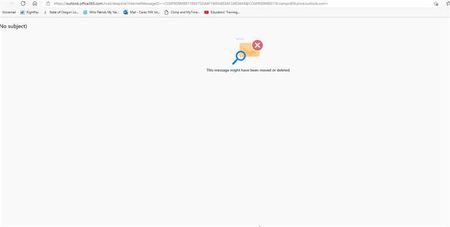
I have a user who has full access with auto mapping to a Shared mailbox who cannot open protected messages. I'm not sure if this related to the https://answers.microsoft.com/en-us/outlook_com/forum/all/encrypted-emails-stopped-working/b252b142-c1e4-4dfc-9aa6-ff3824b25723?page=4 The user states they were able to open the messages before but something has changed. When they click the read message link, Microsoft Edge Launches and tries to open the message. After a while an error in Edge appears "This Message might have been moved or deleted" It appears that the shared mailbox has permissions to see the contents but when Edge is opened after clicking "Read the Message" in Outlook, the authentication defaults to the users account instead of the shared Mailbox. If the user opens the Shared Mailbox in OWA, they can see the message no problem. The error only happens when they access the shared mailbox from the Outlook desktop client. Workflow wise, is there a way to open this message in Outlook, or does the user have to use OWA from the shared mailbox? I created a profile for the shared mailbox and opened Outlook with that profile. The same issue happens when Edge launches. I also tried adding a shared folder in the users OWA to the shared mailbox, but still no luck. Lastly, I also removed the user from the shared mailbox and re-added them with automapping enabled via PowerShell. Still nothing. I am looking into Azure Information Protection client - but I'm not sure if that will help. I know this is a lot of info but I have been banging my head against my desk all week trying to understand this. We are running Hybrid Exchange and M365 version 2102 Links: User with full access to shared mailbox - Microsoft Tech Community https://answers.microsoft.com/en-us/outlook_com/forum/all/encrypted-emails-stopped-working/b252b142-c1e4-4dfc-9aa6-ff3824b25723?page=4 https://docs.microsoft.com/en-us/outlook/troubleshoot/user-interface/encrypted-restricted-message-shared-mailbox https://docs.microsoft.com/en-us/microsoft-365/compliance/ome-faq?view=o365-worldwide&preserve-view=true#can-i-open-encrypted-messages-sent-to-a-shared-mailbox-Re: Date and Time Column not Sorting
Thank you! Sorry for the delay but I was away from the Office! I think you are right. No other columns were being sorted. Now this happened while on a custom view with a Ascending Sort on the Date & Time column while filtering by date. A lot of things happening. This workaround has held up for the user but it must be bug or something9.9KViews0likes0CommentsRe: Date and Time Column not Sorting
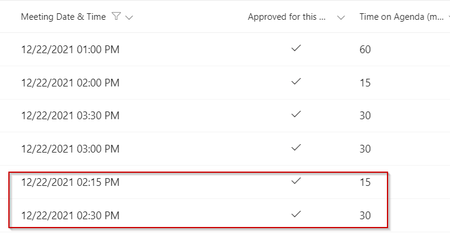
ganeshsanap So this view is from looking at all items and filtering the Meeting Date & Time Column by 12/22/2021. The last two entries for some reason won't sort in order. I know there are a lot of variables at play but I'm not sure if this is just limitation brought on by filtering a column. Even after clicking sort by ascending or descending for that column it remains in the same order. I have tried deleting the entries and reentering them using the Calendar and Clock and they still won't sort. A work around for now was creating a calculated column that reads the Meeting Date & Time column and converts the value from 12/21/2021 2:15 PM to 12/21/21 1415. I then sorted by this calculated column and things are in order. Here is the formula used: =TEXT([Meeting Time]," mm/dd/yy hhmm. Lastly, just to be sure, I created an index for the Meeting Date & Time column just to be sure things were not bugging out due to the list size. I also referenced this Microsoft doc: https://support.microsoft.com/en-us/office/manage-large-lists-and-libraries-b8588dae-9387-48c2-9248-c24122f07c59?ui=en-us&rs=en-us&ad=us10KViews0likes2CommentsDate and Time Column not Sorting
While using a SharePoint List I can not get the Date and Time column to sort correctly. It was working before but now some times are out of order. I am hand entering the the date with the date picker. The list view setting also automatically sorts the Date/Time Column by ascending by default. Only a couple lines are out of order and I can't seem to figure out why. I've deleted them and recreated them but the error still occurs.11KViews0likes4CommentsBest practice for Organizing Teams meeting
I organize and host a New Hire training series on Teams. Its a reoccurring meeting that happens once a week. It is one channel of a bigger Training Team just for new hires. I am wondering what is the best way to structure this meeting / invite people. Participants of the meetings are constantly changing as people leave the training at will but we also have new people joining when they are hired. It feels a bit chaotic as the meeting invite is often forwarded to new hires or I'm manually adding people upon email request. There must be a better way to manage this. We thought about creating a separate team just for this series but we would like to keep training related stuff isolated to one team. Any thoughts or ideas? Is it possible to have a static invite link where new hires can add them self to the series and leave when they feel done with the training?Solved
Recent Blog Articles
No content to show