Forum Discussion

How To Create a Gauge-Style Doughnut Chart that Includes Negative Numbers & Greater than 100% Values
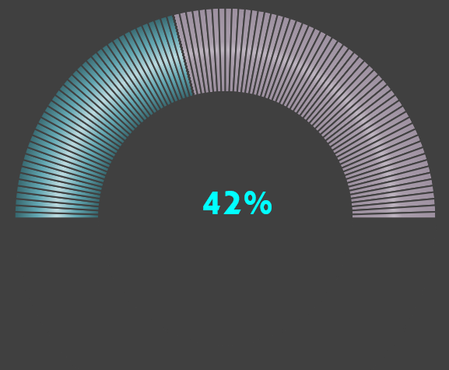
- Oct 15, 2023
ntlknight Not exactly what you had in mind with regard to the vivid colours, but close. See attached.
The driving force sits out of view below the chart.

ntlknight OK, I believe I figured it out by separating the slices for under and over and adding one more for a blank space. I'll leave the correct colour settings to you. See attached.
What the helper formulas in G:I do is set the size of each slice for each of the three situations (negative, 0-100% or over target).
Let's look at a -50% performance. The LOOKUP formulas in C9:C13 will pick-up the percentages from column G. Looking at the outer doughnut starting at 270 degrees for zero, you want the bottom left part (50% of the lower half) filled and the rest blank. Given the fact that the entire ring represents a value of twice the target, you need to set the size of the third slice to half the performance. Then I just set the first slice to 1 minus the third and all others to 0. You only do this only once. It works the same all the time.
For a performance between 0 and 100%, set the 0-100 slice to the actual performance. No need to divide by two here. Now the sum of the following slices amount to 1 minus the performance.
Lastly, for over performance, the whole 0-100 slice is always filled (but that now represents only 50% of the entire outer doughnut. The over slice is half the over performance and the last blank slice equals 1 minus the other two.
I could have condensed the use of slices, I believe, but found the use of a few extra ones easier to visualise the position and size of each slice.
And, just for the record: I still don't like doughnut charts. 🙂

Riny_van_Eekelen Well, for not being crazy about doughnut charts, you sure are good at editing them and figuring out how they work! I'm amazed, it's perfect! I read, re-read and then read 2 more times your last post...and I still have a hard time wrapping my head around it! I didn't know you could separate the slices like that (rather than superimposing (duplicating) one doughnut chart on top of another one).
There is one thing I don't know how I missed before...if the "Actual" cell contains a 0, or is blank, the inner gauge ("Target") doesn't retain its half-circle shape, but rather makes a full circle. This will cause a confusing look to the Sheet, as there will be one of these gauges for each day of the month...and until the day is approached, all the upcoming/future days will be 0. Is there a way to have the inner (Target) slice keep its half-circle shape even when a 0 or blank is in the "Actual" field?
Much appreciated,
Nathan
- ntlknightOct 17, 2023Copper ContributorWorked like a charm. Thank you so much! I think that's it...for this "dream gauge" that you helped me create! I'll follow-up with you in a few weeks as I populate the month's progress and show you how this operates in real time!
Best Regards,
Nathan - Riny_van_EekelenOct 17, 2023Platinum Contributor
ntlknight Aha! didn't think of that. Change the formula in C7 to:
=IF(C4,C6*SIGN(C4),C6)That should fix it.