Recent Discussions
Advanced Excel Formula discussion - Problem with dynamic range
Let's assume I want to rent a house. For each house, if the landlord has an agent, I'll contact the agent; If not, I contact the landlord directly. As below: Landlord Agent House Landlord James Mary W James Linda Michael X David Y Linda Z James Column F: =IFERROR(XLOOKUP(E2:E5,A:A,B:B,E2:E5),E2:E5) This is correct Column G: =XLOOKUP(E2:E5,A:A,B:B,E2:E5) #VALUE! for X-David Column H: =XLOOKUP(E2:E5,A:A,B:B,CHOOSECOLS(E2:E5,1)) Wrong value for X-David, because it returned the first value in range of XLOOKUP([if_not_found]) field My question is: the only difference between G and H is CHOOSECOLS(). If I put =CHOOSECOLS(E2:E5,1) or =E2:E5 in a separate cell, it gives me same result. However, in XLOOKUP, they are recognized differently. What is the logic behind this? Thank you for spending time on reading this.Solved262Views0likes7Comments
Microsoft Form
I have a query regarding Microsoft Form: For an example: I'm running a school, where 500+ students are enrolled. To collect some details, we request each & every student to fill the MS Form. My concern in MS Form: There is a branching field in MS Form, if the student is new joined, then he/she has to fill the entire form manually. If the student is an existing student, then he/she has to enter the unique ID from the drop-down field, and the rest fields will automatically pop-up or field with the responses. Once the student confirms that he/she is an existing student option, then they will get an option with the list of drop-down where they have to select their unique ID, and the moment they select the unique ID the remaining fields should automatically capture/display or pop-up the basic details which has been submitted earlier when they were the new joined. I would like to know will it be possible to achieve the above via any means of source, such as React, Python, SPFx, web developing, Power-Automate, Power App or anything. Thank you!Solved112Views0likes3Comments
Office 365 and joining a family
I want to share my Office 365 Family subscription with my daughter. She has her own Microsoft Family because she uses family safety with Xbox for her children. How can I invite her to share my Microsoft Office and not join my family. Apparently Microsoft only allows a person to belong to one family. Thanks in advanceSolved22Views0likes1Comment
IFS Formula Help
Hello, I have been struggling with a formula and I'm hoping for some insight. I am using it to separate employees and their information to another worksheet based on which school they work for. Their school assignment is notated by either their school name column (K), school code column (AL), or both. This is the formula: =IFS(K2="SCHOOL NAME",XLOOKUP(B2,B:B,E2,""),AL2="SCHOOL CODE",XLOOKUP(B2,B:B,E2,"")) I am trying to use an IFS statement to pull data from one sheet to another if the value meets at least 1 of 2 conditions. The formula seems to stop at the first value, even if the second value is true. That is, if an employee doesn't have a certain school name in column K but has the corresponding school code in column AL, their information is not pulling to the new worksheet. How I would like the formula to work: -Jane Doe has "X Elementary" in column K, then her information from the XLOOKUP will populate into the cell. (The spreadsheet has a lot of information, and I only need a few columns to pull to the new worksheet.) -If not, the formula will continue to search in column AL for the school code. -If the specific school code is found, then her information from the XLOOKUP will populate into the cell. If nothing matches the criteria, then a blank value will be returned. Thank you in advance!Solved100Views0likes2Comments
Using Upper and or Proper Function - not working properly
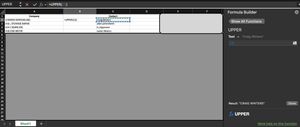
I am trying to use the UPPER function on my Excel sheet. I was able to format my first column, but when I try the next column, it won't convert. I have tried several times, and it will not convert the function. I have included two screenshots to show the progression. I formatted the column to text, and have tried to troubleshoot any tips I have come across. I have tried both on my desktop and uploaded to my 365 and both have the same result. What am I missing?Solved62Views0likes2Comments
Trying to insert Pivot Table
I recorded a new macro, using the tab View Macros-Record Macro, which resulted in the following VBA code: Sub CreatePivotTable() Sheets("Year Data").Select Range("A3:F24").Select ActiveWorkbook.PivotCaches.Create(SourceType:=xlDatabase, SourceData:= _ "Year Data!R3C1:R24C6", Version:=xlPivotTableVersion14).CreatePivotTable _ TableDestination:="Yearly Summary!R3C1", TableName:="PivotTable3", _ DefaultVersion:=xlPivotTableVersion14 Sheets("Yearly Summary").Select Cells(3, 1).Select End Sub The recording did exactly as I wanted, taking the data from the "Year Data" WS and adding the new pivot table to the "Yearly Summary" WS. As a test of the macro, I deleted the initial pivot table that was created on the "Yearly Summary" WS. The problem I have now, when I attempt to run this macro again it constantly fails on the 4th line of the macro with Run-time error '5': Invalid procedure call or argument. ActiveWorkbook.PivotCaches.Create(SourceType:=xlDatabase, SourceData:= _ "Year Data!R3C1:R24C6", Version:=xlPivotTableVersion14).CreatePivotTable _ TableDestination:="Yearly Summary!R3C1", TableName:="PivotTable3", _ DefaultVersion:=xlPivotTableVersion14 I cannot figure out why it works when I am recording the macro but fails when I try to run it alone. Help is greatly appreciated.Solved107Views0likes2CommentsHow to add a new field to existing XML Mapping
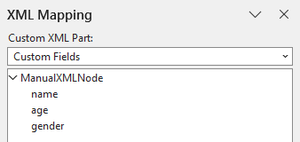
Hi, everyone! Good day! I've made an XML file which I imported to my doc using XML Mapping Pane -> (Add new part...) and I used it to map some texts. How could I add new fields to this XML Mapping? What I tried: I tried editing the XML file and then importing it again. As a result, I have two XML Mappings with the same name that act as completely separate mappings. I couldn't even find a way to delete the older one.Solved106Views0likes6Comments
#Name? error in a formula adjusted for circular reference
How can I solve #Name? error in formula: =H2+(I2*Parameters_2026!$G$1)+(I2*Parameters_2026!$G$3)+(I2*Parameters_2026!$G$5)+((I2-I2*Parameters_2026!$G$1-I2*Parameters_2026!$G$3)*İNDEX(Parameters_2026!$C$3:$C$7;MATCH(MAX(I2;1);Parameters_2026!$A$3:$A$7;1))). Where: H2 → Net Salary I2 → Gross Salary (to be calculated iteratively) Parameters_2026!$G$1 → Employee Social Insurance Rate (0,14 of Gross Salary) Parameters_2026!$G$3 → Employee Unemployment Insurance Rate (0,01 of Gross Salary) Parameters_2026!$G$5 → Stamp Tax Rate (0,00759 of Gross Salary) INDEX + MATCH → Finds income tax rate (range C3:C7) applicable for Gross Salary amount (A3:A7 range) Iterative calculation enabled for Maximum Iterations: 1000 and Maximum Change: 0.000001. Thank you in advanceSolved47Views0likes1CommentIndex and Match command is return results from the wrong column
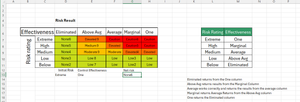
Within Excel I'm using the Index and Match command to search an array. I've provided copy of the workbook. Here is the command =IFERROR(INDEX(D7:H11,MATCH($D$13,L7:L11,0),MATCH($E$13,M7:M11,0)),"") Here is an added twist on sheet 1 I use this formula and it works correctly. This formula is on sheet 2. The results for the Average column returns correctly. The other columns appear as if the were flipped. When the Marginal column is selected I get results from the Above Avg column. The opposite happens if I choose the Above Avg column I get the Marginal results. The same thing happens if I choose the columns on the ends. As shown in the image above the Extreme row is selected and the One column is chosen. The result should be "Caution", but instead the result is "None6". FYI, this is part of larger workbook where the results will be posted on a different worksheet, but to simplify everything I've placed it on its own page. RegardsSolved124Views0likes4CommentsHow do I correct heading numbering?
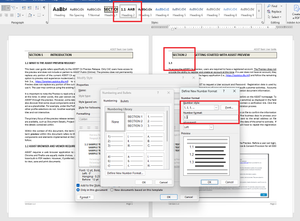
UPDATE: I couldn't remove this post, after I discovered the issue. Thanks! I need to update heading numbering within an old document. Custom headings were made (as pictured) but I need the heading levels 2 and 3 to include the parent heading number of each. When I attempt to update the level 2 heading for Section 2, it wants to continue with Section 1 (see pictured example). In the number format, I do not know how to tell Word to include the parent numbers? I included "1." thinking it was intelligent enough to know that was just a format designation of the parent heading, but I guess that isn't how. I realize I may be making some glaring mistakes, but just trying to get it right. So this is a learning moment. The caveat here is that I'm not creating the heading from scratch but rather, trying to update the existing document headings. I did follow some online suggestions but none of them addressed including the parent value in this scenario. Section 2 <Heading Level 1 text format> <-- Here I need the word "Section" to proceed the level 1 heading number 2.1 <Heading Level 2> <-- Here I need the level 2 heading to include the parent section level number 2.1.1 <Heading Level 3> <-- Here I need the level 3 heading to include level 1 and 2 numbers.Solved161Views0likes8CommentsHow to eliminate any height beyond text height on textbox
Why? I need to make a special Quick Part where stacked text boxes are close enough to overlap each other before the actual texts start overlapping. This makes the text input afterwards a struggle. I can fine-adjust the space at the bottom by dragging a text box's resize handle, but the space at the top doesn't disappear. I've already removed margins, paragraph spaces and set line spaces to minimum. Setting vertical alignment from Top to Middle doesn't change this behavior. Is it possible to adjust the text box's size to fit the text size exactly?Solved52Views0likes2Comments
VBA code to allow dropdown box multiple selection
Hi all, Is there an option to allow multiple selections of a dropdown box within excel? the dropdown would be in column V (v2 downwards, and the list is in tab “Entities” from a2 down to a6. the codes I have tried from online either didn’t allow me to remove a selected item, or when I did remove it and try to select others I ended up with “floating” commas. Ie it went from “apple, pear, banana” to “,pear ,” and I couldn’t remove the commas. thanksSolved107Views1like1CommentIs there no way to allow people to comment on my word document?
I am trying to share something I am working on with beta readers and some friends but the only options are "can edit" or "can view". There is no option for "can comment" or to let them viewers use the review function. I asked for help with the issue and got told that because my account is personal OneDrive and not business that there is no review only feature. Was that a mistake or is Microsoft really this behind on basic features? Google Drive has allowed giving people access with "comment only" for years.Solved131Views1like2CommentsHow to count duplicates ... sort of ...
Greetings! Here is part of a table that I am working on: RepairID ModelID Serial Number Date Started Date Tested ReportedSymptom SPEA-1010 PT206 8FA552 10/22/2025 10/28/2025 No Boot - White Screen SPEA-1024 PT206 8FA552 10/22/2025 11/4/2025 No Boot - White Screen SPEA-1037 PT206 7C99BD 10/22/2025 11/10/2025 EGM No Comms SPEA-1038 PT206 715473 8/21/2025 EGM No Comms SPEA-1039 PT206 715473 11/10/2025 11/11/2025 Failed Battery Test SPEA-1056 PT206 7142AE 10/20/2025 11/12/2025 Black Screen SPEA-1057 PT206 71584F 10/20/2025 11/12/2025 Black Screen SPEA-1144 PT206 7142AE 11/24/2025 11/24/2025 No Boot - Black Screen I am trying to count the number of repairs based on serial number in this table. But there are some duplicates. However, if you look at the rows with red font, you will see that the serial numbers, though they are the same, were not being repaired for the same reason. So, these need to be counted as 2 separate repairs. If the repairs to the same serial number are for the SAME symptom, we only count it once. What would be a good approach to creating a function that will count this into a cell on a separate table? Any assistance would be greatly appreciated.Solved129Views0likes4Comments
Excel bug Data sorting largest to smallest
I have some problems by sorting data in excel. First sorting by column M Largest to Smallest, than by column L also Largest to Smallest. In one case sorting is not successfully (Marked font color RED). Can someone explain this to me? https://drive.google.com/file/d/1n_IWsw9YH6FDxXnFm_wWwJEVQIN9AxRu/view?usp=sharingSolved297Views0likes8Comments
Need help with SORTBY function.
Hi all, In reference to this formula, SORT(FILTER('Big 4 NOV 21-23'!A3:D221,'Big 4 NOV 21-23'!B3:B221="M"),3,-1) I can only sort using one column (3). I need to sort the rows by column 3 then column 4. Column 5 is static I have tried using the SORTBY function, but there is an #VALUE issue with the array. Appreciate any help with this! Cheers Richard. NAME MENS TOTAL UNITS TOTAL WEIGHT POINTS Fred M 4 8.653 25 Rob M 4 4.556 20 Bob M 4 8.517 17 Rick M 4 10.584 15 Dave M 4 10.425 14 Greg M 4 8.773 13 Cal M 3 5.958 12 Ed M 3 3.776 11 Hal M 2 3.834 10 Ian M 2 2.324 9 Joe M 2 5.543 8 Ken M 2 2.751 7 Len M 2 7.179 6 Neil M 2 13.077 5 Mike M 1 4.772 4 Ollie M 1 5.983 3Solved111Views0likes5CommentsCan I control what is displayed in a FileDialog
Hello Excelers, Hope you are all doing well. Is there an option to limit the files displayed when you use something like: With Application.FileDialog(msoFileDialogFilePciker) .InitialFileName = "Book1" .InitialView = msoFileDialogViewDetails .Filters.Add "Excel Files, *.xls*" .Title = "Choose a File" (A way to limit files with a date range of say 7 days ago till yesterday .Show End With I want to limit the files displayed by a date of 7 days ago to yesterday. I know I can use the DateLastModified of a file but the question is how to incorporate this with the msoFileDialogFilePciker. Thanks in Advance! GiGiSolved130Views0likes2Comments






Events
Recent Blogs
- This update to Microsoft OneNote on Windows gives you more flexibility over proofing languages in your notebook pages.Dec 16, 2025227Views0likes0Comments
- Confidently migrate user data across tenants. Automate cutover, keep teams connected, and stay secure.Dec 16, 2025497Views2likes2Comments