Recent Discussions

How do you remove OneDrive Photos
I was reading how the OneDrive Photos app was stealth installed with no announcement and no opt-out functionality. Then I discovered that the program had installed itself on my desktop servers running OneDrive for Business and is labeled as a beta product. Since we are using a non-persistent VDI environment, it is never a good thing when programs install without our knowledge or approval. We have change control and testing procedures we need to follow. It is particularly worrying that Microsoft would push beta software to corporate production environments. I need to remove this software and block reinstallation until it can be vetted, but I cannot find an independent uninstall function nor can I find instructions a command line tool like DISM. It looks like it is integrated into OneDrive. A quick response is requested. Thank you in advance7Views0likes0Comments
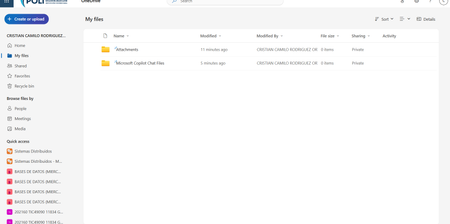
OneDrive suddenly became empty after university storage policy change Is recovery still possible?
Hello everyone, I am looking for technical guidance regarding a serious OneDrive for Business issue under Microsoft 365 Education. Environment - Microsoft 365 Education tenant. - University-managed account. - OneDrive for Business. - My account is still active and I can sign in normally. What happened On July 16, 2026, I signed into my OneDrive and discovered that my entire "My files" folder was empty. I verified the following: - I am signed into the correct account. - "My files" is completely empty. - The OneDrive Recycle Bin is empty. - "Restore your OneDrive" does not show any mass deletion event. - My OneDrive site is accessible, but there are no files. - I unfortunately do not have a complete local backup. A few days later, my university informed students that they had reduced the OneDrive storage quota from 5 TB to 30 GB due to a Microsoft/provider policy update. I suspect my OneDrive contained more than 30 GB because I had stored backups from my previous computer together with years of academic, personal and work files. However, I would like to understand whether exceeding the new storage quota could actually cause an existing OneDrive site to appear completely empty, or whether this suggests another issue such as: - OneDrive reprovisioning - Site replacement - License reassignment - Site deletion - Storage migration - SharePoint issue - Other administrative problem The university initially described this as a temporary Microsoft incident, but later told me that the files had been deleted because of the OneDrive application, without providing any technical explanation. I have already asked the university IT department to investigate: - Deleted Sites in SharePoint Admin Center - Second-stage Recycle Bin - Retention policies - Previous OneDrive site - Licensing history - Possible restore options My question to Microsoft experts is: 1. Can a storage quota reduction (5 TB → 30 GB) ever make an existing OneDrive appear completely empty? 2. Are there other administrative scenarios that could produce this behavior while leaving the account active? 3. Is there anything specific I should ask my Microsoft 365 administrator to verify that is commonly overlooked? Any guidance would be greatly appreciated because these files represent several years of academic, professional and personal work. Thank you very much.13Views0likes0Comments
Onedrive sooo annoying but great a same time
I have an some what unwanted computer issue here with Microsoft Onedrive! I have Office 365 and use Onedrive however, it has deleted over 5,500 pictures (yes I have backups and yes I deleted them off OneDrive HOWEVER these pictures were on my computer first so why does Onedrive delete the files even one my PC is the question - is there some setting to prevent this). However, this is so annoying, especially with documents, and IF you stop syncing a folder, OneDrive will delete that folder from your PC - why, especially since the folder was originally on my computer first. So it "seems" Onedrive does things without our consent people tell me BUT I say there must be a setting - anyone know where it is?10Views0likes0Comments
ONEDRIVE WEB VERSION
I use the OneDrive web version because I don't want to install the OneDrive app, as I have very little space on my C: drive. So my question is: I copied all my music from my PC to OneDrive via the web a few months ago, but it has all disappeared again! I had to do this last year as well because it had all disappeared then too. Why do I have to keep doing this? It takes a very long time because my broadband is very slow. Luckily, I have a backup on an external hard drive, but I don't want to have to keep doing this! Does anyone know why my Music folder keeps disappearing from my OneDrive (web)?32Views1like1CommentOneDrive Access Issue – User Unable to Access OneDrive Despite Multiple Troubleshooting Attempts
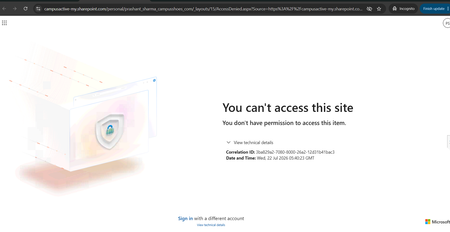
Hello Community, We are facing an issue with a user who is unable to access their OneDrive. Whenever the user tries to access OneDrive, the same error message continues to appear (screenshot/error attached). We have already performed the following troubleshooting steps: Removed and re-assigned the Microsoft 365 license. Executed the required PowerShell commands and confirmed that the user has a valid OneDrive URL and access permissions. Verified OneDrive and SharePoint settings from the SharePoint Admin Center. Used Microsoft Support and Recovery Assistant (SaRA) and reviewed the recommendations provided. Attempted to re-provision the user's OneDrive site. Despite completing all the above steps, the issue persists and the same error continues to be displayed. Additional Information: User has a valid Microsoft 365 license assigned. OneDrive service is enabled for the user. SharePoint Online is functioning normally for other users. Re-provisioning OneDrive did not resolve the issue. Has anyone encountered a similar issue or can suggest additional troubleshooting steps to identify the root cause? Any guidance would be greatly appreciated.91Views0likes1Comment
Missing Files
Previously, I had been using Onedrive to save data on it. I didn't have a lot of data but some folders, files, etc... Last week, on my Mac, I installed Onedrive and it was active. Today, after I signed in to my account, my files were missing. Some of it was cache when I synced it with my Mac. I know stuff was there. Now, after I sign in, there is folders there but they are empty. These folders were not there earlier. There is whole bunch of files in the recycle bin which I didn't put there. Some how the cached files ended up in the recycling bin. I am not able to install Onedrive anymore on the Mac. What is going on?33Views0likes2Comments
Way to recover onedrive content without my login
Is there a way to recover whatever might have been uploaded to OneDrive (because it hijacks the computer) without my old phone number? I'm still waiting for the AI to "moderate" my initial question and post it, and am assuming I'll be up a creek without a paddle. Will it let me uninstall onedrive from a samsung notebook entirely without my old phone number being accessible? (I changed my number. I have zero access to the old number and no way to get into my account to change it.) It is so wholly unethical and morally depraved that Microsoft is allowed to get away with this.13Views0likes0CommentsOneDrive login--no longer have my old phone number
Thank you in advance for any help you can provide. I have a Samsung notebook that came with preinstalled OneDrive, purchased in 2021 Since then, my phone number changed. I do not even remember signing up for onedrive--I was recovering from a neurological problem when this laptop was bought, and I am guessing onedrive can't be deleted, because its not something I would have signed up for had I been in my right mind. I don't want to try deleting it because it appears some files have been automatically uploaded to the inaccessible onedrive. Recently passed this notebook on to a family member, and his photos are getting uploaded to a one drive account I no longer have the cell phone number to verify log in on with. The log in support page has zero option that works to get my login phone number changed. Obviously, Microsoft phone support blocks your number once you call because they do not care about non-business customers. How can we recover the photos that were forced-to-upload to onedrive without the old phone number? Once we do that, will it cause issues on the samsung notebook to uninstall onedrive, if that is even possible. Thank you.11Views0likes0CommentsMissing data
I recieved several emails from Microsoft that were legit. I was advised I am 290+ GB over my quota for 5GB I realize my Clipchamp was saving to my personal OneDrive NOT my business OneDrive (where I have 5TB) Anyway, I opened a ticket with Microsoft and they confirmed my personal OneDrive has 1GB of data in it -- not 290+ Looks like my data vanished... Can you please contact me and help with resolution?28Views0likes1Comment
Onedrive downloaded zip file unable to open on Windows PC
I have downloaded all my files in onedrive (roughly 80GB, all into a zip file around 20 GB) into my PC, but my PC stated "Windows cannot open the folder. The compressed file (zip) "xxxxx" is invalid. How should I deal with that situation.111Views0likes1CommentProblems: The folder has a number over 1000 and isn’t synchronising with the iPhone
I have created several folders with numbers in their names, such as ‘now1002rampf’; I can see these on OneDrive on my PC, but unfortunately not on my iPhone, OneDrive app. This only affects the ones with a number higher than 999.40Views0likes1CommentInefficient OneDrive Synchronization Causes Windows Explorer Slowdowns
OneDrive has become a significant performance bottleneck in daily Windows usage. Its synchronization process frequently consumes excessive disk resources, directly impacting Windows Explorer performance and making file browsing noticeably slow, regardless of the desktop PC's hardware specifications. What is even more concerning is that this issue has persisted for years. Many users have reported the same problem, yet the recurring response is simply that the team is "aware of the issue." Despite these acknowledgments, there have been no meaningful improvements, no clear action plan, and little transparency regarding progress or future fixes. The lack of communication and visible progress creates the impression that the user experience is not receiving the attention it deserves. For a service as important and deeply integrated into the Windows ecosystem as OneDrive, users expect greater transparency, stronger commitment, and continuous improvements to performance and reliability. At this point, OneDrive is becoming less of a practical productivity solution and more of a source of frustration for many users. We hope Microsoft will give these concerns the priority they deserve and provide a clearer roadmap for improving both the performance and overall reliability of the service. --- Sincronização ineficiente do OneDrive causa lentidão no Windows Explorer O OneDrive tem se tornado um gargalo significativo no uso diário do Windows. A sincronização frequentemente consome recursos de disco de forma excessiva, afetando diretamente o desempenho do Windows Explorer e tornando a navegação de arquivos lenta, independentemente da configuração do computador utilizado. O mais preocupante é que essa situação persiste há anos. Muitos usuários relatam o mesmo problema e, apesar das respostas recorrentes de que a equipe está "ciente da situação", não percebemos melhorias concretas, um plano de ação claro ou atualizações transparentes sobre o andamento das correções. A falta de comunicação e de avanços visíveis passa a impressão de que a experiência do usuário não está recebendo a atenção necessária. Para um serviço tão importante e amplamente integrado ao ecossistema Windows, seria fundamental haver mais transparência, comprometimento e evolução contínua da plataforma. Atualmente, o OneDrive está deixando de ser uma solução prática para muitos usuários e se tornando uma fonte constante de frustração. Esperamos que a Microsoft trate essas questões com a prioridade que merecem e forneça um posicionamento mais claro sobre os planos futuros para melhorar o desempenho e a confiabilidade do serviço.94Views0likes3Comments[Feature Request]: OneDrive CLI
$: man onedrive_rsync onedrive_rsync src_folder_path dst_folder_path src_folder_path: Can be a local path or a onedrive path dst_folder_path: Can be a local path or a onedrive path # Examples # Uploads all files which are present in the local and missing in the onedrive path $: onedrive_rsync path_to_local_folder path_to_ondrive_folder # Downloads all the files which are missing in the local path and persent in the onedrive path $: onedrive_rsync path_to_onedrive_folder path_to_local_folder # Syncs two folders on the onedrive path $: onedrive_rsync path_to_onedrive_folder_1 path_to_onedrive_folder_2 # Regex patterns should also be allowed $: onedrive_rsync path_to_local_folder/*.nef path_to_onedrive_path Hi All, It would be really nice to have an official OneDrive CLI that can be used via the terminal to allow for secure uploads/ downloads and syncing of either local folders to the OneDrive or syncing two OneDrive folders. My motivation for the above feature request is that I quite often upload/download quite big folders to/from OneDrive (many many GBs), and sometimes all I need is incremental changes. Keeping the browser open for the entire duration is cumbersome, and thus, it would be very nice to have a CLI, that can run in the background or can be automated via some script. This also enables a use case where I need to upload files from multiple devices to the same OneDrive folder. Hoping this would become a thing, as I would prefer as little browser interaction as possible, so the entire suite of CLI commands for path manipulations (creating, deleting and moving files and folders in OneDrive) would be very much appreciated. Thanks !74Views0likes1CommentOneDrive sync causes workflow inefficiencies and UX issues in Microsoft 365 and File Explorer
I would like to describe some workflow issues caused by the current integration between OneDrive, Windows, File Explorer, and Microsoft 365 apps. I understand that OneDrive is designed to synchronize files across devices, but in some scenarios the current behavior creates unnecessary delays, especially with slow internet connections or large synchronization queues. 1. Exported Microsoft 365 files are not immediately available in the selected OneDrive folder When exporting a Microsoft 365 file, for example exporting a Word, Excel, or PowerPoint document to PDF, the user can select a OneDrive-synced folder as the destination. However, the exported file is not always immediately visible or accessible in that folder through Windows File Explorer. From the user’s perspective, it seems that the file is first saved into a temporary or internal Microsoft 365/OneDrive staging location, then uploaded to OneDrive, and only later appears in the actual synced folder through the normal synchronization process. The issue is not that the file is never stored locally, but that it is not immediately available in the location explicitly selected by the user. This creates practical problems. After exporting a PDF, I may need to quickly locate it in File Explorer to copy it elsewhere, attach it, upload it to another platform, or use it in a web tool to merge it with other PDFs. However, even though I selected a OneDrive folder as the destination, the file may not be available there right away. A related issue is that Microsoft 365 or Windows may open the exported file through a browser or web link instead of opening the local file directly. This can trigger login prompts, open the web version of Office, and interrupt the expected desktop workflow. Expected behavior: When saving or exporting a file to a OneDrive-synced folder, the file should become immediately visible and accessible in the selected folder in File Explorer, while OneDrive continues uploading or syncing it in the background. If the user selected a local OneDrive path, Microsoft 365 should prioritize the local file workflow and avoid redirecting to the browser unless explicitly requested. 2. File duplication inside OneDrive should use both cloud-side copy and local optimization Another issue occurs when duplicating or copying a file that is already stored in OneDrive, especially within the same OneDrive account. Currently, the process may behave like a traditional local copy: the file is downloaded if needed, copied locally, and then uploaded again as a new file. This is inefficient when OneDrive already has the source file in the cloud and the operation is simply a copy within the same account. Ideally, OneDrive should combine two optimizations: Perform a cloud-side copy when possible, so the duplicated file appears quickly in OneDrive online and on other devices. Reuse the local cache when available, so the current device does not unnecessarily download and re-upload the same data. This would make copied files appear faster on other devices as online-only placeholders, ready to be downloaded later if the user opens them or marks them as available offline. The other device should not have to wait for the first computer to download, copy, re-upload, and then synchronize the change. Expected behavior: When copying or duplicating a OneDrive file within the same account, OneDrive should use a cloud-side copy whenever possible, while also reusing local data when available. The copied file should appear quickly across devices as an online-available item, without forcing a redundant download, local copy, upload, and synchronization cycle. 3. OneDrive does not dynamically prioritize files the user needs immediately A third issue appears when OneDrive has a large backlog of pending synchronization changes, especially after using another computer. In this situation, OneDrive seems to follow its own synchronization order, even if the user opens a specific folder or tries to access a specific file urgently. For example, if there are hundreds or thousands of pending changes, and I need one specific document, that file may remain unavailable until OneDrive reaches it in the queue. Even when I navigate directly to the folder or attempt to open the file, OneDrive does not seem to move that item to the top of the sync priority. Expected behavior: OneDrive should dynamically adjust synchronization priority based on user activity. If the user opens a folder, selects a file, or attempts to open a cloud-only item, that file and its immediate dependencies should be prioritized over the general sync queue. Summary of requested improvements I believe these issues could be improved with smarter local and cloud prioritization: Exported or saved files should become immediately visible in the OneDrive folder selected by the user. Microsoft 365 should avoid opening exported files through a browser when the local file workflow is expected. Copying files within the same OneDrive account should use cloud-side copy operations when possible. Local file data should be reused to avoid unnecessary download and upload cycles. Copied files should appear quickly on other devices as online-available placeholders. OneDrive should prioritize files and folders the user is actively trying to access. Is this behavior expected, or are there settings to make OneDrive prioritize local file availability, cloud-side copy operations, and currently accessed files more intelligently?61Views0likes1Comment
Moving files out of unlinked, unsynced and disabled onedrive
I am out of storage space on my PC -Windows 11 and get reminders of that everyday. To help solve that problem I would like to move MyDocuments (a huge file) to Drive D. Here is the potential problem. I unlinked, unsynced and removed OneDrive in 2020, or so I thought. I still see the OneDrive symbol in Microsoft Explorer above the line from Drive C and other drives. Most of my files are accessible in Drive C, but not MyDocuments, Desktop, and some others. They can only be opened thru OneDrive. This always puzzled me, but since all my files are accessible to me, I haven't worried about it. Now I'm concerned that OneDrive still has its tentacles around some of my files. MyDocuments and Desktop are being updated, but my files in the cloud are seriously out of date. What does that tell me? If they are still tied to OneDrive somehow, does that complicate the removal of those files to Drive D?60Views0likes2CommentsProblem with Docusign inn
Hello, I have been using Microsoft 365 Family with Word Online and OneDrive for a long time, and the "Request Signature" feature worked perfectly until the last three months. Now, every time I click Request Signature, I receive the following error: "We couldn't connect to the ‘{0}’ catalog server for this add-in." I found your announcement about the retirement of the Legacy DocuSign for SharePoint integration, and I'm trying to determine whether this is the cause of the issue. My questions are: Is Microsoft 365 Family still supported for the Request Signature feature in Word Online? Do I need to migrate to Microsoft 365 Business to continue using this feature? If so, which Microsoft 365 Business plan do you recommend, and will my current DocuSign account continue to work after the migration? I have already cleared my browser cache, signed out and back in, and tested different browsers, but the issue persists. Thank you for your assistance.48Views0likes1CommentProblem with OneDrive-Docusign
Hello, I have been using Microsoft 365 Family with Word Online and OneDrive for a long time, and the "Request Signature" feature worked perfectly until recently. Now, every time I click Request Signature, I receive the following error: "We couldn't connect to the '{0}' catalog server for this add-in." I found your announcement about the retirement of the Legacy DocuSign for SharePoint integration, and I'm trying to determine whether this is the cause of the issue. My questions are: Is Microsoft 365 Family still supported for the Request Signature feature in Word Online? Do I need to migrate to Microsoft 365 Business to continue using this feature? If so, which Microsoft 365 Business plan do you recommend, and will my current DocuSign account continue to work after the migration? I have already cleared my browser cache, signed out and back in, and tested different browsers, but the issue persists. Thank you for your assistance.34Views0likes1CommentPlease help, OneDrive sync and missing/deleted work files
I have OneDrive installed on both my PC and laptop because I use OneNote sometimes. The other day while I was on my PC, OneDrive randomly decided to sync my laptop and PC, I think, and all my files from my laptop were on my PC. This is a big problem because my PC is for personal use and laptop for work. Then I deleted some files thinking they were still on my laptop anyways. But today when I opened my laptop, all of my work files were gone. My desktop was just my PC desktop. I need help because the work files were really really important and I'm freaking out. Why would OneDrive do this? They are separate, I don't want them synced. Please help. Can I recover them?90Views0likes2Comments
Events
Recent Blogs
 Get ready for the July 2026 OneDrive Customer Office Hours! This session creates space for open conversation around the latest updates and how they support the way you use your files every day. In th...Jul 07, 2026439Views0likes2Comments
- OneDrive on macOS is getting a major update to how it syncs! The Native Sync Engine is rolling out to Insiders today with version 26.098. It's up to 2x faster on initial sync and on-disk state change...Jun 10, 20262KViews4likes10Comments