admin
6579 Topics
Lost Global Admin
Is there anyway to contact support? Here is how the geniuses at microsoft have made the experience ten times worse. I click reset password, it says you are not a global admin, I click locate the admin and it says it can't find it. Brilliant. Then I call the fake AI support and it proceeds to tell me I have to be a global admin. That being said, now my email is down because there is something wrong with my account. I swear this experience has to be one of the dumbest things I have seen to date from y'all. Its not even AI. So is there any way besides calling some retarded number that hangs up on me? Because I cant open a case from the tenant and if I switch tenants they told me they cant help me. To call the number that hangs up on me. The domain is chadbarnettlawfirm.com92Views0likes3Comments
OneDrive just opens JPG files others get error 0x80070185 cloud operation was unsuccessful
Hello everyone, we have a problem on a Windows Server 2022 RDS Server with OneDrive. I can login to OneDrive and see all my files. When I try to open the files (e.g. PDF/Word/TXT) I get an error 0x80070185 the cloud operation was unsuccessful When I try to open JPG files its working. I can create folders and move files to this folder. The sync to my local notebook is ok. I tried to reset OneDrive, no success I installed the latest version of OneDrive, we checked the firewall (sophos) no blocked connections, we disabled the local AV software (sophos) to make sure it does not block anything, no success. I reset OneDrive, deleted the App Data folder for OneDrive, deleted the OneDrive folder within my User Account. It is still the same situation, login works I can see all my files and folders I can open JPG files but now word or PDF documents. I can create new folders and TXT files, fill them with content and its synced to OneDrive. Suggested solutions found on the internet are all the same, using reset onedrive and re/install latest version. We had version 26.119.0622.0003 and updated to 26.145.0728.0011 Has anybody another solution for that? Best regards73Views0likes2CommentsOnedrive personal vault problems
I'm having problems with opening my personal vault. The cloud icon at the bottom right of my screen has a red X and all I get is an error saying my personal vault isn't updated. I can't access any of the settings for OneDrive or Personal Vault. I downloaded an update, but when I tried to install it I got an error message saying I was using a newer version and must delete it before continuing. What do I need to do to get my OneDrive and/or Personal Vault working again?56Views0likes1Comment
OneDrive desktop client continues to experience authentication problems
We're currently investigating a widespread OneDrive desktop client authentication issue affecting many users. Initially, users experienced continuous login prompt loops. In cases where authentication succeeded, OneDrive would repeatedly connect and disconnect, asking users to re-enter their credentials multiple times. We've already attempted: Resetting OneDrive Uninstalling and reinstalling the client Removing and recreating Windows Credential Manager entries Signing users out and back into Microsoft 365 None of these steps resolved the issue. A key finding is that OneDrive Online (browser access) works normally while connected to the corporate network. Users can access their files through the web without issue. However, the OneDrive desktop client continues to experience authentication problems. Today we identified an interesting workaround: when users connect through an external network (such as a mobile hotspot), OneDrive immediately authenticates and syncs successfully. Once we go back on the corporate network and reset OneDrive, the issue returns. No firewall, VPN, or known network configuration changes have been made, and current reviews have not shown any obvious blocked traffic. Given that: OneDrive Online works internally The desktop client fails internally The desktop client works externally (hotspot) We're trying to determine what network, authentication, proxy, DNS, SSL inspection, Conditional Access, or Microsoft 365 endpoint-related issue could be impacting the OneDrive desktop client specifically. Has anyone encountered similar behavior or have recommendations on where to investigate next?156Views0likes1Comment
Locked out of Microsoft 365 Business Tenant
I am the sole global admin for my Microsoft 365 Business tenant and I have been completely locked out due to an MFA issue. I cannot access the admin portal, cannot reset MFA, and cannot verify my identity through the automated system. When I call Microsoft support, the automated system incorrectly states that I am not a global admin and immediately disconnects. All UK support numbers (0800 026 0329, 0344 800 6006, etc.) hang up instantly before reaching an agent. No callbacks have been received despite multiple requests. I now have an open case with the Data Protection team: Microsoft 365 Data Protection – TrackingID#2609030040002192 This situation has caused: Business disruption Financial loss Inability to manage users or services Customer service impact Complete loss of administrative control over our tenant I urgently need escalation to the Data Protection team for identity verification and MFA reset. The normal support channels are not functioning, and I cannot reach a human through any published phone number. Any assistance or escalation from Microsoft moderators or engineers would be greatly appreciated. Thank you.31Views0likes0CommentsDepreciation of Custom Controls in favor of External MFA
Deprecation of Custom controls Custom controls are being deprecated in favor of External MFA. Existing configurations keep working during the transition, but you should begin migration planning now. Custom controls retire September 30, 2026, and reach end of life in May 2027. When will you see this change? Custom controls will be retired on September 30, 2026, and the service will reach end of life in May 2027. Who will be affected by this change? This update affects organizations currently using Custom controls to integrate third-party MFA providers with Conditional Access. How will this affect your organization? Organizations relying on Custom controls will need to transition to External MFA to maintain support and continue using third-party MFA solutions within Microsoft Entra ID. Moving to External MFA also enables more consistent Conditional Access enforcement and improved integration with Microsoft Entra security capabilities. What do you need to do to prepare? Organizations should: Review existing Custom controls integrations Evaluate External MFA migration requirements Test Conditional Access policies and user experiences before migration Begin migration planning ahead of the retirement date Read more in the External MFA General Availability announcement and migration guidance.148Views0likes0Comments
Referenced cells do not identify themselves with color
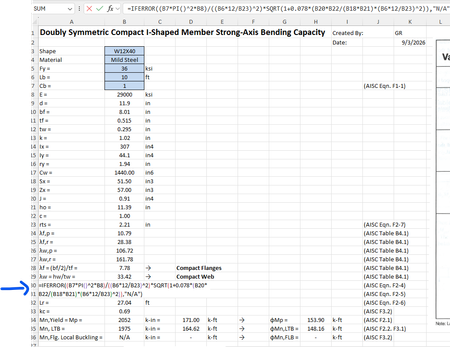
For some reason when I create a formula that references other cells, I cannot get those cells to "identify" themselves with a specific color. For example, in the image below the formula references cells B7, B8, B6, etc but they are just black text and don't show up in color per standard excel documents. Usually they "glow" with a specific color so you can find them easily in big spreadsheets. How do I get the colors back?Solved211Views0likes2Comments
How much of your Microsoft 365 environment can you actually see at once?
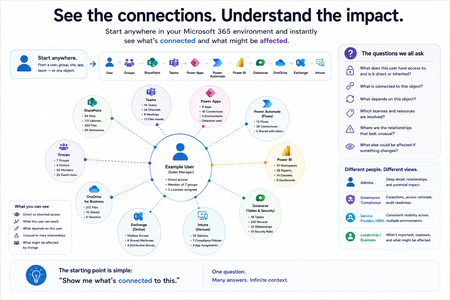
Not how many users you have. Not how many sites, teams, apps or flows you have. How much of it can you actually see connected together? I've been working across Microsoft 365 environments for a while, and I kept running into the same thing. There is no shortage of information. If anything, there is probably too much of it. Users, groups, permissions, SharePoint, Teams, Power Apps, Power Automate, Power BI, Dataverse, OneDrive, Exchange, Intune, licensing, configuration... It's all there. But when you're actually trying to understand how everything fits together, it can be a different story. You open one blade. Find something. Open another. Cross-check it. Go back. Open something else. Before long, you're jumping between different parts of the tenant trying to build the bigger picture in your head. And if you're working with larger environments, that gets difficult pretty quickly. The information isn't necessarily missing. The relationships between the information are what can be difficult to see. That got me thinking about a slightly different question: Instead of "where do I find this information?" "Show me what's connected to this." That's where VisibleState started. Start anywhere. Follow the connections. Imagine starting with a single user. Instead of seeing that user simply as a record with a list of properties, imagine being able to explore the relationships around them: User → Groups → SharePoint → Teams → Power Apps → Power Automate → Power BI → Dataverse → OneDrive → Exchange → Intune Then the questions become different: What does this user have access to? Is that access direct or coming through a group? What resources are connected to them? What depends on something they're associated with? Which licenses are involved? Are there relationships that look unusual? If something changes, what else might be affected? Those questions aren't necessarily about finding another piece of information. They're about putting information that already exists into context. A report can tell you that something exists. A connected view helps you understand what it is connected to. Illustrative example below — not a real customer environment. I'm not suggesting Microsoft 365 doesn't already give us this information Quite the opposite. Microsoft 365 already gives administrators an incredible amount of information and tooling. The thing I've been thinking about is what happens when you want to look across those boundaries. Sometimes I don't want another export. I don't want another list. I don't necessarily want another dashboard. I want to start with something I'm looking at and ask: "What's connected to this?" And then keep following the trail. That's the idea I'm exploring with VisibleState. The interesting part is what happens when you change the viewpoint The same relationships can be useful for completely different reasons. For example: Administrators may want to understand access, permissions and dependencies. Security and governance teams may want to find unusual relationships or exceptions. Compliance teams may need to understand who can access something and why. People managing multiple environments may want a consistent way to understand what's there without rebuilding the picture manually every time. Leadership may not need to see the graph at all. They may simply want to know what's important, what's exposed and what could be affected. It's still the same underlying environment. You're just looking at it from a different angle. And that's where I think things get interesting. Where I'm at with it VisibleState started as something I was building to make my own work easier. I was spending a lot of time investigating environments, tracing access and putting information together for reports. The individual tasks weren't necessarily difficult. It was the jumping between different places and reconstructing the bigger picture that took the time. So I started building something that would let me approach the environment through the relationships instead. It's grown quite a bit from where it started, and I'm continuing to build it. I'm not posting this as a product launch, and I'm not looking for people to sign up. I'm genuinely interested in whether the problem I'm seeing is familiar to other people working with Microsoft 365. So I'm curious... If you could start with any object in your Microsoft 365 environment and immediately see what it's connected to, where would you start? Would it be: Users and access Groups and permissions SharePoint and Teams Power Apps, Power Automate, Power BI and Dataverse Licensing and resources Governance and unusual relationships Something completely different Maybe you've already got a good way of doing this. Maybe you still find yourself jumping between different services and piecing things together manually. Or maybe I'm looking at the problem from the wrong direction. What's the one relationship in your Microsoft 365 environment that you wish you could see instantly?116Views0likes0Comments
Microsoft Authenticator - after toggling Screen Lock on Phone
Hello all, I am going crazy over this and really need help urgently. I made my account 'passwordless' and depended on 'MS Authenticator App' to login. I was trying to take back up of my phone and thus turned off screen lock temporarily. When I turned it On again, MS Auth app won't let me sign-in. So, I tried to use the copilot and it asked me to use my 'account recovery code'... which I did and then this is the message I get: ---------------------------------------------------- Because you turned on two-step verification, you need up-to-date security info to sign in to your account. During the waiting period you will not be able to sign in to sites or services with your Microsoft account, but will be able to sign in to devices or use your existing app passwords. You can avoid the wait by: Using a trusted device. If you have a device that doesn't require codes, use it now and update your security info. Finding your security info. Any chance it isn't entirely lost? [I just need to reattach/re-enable phone auth/my account using a QR scan] ------------------------------------------------------- Copilot also asked me to remove the hotmail account from my auth-app, restart the phone and try to access the security page to scan the QR code and re-enable the auth through phone. Now here's the thing. Although I am in my email account [it was already open in my browser - and it did not log-off automatically] I am unable to access the security page on my microsoft account unless I approve it via my Auth App. And my Auth App doesn't have the Hotmail account, because Copilot asked me to remove it and re-attach it. I'm stuck in a loop. Text Messages are limited to few attempts, so no luck there either.236Views0likes2Comments