
Forum Widgets
Latest Discussions

Word VBA, Unreachable table style setting?
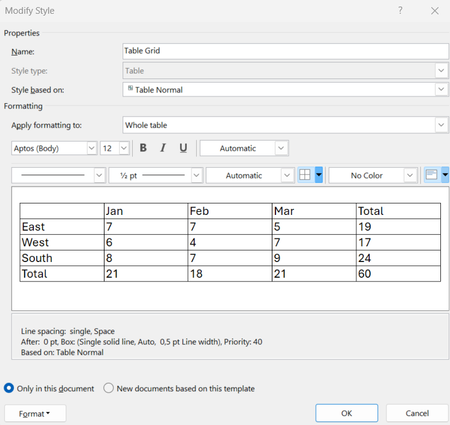
I've noticed something that may be a missing feature in the Word VBA Object model. Styles in word can be of different kinds set by the WdStyleType when adding a style via expression.Add (Name, Type) method of the Styles Object (https://learn.microsoft.com/en-us/office/vba/api/word.styles.add). Using wdStyleTypeTable gives a Table Style. Table styles differ somewhat from other styles since you build up the style of a table by setting the formatting for different parts/features of the table. E.g. the first, or last row may differ in their style compared to the rest of the table. These kind of settings are reached via the Condition method of the TableStyle object (reachable from the Style.Table property). Specifying different "conditions" (of data type WdConditionCode) give you access to ConditionalStyle objects handling the settings for different parts of the table. In word you can modify the table styles by for example <right-clicking> a table style and selecting "Modify Table Style" This presents you with the following UI. The setting I am unable to reach via VBA is tied to the Condition "First Row" which can be reached by selecting the pull-down menu "Apply formatting to:" to Header Row, then clicking the button menu "Format" at the lower left and selecting "Table Properties...". This gives us the "Table Properties" UI in which we in the tab "Row" is given the options to enable "Repeat as header row at the top of each page". The effect of this can be seen in the "Description field" in the previous "Modify Style (Table Edition)" view. (You might have to select something else in "!Apply formatting to:" menu and then re-select "Header row" again to get the description field to update). We now have a "Repeat as header row" shown in the description for "Header rows". This is a setting which in VBA can be reached for an inserted Table via a Rows property: table.rows.HeadingFormat https://learn.microsoft.com/en-us/office/vba/api/word.row.headingformat However, it should be possible to set for the table style as well. In the resulting XML file (styles.xml) of the .docx file we find it in a <w:trPr> block as a <w:tblHeader/> tag. Note that this is the definition of a style in the styles.xml, not the declaration of an inserted table. Have anyone managed to reach this style setting via VBA or know of how it can be done? I've scanned through the methods and properties of Style, TableStyle, and ConditionalStyle object definitions and not found anything allowing me to set this "Table property" as part of the style. It would make most sense if it was available in the TableStyle object (https://learn.microsoft.com/en-us/office/vba/api/word.tablestyle) since that is where properties such as "AllowBreakAcrossPage" can be found. Maybe something they missed in the Word VBA model.HakanaApr 02, 2026Copper Contributor30Views0likes2Comments
Can't save MS Word files anymore on my Mac
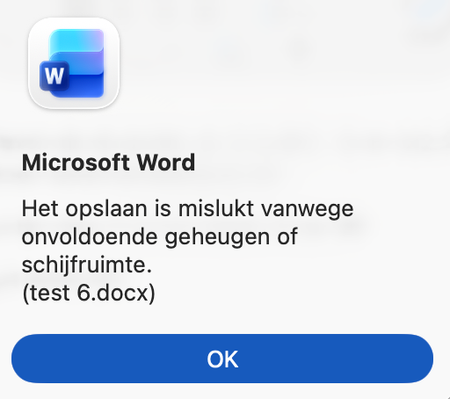
Hi all, I have a macbook air 2020 version with an Intel chip. I'm using OS Sequioa 15.7.4 Microsoft Word version 16.107.1 Since this week I'm having issues with saving Microsoft Word files on my Mac. When I'm trying to save a file I'm getting the following message (translated from Dutch): "saving has failed because of insufficient memory or space on the hard disk" My hard disk is using 133 GB out of 500 GB. So that can't be the issue. I've tried already the following things: Reinstall MacOS (via cmnd R) Reinstall Word Log off out of word, restart, and log on into word. Reset Office 365 on mac via Office-Reset.com Saving the file in another folder / external disk Transfering all my files to a new Mac with OS Tahoe 26.3.1 and start working from there On both Macs I'm investigating deeper what goes wrong and this is what I've noticed so far I can open a new word file, typ in it and save that file. But the moment that I start pasting things from certain (a lot but not all) other files the problems start. I can't undo previous actions anymore I can't save the file I'm working on anymore (USB / Mac / onedrive) These issues occur on both MacOS. These issues occur often when I'm pasting pictures or formulas from those certain word-files. Does anyone has any idea how to fix this? Many thanks in advance. Kind regards, StephanMrLankyLanky88Apr 02, 2026Copper Contributor186Views1like5Comments
VBA concern: support for macros or controls not installed when software was installed
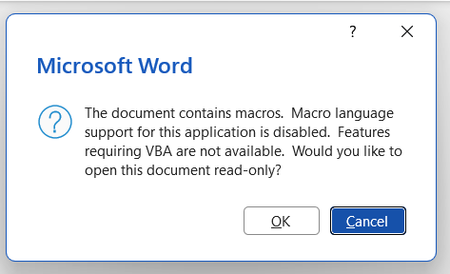
Background: I want to use Zotero, a citation manager, on Word but it uses macros. I get an error message every time I open Word saying VBA wasn't installed at the time I downloaded Office. Image of the error message screen shotted below. I have tried a number of different things: Macros are enabled in the trust centre VBA are enabled in the trust centre I have ran rapid and online repair on Office on the control panel I have attempted 'change' office on my control panel to access the 'expand/add features' with the hopes of getting VBA but this does not appear as an option for me. When I select 'change' in the Control Panel the follow pop up appears: My current impression is that I must download VBA to be able to use VBA. I appreciate that VBA is supposed to automatically download with Office but this does not seem to have happened in my case. Please advise on what I should do next. Thanks in advance.SA3Apr 02, 2026Copper Contributor15Views0likes1CommentVBA concern: support for macros or controls not installed
Background: installed Zotero, a citation manager, to use on Word but it uses macros My Word doesn't seem to have VBA installed. Every time I open the app, error boxes appear. Screenshotted below: I have tried a few things to fix this but without benefit: Macros enabled in the trust centre VBA enabled in the trust centre Rapid and online repair completed I have attempted to 'change' the program in the Control Panel in order to access the 'expand/add features' option but this does not exist as an option for me. When I press 'change' only repair options appear for me. Screenshotted below: My impression is that somehow VBA was not installed when I downloaded Office form my account. I appreciate VBA is downloaded automatically but this has not been the case for me. Please advise on next steps. Thanks in advance.SA3Apr 02, 2026Copper Contributor17Views0likes1Comment
Simply cannot delete a section break. It is impossible. Cannot be done. Please prove me wrong.
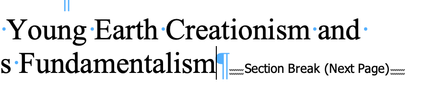
So I was introduced to section breaks as a means of getting page numbering up-to-spec for book I've written (roman. numerals in the front material, arabic numerals in the book itself). I'm using the latest version of Word (16.8?) on Mac. To my horror, I've found that it is impossible to delete section breaks once they're in my document. I have spend an entire day in Google on this subject, and every single suggestion fails. So I have enabled showing markup, so I can see page breaks, section breaks, paragraphs I cannot select a section break. Word will not allow that. So I can't select and delete it. I cannot put the cursor after a section break and then hit the delete button as many suggest. Word will not allow the cursor to be placed after a section break. Putting the cursor before the section break, as other articles recommend, is just wrong. All you're doing there is deleting text before the section break. Why is this so hard? I've lost a whole day on something that should be simple. In the screenshot from my document below, The section break simply cannot be touched.markaaronky1390Apr 01, 2026Copper Contributor237KViews6likes47Comments
Word documents suddenly take several minutes to open after March 22 Office update
Hello everyone, I’m experiencing a severe and sudden issue with Microsoft Word that began immediately after the March 22, 2026 Office update. I’m hoping to understand whether this is a known regression or if others are seeing similar behavior. Summary of the issue Large Word documents (2.5 M.B ~4.5 MB, plain text, no images) now take 8–10 minutes to open. Smaller Word files also open more slowly than before. Once a document finally opens, performance is completely normal — editing, scrolling, and saving work fine. The slowdown affects every platform: Word on Windows Word on mobile (unable to open the 4.5 MB file) Word Online (which eventually fails with “servers are busy”) This suggests the issue is not device‑specific. Critical detail: The issue began exactly after the March 22 Office update In my update history, I noticed: A new Office build was installed on 2026‑03‑22. Word worked perfectly on March 21. On March 23, all large documents suddenly took several minutes to open. Nothing else changed on my system. This strongly suggests a regression or behavioral change introduced in the latest Word build. Troubleshooting already performed I’ve tried the following steps, none of which helped: Quick Repair and Online Repair Opening Word in Safe Mode Reinstalling Office Copying the entire content into a brand‑new blank Word file Saving the new file locally (outside OneDrive) Opening the file from a different Windows user profile Opening the same file on my phone Opening the file in Word Online Checking OneDrive sync Checking system performance and storage Even a brand‑new local file takes several minutes to open. Additional symptoms (possibly related) Since the same day the issue began: I cannot post on learn.microsoft.com (unexpected error) Some Microsoft portals report that my account “cannot be found” Word Online fails to load large documents and eventually shows “servers are busy” These symptoms make me wonder whether this could be related to: Microsoft account / identity services backend service degradation or a change in how Word performs cloud‑dependent checks during file opening Why this does not appear to be a file‑size or device limitation The same files opened in 10 seconds before March 22. They now take 10 minutes, without any change in size or structure. The files contain only text (no images, no tracked changes). PowerPoint opens a 1.2 GB file instantly on the same machine. The issue affects all devices, including mobile and Word Online. Even brand‑new Word files created locally exhibit the same delay. This points away from file complexity and toward a Word‑specific or service‑related issue introduced recently. Why I’m posting here I’m trying to determine whether: this is a known issue with the March 22 Office build, others are experiencing similar slowdowns, this is related to a backend or identity service problem, or if there is a workaround to bypass whatever Word is waiting for during the opening phase. Any insights, confirmations, or technical explanations would be greatly appreciated. Thank you, RaphaëlValeuraphApr 01, 2026Copper Contributor111Views0likes4Comments
Document Headers
I'm just about finished a book. I have the headers formatted a certain way that includes being bold. The problem is that the listing of headers in the TOC also show in a bold font. What do I need to do to not have the TOC font the same as they appear as headers?BfearrMar 31, 2026Copper Contributor24Views0likes1Comment
In Cabin font family, horizontal lines move downwards when exporting to PDF
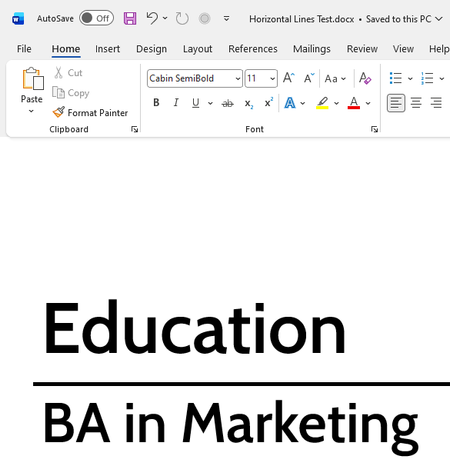
I am trying to create my CV in Microsoft Word, but I'm running into an issue: the horizontal lines under my section headings (created by typing three hyphens and then hitting Enter) are being lowered too much when exporting to PDF. To see what I mean, see the below images. The first is an image of the section heading and the text below it as it appears in Word: There is a decent level of space between the heading, the line, and the text below. However, when I export the document to a PDF, the horizontal line moves downwards to the point where it is almost touching the text below: This seems to be a problem with the Cabin font family that I'm using; I tried the same with Calibri (a native Word font) and Source Serif 4 (from Google Fonts) and the horizontal line stayed where it should.rcoadyMar 29, 2026Copper Contributor51Views0likes2Comments

Tags
- office 365334 Topics
- Word Online133 Topics
- Office Apps117 Topics
- 201683 Topics
- word83 Topics
- Apps38 Topics
- Online33 Topics
- 201324 Topics
- VBA13 Topics
- mobile11 Topics