accessibility
909 Topics
Automatic Timezone Inaccurate
I had an issue wherein we are trying to implement an automatic timezone for users as they travel alot. The objective is that whenever a user goes say US, the timezone will automatically adjust to where he is. What we did is 2 things: To forcibly enable location services on a user device Enable the tzautoupdate via script Note: No defined/default timezone is selected Upon observation on a test user when enabled, everything is perfect except for when he was onsite at an office in UK. For some reason, when he is connected to office the timezone automatically shifts to UTC-4. We have tested it for almost 2 weeks and its still the same hence we halted the testings and removed the configuration. I have found similar issue that it might be related to Geolocation of Microsoft Database and unfortunately there is no way to update it or request it to be updated as there is no procedure how to raise them to update as well. https://learn.microsoft.com/en-au/answers/questions/5869140/persistent-incorrect-geolocation-on-windows-device In line with it, I created a microsoft case and based on our discussion and testings there is no issue on the device and/or the configuration and the only action plan that we have is to hope that this discussion gets to be seen and maybe microsoft updates their Geolocation Database.8Views0likes0Comments
Work IQ
Hi Team, We wanted to utilize Work IQ rest APIs to search documents across m365 ecosystem. we have observed that it fetches the document with better accuracy when the document is placed on sharepoint, but at the same time it finds it difficult to search the document from outlook. We do get the document if we specify the source as outlook in the text string passed to the API. Can you please let us know if there is any setting or option through which we can give equal importance to search a document across m365 ecosystem ( Outlook, Sharepoint, Team, Onedrive) API - https://learn.microsoft.com/en-us/microsoft-365/copilot/extensibility/work-iq/rest/copilotconversation-chat?pivots=work-iq-rest-prod12Views0likes0CommentsAzure
Hi Microsoft Tech Community, I have an idea around bringing Azure cloud operations into Microsoft Teams through a conversational assistant. The concept is to provide a single Teams interface for Azure Monitor alerts, Log Analytics, Application Insights, Azure Cost Management, Microsoft Defender for Cloud, Resource Graph and Service Health. The idea goes beyond sending Azure alerts to Teams. For example, after receiving an alert, an engineer could ask questions such as “Why did this happen?”, “Show related errors”, “Are any production resources unhealthy?” or “What caused the cost increase?”, and the assistant could retrieve the relevant Azure telemetry and provide a summarized response. I would like to share the complete architecture and technical approach with the Microsoft community. Could you please advise which Microsoft Tech Community, discussion space, or feedback/ideas portal would be the most appropriate place to publish this? Thank you.Why does the Quick Settings panel sometimes refuse to open on Windows 11?
Why does the Quick Settings panel on my Windows 11 PC occasionally refuse to open when I click the network, volume, or battery icons in the taskbar, and why does it sometimes open as a completely blank window with no toggles? It works fine most of the time, but every few days it either ignores my clicks or shows an empty panel until I restart Explorer or reboot. Could this be caused by a corrupted shell experience, a broken system tray process, or something that a recent update changed? And is there a way to fix it without resetting the whole taskbar or reinstalling Windows?19Views0likes0Comments
Why do all my windows jump to the main monitor after waking from sleep?
Why do all my open windows suddenly move to my primary monitor after my Windows 11 PC wakes from sleep, even though I arranged them across two or three displays before? Why does it only happen after sleep and not after a normal restart, and why does it sometimes put windows partly off-screen? Is this caused by a display driver issue, a problem with monitor detection on wake, or a setting in the graphics control panel? And is there a way to keep window positions from resetting every time the PC sleeps?16Views0likes0Comments
Second-hand laptop stuck in previous owner's Windows Autopilot tenant – how to reach human support?
Hi, I'm trying to find the correct human Microsoft support team for Windows Autopilot deregistration. I own a second-hand Lenovo ThinkPad X1 Yoga Gen 6 which I purchased on eBay on August 6, 2023. I used Linux on it for the last few years, so I only discovered the problem now after installing Windows 11 Pro. During OOBE, the laptop downloads an Autopilot profile belonging to a previous organization and forces organizational enrollment. Autopilot diagnostics confirm: CloudAssignedForcedEnrollment = 1 IsForcedEnrollmentEnabled = 1 DeploymentProfileName = CSE Autopilot Pilot I have no relationship with the previous organization and no access to its tenant. The eBay seller is no longer active. I contacted regular Microsoft Windows Support. I provided: eBay purchase/order confirmation signed bank transaction device serial number screenshots Autopilot.cab diagnostics Support acknowledged that I own the device and that I cannot remove the registration myself. However, instead of escalating the case, they repeatedly directed me to Autopilot deployment documentation, Feedback Hub and Tech Community. Microsoft's documentation says that a device permanently leaving an organization should be deregistered from Windows Autopilot. I have also found Microsoft Q&A cases suggesting that Commercial/Intune Support can review inaccessible-tenant deregistration cases after proof of ownership has been verified. My question is simply: how can a private end user actually reach a human Microsoft Intune/Autopilot support engineer who can review and escalate this? I do not have an Intune tenant or access to the previous organization's tenant, so I cannot open a support request from their Intune Admin Center. I am not asking for a way to bypass Autopilot. I am asking for the legitimate device ownership to be reviewed and the stale Autopilot registration to be removed from Microsoft's service. If anyone from Microsoft can provide the correct support route or escalate this internally, I would greatly appreciate it.104Views1like1Comment
After the screen enters sleep mode, it gets stuck in an on/off loop.
After the screen enters sleep mode, the GPU starts cycling on and off, and the monitor gets stuck in an infinite on/off loop. I’ve already replaced the motherboard and CPU, reinstalled Windows, swapped the liquid cooler, and updated the BIOS... but the problem persists. As soon as the screen sleep timeout is reached, the GPU starts cycling its fans on and off at 1.8-second intervals, and consequently, the monitor enters this infinite on/off loop. I have been using Windows 11 Pro the entire time.55Views0likes1Comment
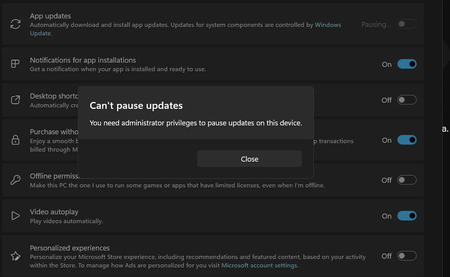
KB5101650 breaks Microsoft Store app update toggle (even for admins)
So I installed the latest Windows 11 security update (KB5101650) and ran into something weird in the Microsoft Store. Trying to turn off the "App updates" toggle throws an error asking for administrator privileges—even though my account is already an admin. Makes zero sense. Tried the usual fixes, nothing worked. Ended up uninstalling the update and the toggle went back to working normally immediately. Curious if anyone else has run into this or if I just got lucky with a weird one-off.157Views0likes2Comments