accessibility
861 TopicsMy power plan is only showing the balanced option in control panel, no drop down for other choices
Good morning. I just received my new HP Omen yesterday and I am running Windows 11. When I open the control panel under power options I am only receiving the choice for balanced plan. Even if I try to create or change plan settings I am not offered another choice besides balanced. I called customer support and they were no help at all. In fact the representative said that since this is a desktop and not a laptop the option is not available. I know this is not true as I was able to change this on previous PCs I have owned. I found a suggestion online that mentioned working with the command prompt as an administrator, Here is what I put in: But when I opened power options again nothing has changed. I also tried powercfg /restoredefaultschemes with no luck. Any help would be appreciate. Thank you in advance.19Views0likes1CommentProposal: Microsoft New Lumia Launcher for Android
The Microsoft New Lumia Launcher for Android would revive the Lumia look with customizable tiles, seamless Microsoft app integration, and themes ranging from nostalgic Windows Phone 8/10 to a modern Windows 11 style. It combines nostalgia and innovation, letting fans relive the classic interface while enjoying Fluent Design and Copilot integration — all without recreating an entire operating system.8Views0likes0CommentsProposal: Microsoft New Lumia Launcher for Android
he Microsoft New Lumia Launcher for Android would revive the Lumia look with customizable tiles, seamless Microsoft app integration, and themes ranging from nostalgic Windows Phone 8/10 to a modern Windows 11 style. It combines nostalgia and innovation, letting fans relive the classic interface while enjoying Fluent Design and Copilot integration — all without recreating an entire operating system.10Views0likes0CommentsProposal: Microsoft New Lumia Launcher for Android
he Microsoft New Lumia Launcher for Android would revive the Lumia look with customizable tiles, seamless Microsoft app integration, and themes ranging from nostalgic Windows Phone 8/10 to a modern Windows 11 style. It combines nostalgia and innovation, letting fans relive the classic interface while enjoying Fluent Design and Copilot integration — all without recreating an entire operating system.10Views0likes0CommentsNew Sharepoint Quick Access - Want "Sites" back
I want the Sites back on my quick access menu - I don't want to have to go through "Discover" it just adds an obnoxious extra step and I can get there clicking on the Sharepoint logo on the top left - having another button to take you to the hub is pointless. How do I get Sites back on the quick access?44Views0likes2CommentsWin11 File Explorer search bar freezes or search suggestions don't appear when typing in Chinese
When typing Chinese in the search box in the upper-right corner of File Explorer, the input method suggestion window often freezes or appears with a delay; sometimes, it is even impossible to type Chinese normally, but switching to English input works fine.12Views0likes0CommentsFile Explorer Preview blocked for Google Drive mirrored files** Solution: Use OneDrive.
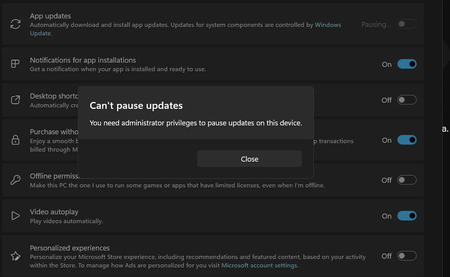
Case number: 7104727434 This post documents a File Explorer Preview Pane compatibility failure affecting Google Drive files after Microsoft’s recent File Explorer preview security change. Microsoft Support confirmed that the current Windows File Explorer security model requires file metadata that Google Drive files do not provide in the expected way. Support also confirmed that OneDrive continues to support File Explorer previews because it uses a Windows-native local file model that preserves the required metadata. The suggested workaround was to make the files local on the PC. That workaround failed. Google Drive files stored locally on the PC through mirrored mode are still blocked in File Explorer Preview Pane. Additional reproduction: A PDF was opened locally, printed using Microsoft Print to PDF, and saved directly into the Google Drive mirrored folder. The resulting PDF was generated locally by a Microsoft tool and saved locally on the PC, yet File Explorer still treated it as unsafe or blocked the preview. This shows the issue is not limited to files downloaded from the internet, corrupted files, or cloud-streamed files. The unsafe/blocked preview behavior appears tied to the Google Drive storage path or integration itself. Observed facts: Preview Pane is enabled. Google Drive files are blocked from preview. Streaming-only Google Drive files are affected. Locally mirrored Google Drive files are also affected. Locally generated Microsoft Print to PDF files saved into the Google Drive mirrored folder are also affected. OneDrive files continue to preview because OneDrive uses a Windows-native local file model that satisfies the metadata expectations of the current security design. Microsoft Support’s “make the files local” workaround does not restore Preview Pane functionality for Google Drive mirrored files. Impact: This change makes Windows less functional. File Explorer Preview Pane is no longer reliable for Google Drive files, including locally mirrored files. Users lose the ability to inspect files quickly inside the operating system’s own file manager. This change also makes the workflow less safe. Preview Pane normally lets users inspect files before fully opening them. Blocking previews forces users to open files in full external applications just to identify them, which is a worse security posture than a controlled preview workflow. This also makes Microsoft’s own platform experience worse. A Windows security change is disabling normal File Explorer functionality for files stored in a widely used third-party cloud service, while Microsoft’s competing OneDrive path continues to work. The practical result is that users are pushed toward third-party utilities and replacement tools to restore functionality that Windows File Explorer itself used to provide. Microsoft is effectively disabling a useful built-in Windows workflow, then leaving users to rely on external applications to recover the file-preview capability that was removed or blocked. Compatibility concern: The current Windows File Explorer security model preserves Preview Pane functionality for Microsoft OneDrive while breaking or degrading the same File Explorer functionality for Google Drive. The behavior is not a user configuration issue and not a file corruption issue. It is a Windows File Explorer compatibility failure affecting third-party cloud storage. As of case 7104727434, Microsoft Support did not provide a confirmed Microsoft-supported workaround, administrator trust mechanism, or engineering escalation path that restores File Explorer Preview Pane functionality for Google Drive mirrored files. I could not reply or add so I Edited to include this : Additional new flag that has been enacted that seems specifically designed to push users from Google drive to OneDrive. Even in mirrored files any activity triggers this pop up: Additional note: Microsoft Support directed me to post this issue in Tech Community. After posting, the discussion was not visible through normal navigation and could only be found through browser history. The page then showed: “This discussion has been marked as spam.” So the support path provided by Microsoft did not produce a usable escalation route. The live support chat closed without resolution, and the Tech Community post is hidden as spam.27Views0likes0CommentsROBOCOPY and UGREEN NAS DH2300
I was editing data when I noticed that my Network Attached Storage (NAS) hard drives were thrashing. Technically, that is what is supposed to happen when configured to update 'real time'. I have been a long-time user of a batch file to execute ROBOCOPY. It is clean and efficient, one of the better items Microsoft has created. Go figure, right? Anyway, being who I am and what I have done in my career, I got the idea to edit in Windows on two separate NVME hard drives (much data and large files) then execute a batch file to run ROBOCOPY. This consolidated all data onto one spin-drive in my Windows PC. The first time I did this, my DH2300 NAS was active. All configured SYNC and BACKUP tasks indicated 'BAD' and would not execute. I had to delete the NAS tasks and recreate them. After several attempts and recreations, I thought that I might shutdown the UGREEN NAS DH2300, run the Windows PC batch file for ROBOCOPY, then start the UGREEN NAS back up in order for the UGREEN NAS Client Sync & Backup app to 'do its thing'. WRONG! All tasks indicated 'BAD' again. I've made it a practice to delete the NAS Tasks after running Windows ROBOCOPY then recreating all seven NAS tasks. Only then will these properly execute. Would anyone have any idea as to what is going on to cause this? I've asked on UGREEN's FB resource page, and they are suggesting that it is a ROBOCOPY issue (Pass-the-buck = EASY). I suppose that's possible, BUT I've used ROBOCOPY for YEARS. It skips over any unchanged file and only changes/updates files when changed. Still, I must ask.7Views0likes0CommentsAccessibility partners driving innovation and impact
Accessibility is becoming a more strategic way for Microsoft partners to turn innovation into customer impact across AI, employee experience, compliance, and digital transformation. It is no longer a niche requirement or a downstream remediation task. More and more, customers are evaluating accessibility as part of digital trust, platform readiness, customer reach, and long-term transformation resilience. That shift creates a clear opportunity for partners. Microsoft Marketplace gives accessibility ISVs a practical way to turn accessibility-first innovation into customer value and scalable growth. Recent offers from Level Access and Inclusively show how partners can open the door to broader conversations, and help customers make better platform decisions, reduce friction in employee and customer journeys, and build trust into transformation efforts from the start. Customer value in action Partners that bring accessibility into solution conversations can make it more relevant to customers and help connect it to funded business outcomes. Help customers build accessibility into everyday operations with Level Access The Level Access platform supports a continuous approach to accessibility across design, development, governance, and training workflows. For partners, that makes it easier to position accessibility as an ongoing capability tied to risk reduction, remediation velocity, and measurable progress rather than a one-time audit or point solution. Organizations can extend the Level Access platform through private offers such as LevelDocs for accessible content creation and remediation in Microsoft Word, Excel, and PowerPoint; LevelCI for automated web accessibility testing in CI/CD pipelines; and Mobile Testing for native iOS and Android accessibility across physical and virtual devices. Support workforce retention and employee experience with Inclusively Many organizations have invested heavily in benefits, workplace accommodations, mental health resources, and employee support programs, yet employees often do not know what is available or how to access it. Retain Connector by Inclusively helps close that gap inside the tools employees already use, giving partners a stronger way to support HR and employee experience priorities such as retention, inclusion, and program utilization. Deployed within Microsoft Teams, SharePoint, Outlook, and Microsoft 365 with no heavy integrations required, Retain acts as a workforce intelligence layer that lets employees describe their needs in plain language and get routed to the right benefits and resources through Inclusively’s Success Enabler framework. For employees who may hesitate to disclose a need or navigate a fragmented benefits landscape, the anonymous, conversational experience lowers the barrier to getting support. For HR and people leaders, Retain also surfaces real-time, aggregated insights into the benefits and barriers employees are experiencing. That intelligence helps organizations understand unmet demand, allocate benefits investments more effectively, and demonstrate a stronger commitment to inclusion in practice. How ISVs can scale Scale does not come from listing on Marketplace alone. Accessibility ISVs grow when they package clear offers, organize the assets partners and customers need, and build the visibility required for repeatable engagement. That includes a concise value proposition, a defined customer scenario, demo and architecture assets, and a marketplace motion that supports discovery, alignment, and follow-through. How Microsoft activates the ecosystem Microsoft also helps customers see accessibility in business context rather than as abstract policy. Through ISV Success programs, marketplace enablement, hackathons and inclusion challenges, and events such as Ability Summit, Microsoft creates opportunities for partners to show practical solutions tied to real customer scenarios. That makes accessibility easier to understand, more relevant to customer priorities, and easier to activate across the ecosystem. Accessibility ISVs have a more practical path to scale: make offers discoverable, align to the customer priorities you can support most clearly, and show value through concrete use cases such as hackathons, Copilot trainings, consulting-led assessments, and published customer stories. These are the motions that help accessibility move from an important idea to a funded priority. If you are building accessibility solutions on Microsoft platforms, the Microsoft Accessibility Partner Onboarding Guide is a strong place to start building, publishing, and operationalizing solutions that deliver customer impact at scale. For more information on accessibility at Microsoft, feel free to contact Angela Lean282Views0likes0Comments