Forum Widgets
Latest Discussions

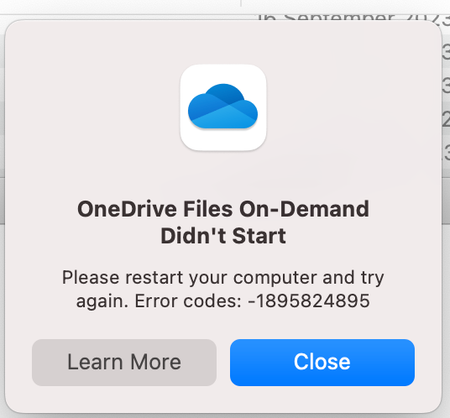
OneDrive Files On-Demand Didn't Start
Recently moved from an Intel iMac to a M2 Mac mini running Sonoma. Trying to use Onedrive on an external drive with the above error message keep coming up. Initially it work ok for a few days but then this error occurred. Now I cannot get it to go pass this page and only gives me an option to close. Tried everything without successSolvedrhargeyFeb 24, 2026Copper Contributor11KViews1like3Comments
Files-On-Demand status on OneDrive for Mac is confusing
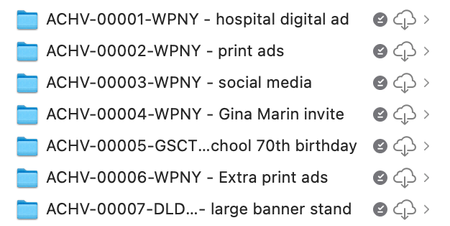
Setting the scene: I'm on an M1 MacBook Pro, MacOS Sequoia 15.5, OneDrive for Mac v.26.017.0126.0002 (standalone) Mystery #1: Okay, so I've got a folder chock full of large files (all neatly placed in nested subfolders, of course). This one folder totals about 400 GB, in fact. For obvious reasons I had set that folder to be cloud-only by electing it and choosing 'Free Up Space' from the contextual menu. It took a while to unload all that data but eventually my finder window showed '900 GB available' instead of '500 GB available', which is what it has said previously. Great. Except that when I looked at the actual folder in ~/Library/CloudStorage and used Cmd-i to 'Get info' on that folder, the info window said that the folder size was… 400GB. The third party disk analysis tool Daisy Disk also reported that folder as being 400 GB in size. Surely if the files have been released back to the cloud and only placeholder 'stubs' remain on the local file system, that folder should have a much smaller size. So what's up? Mystery #2: I want to make a cloned copy of my Mac for backup purposes and I want to include my OneDrive content in that backup (in case the Microsoft OneDrive servers explode, or get overrun by fire ants, or something). I know that there's no point backing up the placeholder stubs — they've got no real data in them (or do they? See Mystery #1) so I select that big old 400GB folder and select 'Always keep on this device'. The menubar icon shows activity, and I can see the individual files downloading if I click that menubar icon. About 20 hours later (because 400 GB) OneDrive finally reports 'Your files are synced'. And the Finder, sure enough, tells me that I now only have 500GB available, not 900 GB. HOWEVER, that folder, and each folder and file inside that folder, has both a 'downloaded locally' checkmark icon (dark grey) AND a 'in the cloud' icon (cloud with a downward arrow in it). Cmd-i (Get info) on one of the subfolders reports a theoretical size for that subfolder of ~230 GB but with only 11.4 MB on disk. If I click on the cloud-with arrow icon then OneDrive seems to redownload the file or folder-and-contents. At least I assume that that's what it's doing; this time the OneDrive menubar icon does NOT show activity, nor do any files show as being processed/downloaded if I open up that menubar window. But whatever the process is, it seems to take about as long as I would expect the download to take and the cloud-with-arrow icon turns into one of those 'time-remaining' icons that looks like a pie chart being filled up. So far I've only done this with small folders as an experiment, because if I'm right about what's going on then that 230 GB folder is going to be showing that pie chart icon for a LOOOONG time. So WTF is going on? If 'Always keep on this device' hasn't actually downloaded the full-fat versions of my files then what the heck was OneDrive doing all through the night and the whole of today? Pretending to download it just to mess with me? Do I actually have to download it twice? Can somebody either explain how and why this is the way that OneDrive is supposed to work (I can't believe that it is), or tell me what I'm doing wrong, or suggest a solution? Or even just confirm to me that I've not gone crazy?ricklecoatFeb 24, 2026Copper Contributor20Views0likes0Comments
Can't delete file on OneDrive for Android - Kindle Fire HD 10
I created a new Word Document on my Kindle Fire HD 10 tablet using the Office 365 app. It created Document (1). I looked for a "rename file" function but had to settle for "save as".So I have two files. I saw nothing on Office 365 to delete the file. Went to one drive and found it. Tried to delete it there. It tells me that "It will be moved to the recycle bin and removed from all your synced devices." However, it doesn't delete the file and inexplicably doesn't give an error mesaage. This occurs even when the Office 365 app on the Kindle Fire is closed.LayaboutFeb 24, 2026Copper Contributor3Views0likes0Comments
Built an Android app for OneDrive duplicate detection (something I wish Microsoft offered natively)
After years of dealing with duplicate photos and videos in OneDrive, I built a solution and wanted to share it with the community. **The problem:** - Samsung Gallery sync creates duplicates in both "Camera Roll" and "Samsung Gallery" folders - WhatsApp media gets backed up twice (original + shared copy) - App resets/reinstalls trigger re-uploads with "(1)" suffixes - No native duplicate detection in OneDrive **What I built:** OneDrive MediaOps - an Android app that scans for duplicates directly in the cloud. No need to download files to a desktop first. Key features: - Cloud-based scanning (no downloads required) - Algorithm visually identical photos even with different filenames - Preview before deleting - Batch deletion **Why cloud-based matters:** With 50GB+ of photos, downloading everything to run a desktop duplicate finder wasn't practical. This scans media directly via the Graph API. Available on Google Play: https://play.google.com/store/apps/details?id=com.onedrive.mediaops&pcampaignid=web_share Would love feedback from the community - especially if you've been dealing with the Samsung/OneDrive sync duplicate issue.Sensitive titled word doc now appears in company's onedrive and won't delete!
I bought myself a laptop that I also use at work. I have to log into onedrive to access my work's server. I have been very careful with not putting personal stuff onto this laptop, and if I do, I make sure its not syncing to the work's onedrive. As if someone is playing a trick on me, somehow a cover letter I was working on for a potential other job now appears if I log into my work's onedrive account online and it won't let me delete it! I no longer have access to the cover letter as it was deleted! HOW DO YOU DELETE THIS?!!!Anonymous238Feb 21, 2026Copper Contributor70Views0likes1Comment
OneDrive for Business sync client issue - not finishing
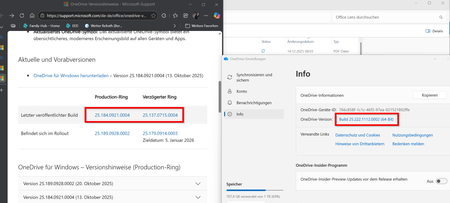
Hi all, I’m experiencing an issue where OneDrive does not finish synchronizing. It runs for about an hour. Upload is not starting until download worked fine. Everything seems to set up correctly: Internet connection is working No large file involved (9,9 MB of 10,3 MB) Logged in sucessfully Free space available loacally and in OneDrive No sync conflicts E3 License is active and paid No Windows updates Pending (Windows 11, version 24H2) Tried solutions: Restarted OneDrive Restarted Windows Paused and resumed sync Stopped and restarted sync What i am wondering: My local OneDrive version is not listed in the https://support.microsoft.com/de-de/office/onedrive-versionshinweise-845dcf18-f921-435e-bf28-4e24b95e5fc0 .... How can I identify the specific file causing the issue? I don’t see the filename currently being processed. Help highly appreciated :-) Regards, EricSolvedEric BrahmannFeb 18, 2026Brass Contributor430Views0likes5Comments
VERY SLOW "Processing changes"
Hello, In a completely random manner and without any identifiable common denominator, I frequently have users who synchronize with OneDrive at a snail’s pace. The library in question contains 60,000 items and is sometimes extremely slow to synchronize (it can take 3 days :///). We have well‑managed computers, powerful configurations, and good internet access. We also comply with all Microsoft prerequisites on this matter. (please look vidéo). Best regards, A. W11 - 24H2 up to date Version de OneDrive : Build 26.007.0112.0002 (64 bits) https://uploadnow.io/fr/files/3BKnQ9NAntoine26Feb 13, 2026Copper Contributor99Views1like1Comment


Tags
- OneDrive for Business2,077 Topics
- Sync918 Topics
- files710 Topics
- office 365662 Topics
- storage401 Topics
- admin310 Topics
- onedrive173 Topics
- limits132 Topics
- mobile97 Topics
- Metadata63 Topics