Forum Widgets
Latest Discussions

How to delete files from the Home folder on OneDrive
I do not synch any folders to OneDrive, but do copy some files manually (actually using Nero Backup). I can see these files in My Files when I go online to OneDrive. When I go to the Home folder (above the My Files folder), there are a few files there as well, which can be opened but not deleted. I am unclear what these are for. If I go to my own computer and look under the OneDrive folder, I can see all the files that I have manually backed up, mostly with a blue cloud icon besides them. If I click on one of them, it seems to be uploaded to the Home folder on OneDrive and it now shows a green tick (implying the file is available on my computer, but I can't see it under the OneDrive icon, so where are they being stored on my computer?) Don't see why it is doing this. The files are already available in the My Files folder, so why a these appearing in the Home folder as well? Is it just a link to the file in My Files? These just represent clutter as far as I am concerned, but there does not seem to be a way to remove all these files from the Home folder online. Sorry this is a bit rambling and may be confusing, but it has confused me.SolvedMCHomeMar 06, 2026Copper Contributor13Views0likes0Comments
# OneDrive AutoSave Stopped Working After Update to Version 26.007.0112 on macOS
**Product:** Microsoft 365 and Office | OneDrive | For home | macOS ## Summary Since OneDrive automatically updated to version 26.007.0112 (26007.0112.0002) a few days ago, I am experiencing multiple issues with how Office files interact with OneDrive on my Mac. AutoSave no longer works, files that are stored locally now take noticeably longer to open, and attempting to work around the problem through Word/Excel directly results in upload failures and outdated file versions. Prior to this update, everything was working perfectly. ## Environment - **macOS version:** Tahoe 26.1 - **OneDrive version:** 26.007.0112 (26007.0112.0002) - **Office version:** Version 16.105.2 (26012530) - **Account type:** Business ## Symptoms ### 1. AutoSave no longer activates when opening files from Finder Opening any .docx or .xlsx file from the OneDrive folder in Finder results in AutoSave being off. The title bar shows "Saved on My Mac" instead of the OneDrive location. Attempting to toggle AutoSave on prompts me to "upload" the file — even though it is already in the OneDrive sync folder and marked as "Always Keep on This Device." ### 2. Files that are stored locally now open slowly Previously, opening an Office file from the OneDrive folder in Finder was instantaneous, as you would expect for a file stored on the local drive. Now, even though the files are marked as "Always Keep on This Device" and should be fully available locally, there is a noticeable delay when opening them. It appears that OneDrive or the Office app is downloading or re-fetching the file from the cloud rather than simply opening the local copy, which defeats the entire purpose of keeping files on the device. ### 3. Opening from within Word/Excel results in "Upload Failed" and serves an older version As a workaround, I tried opening files from within Word using File > Open and selecting the OneDrive location. However, this now produces an "Upload Failed" error message, and the file that opens is an older version — not the most recent version I had been working on. This is extremely concerning, as it suggests the sync between the local copy and the cloud copy may be broken, and there is a real risk of data loss or overwriting recent work with outdated content. ## Steps to Reproduce 1. Ensure files are in the OneDrive folder and marked as "Always Keep on This Device." 2. Open a .docx or .xlsx file by double-clicking it in Finder. Notice: the file takes several seconds to open (previously instant), AutoSave is off, and the title bar says "Saved on My Mac." 3. Close the file. Open Word or Excel, go to File > Open, and navigate to the OneDrive location. Open the same file. Notice: an "Upload Failed" message appears, and the file that opens is an older version, not the most recent one. ## Expected Behavior - Files stored locally via "Always Keep on This Device" should open instantly, just as any local file would. - AutoSave should be enabled automatically when opening files from the synced OneDrive folder. - Opening a file from within Word/Excel via the OneDrive location should open the current version of the file without upload errors. All of this worked exactly as expected before the update to version 26.007. ## What I've Tried - Verified that "Always Keep on This Device" is enabled for the affected folders. - Confirmed I am signed into the same Microsoft account in both OneDrive and the Office apps. - Verified files are in modern formats (.docx, .xlsx), not legacy formats. - Checked that OneDrive sync is not paused. ## Impact This is a severe workflow disruption. The combination of broken AutoSave, slow file access, and the "Upload Failed" error serving stale file versions means I cannot trust that I am working on the latest copy of my documents. There is a genuine risk of data loss — if the cloud version is out of sync with the local version, saving could overwrite recent work with an older copy. I am currently unable to rely on OneDrive for day-to-day work on my Mac. ## Additional Notes This appears to be a regression introduced by the recent OneDrive update to version 26.007. I have seen numerous other users reporting similar AutoSave and sync issues across Microsoft Q&A, Apple Community forums, and MacRumors, dating back to the original Files On-Demand changes on macOS. However, my setup was working correctly until this latest update. Relevant threads with related issues: - https://learn.microsoft.com/en-us/answers/questions/5419331/onedrive-says-saved-on-mac-autosave-not-working - https://learn.microsoft.com/en-us/answers/questions/5371608/one-drive-auto-save-no-longer-working-on-mac-os - https://learn.microsoft.com/en-us/answers/questions/5402091/onedrive-app-on-mac-not-working-for-autosave-and-t - https://forums.macrumors.com/threads/onedrive-autosave-disabled-when-opening-files-from-onedrive-folder.2442775/ I would appreciate any guidance from the community or the Microsoft team. Is this a known regression in version 26.007? Is a fix in progress? Is there a way to roll back to a previous OneDrive version that was working? Thank you.tzachiMar 05, 2026Copper Contributor197Views2likes1CommentSharepoint Shortcut to OneDrive
Hi, We’ve been using “Add shortcut to OneDrive” from SharePoint instead of the “Sync” option. Recently, however, some users have reported missing files. After investigating, I noticed that the shortcut appears to have been converted into a local copy in the user’s OneDrive. I realized this because the folder no longer shows the shared (people) icon, and I’m able to re-add the shortcut without any errors. Normally, if a shortcut already exists, SharePoint would display an error indicating that the shortcut is already present in OneDrive. Has anyone else experienced this issue? Thanks, SurSurWMar 04, 2026Copper Contributor26Views0likes0Comments
Thumbnail previews not working after switch from Onedrive Private to Business
In short. After switching to Onedrive for Business (was using a personal Onedrive before), the thumbnail preview in Windows File Explorer stopped working for several filetypes. All files are synced and stored on my harddisk Moving them out of OneDrive makes the thumbnails reappear Before files are uploaded, the thumbnail shows up, but as soon as the file is uploaded and I refresh the folder or have to re-open it later, its showing the application Icon instead of the preview. For STL files, OneDrive replaces the preview created by powertoys with a different color and background. This is assuming it is able to create and the preview is not just the gray background without the 3D-Object. According to my research this is a known bug which exists since at least 2023. Still, I was not able to find any information about Microsoft at least working on a fix. The Thread on Microsoft "Learn" was closed: https://learn.microsoft.com/en-us/answers/questions/5299951/certain-onedrive-thumbnails-not-showing?orderby=newest&page=1&forum=msoffice-all&referrer=answers#answers Filetyps not working so far: Fusion 3D Files *.f3d Stereolytograhpy *.stl (sometimes yes, sometimes not) 3mf mov .CR3 files (Canon RAW files) .... If you are affected as well, please post which file types are not working for you.C0r0nerMar 04, 2026Copper Contributor10Views0likes0Comments
OneDrive Photo Memory email template
Is there a way to provide feedback on the "photo memory" email template for OneDrive? It recently changed in a way that seems like it was not written proper English or for the US locale my account is in. Maybe it was AI-generated and not proofread? Note how it used to have the subject of "Your memories from this day" and indicate dates like "Month DD". Now as of Feb 12 it instead in the subject has a shouty (with the exclamation mark) backwards (to a US user) of "DD Month!", which reads very strangely, and the "Over the years" text after that is an odd fragment. It seems this string was not properly reviewed and should be revisited. The email itself is also really odd and has leading zeroes for single digit day numbers, which is also demonstrative of a lack of attention to detail: The call to action of "Check it out" also is oddly written and would benefit from "Check It Out" as the casing, or a more natural string like "Open in OneDrive" which actually is descriptive of what happens. Also: one thing that has always bugged me about the email template before the recent change was that the email itself does not indicate which year a photo came from. It should not require I jump into the OneDrive app to check what year a photo is from! (I realize this is the OD4B forum but not sure where else to submit this feedback other than directly pinging people I used to work with at Microsoft) Thanks for reading!btwalshMar 03, 2026Copper Contributor10Views0likes0Comments
Files-On-Demand status on OneDrive for Mac is confusing
Setting the scene: I'm on an M1 MacBook Pro, MacOS Sequoia 15.5, OneDrive for Mac v.26.017.0126.0002 (standalone) Mystery #1: Okay, so I've got a folder chock full of large files (all neatly placed in nested subfolders, of course). This one folder totals about 400 GB, in fact. For obvious reasons I had set that folder to be cloud-only by electing it and choosing 'Free Up Space' from the contextual menu. It took a while to unload all that data but eventually my finder window showed '900 GB available' instead of '500 GB available', which is what it has said previously. Great. Except that when I looked at the actual folder in ~/Library/CloudStorage and used Cmd-i to 'Get info' on that folder, the info window said that the folder size was… 400GB. The third party disk analysis tool Daisy Disk also reported that folder as being 400 GB in size. Surely if the files have been released back to the cloud and only placeholder 'stubs' remain on the local file system, that folder should have a much smaller size. So what's up? Mystery #2: I want to make a cloned copy of my Mac for backup purposes and I want to include my OneDrive content in that backup (in case the Microsoft OneDrive servers explode, or get overrun by fire ants, or something). I know that there's no point backing up the placeholder stubs — they've got no real data in them (or do they? See Mystery #1) so I select that big old 400GB folder and select 'Always keep on this device'. The menubar icon shows activity, and I can see the individual files downloading if I click that menubar icon. About 20 hours later (because 400 GB) OneDrive finally reports 'Your files are synced'. And the Finder, sure enough, tells me that I now only have 500GB available, not 900 GB. HOWEVER, that folder, and each folder and file inside that folder, has both a 'downloaded locally' checkmark icon (dark grey) AND a 'in the cloud' icon (cloud with a downward arrow in it). Cmd-i (Get info) on one of the subfolders reports a theoretical size for that subfolder of ~230 GB but with only 11.4 MB on disk. If I click on the cloud-with arrow icon then OneDrive seems to redownload the file or folder-and-contents. At least I assume that that's what it's doing; this time the OneDrive menubar icon does NOT show activity, nor do any files show as being processed/downloaded if I open up that menubar window. But whatever the process is, it seems to take about as long as I would expect the download to take and the cloud-with-arrow icon turns into one of those 'time-remaining' icons that looks like a pie chart being filled up. So far I've only done this with small folders as an experiment, because if I'm right about what's going on then that 230 GB folder is going to be showing that pie chart icon for a LOOOONG time. So WTF is going on? If 'Always keep on this device' hasn't actually downloaded the full-fat versions of my files then what the heck was OneDrive doing all through the night and the whole of today? Pretending to download it just to mess with me? Do I actually have to download it twice? Can somebody either explain how and why this is the way that OneDrive is supposed to work (I can't believe that it is), or tell me what I'm doing wrong, or suggest a solution? Or even just confirm to me that I've not gone crazy?ricklecoatMar 01, 2026Copper Contributor127Views0likes1Comment
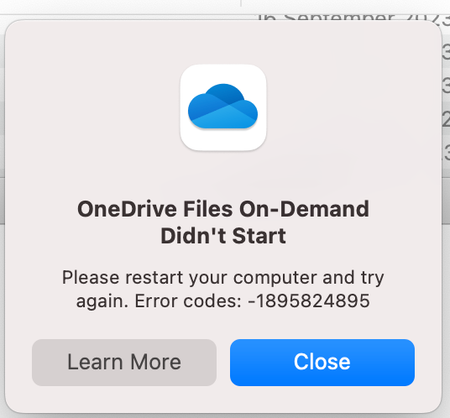
OneDrive Files On-Demand Didn't Start
Recently moved from an Intel iMac to a M2 Mac mini running Sonoma. Trying to use Onedrive on an external drive with the above error message keep coming up. Initially it work ok for a few days but then this error occurred. Now I cannot get it to go pass this page and only gives me an option to close. Tried everything without successSolvedrhargeyFeb 24, 2026Copper Contributor11KViews1like3CommentsCan't delete file on OneDrive for Android - Kindle Fire HD 10
I created a new Word Document on my Kindle Fire HD 10 tablet using the Office 365 app. It created Document (1). I looked for a "rename file" function but had to settle for "save as".So I have two files. I saw nothing on Office 365 to delete the file. Went to one drive and found it. Tried to delete it there. It tells me that "It will be moved to the recycle bin and removed from all your synced devices." However, it doesn't delete the file and inexplicably doesn't give an error mesaage. This occurs even when the Office 365 app on the Kindle Fire is closed.LayaboutFeb 24, 2026Copper Contributor6Views0likes0CommentsBuilt an Android app for OneDrive duplicate detection (something I wish Microsoft offered natively)
After years of dealing with duplicate photos and videos in OneDrive, I built a solution and wanted to share it with the community. **The problem:** - Samsung Gallery sync creates duplicates in both "Camera Roll" and "Samsung Gallery" folders - WhatsApp media gets backed up twice (original + shared copy) - App resets/reinstalls trigger re-uploads with "(1)" suffixes - No native duplicate detection in OneDrive **What I built:** OneDrive MediaOps - an Android app that scans for duplicates directly in the cloud. No need to download files to a desktop first. Key features: - Cloud-based scanning (no downloads required) - Algorithm visually identical photos even with different filenames - Preview before deleting - Batch deletion **Why cloud-based matters:** With 50GB+ of photos, downloading everything to run a desktop duplicate finder wasn't practical. This scans media directly via the Graph API. Available on Google Play: https://play.google.com/store/apps/details?id=com.onedrive.mediaops&pcampaignid=web_share Would love feedback from the community - especially if you've been dealing with the Samsung/OneDrive sync duplicate issue.


Tags
- OneDrive for Business2,079 Topics
- Sync919 Topics
- files711 Topics
- office 365663 Topics
- storage402 Topics
- admin310 Topics
- onedrive174 Topics
- limits132 Topics
- mobile97 Topics
- Metadata63 Topics