Recent Discussions

Windows Server Datacenter: Azure Edition preview build 29595 now available in Azure
Hello Windows Server Insiders! We welcome you to try Windows Server vNext Datacenter: Azure Edition preview build 29595 in both Desktop experience and Core version on the Microsoft Server Operating Systems Preview offer in Azure. Azure Edition is optimized for operation in the Azure environment. For additional information, see Preview: Windows Server VNext Datacenter (Azure Edition) for Azure Automanage on Microsoft Docs. For more information about this build, see Announcing Windows Server vNext Preview Build 29595 | Microsoft Community Hub.29Views0likes0CommentsAnnouncing Windows Server vNext Preview Build 29595
Hello Windows Server Insiders! Today we are pleased to release a new build of the next Windows Server Long-Term Servicing Channel (LTSC) Preview that contains both the Desktop Experience and Server Core installation options for Datacenter and Standard editions and Azure Edition (for VM evaluation only). Branding remains Windows Server 2025 in this preview - when reporting issues please refer to Windows Server vNext preview. Build 29531 established a new Server preview baseline build. Please perform a clean install of Build 29531 (or later) using the installation media linked below. Please note: Upgrades from Windows Server vNext preview builds older than 29531 are not supported. We encourage all Windows Server vNext preview users to perform a clean install using 29531 or later to successfully upgrade to future Windows Server vNext preview builds. While upgrades from earlier Windows Server previews (Build 26525 and older) are not technically blocked by setup.exe, a number of known issues have been identified related to upgrades necessitating the establishment of a new baseline build for our Server vNext Preview Program. The new baseline build (29531) will not be Flighted due to upgrade issues. Flighting support resumed with preview build 29550 or later. What's New Quick Machine Recovery available in Windows Server vNext Insider Previews. Quick machine recovery (QMR) is now available for Server vNext Insiders to test. This feature enables the recovery of Windows Server devices when they encounter boot critical errors that prevent them from booting. QMR can automatically search for cloud‑based remediations to recover from widespread boot failures significantly reducing the burden on IT administrators when multiple devices are impacted. This supports the goals of the Windows Resiliency Initiative by enabling applicable fixes to be delivered through trusted Windows Update to restore affected devices, helping reduce downtime and minimize manual recovery efforts across enterprise environments. This feature is currently enabled in the latest Server vNext Insider builds for customers to experience test mode. A Group Policy option to enable or disable the feature will be introduced in upcoming builds to provide additional administrative control. To simulate the quick machine recovery experience, use the following commands from an elevated command prompt: 1. Enable test mode: reagentc.exe /SetRecoveryTestmode 2. Configure Windows to boot to Windows Recovery Environment on the next boot: reagentc.exe /BootToRe 3. Reboot your device. The system goes through autoremediation of a simulated crash safely and reboots back to Windows Server. For more information, please review Quick machine recovery (QMR) and Windows Resiliency Initiative. When providing feedback using Feedback hub, please select QMR from the Recovery and Uninstall category in the app. NVMe-over-Fabrics (NVMe-oF) extends the NVMe protocol—originally designed for local PCIe-attached SSDs—across a network fabric. Instead of using legacy SCSI-based protocols such as iSCSI or Fibre Channel, NVMe-oF allows a host to communicate directly with remote NVMe controllers using the same NVMe command set used for local devices. In this Insider build, Windows Server supports: NVMe-oF over TCP (NVMe/TCP), allowing NVMe-oF to run over standard Ethernet networks without specialized hardware. NVMe-oF over RDMA (NVMe/RDMA), enabling low-latency, high-throughput NVMe access over RDMA-capable networks (for example, RoCE or iWARP) using supported RDMA NICs. For more information, please visit: Introducing the Windows NVMe-oF Initiator Preview in Windows Server Insiders Builds | Microsoft Community Hub ReFS Boot is enabled for Windows Server vNext preview builds. Known Limitations ReFS Boot systems create a minimum 2GB WinRE partition. When WinRE cannot be updated due to space constraints, the system may disable WinRE. Disabling WinRE does not remove the partition. If the WinRE partition is deleted and the boot volume is extended over it, this operation is unrecoverable without a clean install. For more information, please visit: Resilient File System (ReFS) overview | Microsoft Learn Feedback Hub app is available for Server Desktop users! The app should automatically update with the latest version, but if it does not, simply Check for updates in the app’s settings tab. Known Issues Server Core Upgrades and AppCompat FOD: Enabling AppCompat FOD after reinstall may fail due to legacy 3rd-party license compatibility issues on Server Core devices. Server Core users may be unable to install the latest AppCompat FOD after upgrading to build 29574. This appears to be limited to Server Core installations with 3rd-party application licenses that fail compatibility checks after upgrade. This will be addressed in a future build. Upgrading from older builds of Windows Server vNext previews (26525 or older) are not supported. Please perform a clean install of build 29531 or later. Users may experience failures when attempting to upgrade from earlier previews (build 26525 and older). VMs may fail to upgrade or start after upgrade from older preview builds impacting live migration and failover cluster scenarios. Download Windows Server Insider Preview (microsoft.com) Flighting: The label for this flight may incorrectly reference Windows 11. However, when selected, the package installed is the Windows Server vNext update. Please ignore the label and proceed with installing your flight. This issue will be addressed in a future release. Available Downloads Downloads to certain countries may not be available. See Microsoft suspends new sales in Russia - Microsoft On the Issues. Windows Server Long-Term Servicing Channel Preview in ISO format in 18 languages, and in VHDX format in English only. Windows Server Datacenter Azure Edition Preview in ISO and VHDX format, English only. Microsoft Server Languages and Optional Features Preview Keys: Keys are valid for preview builds only Server Standard: MFY9F-XBN2F-TYFMP-CCV49-RMYVH Datacenter: 2KNJJ-33Y9H-2GXGX-KMQWH-G6H67 Azure Edition does not accept a key. Symbols: Available on the public symbol server – see Using the Microsoft Symbol Server. Expiration: This Windows Server Preview will expire September 15, 2026. How to Download Registered Insiders may navigate directly to the Windows Server Insider Preview download page. If you have not yet registered as an Insider, see GETTING STARTED WITH SERVER on the Windows Insiders for Business portal. We value your feedback! The most important part of the release cycle is to hear what's working and what needs to be improved, so your feedback is extremely valued. Please use the new Feedback Hub app for Windows Server if you are running a Desktop version of Server. If you are using a Core edition, or if you are unable to use the Feedback Hub app, you can use your registered Windows 10 or Windows 11 Insider device and use the Feedback Hub application. In the app, choose the Windows Server category and then the appropriate subcategory for your feedback. In the title of the Feedback, please indicate the build number you are providing feedback on as shown below to ensure that your issue is attributed to the right version: [Server #####] Title of my feedback See Give Feedback on Windows Server via Feedback Hub for specifics. The Windows Server Insiders space on the Microsoft Tech Communities supports preview builds of the next version of Windows Server. Use the forum to collaborate, share and learn from experts. For versions that have been released to general availability in market, try the Windows Server for IT Pro forum or contact Support for Business. Diagnostic and Usage Information Microsoft collects this information over the internet to help keep Windows secure and up to date, troubleshoot problems, and make product improvements. Microsoft server operating systems can be configured to turn diagnostic data off, send Required diagnostic data, or send Optional diagnostic data. During previews, Microsoft asks that you change the default setting to Optional to provide the best automatic feedback and help us improve the final product. Administrators can change the level of information collection through Settings. For details, see http://aka.ms/winserverdata. Also see the Microsoft Privacy Statement. Terms of Use This is pre-release software - it is provided for use "as-is" and is not supported in production environments. Users are responsible for installing any updates that may be made available from Windows Update. All pre-release software made available to you via the Windows Server Insider program is governed by the Insider Terms of Use.
Creating parent reverse lookup zone when child zones already exist — what happens?
We have an AD-integrated DNS environment that has accumulated a large number of reverse lookup zones over time, created without any parent zone — essentially DNS sprawl from years of admins creating individual subnet zones rather than working from a parent. We currently have approximately 80+ reverse lookup zones including: Dozens of x.10.in-addr.arpa zones covering various 10.x.x.x subnets Multiple x.172.in-addr.arpa zones A handful of others including 100.192.10.in-addr.arpa, 168.192.in-addr.arpa, 204.167.in-addr.arpa, 215.204.167.in-addr.arpa, 135.7.in-addr.arpa None of these were ever delegated from a parent zone — they were just created independently. The 10.in-addr.arpa zone does not exist. Domain controllers are a mix of Windows Server 2019 Standard (majority) and Windows Server 2025 Standard. Our goal is to create 10.in-addr.arpa as the consolidation point going forward — new registrations go there, and we migrate existing child zones into it one at a time, deleting old ones as we go at a pace we're comfortable with. Before touching anything, we need to understand what creating 10.in-addr.arpa will actually do to the existing child zones. Specifically: Will existing records in the child zones be deleted? We've seen the TechNet article documenting records vanishing when creating a child zone under an existing parent — does the same destructive behaviour occur in the reverse direction? Will auto-delegations be created in the new parent zone pointing to the existing child zones, and if so how quickly? Will the child zones continue to function normally for queries while the parent exists alongside them? Will dynamic registration start hitting the parent zone for subnets not covered by an existing child zone, or will something unexpected happen? We can't test this in a lab as we don't have a replica environment available, and can't risk touching production without understanding the behaviour first. Pointers to any documentation covering this specific scenario would also be appreciated — we've been unable to find anything that addresses creating the parent after the children already exist independently.18Views0likes0CommentsWindows Server Datacenter: Azure Edition preview build 29585 now available in Azure
Hello Windows Server Insiders! We welcome you to try Windows Server vNext Datacenter: Azure Edition preview build 29585 in both Desktop experience and Core version on the Microsoft Server Operating Systems Preview offer in Azure. Azure Edition is optimized for operation in the Azure environment. For additional information, see Preview: Windows Server VNext Datacenter (Azure Edition) for Azure Automanage on Microsoft Docs. For more information about this build, see Announcing Windows Server vNext Preview Build 29585 | Microsoft Community Hub.
Enforcing LDAP Signing breaks ADDS Replication (repadmin.exe)
Hi All, After months of auditing Event ID 2889 and remediating application simple binds (clear text usernames/passwords over the wire), I was left with only SASL binds (that do not use signing). I proceeded to set LDAP signing to 'negotiate' as per the GPOs below, and several dozen Microsoft KBs and from the community e.g.. https://learn.microsoft.com/en-us/troubleshoot/windows-server/active-directory/enable-ldap-signing-in-windows-server Default Domain Controllers Policy Domain controller: LDAP server signing requirements: None: Data signing is not required in order to bind with the server. If the client requests data signing, the server supports it Default Domain Policy Network security: LDAP client signing requirements: Negotiate signing: If Transport Layer Security/Secure Sockets Layer (TLS\SSL) has not been started, the LDAP BIND request is initiated with the LDAP data signing option set in addition to the options specified by the caller. If TLS\SSL has been started, the LDAP BIND request is initiated with the options that are specified by the caller. I still noted 1,000s of Event ID 2889s (0 – SASL Bind that does not use signing), primarily from DCs, and ::1 addresses I proceeded with enforcing LDAP signing ("Require Signing" for both GPO settings above) and noted: LDAP authentication was occurring via Kerberos (SASL/SPNEGO) with simple binds blocked as per tracing (and ldp.exe) confirmations: Error <8>: ldap_simple_bind_s() failed: Strong Authentication Required Error 0x2028 A more secure authentication method is required for this server. However, I came to work the next day and performed a manual replication: Repadmin /Syncall /APeD LDAP error 8 (Strong Authentication Required) Win32 Err 5. So I had to revert back to Negotiate. How can customers enforce LDAP signing if common Microsoft ADDS executables like repadmin.exe still use Simple Binds? Any ideas appreciated, thank you in advance. Steve108Views1like0CommentsAnnouncing Windows Server vNext Preview Build 29585
Hello Windows Server Insiders! Today we are pleased to release a new build of the next Windows Server Long-Term Servicing Channel (LTSC) Preview that contains both the Desktop Experience and Server Core installation options for Datacenter and Standard editions and Azure Edition (for VM evaluation only). Branding remains Windows Server 2025 in this preview - when reporting issues please refer to Windows Server vNext preview. Build 29531 established a new Server preview baseline build. Please perform a clean install of Build 29531 (or later) using the installation media linked below. Please note: Upgrades from Windows Server vNext preview builds older than 29531 are not supported. We encourage all Windows Server vNext preview users to perform a clean install using 29531 or later to successfully upgrade to future Windows Server vNext preview builds. While upgrades from earlier Windows Server previews (Build 26525 and older) are not technically blocked by setup.exe, a number of known issues have been identified related to upgrades necessitating the establishment of a new baseline build for our Server vNext Preview Program. The new baseline build (29531) will not be Flighted due to upgrade issues. Flighting support resumed with preview build 29550 or later. Please join us this week for Windows Server Summit 2026 Windows Server Summit 2026 is happening this week (May 11 - May 13). Please join us for this online event to learn about the latest updates in Windows Server 2025 and what's coming in vNext. For more information and to register, please visit Windows Server Summit - May 11-13, 2026 - Microsoft Event page. What's New Quick Machine Recovery available in Windows Server vNext Insider Previews. Quick machine recovery (QMR) is now available for Server vNext Insiders to test. This feature enables the recovery of Windows Server devices when they encounter boot critical errors that prevent them from booting. QMR can automatically search for cloud‑based remediations to recover from widespread boot failures significantly reducing the burden on IT administrators when multiple devices are impacted. This supports the goals of the Windows Resiliency Initiative by enabling applicable fixes to be delivered through trusted Windows Update to restore affected devices, helping reduce downtime and minimize manual recovery efforts across enterprise environments. This feature is currently enabled in the latest Server vNext Insider builds for customers to experience test mode. A Group Policy option to enable or disable the feature will be introduced in upcoming builds to provide additional administrative control. To simulate the quick machine recovery experience, use the following commands from an elevated command prompt: 1. Enable test mode: reagentc.exe /SetRecoveryTestmode 2. Configure Windows to boot to Windows Recovery Environment on the next boot: reagentc.exe /BootToRe 3. Reboot your device. The system goes through autoremediation of a simulated crash safely and reboots back to Windows Server. For more information, please review Quick machine recovery (QMR) and Windows Resiliency Initiative. When providing feedback using Feedback hub, please select QMR from the Recovery and Uninstall category in the app. NVMe-over-Fabrics (NVMe-oF) extends the NVMe protocol—originally designed for local PCIe-attached SSDs—across a network fabric. Instead of using legacy SCSI-based protocols such as iSCSI or Fibre Channel, NVMe-oF allows a host to communicate directly with remote NVMe controllers using the same NVMe command set used for local devices. In this Insider build, Windows Server supports: NVMe-oF over TCP (NVMe/TCP), allowing NVMe-oF to run over standard Ethernet networks without specialized hardware. NVMe-oF over RDMA (NVMe/RDMA), enabling low-latency, high-throughput NVMe access over RDMA-capable networks (for example, RoCE or iWARP) using supported RDMA NICs. For more information, please visit: Introducing the Windows NVMe-oF Initiator Preview in Windows Server Insiders Builds | Microsoft Community Hub ReFS Boot is enabled for Windows Server vNext preview builds. Known Limitations ReFS Boot systems create a minimum 2GB WinRE partition. When WinRE cannot be updated due to space constraints, the system may disable WinRE. Disabling WinRE does not remove the partition. If the WinRE partition is deleted and the boot volume is extended over it, this operation is unrecoverable without a clean install. For more information, please visit: Resilient File System (ReFS) overview | Microsoft Learn Feedback Hub app is available for Server Desktop users! The app should automatically update with the latest version, but if it does not, simply Check for updates in the app’s settings tab. Known Issues Server Core Upgrades and AppCompat FOD: Enabling AppCompat FOD after reinstall may fail due to legacy 3rd-party license compatibility issues on Server Core devices. Server Core users may be unable to install the latest AppCompat FOD after upgrading to build 29574. This appears to be limited to Server Core installations with 3rd-party application licenses that fail compatibility checks after upgrade. This will be addressed in a future build. Upgrading from older builds of Windows Server vNext previews (26525 or older) are not supported. Please perform a clean install of build 29531 or later. Users may experience failures when attempting to upgrade from earlier previews (build 26525 and older). VMs may fail to upgrade or start after upgrade from older preview builds impacting live migration and failover cluster scenarios. Download Windows Server Insider Preview (microsoft.com) Flighting: The label for this flight may incorrectly reference Windows 11. However, when selected, the package installed is the Windows Server vNext update. Please ignore the label and proceed with installing your flight. This issue will be addressed in a future release. Available Downloads Downloads to certain countries may not be available. See Microsoft suspends new sales in Russia - Microsoft On the Issues. Windows Server Long-Term Servicing Channel Preview in ISO format in 18 languages, and in VHDX format in English only. Windows Server Datacenter Azure Edition Preview in ISO and VHDX format, English only. Microsoft Server Languages and Optional Features Preview Keys: Keys are valid for preview builds only Server Standard: MFY9F-XBN2F-TYFMP-CCV49-RMYVH Datacenter: 2KNJJ-33Y9H-2GXGX-KMQWH-G6H67 Azure Edition does not accept a key. Symbols: Available on the public symbol server – see Using the Microsoft Symbol Server. Expiration: This Windows Server Preview will expire September 15, 2026. How to Download Registered Insiders may navigate directly to the Windows Server Insider Preview download page. If you have not yet registered as an Insider, see GETTING STARTED WITH SERVER on the Windows Insiders for Business portal. We value your feedback! The most important part of the release cycle is to hear what's working and what needs to be improved, so your feedback is extremely valued. Please use the new Feedback Hub app for Windows Server if you are running a Desktop version of Server. If you are using a Core edition, or if you are unable to use the Feedback Hub app, you can use your registered Windows 10 or Windows 11 Insider device and use the Feedback Hub application. In the app, choose the Windows Server category and then the appropriate subcategory for your feedback. In the title of the Feedback, please indicate the build number you are providing feedback on as shown below to ensure that your issue is attributed to the right version: [Server #####] Title of my feedback See Give Feedback on Windows Server via Feedback Hub for specifics. The Windows Server Insiders space on the Microsoft Tech Communities supports preview builds of the next version of Windows Server. Use the forum to collaborate, share and learn from experts. For versions that have been released to general availability in market, try the Windows Server for IT Pro forum or contact Support for Business. Diagnostic and Usage Information Microsoft collects this information over the internet to help keep Windows secure and up to date, troubleshoot problems, and make product improvements. Microsoft server operating systems can be configured to turn diagnostic data off, send Required diagnostic data, or send Optional diagnostic data. During previews, Microsoft asks that you change the default setting to Optional to provide the best automatic feedback and help us improve the final product. Administrators can change the level of information collection through Settings. For details, see http://aka.ms/winserverdata. Also see the Microsoft Privacy Statement. Terms of Use This is pre-release software - it is provided for use "as-is" and is not supported in production environments. Users are responsible for installing any updates that may be made available from Windows Update. All pre-release software made available to you via the Windows Server Insider program is governed by the Insider Terms of Use.
Windows Server 2025 DC — LSASS handle leak identified via WinDbg — authz!AuthzpDeQueueThreadWorker
Hello All!! Im having a problem, LSASS crashes on a Windows Server 2025 Domain Controller, I identified what appears to be the root cause using WinDbg memory dump analysis. Sharing this hoping someone else has seen it or Microsoft can confirm. The Problem LSASS handle count grows continuously over time and eventually crashes with a 0xC0000005 access violation (Event ID 1015). After a reboot the cycle repeats. The growth rate correlates with authentication load and faster during peak hours, slower overnight. WinDbg Dump Analysis Captured LSASS dump at high handle count and ran !handle 0 f: Token handles: overwhelmingly dominant Everything else: negligible Every leaked token shows: GrantedAccess: 0x8 (TOKEN_QUERY only) PointerCount: overflowed to negative integer Running !findstack authz 2 shows multiple worker threads all sitting in: authz!AuthzpDeQueueThreadWorker What Was Tested And Eliminated Stopped or disabled each individually and measured handle growth rate — zero meaningful difference from any: - Antivirus (all components) - Backup software - Application services - VSS snapshots - Hardware management agents etc.. Environment OS: Windows Server 2025, fully patched with the latest updates including April LSASS update. Role: Domain Controller DNS PAM: Not active. Conclusion Token handles are opened with TOKEN_QUERY access inside authz!AuthzpDeQueueThreadWorker and never released. Reference counter overflows to negative integer. Growth rate scales directly with authentication load. Current workaround: reboots during off hours. Has anyone else seen this pattern on Windows Server 2025? Is there a known fix or Microsoft acknowledgment for this specific authz token handle leak?50Views1like0Comments
AD Recycle Bin – “The specified value already exists” but Recycle Bin is non‑functional
I am unable to enable the Active Directory Recycle Bin in an on‑premises Active Directory forest. Environment On‑prem AD DS Forest Functional Level: Windows2016Forest Mixed DC versions (2016 / 2022) When attempting to enable the Recycle Bin using the following command: Enable-ADOptionalFeature -Identity "Recycle Bin Feature" -Scope ForestOrConfigurationSet -Target "domain.local" the operation fails with the error: “The specified value already exists” However, the AD Recycle Bin is clearly not operational. Observed behaviour Deleted objects are hard‑deleted immediately Nothing ever appears under CN=Deleted Objects LDAP queries using (isDeleted=TRUE) return no results msDS-deletedObjectLifetime and tombstoneLifetime are unset (defaults) CN=Optional Features does not exist in the Configuration naming context Running: Get-ADOptionalFeature "Recycle Bin Feature" shows EnabledScopes referencing an NTDS Settings object, rather than the forest naming context (e.g. DC=domain,DC=local). This strongly suggests that the Recycle Bin optional feature has never been successfully enabled at forest scope, but the environment is now in a state where the enable command is blocked because AD believes it already exists. At present: Recycle Bin is non‑functional Deleted objects cannot be recovered Re‑enabling the feature is not possible via PowerShell or ADAC Has anyone seen this state before, or is aware of a supported method to: correct the optional feature metadata, or complete Recycle Bin enablement properly at forest scope? Any guidance would be appreciated, especially if this requires Microsoft AD DS intervention rather than a configuration change. (Microsoft support routing has been problematic, so I’m hoping someone here may have encountered this scenario before.)76Views1like2CommentsWindows Server 2025 update with error 0x80073712
Hello Can I have some help? Windows Server 2025 Std, V 24H2, OS build: 26100.32522 The 2026-04 Security Update (KB5082063) (26100.32690) fails with the following error: Installation failed: Windows failed to install the following update with error 0x80073712: 2026-04 Security Update (KB5082063) (26100.32690). Thanks in advance MadUrantia170Views0likes2CommentsWindows Server Datacenter: Azure Edition preview build 29574 now available in Azure
Hello Windows Server Insiders! We welcome you to try Windows Server vNext Datacenter: Azure Edition preview build 29574 in both Desktop experience and Core version on the Microsoft Server Operating Systems Preview offer in Azure. Azure Edition is optimized for operation in the Azure environment. For additional information, see Preview: Windows Server VNext Datacenter (Azure Edition) for Azure Automanage on Microsoft Docs. For more information about this build, see Announcing Windows Server vNext Preview Build 29574 | Microsoft Community Hub.Announcing Windows Server vNext Preview Build 29574
Hello Windows Server Insiders! Today we are pleased to release a new build of the next Windows Server Long-Term Servicing Channel (LTSC) Preview that contains both the Desktop Experience and Server Core installation options for Datacenter and Standard editions and Azure Edition (for VM evaluation only). Branding remains Windows Server 2025 in this preview - when reporting issues please refer to Windows Server vNext preview. Build 29531 established a new Server preview baseline build. Please perform a clean install of Build 29531 (or later) using the installation media linked below. Please note: Upgrades from Windows Server vNext preview builds older than 29531 are not supported. We encourage all Windows Server vNext preview users to perform a clean install using 29531 or later to successfully upgrade to future Windows Server vNext preview builds. While upgrades from earlier Windows Server previews (Build 26525 and older) are not technically blocked by setup.exe, a number of known issues have been identified related to upgrades necessitating the establishment of a new baseline build for our Server vNext Preview Program. The new baseline build (29531) will not be Flighted due to upgrade issues. Flighting support resumed with preview build 29550 or later. What's New [NEW] Introducing Quick Machine Recovery in Windows Server vNext Insider Previews. Quick machine recovery (QMR) is now available for Server vNext Insiders to test. This feature enables the recovery of Windows Server devices when they encounter boot critical errors that prevent them from booting. QMR can automatically search for cloud‑based remediations to recover from widespread boot failures significantly reducing the burden on IT administrators when multiple devices are impacted. This supports the goals of the Windows Resiliency Initiative by enabling applicable fixes to be delivered through trusted Windows Update to restore affected devices, helping reduce downtime and minimize manual recovery efforts across enterprise environments. This feature is currently enabled in the latest Server vNext Insider builds for customers to experience test mode. A Group Policy option to enable or disable the feature will be introduced in upcoming builds to provide additional administrative control. To simulate the quick machine recovery experience, use the following commands from an elevated command prompt: 1. Enable test mode: reagentc.exe /SetRecoveryTestmode 2. Configure Windows to boot to Windows Recovery Environment on the next boot: reagentc.exe /BootToRe 3. Reboot your device. The system goes through autoremediation of a simulated crash safely and reboots back to Windows Server. For more information, please review Quick machine recovery (QMR) and Windows Resiliency Initiative. When providing feedback using Feedback hub, please select QMR from the Recovery and Uninstall category in the app. NVMe-over-Fabrics (NVMe-oF) extends the NVMe protocol—originally designed for local PCIe-attached SSDs—across a network fabric. Instead of using legacy SCSI-based protocols such as iSCSI or Fibre Channel, NVMe-oF allows a host to communicate directly with remote NVMe controllers using the same NVMe command set used for local devices. In this Insider build, Windows Server supports: NVMe-oF over TCP (NVMe/TCP), allowing NVMe-oF to run over standard Ethernet networks without specialized hardware. NVMe-oF over RDMA (NVMe/RDMA), enabling low-latency, high-throughput NVMe access over RDMA-capable networks (for example, RoCE or iWARP) using supported RDMA NICs. For more information, please visit: Introducing the Windows NVMe-oF Initiator Preview in Windows Server Insiders Builds | Microsoft Community Hub ReFS Boot is enabled for Windows Server vNext preview builds. Known Limitations ReFS Boot systems create a minimum 2GB WinRE partition. When WinRE cannot be updated due to space constraints, the system may disable WinRE. Disabling WinRE does not remove the partition. If the WinRE partition is deleted and the boot volume is extended over it, this operation is unrecoverable without a clean install. For more information, please visit: Resilient File System (ReFS) overview | Microsoft Learn Feedback Hub app is available for Server Desktop users! The app should automatically update with the latest version, but if it does not, simply Check for updates in the app’s settings tab. Known Issues Server Core Upgrades and AppCompat FOD: Enabling AppCompat FOD after reinstall may fail due to legacy 3rd-party license compatibility issues on Server Core devices. Server Core users may be unable to install the latest AppCompat FOD after upgrading to build 29574. This appears to be limited to Server Core installations with 3rd-party application licenses that fail compatibility checks after upgrade. This will be addressed in a future build. Upgrading from earlier builds of Windows Server vNext previews (26525 or older) are not supported. Please perform a clean install of build 29531 or later. Users may experience failures when attempting to upgrade from earlier previews (build 26525 and older). VMs may fail to upgrade or start after upgrade from older preview builds impacting live migration and failover cluster scenarios. Download Windows Server Insider Preview (microsoft.com) Flighting: The label for this flight may incorrectly reference Windows 11. However, when selected, the package installed is the Windows Server vNext update. Please ignore the label and proceed with installing your flight. This issue will be addressed in a future release. Available Downloads Downloads to certain countries may not be available. See Microsoft suspends new sales in Russia - Microsoft On the Issues. Windows Server Long-Term Servicing Channel Preview in ISO format in 18 languages, and in VHDX format in English only. Windows Server Datacenter Azure Edition Preview in ISO and VHDX format, English only. Microsoft Server Languages and Optional Features Preview Keys: Keys are valid for preview builds only Server Standard: MFY9F-XBN2F-TYFMP-CCV49-RMYVH Datacenter: 2KNJJ-33Y9H-2GXGX-KMQWH-G6H67 Azure Edition does not accept a key. Symbols: Available on the public symbol server – see Using the Microsoft Symbol Server. Expiration: This Windows Server Preview will expire September 15, 2026. How to Download Registered Insiders may navigate directly to the Windows Server Insider Preview download page. If you have not yet registered as an Insider, see GETTING STARTED WITH SERVER on the Windows Insiders for Business portal. We value your feedback! The most important part of the release cycle is to hear what's working and what needs to be improved, so your feedback is extremely valued. Please use the new Feedback Hub app for Windows Server if you are running a Desktop version of Server. If you are using a Core edition, or if you are unable to use the Feedback Hub app, you can use your registered Windows 10 or Windows 11 Insider device and use the Feedback Hub application. In the app, choose the Windows Server category and then the appropriate subcategory for your feedback. In the title of the Feedback, please indicate the build number you are providing feedback on as shown below to ensure that your issue is attributed to the right version: [Server #####] Title of my feedback See Give Feedback on Windows Server via Feedback Hub for specifics. The Windows Server Insiders space on the Microsoft Tech Communities supports preview builds of the next version of Windows Server. Use the forum to collaborate, share and learn from experts. For versions that have been released to general availability in market, try the Windows Server for IT Pro forum or contact Support for Business. Diagnostic and Usage Information Microsoft collects this information over the internet to help keep Windows secure and up to date, troubleshoot problems, and make product improvements. Microsoft server operating systems can be configured to turn diagnostic data off, send Required diagnostic data, or send Optional diagnostic data. During previews, Microsoft asks that you change the default setting to Optional to provide the best automatic feedback and help us improve the final product. Administrators can change the level of information collection through Settings. For details, see http://aka.ms/winserverdata. Also see the Microsoft Privacy Statement. Terms of Use This is pre-release software - it is provided for use "as-is" and is not supported in production environments. Users are responsible for installing any updates that may be made available from Windows Update. All pre-release software made available to you via the Windows Server Insider program is governed by the Insider Terms of Use.
Upgrade to MS Entra Connect Sync fail
I am trying to upgrade my Server 2022 to the latest verions of MS Entra Connect Sync and it fails. with error 14001. Researching it shows to Repair the Microsoft Visual C++ retistributables. I have done that without success. a KB said to uninstall all MS Entra Connect and it uninstalls the remaining components. However, the repair doesn't resolve the issue. I tried to uninstall the Microsoft viual C++ 2015-2019 as a note said MS Entra would install it again, but it does not. I try and install a fresh copy, however, I can't find the site to download. Where can I find this download version. Any other clues on fixing the error 14001. I do have full system backups to restore if needed microsoft visual C++ 2015-2019 Redistributable (x64) - 14.29.30036129Views2likes2CommentsWindows Server 2025 - Cannot Pin Tools and Apps on Start Menu
I am evaluating Windows Server 2025, Version 24H2 (OS Build 26100.32690) I am unable to pin Admin Tools or any other app on Start Menu. Taskbar pinning works well but not the Start Menu. Anyone experiencing the same ?85Views0likes0Commentssign RDP file with timestamp
Hi, after installing the April 2026 update, our customers experience warning messages when using RDP files to connect to their servers hosted by us. We need to sign the RDP files. But we need to include a timestamp, so the signature stays valid after certificate expiration. rdpsign.exe does not support timestamping. Set-AuthenticodeSignature is unable to access the private key of our code signing certificate which is stored on a HSM. signtool.exe does not support RDP files. What is the recommended procedure in this case? Thank you!342Views0likes1CommentDomain users not able to logon with their password event though it has not been changed....
Hi, we have this weird problem where some of the users suddenly can't login to their computer with the password they have used for almost 20 years (yes sorry, bad practise). When the user reports it I check that I can logon to the computer with my own account (not 20 year old password) which works fine. I check the event log for problems both on the client and the DC and all I see is see which I can relate to the problem is event id 4625 with an error code which means bad password. I check the AD account and see that pwdLastSet has a date in 2006 (not quite 20 years, but close) and I check that the account is not logged out or expired. Also make sure that the password never expires is enabled, so in my book these are all the checks needed and problem not solved. I then change the password to the same password that the user has had for almost 20 years and problem solved, but problem source not found. This has happend to 3-4 users within the last week or two, even a service user with domain admin permissions, only thing I pay note to that they have in common is the pwdLastSet in 2006, but I really can't seem to get my head around this being the issue. Also only other thing I can think of that has changed is that the old DC has been removed a few months ago, and a new 2025 DC has been introduced. promote/demote went without issues and this problem didn't surface before now several weeks after the DC change. So if anyone has experienced something similar or perhaps can point me in a direction for further troubleshooting please let me know. Thansk Thomas598Views0likes6Comments
Phase 2 of Kerberos RC4 hardening begins with the April 2026 Windows security update
Windows updates released in April 2026 and later begin the second deployment phase of protections designed to address a Kerberos information disclosure vulnerability (CVE‑2026‑20833). This second phase continues the shift away from legacy encryption types such as RC4 by moving toward stronger default ticket behavior. After installing the April 2026 update, domain controllers default to supporting Advanced Encryption Standard (AES‑SHA1) encrypted tickets for accounts that do not have an explicit Kerberos encryption type configuration. If your organization relies on service accounts or applications that depend on RC4-based Kerberos service tickets, now is the time to address those dependencies to avoid authentication issues before the Enforcement phase begins in July 2026. Microsoft recommends continuing to monitor the System event log for Kerberos-related audit events and identify and address misconfigurations or remaining dependencies, then enabling enforcement when warning, blocking, or policy events are no longer logged. See How to manage Kerberos KDC usage of RC4 for service account ticket issuance changes related to CVE-2026-20833 and CVE‑2026‑20833 to learn more about the vulnerability, timelines, recommended preparation steps, and configuration options to ensure compliance before Enforcement mode begins in July 2026.5.8KViews1like1Comment
Virtual printer in windows server 2019 standard is not shown after configuration
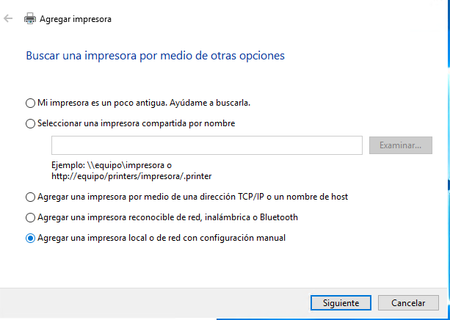
Hello, I am, trying to configure a virtual printer in a Windows server 2019 standard edition that is deployed in OCI cloud. This instance has windows server license included in the pricing. The problem comes when after ending the process of configuration this virtual printer is not displayed in "Devices and printers" any idea why is this happening? Regards, Ana34Views0likes0CommentsError al agregar Windows Server 2025 a dominio existente, nivel funcional 2016
Buenas a todos, Me dirijo a esta comunidad en busca de orientación para resolver un problema que se me está presentando al intentar integrar un nuevo servidor con Windows Server 2025 Standard a mi infraestructura de Active Directory existente. Descripción del entorno: Dominio de Active Directory activo con Windows Server 2019 Standard. Nivel funcional de dominio y bosque configurado en Windows Server 2016. Controladores de dominio actuales: server-dc01.impresoratec y server-ad2019.impresoratec. El nombre de dominio interno utilizado es impresoratec (nombre NetBIOS/dominio de etiqueta única, sin sufijo DNS completo tipo .local o .com). Problema: Al intentar agregar el nuevo servidor con Windows Server 2025 al dominio, el proceso falla y se presenta el siguiente mensaje de error: "Es posible que el nombre de dominio "impresoratec" sea un nombre de dominio NetBIOS. Si este es el caso, compruebe que el nombre de dominio está registrado correctamente con WINS. [...] La consulta se refería al registro SRV para _ldap._tcp.dc._msdcs.impresoratec. La consulta identificó los siguientes controladores de dominio: server-dc01.impresoratec y server-ad2019.impresoratec. Sin embargo, no se pudo contactar con ningún controlador de dominio." El mensaje sugiere que los registros de host (A) o (AAAA) pueden contener direcciones IP incorrectas o que los controladores de dominio no son accesibles desde el nuevo servidor. Lo que he verificado hasta ahora: Los controladores de dominio existentes están en línea y operativos. La replicación entre los DCs actuales funciona con normalidad. El nuevo servidor con 2025 tiene conectividad de red general, pero no logra localizar los DCs al momento de unirse al dominio. Mi consulta: ¿Alguien ha experimentado este comportamiento al incorporar un servidor con Windows Server 2025 a un dominio con nivel funcional 2016 y un nombre de dominio de etiqueta única (single-label domain)? ¿Existe algún requisito previo adicional —como la actualización del esquema de AD, ajustes en DNS o en WINS— que deba cumplirse antes de agregar el nuevo DC? Agradezco de antemano cualquier orientación o experiencia que puedan compartir.89Views0likes1Comment

Events
Recent Blogs
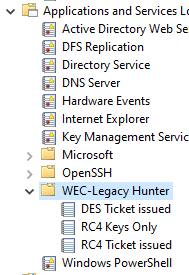
- Note: 3/5/2026 The Event Forwarding methods mentioned here is not yet compatible with Server 2025. This post will be updated when it is no longer the case. This blog was originally posted last ...May 08, 2026489Views0likes0Comments
- We’re excited to share a new open-source PowerShell module on GitHub that provides PowerShell-native management of ReFS snapshots. It wraps the existing refsutil streamsnapshot in cmdlets designed fo...Apr 30, 2026383Views1like0Comments