clustering
209 Topics
¿Cómo comprobar que las actualizaciones se instalaron correctamente en Windows Server 2025?
Hola. Estoy usando Windows Server 2025 y quisiera saber qué pasos recomiendan para comprobar que las actualizaciones se instalaron correctamente. Después de reiniciar el servidor, ¿qué herramientas o registros puedo revisar para detectar errores y confirmar que los servicios siguen funcionando con normalidad?24Views0likes0Comments
Hyper-V Cluster Failover Event viewer log showing SMB traffic connect to quorum disk network share
Hi, To tweak my SIEM, I need to correlate smb network traffic between Hyper-V servers and witness disk stored on a network share on another server. I'm searching a log who tell me the Hyper-V is connecting to the witness disk (on network shared drive) for doing something ... probably I will be able to correlate and put exception when this happens and the SMB traffic between Hyper-V and the other server to stop always receive this alert. Any cues would be appreciated! Thanks492Views0likes1CommentAzure VM Agent Status not ready
I have created a red hat openshift private cluster but the VMS are stuck in the state of "agent status not ready." I have followed these troubleshooting steps: Linux Virtual Machine Agent Status "Not Ready" - Microsoft Community Hub However, all of them seem to point to trying to check and see what is on the VM itself. I am unable to do this because I can't SSH into the machine. Has anyone else ran into this issue and been able to resolve it? I am deploying it via CLI as I was not able to do it via GUI for some reason. This is my script: #az login az account set --name "accountnamehidden" #az provider register -n Microsoft.RedHatOpenShift --wait #az provider register -n Microsoft.Compute --wait #az provider register -n Microsoft.Storage --wait #az provider register -n Microsoft.Authorization --wait $LOCATION= "eastus" # the location of your cluster $RESOURCEGROUP= "sample-rg" # the name of the resource group where you want to create your cluster $CLUSTER= "K8sDev1test" # the name of your cluster $arovnet= "sample-vnet" $mastersubnet = "k8sDev1-master-ue-snet" $workersubnet = "k8sDev1-worker-ue-snet" az aro create --resource-group "samplerg" --vnet-resource-group "sample-vnet-rg" --name $CLUSTER --vnet $arovnet --master-subnet "k8sDev1-master-ue-snet" --worker-subnet "k8sDev1-worker-ue-snet" --apiserver-visibility Private --ingress-visibility Private --fips true --outbound-type UserDefinedRouting --client-id hidden --client-secret hidden
Announcing Windows Server vNext Preview Build 29659
Hello Windows Server Insiders! Today we are pleased to release a new build of the next Windows Server Long-Term Servicing Channel (LTSC) Preview that contains both the Desktop Experience and Server Core installation options for Datacenter and Standard editions and Azure Edition (for VM evaluation only). Branding remains Windows Server 2025 in this preview - when reporting issues please refer to Windows Server vNext preview. Build 29531 established a new Server preview baseline build. Please perform a clean install of Build 29531 (or later) using the installation media linked below. Please note: Upgrades from Windows Server vNext preview builds older than 29531 are not supported. We encourage all Windows Server vNext preview users to perform a clean install using 29531 or later to successfully upgrade to future Windows Server vNext preview builds. While upgrades from earlier Windows Server previews (Build 26525 and older) are not technically blocked by setup.exe, a number of known issues have been identified related to upgrades necessitating the establishment of a new baseline build for our Server vNext Preview Program. The new baseline build (29531) will not be Flighted due to upgrade issues. Flighting support resumed with preview build 29550 or later. What's New Trusted Launch for virtual machines (TVMs) on Windows Server—a security feature you can enable when creating Generation 2 VMs. This initial preview supports TVMs with Secure Boot, vTPM, and vTPM state protection (at rest), managed via PowerShell. ⚠ Not supported in this release: Moving TVMs to another server TVMs in failover clusters or Hyper-V Replica Boot integrity verification TVMs in Windows Admin Center (WAC) Instructions 1. Install the latest ServerInsider preview build. 2. Enable Hyper-V (restarts the server): Install-WindowsFeature -Name Hyper-V -IncludeManagementTools -Restart 3. Set the registry keys: New-Item -Path "HKLM:\SOFTWARE\Microsoft\AszIgvmAgent" -Force New-ItemProperty -Path "HKLM:\SOFTWARE\Microsoft\AszIgvmAgent" -Name "TvmWinServer" -Value 1 -PropertyType DWord -Force 4. Enable Trusted Launch: Enable-WindowsOptionalFeature -Online -FeatureName "IsolatedGuestVm" -NoRestart 5. Verify IGVmAgent is running (should show Running): Get-Service -Name "IGVmAgent" If it isn't running, report the issue with the IGVmAgent and IGVmSystem Operational logs (Event Viewer → Applications and Services Logs → Microsoft → Windows). 6. Create an external virtual switch (if needed): (Get-VMSwitch | Where-Object { $_.SwitchType -eq "External" }).Name 7. Create the TVM. With an existing Gen 2 VHDX: New-VM -Name <VMName> -Generation 2 -GuestStateIsolationType TrustedLaunch -SwitchName <switch> -VHDPath <path to vhdx> -Path <config path> Or with a new VHD, then attach a Gen 2–compatible guest OS ISO: New-VM -Name <VMName> -SwitchName <switch> -NewVHDPath <new VHD path> -NewVHDSizeBytes 40GB -Generation 2 -GuestStateIsolationType TrustedLaunch -Path <config path> Add-VMDvdDrive -VMName <VMName> -Path <Guest OS ISO path> Ensure the DVD drive is first in the firmware boot order so the VM boots from it. 8. Verify isolation type (should return TrustedLaunch): (Get-VM -Name <VMName>).GuestStateIsolationType 9. Verify guest state protection: Stop the IGVmAgent service and restart the VM—without IGVmAgent running, a Trusted launch VM with guest state protection won't start. For more information, please review our blog post: Announcing Trusted Launch for Virtual Machines for Windows Server Insiders | Microsoft Community Hub Quick Machine Recovery available in Windows Server vNext Insider Previews. Quick machine recovery (QMR) is now available for Server vNext Insiders to test. This feature enables the recovery of Windows Server devices when they encounter boot critical errors that prevent them from booting. QMR can automatically search for cloud‑based remediations to recover from widespread boot failures significantly reducing the burden on IT administrators when multiple devices are impacted. This supports the goals of the Windows Resiliency Initiative by enabling applicable fixes to be delivered through trusted Windows Update to restore affected devices, helping reduce downtime and minimize manual recovery efforts across enterprise environments. This feature is currently enabled in the latest Server vNext Insider builds for customers to experience test mode. A Group Policy option to enable or disable the feature will be introduced in upcoming builds to provide additional administrative control. To simulate the quick machine recovery experience, use the following commands from an elevated command prompt: Enable test mode: reagentc.exe /SetRecoveryTestmode Configure Windows to boot to Windows Recovery Environment on the next boot: reagentc.exe /BootToRe Reboot your device.The system goes through autoremediation of a simulated crash safely and reboots back to Windows Server. For more information, please review Quick machine recovery (QMR) and Windows Resiliency Initiative. When providing feedback using Feedback hub, please select QMR from the Recovery and Uninstall category in the app. NVMe-over-Fabrics (NVMe-oF) extends the NVMe protocol—originally designed for local PCIe-attached SSDs—across a network fabric. Instead of using legacy SCSI-based protocols such as iSCSI or Fibre Channel, NVMe-oF allows a host to communicate directly with remote NVMe controllers using the same NVMe command set used for local devices. In this Insider build, Windows Server supports: NVMe-oF over TCP (NVMe/TCP), allowing NVMe-oF to run over standard Ethernet networks without specialized hardware. NVMe-oF over RDMA (NVMe/RDMA), enabling low-latency, high-throughput NVMe access over RDMA-capable networks (for example, RoCE or iWARP) using supported RDMA NICs. For more information, please visit: Introducing the Windows NVMe-oF Initiator Preview in Windows Server Insiders Builds | Microsoft Community Hub ReFS Boot is enabled for Windows Server vNext preview builds. Known Limitations ReFS Boot systems create a minimum 2GB WinRE partition. When WinRE cannot be updated due to space constraints, the system may disable WinRE. Disabling WinRE does not remove the partition. If the WinRE partition is deleted and the boot volume is extended over it, this operation is unrecoverable without a clean install. For more information, please visit: Resilient File System (ReFS) overview | Microsoft Learn Feedback Hub app is available for Server Desktop users! The app should automatically update with the latest version, but if it does not, simply Check for updates in the app’s settings tab. Known Issues A race condition in the TLS hybrid key exchange implementation may cause the LSASS service to crash when hybrid groups are negotiated by a TLS server. To avoid this issue until the fix is released, please disable hybrid groups (X25519_MLKEM768, SecP256r1_MLKEM768, SecP384r1_MLKEM1024) using TLS cmdlets or Group Policy, as outlined here. Server Core Upgrades and AppCompat FOD: Enabling AppCompat FOD after reinstall may fail due to legacy 3rd-party license compatibility issues on Server Core devices. Server Core users may be unable to install the latest AppCompat FOD after upgrading to build 29574. This appears to be limited to Server Core installations with 3rd-party application licenses that fail compatibility checks after upgrade. This will be addressed in a future build. Upgrading from older builds of Windows Server vNext previews (26525 or older) are not supported. Please perform a clean install of build 29531 or later. Users may experience failures when attempting to upgrade from earlier previews (build 26525 and older). VMs may fail to upgrade or start after upgrade from older preview builds impacting live migration and failover cluster scenarios. Download Windows Server Insider Preview (microsoft.com) Flighting: The label for this flight may incorrectly reference Windows 11. However, when selected, the package installed is the Windows Server vNext update. Please ignore the label and proceed with installing your flight. This issue will be addressed in a future release. Available Downloads Downloads to certain countries may not be available. See Microsoft suspends new sales in Russia - Microsoft On the Issues. Windows Server Long-Term Servicing Channel Preview in ISO format in 18 languages, and in VHDX format in English only. Windows Server Datacenter Azure Edition Preview in ISO and VHDX format, English only. Microsoft Server Languages and Optional Features Preview Keys: Keys are valid for preview builds only Server Standard: MFY9F-XBN2F-TYFMP-CCV49-RMYVH Datacenter: 2KNJJ-33Y9H-2GXGX-KMQWH-G6H67 Azure Edition does not accept a key. Symbols: Available on the public symbol server – see Using the Microsoft Symbol Server. Expiration: This Windows Server Preview will expire October 15, 2027. How to Download Registered Insiders may navigate directly to the Windows Server Insider Preview download page. If you have not yet registered as an Insider, see GETTING STARTED WITH SERVER on the Windows Insiders for Business portal. We value your feedback! The most important part of the release cycle is to hear what's working and what needs to be improved, so your feedback is extremely valued. Please use the new Feedback Hub app for Windows Server if you are running a Desktop version of Server. If you are using a Core edition, or if you are unable to use the Feedback Hub app, you can use your registered Windows 10 or Windows 11 Insider device and use the Feedback Hub application. In the app, choose the Windows Server category and then the appropriate subcategory for your feedback. In the title of the Feedback, please indicate the build number you are providing feedback on as shown below to ensure that your issue is attributed to the right version: [Server #####] Title of my feedback See Give Feedback on Windows Server via Feedback Hub for specifics. The Windows Server Insiders space on the Microsoft Tech Communities supports preview builds of the next version of Windows Server. Use the forum to collaborate, share and learn from experts. For versions that have been released to general availability in market, try the Windows Server for IT Pro forum or contact Support for Business. Diagnostic and Usage Information Microsoft collects this information over the internet to help keep Windows secure and up to date, troubleshoot problems, and make product improvements. Microsoft server operating systems can be configured to turn diagnostic data off, send Required diagnostic data, or send Optional diagnostic data. During previews, Microsoft asks that you change the default setting to Optional to provide the best automatic feedback and help us improve the final product. Administrators can change the level of information collection through Settings. For details, see http://aka.ms/winserverdata. Also see the Microsoft Privacy Statement. Terms of Use This is pre-release software - it is provided for use "as-is" and is not supported in production environments. Users are responsible for installing any updates that may be made available from Windows Update. All pre-release software made available to you via the Windows Server Insider program is governed by the Insider Terms of Use.699Views1like0CommentsMigrating from VMware to Hyper-v
Hi, I've recently deployed a new 3x node Hyper-v cluster running Windows Server 2025. I have an existing VMware cluster running exsi 7.x. What tools or approach have you guys used to migrate from VMware to Hyper-v? I can see there are many 3rd party tools available, and now the Windows Admin Center appears to also support this. Having never done this before (vmware to hyper-v) I'm not sure what the best method is, does anyone here have any experience and recommendations pls?5.2KViews0likes6Comments
Unable to Build Switchless Storage using Network ATC
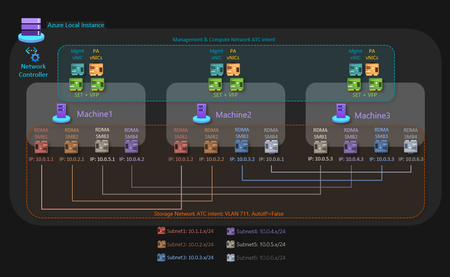
3-Node HV/S2D Cluster using Switchless Storage and Network ATC getting Network HUD Error I have a Dell 3-node server cluster being used to host Hyper-V with S2D. Each node is identical and certified to pass S2D requirements. The networking consists of 2 onboard 1 Gbps and 2 quad-port PCI(e) NICs at 10/25 Gbps. The 2 onboard ports are being used for the management intent, 2 ports from each of those NICs are being connected to 2 top-of-rack switches for the compute intent at a total of 12 10 Gbps connections, and the other 2 ports from each of those NICs are being connected directly to the other nodes in a dual mesh method for the storage intent at a total of 6 25 Gbps connections. Very similar to the Microsoft diagram for a three-node storage switchless, dual TOR, dual link deployment network reference pattern for Azure Local, but I am using Windows Server 2025 Datacenter, not Azure Local. The problem I am encountering is when I attempt to create the switchless storage intent, I get an error (shown below) that reads "Failed to fetch physical NIC mapping from the Network HUD service. Please diagnose..." If I leave off the switchless option, it builds without issue. The error only occurs when I attempt to use the switchless option. I tried without configuring the NIC IP addresses first, as well as trying configuring the NIC IP addresses beforehand. I tried without having a cluster built first, as well as building a failover cluster without storage before running the network intent command. The error I posted below shows my last attempt after having the NICs configured with IP addresses and having a failover cluster established before running the command. The error has remained the same throughout the process. Has anyone else run into an issue like this with switchless storage? It seems like everything that I am trying to do is within scope and should be a supported solution. My fallback plan is to use my existing switches, but that drops my connection speeds down from 25 Gbps to 10 Gbps due to hardware limitations.520Views0likes4CommentsAnnouncing Windows Server vNext Preview Build 29651
Hello Windows Server Insiders! Today we are pleased to release a new build of the next Windows Server Long-Term Servicing Channel (LTSC) Preview that contains both the Desktop Experience and Server Core installation options for Datacenter and Standard editions and Azure Edition (for VM evaluation only). Branding remains Windows Server 2025 in this preview - when reporting issues please refer to Windows Server vNext preview. Build 29531 established a new Server preview baseline build. Please perform a clean install of Build 29531 (or later) using the installation media linked below. Please note: Upgrades from Windows Server vNext preview builds older than 29531 are not supported. We encourage all Windows Server vNext preview users to perform a clean install using 29531 or later to successfully upgrade to future Windows Server vNext preview builds. While upgrades from earlier Windows Server previews (Build 26525 and older) are not technically blocked by setup.exe, a number of known issues have been identified related to upgrades necessitating the establishment of a new baseline build for our Server vNext Preview Program. The new baseline build (29531) will not be Flighted due to upgrade issues. Flighting support resumed with preview build 29550 or later. What's New Trusted Launch for virtual machines (TVMs) on Windows Server—a security feature you can enable when creating Generation 2 VMs. This initial preview supports TVMs with Secure Boot, vTPM, and vTPM state protection (at rest), managed via PowerShell. ⚠ Not supported in this release: Moving TVMs to another server TVMs in failover clusters or Hyper-V Replica Boot integrity verification TVMs in Windows Admin Center (WAC) Instructions 1. Install the latest ServerInsider preview build. 2. Enable Hyper-V (restarts the server): Install-WindowsFeature -Name Hyper-V -IncludeManagementTools -Restart 3. Set the registry keys: New-Item -Path "HKLM:\SOFTWARE\Microsoft\AszIgvmAgent" -Force New-ItemProperty -Path "HKLM:\SOFTWARE\Microsoft\AszIgvmAgent" -Name "TvmWinServer" -Value 1 -PropertyType DWord -Force 4. Enable Trusted Launch: Enable-WindowsOptionalFeature -Online -FeatureName "IsolatedGuestVm" -NoRestart 5. Verify IGVmAgent is running (should show Running): Get-Service -Name "IGVmAgent" If it isn't running, report the issue with the IGVmAgent and IGVmSystem Operational logs (Event Viewer → Applications and Services Logs → Microsoft → Windows). 6. Create an external virtual switch (if needed): (Get-VMSwitch | Where-Object { $_.SwitchType -eq "External" }).Name 7. Create the TVM. With an existing Gen 2 VHDX: New-VM -Name <VMName> -Generation 2 -GuestStateIsolationType TrustedLaunch -SwitchName <switch> -VHDPath <path to vhdx> -Path <config path> Or with a new VHD, then attach a Gen 2–compatible guest OS ISO: New-VM -Name <VMName> -SwitchName <switch> -NewVHDPath <new VHD path> -NewVHDSizeBytes 40GB -Generation 2 -GuestStateIsolationType TrustedLaunch -Path <config path> Add-VMDvdDrive -VMName <VMName> -Path <Guest OS ISO path> Ensure the DVD drive is first in the firmware boot order so the VM boots from it. 8. Verify isolation type (should return TrustedLaunch): (Get-VM -Name <VMName>).GuestStateIsolationType 9. Verify guest state protection: Stop the IGVmAgent service and restart the VM—without IGVmAgent running, a Trusted launch VM with guest state protection won't start. For more information, please review our blog post: Announcing Trusted Launch for Virtual Machines for Windows Server Insiders | Microsoft Community Hub Quick Machine Recovery available in Windows Server vNext Insider Previews. Quick machine recovery (QMR) is now available for Server vNext Insiders to test. This feature enables the recovery of Windows Server devices when they encounter boot critical errors that prevent them from booting. QMR can automatically search for cloud‑based remediations to recover from widespread boot failures significantly reducing the burden on IT administrators when multiple devices are impacted. This supports the goals of the Windows Resiliency Initiative by enabling applicable fixes to be delivered through trusted Windows Update to restore affected devices, helping reduce downtime and minimize manual recovery efforts across enterprise environments. This feature is currently enabled in the latest Server vNext Insider builds for customers to experience test mode. A Group Policy option to enable or disable the feature will be introduced in upcoming builds to provide additional administrative control. To simulate the quick machine recovery experience, use the following commands from an elevated command prompt: Enable test mode: reagentc.exe /SetRecoveryTestmode Configure Windows to boot to Windows Recovery Environment on the next boot: reagentc.exe /BootToRe Reboot your device.The system goes through autoremediation of a simulated crash safely and reboots back to Windows Server. For more information, please review Quick machine recovery (QMR) and Windows Resiliency Initiative. When providing feedback using Feedback hub, please select QMR from the Recovery and Uninstall category in the app. NVMe-over-Fabrics (NVMe-oF) extends the NVMe protocol—originally designed for local PCIe-attached SSDs—across a network fabric. Instead of using legacy SCSI-based protocols such as iSCSI or Fibre Channel, NVMe-oF allows a host to communicate directly with remote NVMe controllers using the same NVMe command set used for local devices. In this Insider build, Windows Server supports: NVMe-oF over TCP (NVMe/TCP), allowing NVMe-oF to run over standard Ethernet networks without specialized hardware. NVMe-oF over RDMA (NVMe/RDMA), enabling low-latency, high-throughput NVMe access over RDMA-capable networks (for example, RoCE or iWARP) using supported RDMA NICs. For more information, please visit: Introducing the Windows NVMe-oF Initiator Preview in Windows Server Insiders Builds | Microsoft Community Hub ReFS Boot is enabled for Windows Server vNext preview builds. Known Limitations ReFS Boot systems create a minimum 2GB WinRE partition. When WinRE cannot be updated due to space constraints, the system may disable WinRE. Disabling WinRE does not remove the partition. If the WinRE partition is deleted and the boot volume is extended over it, this operation is unrecoverable without a clean install. For more information, please visit: Resilient File System (ReFS) overview | Microsoft Learn Feedback Hub app is available for Server Desktop users! The app should automatically update with the latest version, but if it does not, simply Check for updates in the app’s settings tab. Known Issues A race condition in the TLS hybrid key exchange implementation may cause the LSASS service to crash when hybrid groups are negotiated by a TLS server. To avoid this issue until the fix is released, please disable hybrid groups (X25519_MLKEM768, SecP256r1_MLKEM768, SecP384r1_MLKEM1024) using TLS cmdlets or Group Policy, as outlined here. Server Core Upgrades and AppCompat FOD: Enabling AppCompat FOD after reinstall may fail due to legacy 3rd-party license compatibility issues on Server Core devices. Server Core users may be unable to install the latest AppCompat FOD after upgrading to build 29574. This appears to be limited to Server Core installations with 3rd-party application licenses that fail compatibility checks after upgrade. This will be addressed in a future build. Upgrading from older builds of Windows Server vNext previews (26525 or older) are not supported. Please perform a clean install of build 29531 or later. Users may experience failures when attempting to upgrade from earlier previews (build 26525 and older). VMs may fail to upgrade or start after upgrade from older preview builds impacting live migration and failover cluster scenarios. Download Windows Server Insider Preview (microsoft.com) Flighting: The label for this flight may incorrectly reference Windows 11. However, when selected, the package installed is the Windows Server vNext update. Please ignore the label and proceed with installing your flight. This issue will be addressed in a future release. Available Downloads Downloads to certain countries may not be available. See Microsoft suspends new sales in Russia - Microsoft On the Issues. Windows Server Long-Term Servicing Channel Preview in ISO format in 18 languages, and in VHDX format in English only. Windows Server Datacenter Azure Edition Preview in ISO and VHDX format, English only. Microsoft Server Languages and Optional Features Preview Keys: Keys are valid for preview builds only Server Standard: MFY9F-XBN2F-TYFMP-CCV49-RMYVH Datacenter: 2KNJJ-33Y9H-2GXGX-KMQWH-G6H67 Azure Edition does not accept a key. Symbols: Available on the public symbol server – see Using the Microsoft Symbol Server. Expiration: This Windows Server Preview will expire October 15, 2027. How to Download Registered Insiders may navigate directly to the Windows Server Insider Preview download page. If you have not yet registered as an Insider, see GETTING STARTED WITH SERVER on the Windows Insiders for Business portal. We value your feedback! The most important part of the release cycle is to hear what's working and what needs to be improved, so your feedback is extremely valued. Please use the new Feedback Hub app for Windows Server if you are running a Desktop version of Server. If you are using a Core edition, or if you are unable to use the Feedback Hub app, you can use your registered Windows 10 or Windows 11 Insider device and use the Feedback Hub application. In the app, choose the Windows Server category and then the appropriate subcategory for your feedback. In the title of the Feedback, please indicate the build number you are providing feedback on as shown below to ensure that your issue is attributed to the right version: [Server #####] Title of my feedback See Give Feedback on Windows Server via Feedback Hub for specifics. The Windows Server Insiders space on the Microsoft Tech Communities supports preview builds of the next version of Windows Server. Use the forum to collaborate, share and learn from experts. For versions that have been released to general availability in market, try the Windows Server for IT Pro forum or contact Support for Business. Diagnostic and Usage Information Microsoft collects this information over the internet to help keep Windows secure and up to date, troubleshoot problems, and make product improvements. Microsoft server operating systems can be configured to turn diagnostic data off, send Required diagnostic data, or send Optional diagnostic data. During previews, Microsoft asks that you change the default setting to Optional to provide the best automatic feedback and help us improve the final product. Administrators can change the level of information collection through Settings. For details, see http://aka.ms/winserverdata. Also see the Microsoft Privacy Statement. Terms of Use This is pre-release software - it is provided for use "as-is" and is not supported in production environments. Users are responsible for installing any updates that may be made available from Windows Update. All pre-release software made available to you via the Windows Server Insider program is governed by the Insider Terms of Use.1.3KViews1like0Comments
Can't share a folder on a local network in Microsoft Windows Server 2025 STD
We have two Microsoft Windows Server 2025 Standard (Version 24H2, Build Number 26100.32995) servers in our Active Directory. We can't share folders; it constantly asks for a username and password. We've tried every solution, but nothing worked. I found a similar thread, but the solutions there didn't work either. topic : https://learn.microsoft.com/en-us/answers/questions/5559013/opening-fire-share-on-2025-server-from-another-202 How can i solve this sharing problem ?388Views0likes3Comments
PS script for moving clustered VMs to another node
Windows Server 2022, Hyper-V, Failover cluster We have a Hyper-V cluster where the hosts reboot once a month. If the host being rebooted has any number of VMs running on it the reboot can take hours. I've proven this by manually moving VM roles off of the host prior to reboot and the host reboots in less than an hour, usually around 15 minutes. Does anyone know of a powershell script that will detect clustered VMs running on the host and move them to another host within the cluster? I'd rather not reinvent this if someone's already done it.411Views0likes3CommentsAnnouncing Windows Server vNext Preview Build 29641
Hello Windows Server Insiders! Today we are pleased to release a new build of the next Windows Server Long-Term Servicing Channel (LTSC) Preview that contains both the Desktop Experience and Server Core installation options for Datacenter and Standard editions and Azure Edition (for VM evaluation only). Branding remains Windows Server 2025 in this preview - when reporting issues please refer to Windows Server vNext preview. Build 29531 established a new Server preview baseline build. Please perform a clean install of Build 29531 (or later) using the installation media linked below. Please note: Upgrades from Windows Server vNext preview builds older than 29531 are not supported. We encourage all Windows Server vNext preview users to perform a clean install using 29531 or later to successfully upgrade to future Windows Server vNext preview builds. While upgrades from earlier Windows Server previews (Build 26525 and older) are not technically blocked by setup.exe, a number of known issues have been identified related to upgrades necessitating the establishment of a new baseline build for our Server vNext Preview Program. The new baseline build (29531) will not be Flighted due to upgrade issues. Flighting support resumed with preview build 29550 or later. What's New [NEW] Preview Build 29641 extends the expiration date of the preview builds into 2027. We're excited to announce Trusted Launch for virtual machines (TVMs) on Windows Server—a security feature you can enable when creating Generation 2 VMs. This initial preview supports TVMs with Secure Boot, vTPM, and vTPM state protection (at rest), managed via PowerShell. ⚠ Not supported in this release: Moving TVMs to another server TVMs in failover clusters or Hyper-V Replica Boot integrity verification TVMs in Windows Admin Center (WAC) Instructions Install the latest ServerInsider preview build. Enable Hyper-V (restarts the server): Install-WindowsFeature -Name Hyper-V -IncludeManagementTools -Restart Set the registry keys: New-Item -Path "HKLM:\SOFTWARE\Microsoft\AszIgvmAgent" -Force New-ItemProperty -Path "HKLM:\SOFTWARE\Microsoft\AszIgvmAgent" -Name "TvmWinServer" -Value 1 -PropertyType DWord -Force Enable Trusted Launch: Enable-WindowsOptionalFeature -Online -FeatureName "IsolatedGuestVm" -NoRestart Verify IGVmAgent is running (should show Running): Get-Service -Name "IGVmAgent" If it isn't running, report the issue with the IGVmAgent and IGVmSystem Operational logs (Event Viewer → Applications and Services Logs → Microsoft → Windows). Create an external virtual switch (if needed): (Get-VMSwitch | Where-Object { $_.SwitchType -eq "External" }).Name Create the TVM. With an existing Gen 2 VHDX: New-VM -Name <VMName> -Generation 2 -GuestStateIsolationType TrustedLaunch -SwitchName <switch> -VHDPath <path to vhdx> -Path <config path> Or with a new VHD, then attach a Gen 2–compatible guest OS ISO: New-VM -Name <VMName> -SwitchName <switch> -NewVHDPath <new VHD path> -NewVHDSizeBytes 40GB -Generation 2 -GuestStateIsolationType TrustedLaunch -Path <config path> Add-VMDvdDrive -VMName <VMName> -Path <Guest OS ISO path> Ensure the DVD drive is first in the firmware boot order so the VM boots from it. Verify isolation type (should return TrustedLaunch): (Get-VM -Name <VMName>).GuestStateIsolationType Verify guest state protection: Stop the IGVmAgent service and restart the VM—without IGVmAgent running, a Trusted launch VM with guest state protection won't start. For more information, please review our blog post: Announcing Trusted Launch for Virtual Machines for Windows Server Insiders | Microsoft Community Hub Quick Machine Recovery available in Windows Server vNext Insider Previews. Quick machine recovery (QMR) is now available for Server vNext Insiders to test. This feature enables the recovery of Windows Server devices when they encounter boot critical errors that prevent them from booting. QMR can automatically search for cloud‑based remediations to recover from widespread boot failures significantly reducing the burden on IT administrators when multiple devices are impacted. This supports the goals of the Windows Resiliency Initiative by enabling applicable fixes to be delivered through trusted Windows Update to restore affected devices, helping reduce downtime and minimize manual recovery efforts across enterprise environments. This feature is currently enabled in the latest Server vNext Insider builds for customers to experience test mode. A Group Policy option to enable or disable the feature will be introduced in upcoming builds to provide additional administrative control. To simulate the quick machine recovery experience, use the following commands from an elevated command prompt: 1. Enable test mode: reagentc.exe /SetRecoveryTestmode 2. Configure Windows to boot to Windows Recovery Environment on the next boot: reagentc.exe /BootToRe 3. Reboot your device. The system goes through autoremediation of a simulated crash safely and reboots back to Windows Server. For more information, please review Quick machine recovery (QMR) and Windows Resiliency Initiative. When providing feedback using Feedback hub, please select QMR from the Recovery and Uninstall category in the app. NVMe-over-Fabrics (NVMe-oF) extends the NVMe protocol—originally designed for local PCIe-attached SSDs—across a network fabric. Instead of using legacy SCSI-based protocols such as iSCSI or Fibre Channel, NVMe-oF allows a host to communicate directly with remote NVMe controllers using the same NVMe command set used for local devices. In this Insider build, Windows Server supports: NVMe-oF over TCP (NVMe/TCP), allowing NVMe-oF to run over standard Ethernet networks without specialized hardware. NVMe-oF over RDMA (NVMe/RDMA), enabling low-latency, high-throughput NVMe access over RDMA-capable networks (for example, RoCE or iWARP) using supported RDMA NICs. For more information, please visit: Introducing the Windows NVMe-oF Initiator Preview in Windows Server Insiders Builds | Microsoft Community Hub ReFS Boot is enabled for Windows Server vNext preview builds. Known Limitations ReFS Boot systems create a minimum 2GB WinRE partition. When WinRE cannot be updated due to space constraints, the system may disable WinRE. Disabling WinRE does not remove the partition. If the WinRE partition is deleted and the boot volume is extended over it, this operation is unrecoverable without a clean install. For more information, please visit: Resilient File System (ReFS) overview | Microsoft Learn Feedback Hub app is available for Server Desktop users! The app should automatically update with the latest version, but if it does not, simply Check for updates in the app’s settings tab. Known Issues A race condition in the TLS hybrid key exchange implementation may cause the LSASS service to crash when hybrid groups are negotiated by a TLS server. To avoid this issue until the fix is released, please disable hybrid groups (X25519_MLKEM768, SecP256r1_MLKEM768, SecP384r1_MLKEM1024) using TLS cmdlets or Group Policy, as outlined here. Server Core Upgrades and AppCompat FOD: Enabling AppCompat FOD after reinstall may fail due to legacy 3rd-party license compatibility issues on Server Core devices. Server Core users may be unable to install the latest AppCompat FOD after upgrading to build 29574. This appears to be limited to Server Core installations with 3rd-party application licenses that fail compatibility checks after upgrade. This will be addressed in a future build. Upgrading from older builds of Windows Server vNext previews (26525 or older) are not supported. Please perform a clean install of build 29531 or later. Users may experience failures when attempting to upgrade from earlier previews (build 26525 and older). VMs may fail to upgrade or start after upgrade from older preview builds impacting live migration and failover cluster scenarios. Download Windows Server Insider Preview (microsoft.com) Flighting: The label for this flight may incorrectly reference Windows 11. However, when selected, the package installed is the Windows Server vNext update. Please ignore the label and proceed with installing your flight. This issue will be addressed in a future release. Available Downloads Downloads to certain countries may not be available. See Microsoft suspends new sales in Russia - Microsoft On the Issues. Windows Server Long-Term Servicing Channel Preview in ISO format in 18 languages, and in VHDX format in English only. Windows Server Datacenter Azure Edition Preview in ISO and VHDX format, English only. Microsoft Server Languages and Optional Features Preview Keys: Keys are valid for preview builds only Server Standard: MFY9F-XBN2F-TYFMP-CCV49-RMYVH Datacenter: 2KNJJ-33Y9H-2GXGX-KMQWH-G6H67 Azure Edition does not accept a key. Symbols: Available on the public symbol server – see Using the Microsoft Symbol Server. Expiration: This Windows Server Preview will expire October 15, 2027. How to Download Registered Insiders may navigate directly to the Windows Server Insider Preview download page. If you have not yet registered as an Insider, see GETTING STARTED WITH SERVER on the Windows Insiders for Business portal. We value your feedback! The most important part of the release cycle is to hear what's working and what needs to be improved, so your feedback is extremely valued. Please use the new Feedback Hub app for Windows Server if you are running a Desktop version of Server. If you are using a Core edition, or if you are unable to use the Feedback Hub app, you can use your registered Windows 10 or Windows 11 Insider device and use the Feedback Hub application. In the app, choose the Windows Server category and then the appropriate subcategory for your feedback. In the title of the Feedback, please indicate the build number you are providing feedback on as shown below to ensure that your issue is attributed to the right version: [Server #####] Title of my feedback See Give Feedback on Windows Server via Feedback Hub for specifics. The Windows Server Insiders space on the Microsoft Tech Communities supports preview builds of the next version of Windows Server. Use the forum to collaborate, share and learn from experts. For versions that have been released to general availability in market, try the Windows Server for IT Pro forum or contact Support for Business. Diagnostic and Usage Information Microsoft collects this information over the internet to help keep Windows secure and up to date, troubleshoot problems, and make product improvements. Microsoft server operating systems can be configured to turn diagnostic data off, send Required diagnostic data, or send Optional diagnostic data. During previews, Microsoft asks that you change the default setting to Optional to provide the best automatic feedback and help us improve the final product. Administrators can change the level of information collection through Settings. For details, see http://aka.ms/winserverdata. Also see the Microsoft Privacy Statement. Terms of Use This is pre-release software - it is provided for use "as-is" and is not supported in production environments. Users are responsible for installing any updates that may be made available from Windows Update. All pre-release software made available to you via the Windows Server Insider program is governed by the Insider Terms of Use.1.1KViews1like0Comments