windows server
2465 Topics
2026-04 Update Breaks Domain Logins
I have an Active Directory domain that is old (from 2000!) that has been upgraded and moved to newer versions of Windows Server and Active Directory. I have domain controller VMs running Windows Server 2025 Standard Edition. Unfortunately they installed the latest 2026-04 patches which my have changed the Kerberos encryption from RC4 to AES. This has resulted in my not being able to log into any Active Directory domain accounts and the domain controllers themselves. I can only log into workstations using the local account. Suffice to say this a nightmare. Any ideas how to fix it since I can't access the usual tools like Active Directory Users and Computers, Hyper-V won't connect to the VMs, etc. Thanks. SSolved5.7KViews2likes9Comments
Update Daylight saving time on Windows server client from domain controller
Hello, The September 2026 cumulative update includes the Morocco Daylight Saving Time update. We are planning to update our domain controllers to apply the new DST schedule. Is there any option for domain-joined Windows Servers to update their Daylight Saving Time configuration from the domain controller without installing the September 2026 cumulative update on each server ? Or does the update need to be installed on every Windows Server individually ?Solved101Views0likes2CommentsWindows Server 2022 Datacenter Azure Edition: unable create a ODBC source
I need create a ODBC datasource on the server for a IIS web site. Using the ODBC Data Sources (64-bit) don't have any error but DSN is not create. If I use powershell the same problem (and no error): Thanks for any help126Views0likes1CommentHyper-V replication
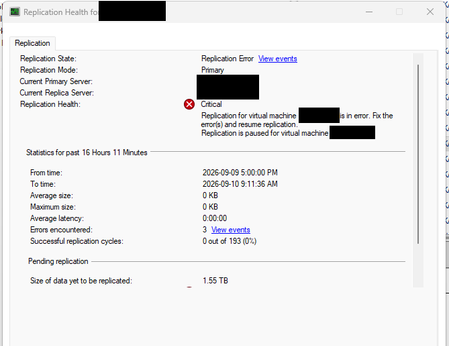
I have two Hyper-V failover clusters (primary and secondary) with replication enabled. I got a server replication error: But recently, the only way to fix it has been to remove the replication and enable it again. Is there another way to fix the Hyper-V replication?Solved73Views0likes2Comments
Strict users to use specific software windows server 2022
I have MT5 installed on (C:\Program Files\MetaTrader 5) there are the meta trader 5 terminal64.exe and MetaEditor64.exe applications, mt5 data folder as follow C:\Users\Administrator\AppData\Roaming\MetaQuotes\Terminal\ MT4 on (C:\Program Files (x86)\MetaTrader 4) there are applications terminal.exe and metaeditor.exe and data folder as follow C:\Users\Administrator\AppData\Roaming\MetaQuotes\Terminal\ I use windows server 2022 and I want to create user accounts each account have access only to MT4 or MT5 and the meta editor and data folder only and each user can use the software MT4 or MT5 based on assigned group, users can use the same software at the same time in their own accounts I need 2 windows powershell scripts 1-create 2 user groups for MT4 and MT5 with the access restrcicted to all windows software and features execpt the MT4 or MT5 and the meta editor, and the data folder and desktop showing these icons/shortcuts and webview2 runtime to installed be allowed because it is needed by meta trader ( user cannot see windows bar cannot use any windows software, and the most important that the MT4 or MT5 software to be always running and start always after windows reboot/restart not when user log on, these software run trading algoeithms and must be working around the clock even if the user is not logged in 2- interactive script that use to create the users37Views0likes0Comments
Assign IP Address for Windows Server 2025 VM on Hyper-V
I have built my first Windows Server 2025 VM on HyperV and trying to assign an IP address. I want the VM's to be like an actual server so I Created an external vswitch. The HyperV server IP is 172.16.1.41 with a physical gateway of 172.16.1.5. I have tried to assign the new VM with 172.16.1.42/255.255.255.0 and the Gateway is 172.16.1.5 also. However, I cannot get a positive ping. Do I need another VSWITCH configured or what am I missing?232Views0likes5CommentsHow are you managing Group Policy changes after AGPM end of support?
Hi, I’m interested in how organizations are handling Group Policy change management now that AGPM is no longer supported. In environments where GPOs are still heavily used, what are you relying on today for version history, change tracking, rollback and approvals? Are you continuing with AGPM, moving to products such as GPOADmin or Cayosoft, or mainly using native GPMC backups and PowerShell? I’m also interested in whether there is still a gap around having a clear web-based view of GPO history and changes, especially being able to understand exactly what changed and which users or computers may be affected before a change is applied. I’d be interested to hear how this is handled in real production environments and what parts of the process are still manual or difficult.137Views0likes1CommentWindows Server 2022 Hyper-V : vmconnect introuvable pour accéder à la console VM (Server Core)
Contexte Windows Server 2022 [Standard/Datacenter — à préciser], rôle Hyper-V installé. J'ai créé une VM invitée Linux nommée « Wazuh » (installation d'une plateforme SIEM), elle démarre correctement. ce serveur est une VM imbriquée dans un autre hyperviseur type VMware Workstation. je suis en simple groupe de travail (workgroup). Ce que je constate PS C:\Users\Administrator> Start-VM -Name 'Wazuh' PS C:\Users\Administrator> vmconnect localhost Wazuh vmconnect : The term 'vmconnect' is not recognized as the name of a cmdlet, function, script file, or operable program. Check the spelling of the name, or if a path was included, verify that the path is correct and try again. At line:1 char:1 + vmconnect localhost Wazuh + ~~~~~~~~~ + CategoryInfo : ObjectNotFound: (vmconnect:String) [], CommandNotFoundException + FullyQualifiedErrorId : CommandNotFoundException PS C:\Users\Administrator> Get-VM -Name 'Wazuh' | Select-Object State, Status State Status ----- ------ Running Operating normally PS C:\Users\Administrator> vmconnect localhost Wazuh vmconnect : The term 'vmconnect' is not recognized as the name of a cmdlet, function, script file, or operable program... La VM est bien « Running / Operating normally » selon Get-VM, donc le souci n'est pas la VM elle-même mais l'accès à sa console. Ce que j'ai déjà essayé Get-WindowsFeature *Hyper-V* → [colle ici la sortie exacte que tu as obtenue] Install-WindowsFeature -Name RSAT-Hyper-V-Tools -IncludeAllSubFeature → toujours pas de vmconnect.exe fonctionnel après coup Je soupçonne que ce serveur est installé en mode Server Core (pas d'interface graphique locale), et j'ai lu que la conversion Core → Desktop Experience n'est plus possible après coup depuis Server 2016. Ma question pour la communauté Est-il vraiment impossible d'obtenir une console graphique locale (vmconnect / Hyper-V Manager) sur un Server Core, même une fois les outils de gestion Hyper-V installés ? Quelle est la méthode la plus fiable pour accéder à la console d'une VM Hyper-V hébergée sur un Server Core, en environnement non-domaine (workgroup) : Windows Admin Center, Hyper-V Manager distant (config WinRM/TrustedHosts), ou faut-il simplement réinstaller en Desktop Experience ? Si quelqu'un a déjà mis en place Windows Admin Center ou du Hyper-V Manager distant sur un lab en groupe de travail (sans AD), un retour d'expérience serait très utile. Merci d'avance !215Views0likes1CommentAnnouncing Native NVMe in Windows Server 2025: Ushering in a New Era of Storage Performance
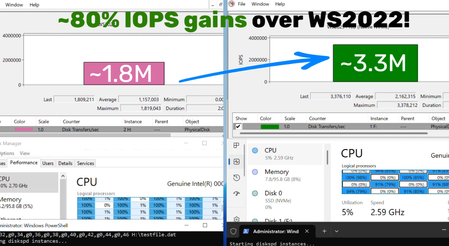
We’re thrilled to announce the arrival of Native NVMe support in Windows Server 2025—a leap forward in storage innovation that will redefine what’s possible for your most demanding workloads. Modern NVMe (Non-Volatile Memory Express) SSDs now operate more efficiently with Windows Server. This improvement comes from a redesigned Windows storage stack that no longer treats all storage devices as SCSI (Small Computer System Interface) devices—a method traditionally used for older, slower drives. By eliminating the need to convert NVMe commands into SCSI commands, Windows Server reduces processing overhead and latency. Additionally, the whole I/O processing workflow is redesigned for extreme performance. This release is the result of close collaboration between our engineering teams and hardware partners, and it serves as a cornerstone in modernizing our storage stack. Native NVMe is now generally available (GA) with an opt-in model (disabled by default as of October’s latest cumulative update for WS2025). Switch onto Native NVMe as soon as possible or you are leaving performance gains on the table! Stay tuned for more updates from our team as we transition to a dramatically faster, more efficient storage future. Why Native NVMe and why now? Modern NVMe devices—like PCIe Gen5 enterprise SSDs capable of 3.3 million IOPS, or HBAs delivering over 10 million IOPS on a single disk—are pushing the boundaries of what storage can do. SCSI-based I/O processing can’t keep up because it uses a single-queue model, originally designed for rotational disks, where protocols like SATA support just one queue with up to 32 commands. In contrast, NVMe was designed from the ground up for flash storage and supports up to 64,000 queues, with each queue capable of handling up to 64,000 commands simultaneously. With Native NVMe in Windows Server 2025, the storage stack is purpose-built for modern hardware—eliminating translation layers and legacy constraints. Here’s what that means for you: Massive IOPS Gains: Direct, multi-queue access to NVMe devices means you can finally reach the true limits of your hardware. Lower Latency: Traditional SCSI-based stacks rely on shared locks and synchronization mechanisms in the kernel I/O path to manage resources. Native NVMe enables streamlined, lock-free I/O paths that slash round-trip times for every operation. CPU Efficiency: A leaner, optimized stack frees up compute for your workloads instead of storage overhead. Future-Ready Features: Native support for advanced NVMe capabilities like multi-queue and direct submission ensures you’re ready for next-gen storage innovation. Performance Data Using DiskSpd.exe, basic performance testing shows that with Native NVMe enabled, WS2025 systems can deliver up to ~80% more IOPS and a ~45% savings in CPU cycles per I/O on 4K random read workloads on NTFS volumes when compared to WS2022. This test ran on a host with Intel Dual Socket CPU (208 logical processors, 128GB RAM) and a Solidigm SB5PH27X038T 3.5TB NVMe device. The test can be recreated by running "diskspd.exe -b4k -r -Su -t8 -L -o32 -W10 -d30 testfile1.dat > output.dat" and modifying the parameters as desired. Results may vary. Top Use Cases: Where You’ll See the Difference Try Native NVMe on servers running your enterprise applications. These gains are not just for synthetic benchmarks—they translate directly to faster database transactions, quicker VM operations, and more responsive file and analytics workloads. SQL Server and OLTP: Shorter transaction times, higher IOPS, and lower tail latency under mixed read/write workloads. Hyper‑V and virtualization: Faster VM boot, checkpoint operations, and live migration with reduced storage contention. High‑performance file servers: Faster large‑file reads/writes and quicker metadata operations (copy, backup, restore). AI/ML and analytics: Low‑latency access to large datasets and faster ETL, shuffle, and cache/scratch I/O. How to Get Started Check your hardware: Ensure you have NVMe-capable devices that are currently using the Windows NVMe driver (StorNVMe.sys). Note that some NVMe device vendors provide their own drivers, so unless using the in-box Windows NVMe driver, you will not notice any differences. Enable Native NVMe: After applying the 2510-B Latest Cumulative Update (or most recent), add the registry key with the following PowerShell command: reg add HKEY_LOCAL_MACHINE\SYSTEM\CurrentControlSet\Policies\Microsoft\FeatureManagement\Overrides /v 1176759950 /t REG_DWORD /d 1 /f Alternatively, use this Group Policy MSI to add the policy that controls the feature then run the local Group Policy Editor to enable the policy (found under Local Computer Policy > Computer Configuration > Administrative Templates > KB5066835 251014_21251 Feature Preview > Windows 11, version 24H2, 25H2). Once Native NVMe is enabled, open Device Manager and ensure that all attached NVMe devices are displayed under the “Storage disks” section. Monitor and Validate: Use Performance Monitor and Windows Admin Center to see the gains for yourself. Or try DiskSpd.exe yourself to measure microbenchmarks in your own environment! A quick way to measure IOPS in Performance Monitor is to set up a histogram chart and add a counter for Physical Disk>Disk Transfers/sec (where the selected instance is a drive that corresponds to one of your attached NVMe devices) then run a synthetic workload with DiskSpd. Compare the numbers before and after enabling Native NVMe to see the realized difference in your real environment! Join the Storage Revolution This is more than just a feature—it’s a new foundation for Windows Server storage, built for the future. We can’t wait for you to experience the difference. Share your feedback, ask questions, and join the conversation. Let’s build the future of high-performance Windows Server storage together. Send us your feedback or questions at nativenvme@microsoft.com! — Yash Shekar (and the Windows Server team)