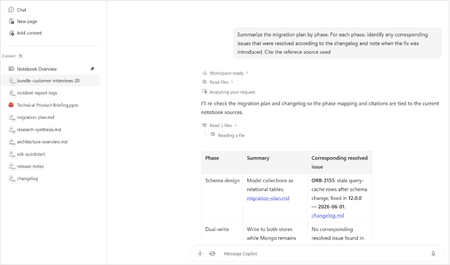
Recent Discussions

New Copilot Studio experience - MS365 Copilot and Teams - Channel About Info
We have imported a managed Solution into our Production Environment and all Objects successfully migrated, with the exception of the Channel 'About Info'. We find we can now update these About Info details, but they do not carry through into the App Manifest Download or the Submit to Org Catalogue. Unlike the Classic experience, there is also nowhere to update the Icon in the Channel Details, so only the default icon comes through in the Manifest and Org Catalogue workflow. HELP!9Views0likes0Comments
Retention after deletion
We currently have no retention or deletion policy set for copilot chats. I'm aware that these are now seperate from teams chats. We are considering setting deletion to 6 months but this may take time to proceed through. If users manually delete chat logs in the meantime how long are they retained in any form by default?19Views0likes0Comments
Knowledge retrieval on the GitHub Copilot harness suddenly slow (~1:25 min/turn)
Since about a week we're seeing severe knowledge-retrieval latency on a Copilot Studio agent (GitHub Copilot harness, SharePoint sources) — ~1:25 min per answer. No config changes on our side. Same source on the standard harness: ~20 s. We captured a HAR of a slow turn and found this in the SSE stream: knowledge_search_sharepoint completes in ~11 s (durationMs: 10774) — search is not the problem. But instead of snippets, the tool result says: "The full documents have been downloaded to /app/uploads/" — 9 complete files, including large PDFs. 8 of 10 results contain no snippet at all. It then instructs the model: "Read each relevant file IN FULL before responding — every part, from the start to the end of the file." The remaining ~70 s is the model reading those files before answering. More sources = more full documents = longer turns. Oddly, the tool's own description promises the opposite: "Results are search snippets … call KnowledgeRetrieve with the ReferenceId to get the full document." Anyone else seeing this since ~mid-August? Known issue or intended GA behavior?24Views0likes0Comments
Cannot Access Cowork
Hi, I'm based in the UK and have a M365 Copilot (Premium) Licence. I am trying to use Cowork and submitted a request a few weeks ago - it now states 'Request Sent'. I'm a Global Admin and have been all around the various Admin Centers trying to find where I can approve the request/enable Cowork and setup Copilot credits. Just wondering if anyone can point me in the right direction. Thanks.11Views0likes0Comments
Minimum Environment Permissions (Security Roles) for Copilot Studio Agent in Teams?
Hi Copilot Studio Community! I’m facing a strange permissions (Security Roles) challenge when sharing an Agent with users on Teams, and I’m looking for the best practice to determine the minimum required privileges. The Scenario: I built an Agent grounded in a SharePoint Knowledge Base. The end-users currently have: - Read access to the SharePoint Document Libraries. - View-only access to the Agent when shared from Copilot Studio. - No permissions at the Environment level in Dataverse. The Issue: When I share the Agent link on Teams, users add it successfully. However, when they ask a question, the Agent immediately triggers the Fallback Topic (acting as if it has no information to pull from or can't access SharePoint). The Strange Behavior (Workaround): I discovered that if I temporarily grant the user the following high privileges: 1. Environment Maker role. 2. Bot roles (Bot Contributor, Bot Transcript Viewer, Bot Viewer). 3. Editor permission on the Agent. Then, if the user tests a question inside the Copilot Studio canvas, it answers correctly. After that, if they test it in Teams, it works perfectly there too! The weirdest part: if I immediately revoke all these high privileges (returning the user to a simple Viewer with no Environment Access), the Agent continues to work normally for them in Teams and fetches answers from SharePoint without any issues! My Question to the Experts: 1. Since I don't want (and for security reasons, shouldn't) grant end-users roles like Maker or Editor, what are the exact minimum basic permissions (Security Roles) at the Environment/Dataverse level (e.g., Basic User) that a user must have just to chat with the Agent in Teams successfully from the first try? 2. Is there a technical explanation for why the Agent keeps working in Teams after revoking the permissions? Is it just Token Caching, or is there something else at play? I would highly appreciate your insights!12Views0likes0CommentsHow to preserve document format and structure with Copilot Agent
Hi everyone, I was building a copilot agent that should be able to accept a document and then make changes to it before returning the new version of that document, which has the same format and structure as the original. What is the best way to accomplish this in copilot studio? So far, I have tried using a power automate flow and external tools but it seems that there is no free included tool that can achieve this task. All the document writing tools seem to be paid services requiring API keys. Is there an alternate free way of achieving this task? Thank you10Views0likes0CommentsNew Copilot update has made a chat inaccessible
I am experiencing an issue with a Copilot chat that appears to have become inaccessible after a recent update where the . This happened since Friday 21st August. I first noticed when all of my chats were migrated except one chat which is no longer visible in my chat history. I am logged into the same Microsoft account for the chat that is missing on which I created it. I have tried searching for it on the desktop app and in the browser with no luck. By some chance I had a Chrome browser tab open from an older Copilot session, which shows the older Copilot UI and the chat is there. The chat is fully functional: I can open it, view its history, send new messages, and receive responses. But this chat only is visible in the old UI and cannot be accessed in the new Copilot experience. The URL cannot be copied and pasted into a new tab because it redirects the copilot.microsoft.com URL to copilot.com and goes to a blank chat. The problem is if I close this browser tab, it will not be visible anymore. I have tried on the desktop app, a fresh browser tab, a fresh browser using incognito mode and even on mobile and on all of those, the new Copilot UI/Experience loads up without the chat I need. As part of my troubleshooting on the old Copilot Experience, I moved the chat to a "Project". But now I am unable to move it out of the "Project" And the new Copilot experience doesn't have a "Projects" section but instead a "Notebooks" section and I can't find it there either. You can see in both screenshots the UI is different. Because the chat now is in a Project it has a URL in the format: https://copilot.microsoft.com/projects/{project-id}/chats/{chat-id} Opening this URL on other devices or browsers redirects to the new Copilot experience and starts a new chat instead of opening the existing Project chat. As mentioned before on the new Copilot experience, this chat cannot be found anywhere else, even in the list "Chats". I can confirm that this is the same Microsoft account since my other chats have synced correctly. I have tested the URL on other browsers too with the redirect issue. The Project chat remains accessible and functional only within the old Copilot session. The chat I need contains an active, ongoing project. Although it remains accessible in the current browser tab, I have no reliable way to reopen it elsewhere, and I am concerned that if the session is lost or if I have to restart my browser or PC, I may permanently lose access to the Project chat and its accumulated context. Could you please investigate whether this Project chat is associated with an older Copilot experience, a migration issue, or a synchronisation problem between Project chats and the newer Copilot interface? Thanks, J62Views2likes1CommentIntermittent Post-Deployment Issues with Copilot Agent Using SharePoint Knowledge Sources
Summary We are testing a Copilot Studio agent following admin approval and installation for a set of users before we launch it to everyone in the organization - the objective being to test out the end user experience and check that everything is working fine. We have encountered several inconsistent behaviours using the agent across both the Copilot app and Microsoft Teams. The issues seem to be resolved after signing out, restarting the application, or signing in again. 📍Looks like a lot of instabilities and poor end user experience with this method & this is blocking us from launching the agent to the organization. Agent Setup Agent built in Copilot Studio & deployed via pipeline (Development > QA > Production) Knowledge source 1: SharePoint connection using Dataverse indexing/synchronisation Knowledge source 2: Live SharePoint connection Tested in the following apps after admin approval/publishing/pinning: Microsoft Copilot app Microsoft Teams Issues observed Agent not visible in Copilot app After agent is approved, installed, shared and pinned (to specific users) from Admin side, the agent is not visible in Copilot app. We gave it over 8 hours after the admin process. Agent appeared after signing out of Copilot app and signing back in again. SharePoint connection consent prompt not displayed Users are expected to receive a prompt with consent to connect to SharePoint (with "Allow" button). What appears is only a message but no card with the "Allow" button. This started working after signing out of Copilot app and signing back in again - so the sign out + sign in had to be done twice Responses not retrieved from Knowledge source 1 In spite of proceeding with the "Allow" prompts, for some users, the responses are coming only from Knowledge source 2 (live connection) & not Knowledge source 1 (connection with dataverse indexing). This is seen both when interacting with the agent in Copilot app and Teams. For some users, this was fixed after signing out and back into the apps Questions Has anyone experienced such instabilities with admin deployment/publishing of agents? If yes, what have you done to sort them out and have you been able to successfully launch agents organization wide with this approach? Does anyone know about known issues/glitches with admin deployment/publishing of agents? We did not see these issues when sharing the agent using Copilot Studio.101Views1like3CommentsHow to Fix Microsoft Copilot Not Working on Windows: Easy Solutions That Actually Help
Microsoft Copilot can be a genuinely useful Windows companion. Whether you use it to brainstorm ideas, summarize information, create images, find answers, or get help with Windows settings, it can save a surprising amount of time. But when Copilot suddenly refuses to open, gets stuck loading, crashes, shows a blank screen, or simply stops responding, the experience can be frustrating. Link to the post
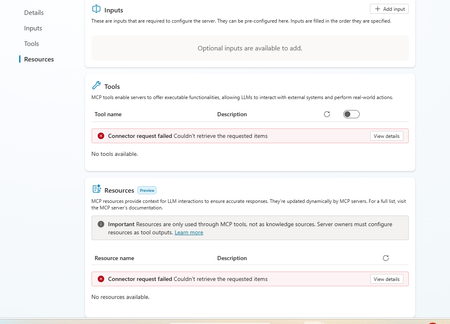
Dataverse mcp is broken in copilot studio
This is really annoying. I am having this experience where dataverse mcp is broken. I recreated the connection and after that the query is returning empty results. Everything was working fine until last week. Is anyone experiencing same problem153Views2likes2CommentsAccepted the new Copilot update from Mac, iPhone, and iPhone and lost my entire Library
Greetings, all. I just accepted the install for a new Copilot update for my three Apple devices, and lost all pages in my Copilot Library. Microsoft promotes the sustainability of the Library storage as their AI continues to evolve and improve. But, really not happy that I've lost all of the documents where my edits to the pages were not covered in a chat conversation. Has anyone else experienced this problem and hopefully found solutions to retrieve the lost pages? I've tried to use Copilot to solve this problem without any success. Thanks, all.28Views0likes0Comments
Copilot Chat Retention vs Memory: What Happens to Chat History Inferences?
How do Chat History inferences behave after tenant retention deletes the underlying Copilot interactions? Microsoft's documentation explains that: Saved Memories persist until explicitly deleted. Chat History personalization creates inferred details. Purview retention policies do not apply to Copilot Memory. What is unclear is the lifecycle of Chat History inferences when the Copilot interactions that originally contributed to those inferences are permanently removed by a tenant retention policy. Example: A tenant has a 60-day retention policy for Microsoft 365 Copilot interactions. Copilot infers user preferences from conversations. The source conversations are later removed due to retention. Does Copilot: Retain those inferred details? Recompute them from remaining conversations? Remove them because the source interactions no longer exist? Understanding this is important because users may experience changes in Copilot personalization without understanding why.58Views0likes1CommentRecent Bug or issue i got for last 3 days when i am using Chat sessions.
Recent Bug or issue i got for last 3 days when i am using Chat sessions after creating New Projects and saving outside chats there. But in New chats when i opened and used attachment to it from Notta Memo it is clearly working its taking transcript and giving Summary and details i asked. Please help if any one faced same issue and you guys got any resolution in fixing this issue. Thanks in advance.21Views0likes0CommentsCopilot Call Delegation Does Not Work with Compliance Recording Applications
Hello, I was able to isolate an issue related to Copilot Call Delegation and compliance recording applications. We have successfully configured Copilot Call Delegation and confirmed that it functions as expected in a standard Teams Phone environment. However, when a compliance recording application is assigned to the user, Copilot Call Delegation no longer works correctly. The Copilot delegate does not join or participate in the call as expected. Has anyone else encountered this behavior? Is there a known limitation, compatibility issue, or recommended configuration when using Copilot Call Delegation alongside Teams compliance recording solutions? Any guidance from the Microsoft product team would be greatly appreciated. Thank you.59Views0likes1CommentUpdate: Root Cause Identified
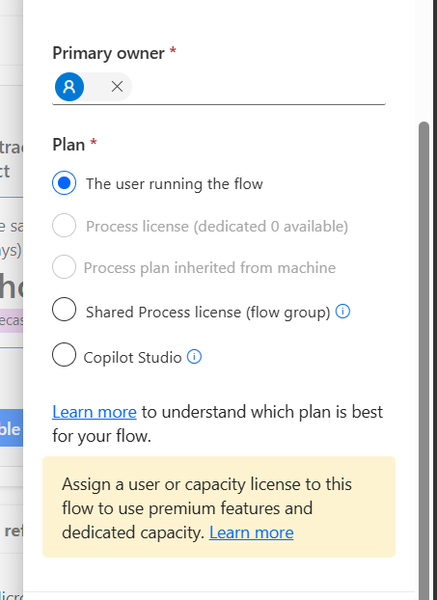
Hi everyone, I would like to share the root cause and solution in case someone else encounters the same issue. The Problem I created several agent flows directly in Power Automate using: https://make.powerautomate.com The flows were configured correctly: The flow starts with When an agent calls the flow The flow ends with Respond to the agent The flow and agent are in the same environment The flow is included in a solution The flow is published and fully functional The flows could be added to an agent and executed successfully. However, unlike flows created directly from Copilot Studio, they did not appear in the Global Tools directory. What I Investigated I verified: Trigger configuration Respond to the agent action Environment consistency Solution membership Publish all customizations Asynchronous response settings Synchronization delays between Power Automate and Copilot Studio None of these were the root cause. Root Cause The issue was related to the workflow Plan. I discovered that: Flows created directly in Power Automate were assigned: Plan = The user running the flow Flows created directly in Copilot Studio were assigned: Plan = Copilot Studio Although the Power Automate flow was fully functional and could be used by the agent, it was not visible in the Global Tools directory. Solution After changing the workflow Plan to: Plan = Copilot Studio the flow immediately appeared in the Global Tools directory. Configuration Location The setting can be found in the workflow properties under: Primary owner → Plan Important Note Based on my testing, changing the Plan to Copilot Studio appears to be a one-way operation and may not be reversible. It may be a good idea to export or save the flow before making the change. Acknowledgements Special thanks to sohnash for reproducing the scenario and providing troubleshooting suggestions, and to Patty_Velasquez for sharing similar observations that helped confirm the behavior. Hopefully this helps others who encounter the same issue. Best regards, Adhonaï KOUKA64Views1like0CommentsFree Copilot Credits for MCTs/ MVPs ?
Hello All The new Copilot Studio experience, powered by the GitHub Copilot harness, requires Copilot Credits for building, testing, and evaluating agents. In contrast, classic Copilot Studio requires Copilot Credits only after publishing. Is there a way for MCTs or MVPs to get Free access to Copilot Credits so they can test agents in the new Copilot Studio experience?93Views0likes1Comment
Copilot in OneNote cannot access content in sidebar (Microsoft 365 Premium)
a { text-decoration: none; color: #464feb; } tr th, tr td { border: 1px solid #e6e6e6; } tr th { background-color: #f5f5f5; } Hello everyone, I'm hoping someone from the OneNote or Copilot team can help with an issue that has prevented me from using Copilot in OneNote for approximately two months despite having an active Microsoft 365 Premium subscription. Issue Copilot can detect that a OneNote page is open, but it cannot access or read the contents of the page. For example, if I open a page named 1Cor4:1-16.onepart or create a brand-new test page, Copilot acknowledges that the page exists but responds with something similar to: "I can see that the file is open, but I cannot access the note contents." As a result, Copilot cannot summarize, analyze, answer questions about, or otherwise interact with the contents of the current page. Environment Microsoft 365 Premium (Personal Subscription) OneNote for Microsoft 365 Version 2608 Build 16.0.20326.20100 (64-bit) Windows Desktop Notebooks stored in and synced through OneDrive Troubleshooting Completed I have already performed extensive troubleshooting, including: Verifying my Microsoft 365 Premium subscription is active Verifying I am signed into the correct Microsoft account Signing out and back into Office and OneNote Confirming notebooks are syncing properly Updating Office and OneNote to the latest version Restarting OneNote and Windows multiple times Creating brand-new notebooks and test pages Testing across multiple days and sessions The issue is fully reproducible on both existing notebooks and newly created notebooks. Microsoft Support Findings I have already worked directly with Microsoft Support. A support technician remotely connected to my computer and reviewed my configuration. They confirmed that Copilot in OneNote should be functioning in my environment. During the support session they performed multiple troubleshooting and repair actions, including uninstalling and reinstalling components, repairing Office, and verifying account and licensing status. Despite all of this, the problem remained unchanged. The technician indicated that the issue appears to be on the Copilot/OneNote side rather than being caused by my local setup. Since they were unable to resolve it, they recommended that I post here in the Microsoft Tech Community to seek further escalation and visibility. Questions Has anyone else experienced an issue where Copilot can see the currently open OneNote page but cannot access the page contents? Is there a known service-side, provisioning, or feature-rollout issue that could cause this behavior? Is there a way to escalate this directly to the OneNote or Copilot engineering teams? At this point, I've been paying for the feature for roughly two months and have not been able to use the core OneNote Copilot functionality at all. Any assistance or guidance would be greatly appreciated. Thank you.
Copilot Notebook features missing
I think it was back in March or April that improved features for Notebooks in Copilot were added as General Availability: the Audio overview, Mind Map and others. I have Copilot Premium, can and have created a notebook, but those features are greyed out for me. I'm pretty sure I have enough content (3 files with approximately 500 pages of content) in the Notebook but when I click those buttons, I see a message: More in OneNote Power BI Notebook isn't available here yet, but coming soon. For now, you can open it in OneNote. Those features are in OneNote, but not in Copilot. What's wrong, and what can I do to get them working in Copilot Notebooks? Thank you for your answer116Views0likes1Comment
What is the best file format for an AI agent knowledge base?
This is a best practice sharing the best format for an agent and show you why you should convert your PPT, PDF, WORD into a TXT markdown. I had an issue with my agent, time taken to answer was too long, and usually we spend a lot of time asking: What is the best prompt? Why is my agent slow? Why does retrieval sometimes work and sometimes fail? How can I improve answer quality? But I realised I was asking another question much less often: What is actually the best file format for the knowledge base? PDF? Raw text? Markdown? Pre-chunked text? Semantic sections? Context-enriched text? And more importantly: How much does the format alone affect agent performance? I tried to find a quantified benchmark answering this specific question, with the same agent, same source knowledge and same questions, but different knowledge representations. I couldn't find one that really answered what I wanted to measure. So I decided to run the experiment myself on a real case. My first exploratory tests were already surprising: depending on the representation, the agent could be significantly faster and more accurate, despite working from the exact same source information. So I decided to push the test further. My objective I want to identify, without assumptions and based on actual evaluation data, how a long document should be prepared for an LLM knowledge base so that the agent can retrieve, understand, ground and answer from it as reliably as possible. I focused on five dimensions: Answer quality Retrieval reliability Source grounding / citations Execution time Robustness across single-turn and multi-turn questions The broader question I'm trying to answer is: How should we structure knowledge so that an LLM can retrieve and use it as reliably as possible? The test case I deliberately chose a document that isn't particularly friendly for RAG: a 46-page European regulation, https://eur-lex.europa.eu/eli/reg/2011/1169/oj?locale=fr, on the provision of food information to consumers. The information is distributed across articles, definitions, exceptions, annexes, tables, numerical thresholds and cross-references. That makes it useful for testing retrieval: answering correctly often requires finding a very specific piece of information while preserving enough context to understand how it applies. I used the native PDF as the baseline and created 6 additional knowledge-base representations of the same document: Raw TXT Markdown Chunk-ready TXT RAG-oriented units Semantic TXT Contextual TXT One rule: same knowledge, same agent, same instructions, same questions. Only the knowledge representation changes. The benchmark I used two evaluation sets: 42 single-turn questions testing broad coverage of the document: direct facts, thresholds, exceptions, annexes, lists and cross-references. 5 multi-turn conversations containing 13 questions, to see what happens when a user asks a question and then follows up with things like: "And in this case?" "What are the exceptions?" "And for dietary fibre?" This gave me: 47 evaluated test cases / 55 actual questions per format Across all 7 formats: 329 evaluated conversations 385 user questions executed First results Metric Native PDF Best structured representation Overall pass rate 66.0% 85.1% - Contextual TXT Best single-turn score 69.0% 88.1% - Chunk-ready TXT Multi-turn benchmark 40% 80% - Contextual TXT Multi-turn execution time 14m24 5m54 Total benchmark time 44m31 24m49 The quality gap was already substantial: 66.0% → 85.1% That's +19.1 percentage points while keeping the underlying knowledge unchanged. I also saw a major difference in execution time. On the multi-turn test: 14m24 → 5m54 That's approximately 2.4× faster. Across the complete benchmark: 44m31 → 24m49 Around 44% less execution time. These timings represent the complete agent evaluation pipeline, so they shouldn't be interpreted as pure LLM inference latency. But the difference under identical test conditions is large enough that I want to understand it better. Findings There wasn't one format dominating every benchmark. Chunk-ready TXT scored highest on independent questions: 88.1%, while Contextual TXT performed better across multi-turn conversations and finished with the highest overall score. That may suggest that the way we optimise a document for isolated retrieval isn't exactly the same as the way we should prepare it for conversational retrieval. In the contextual version, I tried to make every section understandable when retrieved independently by keeping useful information around it: Source references Section context Retrieval cues Relevant cross-references For regulatory documents, this seems particularly important. A numerical value retrieved alone can be meaningless without knowing which rule it belongs to, under which conditions it applies, and whether another article contains an exception. Where I am now This remains an exploratory benchmark: One document One domain One agent setup One evaluation framework One run per configuration There are plenty of things I still want to test: repeated runs, retrieval-level evaluation, token consumption, larger knowledge bases, other document types, chunk sizes, overlap, contextual headers, and more. But these first results already convinced me that the preparation of the knowledge base deserves much more attention when evaluating an agent. We often spend hours refining instructions while the same information may behave very differently depending on how it reaches the retrieval layer. Next step I'll share the prompts, knowledge-base formats and evaluation methodology on GitHub so the experiment can be reproduced and challenged. I'll keep enriching the repository as I test new formats, improve the evaluation set and add new results. If people here have ideas, edge cases or formats worth testing, I'd genuinely like to include some of them in the next iteration. What would you test next?183Views1like1CommentCreated agents are shown twice in "Shared with you"
Hi all I've noticed for myself, and for several of our users, that when agents are created in Copilot Studio, and shared. Each agent is shown twice, when people access their "Shared with you" in Copilot. Why is that, and does anybody else experience this?75Views0likes1Comment






Events
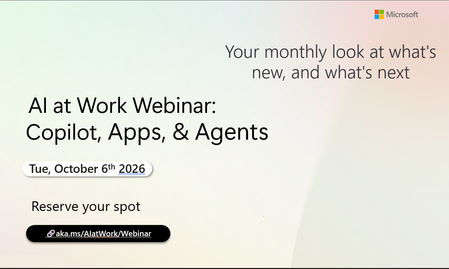
Register Here - https://aka.ms/MTC/CopilotRoadmapEventOct
AI at Work Webinar: Copilot, Apps, & Agents — Want to stay on top of everything happening across Copilot and AI-powered business applicatio...
Tuesday, Oct 06, 2026, 09:00 AM PDTOnline
0likes
1Attendee
0Comments
Recent Blogs
- Bring READMEs, wikis, logs, transcripts, and rich-text files into Copilot NotebooksAug 13, 20266.9KViews4likes4Comments
- Now the LegalZoom agent works inside Microsoft 365 Copilot so a legal task no longer means stepping away from your work.Aug 12, 20261.1KViews0likes0Comments