office 365
738 Topics
Outlook for Mac missing ToDo
Since a recent update, our Mac clients don't have any way to view ToDo or Tasks in the New Outlook. The tasks don't show in the My Day/Task pane, nor do we have a ToDo Icon ion the left sidebar like users of New Outlook on Windows do. Accessing OWA is now the only way for users to see tasks/flagged emails, but very much not the preferred solution since there IS a desktop client which should do that. Microsoft® Outlook for Mac Version 16.105 (26011018) This is a serious usability issue, is this really a design decision or some sort of an issue?5.9KViews16likes10Comments
Outlook web Inbox button and others not working
As from today, the INBOX button or any other don't work; clicking on it won't take me back to the inbox view. It only happens when I open an email or conversation of that particular folder and then want to return to the Inbox or that folder's view. I have to click on another button, like DRAFTS, and then INBOX again to make it work. It happens in both Chrome and Firefox, both with latest updates. EDIT: As for 10 March the problem seems to be fixed.23KViews16likes66Comments
Automatic Replies in Outlook - Insert Image n/a - PLEASE BRING IT BACK!!!
We use O365 for our business needs and recently came to learn that the insert image function is no longer available. As a company that uses an image to display our company logo, address and tagline in our e-signatures its is extremely frustrating to not be able to insert an image in our Automatic Replies when our staff are on vacation and want to create an Out of Office message. I have troubleshot this issue with Microsoft support and was given instruction to use a rule as a work around however this is NOT a good recommendation to what we believe is a HUGE problem since using a rule will send out of office notifications to every single email and not just one email to each sender as is done with notifications when using Automatic Replies. Please take note that we were previously able to insert images in automatic replies and now its gone! Not sure why Microsoft allows you to insert an image when creating an e-signature and even allows you to insert an image in Rules but not in Automatic Replies. Please review and consider bringing back insert image into Automatic Replies! With Thanks & Appreciation, Sonja Cicchetti180KViews8likes28Comments
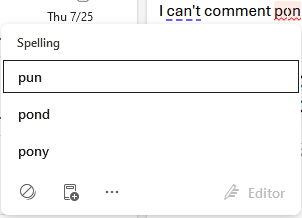
Outlook 365 spell check prevents manual editing of errors
When creating a new email in the online version of outlook, spellcheck recently started blocking manual editing of misspelled words. For example, when typing "on", I accidentally pressed the "p" key and typed "pon", which corrects to "pun", "pond" or "pony". I used to be able to disregard the suggestions and just manually fix the word, but now selecting the word locks you into the popup bubble and typing does nothing. You need to select before or after the misspelled word and arrow key your way into the misspelled letter to correct. Turning off spellcheck entirely eliminates the full functionality and I don't want that.3.3KViews7likes14CommentsIntroducing Scheduling poll in Outlook!
Announcing FindTime as a native feature in Outlook! We are excited to introduce Scheduling poll, bringing the capabilities of FindTime as a native feature in Outlook. Scheduling poll is currently available to all users of Outlook on the Web and Mac. It is available to Classic Outlook for Windows users in Current Channel, Monthly Enterprise Channel, and Semi-Annual Enterprise Preview. It is now available to Classic Outlook users on the Semi-Annual Enterprise Channel (Version 2308) as of January 2024, and will be available to the Semi-Annual Extended Channel later in June 2024. Users who do not have access to Scheduling Poll yet can either switch to the Current Channel, Monthly Enterprise Channel, or Semi-Annual Enterprise Preview in Classic Outlook for Windows; or they can use Outlook on the Web to create polls. Please go here for more details on 'Scheduling poll' feature. What’s the same As we bring Scheduling poll directly to Outlook, users can expect to have a similar set of features and workflow as the existing FindTime add-in. What’s different Scheduling poll uses the same modern design and framework we use in the updated Outlook on the web and the new Outlook for Windows, making it easier to maintain and enhance for the future. Important: What is happening to the FindTime add-in? The FindTime add-in will stop working and be removed from Outlook for Windows, Web and Mac. Scheduling Poll is the replacement feature, which is built directly into Outlook clients for all users as a native feature. When this will happen: You can expect the FindTime add-in to stop working as early as December 11, 2023. We will start making the change on December 11, 2023, and expect to complete it by the end of that week. How this will affect your organization: Once the change has rolled out users will need to utilize Scheduling Poll as a replacement of the FindTime add-in. When will the new Scheduling Poll feature be available? Currently, Scheduling Poll is available to all customers worldwide for Outlook on the web and the new Mac Outlook, except for those in GCC High. It is also available to Classic Outlook for Windows users in Current Channel, Monthly Enterprise Channel, and Semi-Annual Enterprise Preview. It will become available to Classic Outlook users on the Semi-Annual Enterprise Channel in January 2024, and to the Semi-Annual Extended Channel in June 2024. What will happen to my current user experience? When your tenant gets the update, the native feature will be added to their Outlook ribbon replacing FindTime (see more details to access Scheduling Poll here). Users do not need to do anything, this change will happen automatically, and users will be able to keep creating scheduling polls as easily as before. FindTime Deprecation FAQs 1. What does the deletion of https://findtime.microsoft.com/ mean? A. This webpage provides information about how to use the FindTime add-in and given that we are replacing it with Scheduling Poll, we are deleting this page. When users try to access this page post 12/12/2022, they will be redirected to the polls dashboard - https://outlook.office.com/findtime/dashboard. The add-in itself should still function as is. It will not be deprecated until Scheduling Poll is released to all supported Outlook apps - in Outlook web, Mac and Win32. 2. What do I need to do to transition from FindTime to Scheduling Poll? A. Nothing! When Scheduling poll is rolled out to your tenant, the entry point to the FindTime Add-in will be hidden and you should see a button to open the Scheduling poll pane in the Outlook compose ribbon instead (more details here). We have made UX updates to help improve the experience. The functionality should remain the same and you should be able to create new polls just like before. 3. What happens to my existing polls? A. All the polls you created through the FindTime add-in should remain active and actionable through the voting page and the polls dashboard even if the add-in is deprecated and replaced by the Scheduling poll UI. The only thing that has changed is the way you create a poll.Solved318KViews6likes125Comments
New Outlook autocompletes an address that is no longer in use and I can't seem to delete it
Topic says it all, really. Client of mine has a new company and when I type the start of his name Outlook autocompletes for his old company even though it is no longer in my address book and his contact is updated with new information. I seem to recall there used to be an "x" that would let me delete incorrect autocompletes, but I can't find anything and Copilot has no useful suggestions. The autocomplete comes up in both the web version of Outlook--I basically never use this--on my PC which I primarily use, and IOS.3.8KViews5likes4Comments
Set-MailboxMessageConfiguration cmdlet has no effect in Outlook on the web
I apologize if this is not the correct forum. We have been using the Set-MailboxMessageConfiguration cmdlet to update our users' email signatures in Outlook on the web. Suddenly, and with no change on our part, the cmdlet has started to have no effect. Any guidance on the matter would be greatly appreciated. This bug has been reported https://github.com/MicrosoftDocs/office-docs-powershell/issues/8537 and https://stackoverflow.com/questions/69764573/change-signature-in-outlook-web-owa-with-powershell and unfortunately there has been no guidance whatsoever despite this affecting our Production users. Thank you in advance!3.3KViews5likes1CommentNew Outlook: "Changing the ImapRemoteServerInfo is not allowed" after host migration
Hi everyone! I've migrated my domain/mailbox from one IMAP host to another in May. It cannot be added to New Outlook for Windows — fails instantly with INVALID_CREDENTIALS INTERACTION_REQUIRED, even when I deliberately enter a wrong password (so it's failing before authentication is even attempted). Using DevTools (olk.exe -devtools), the Network tab shows the real rejection from Microsoft's backend: Changing the ImapRemoteServerInfo is not allowed. Attempted to change it from imap.olddomain.sk to imap.newdomain.sk So New Outlook has a cloud-mailbox / connected-account shadow record for this address, pinned to the old host from a previous add attempt, and the backend refuses to update it. What I've confirmed: Webmail and a second mailbox on the same domain/host both work fine → not credentials, not the host. The account does not appear in Settings → Accounts (so I can't use "Remove from all devices" which worked on my first account). It's on no other device or client. App reset didn't help (record is server-side, not local). It's been ~7 weeks, so any 30-day inactivity purge hasn't cleared it How do I get this stuck cloud-mailbox / connected-account record purged when it isn't attached to any removable account? Is there a way to force it, or does this need Microsoft backend action?2.2KViews4likes42CommentsNew Outlook Working Offline Phase 1: Rolled Out with Limitations
1/12/2025 Update: Microsoft has released several offline functionalities for Phase 1. Watch the video for details. Video: https://youtu.be/qzHfnlfhuEw?si=1hlWaykwl00ojPp0 All users will have access to the "first set" of Working Offline capabilities for the New Outlook for Windows. This feature will allow you to VIEW your mail, calendar events, and contacts even when you're not connected to the internet since they will be stored on your device. You can still perform important actions on your mail, such as flagging, moving, deleting, and composing new messages, to ensure your productivity remains uninterrupted even when you're offline at the airport or home office. Download the list of Offline Availability and Unsupported Features as of January 2025. Microsoft Outlook's Offline: Features Availability » TRACCreations4E Archived Resources: July 2024: Offline Phase I is rolling out and should reach worldwide by the first week of August. This video covers what to expect and the required settings for Offline. Video: https://youtu.be/a9NmCLCmdak April 2024 Video - Previous Status: https://youtu.be/Mo5FaFnQPQ8?si=huoXQgBqKTBC7muF #traccreations4e #newoutlook84KViews4likes54Comments
365: navigation bar change to the far left - to revert just switch off "coming soon" button
This makes absolutely NO sense at all. Recently clicked the coming soon button to on, then spent the next hour trying to figure out how to move/adjust the navigation pane. It gets moved to the far left, with a bunch of wasted space under it. And no options to move it, just stuck there. Is UI design team now smoking weed on the job? Drinking maybe? Both? I can't even comprehend the meeting where someone said this is a great idea, and team all nodded in agreement. At LEAST give us the option to move it around?16KViews4likes11Comments