mac
712 Topics
Legacy Outlook on Mac
I use Office 2024 Home & Business for Mac with a work Microsoft 365 / Exchange Online mailbox. Before installing Office 2024, I used Legacy Outlook. The option to revert to Legacy Outlook is now missing. Is there any supported way to restore the previous Outlook for Mac interface while keeping my Office 2024 license and existing mailbox data? I really don't like this layout.
Word corruption
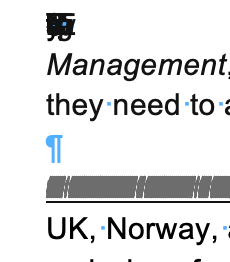
I am using Microsoft 365 on Mac running Tahoe 26.3.1. I downloaded a Google document from a client as a .docx Word document. This is something I do often. My client is also using a Mac. The Word document has corruptions in it, full lines of text are appearing as lines (like a barcode) and there seem to be letters and symbols stacked up on top of each other. Screenshots attached. I have tried saving as a .doc Word document but the corruptions are still there. If I select all of the text and change the font, the corruptions are still there. I copied the text into Text Edit and converted to plain text. The corruptions disappear in Text Edit but so does any text that was there, sentences are incomplete. If I copy and paste this plain text into a new Word document, the corruptions reappear. If I import the Plain Text into InDesign, the corruptions reappear. If I copy and paste the plain text into InDesign, the corruptions reappear. This strikes me as very odd because as far as I know Plain Text should remove any corruptions. My client says that they see no corruptions in the Word doc or in the Plain Text doc that they created. But when they send these docs in email, the corruptions are still there. I spent 4 hours with Microsoft Support yesterday trying to figure out the problem and when they couldn't figure it out, they just closed and left the chat.... I would love to let my client know what they can do to fix this on their end so that we can move forward with the project. Any suggestions are appreciated!152Views0likes4Comments
AutoUpdate fails trying to update old V3.11 of AutoUpdate on MacOS Sequoia 15.8.1
I have the latest version of AutoUpdate (4.85) installed on my Mac. For several years and versions of MacOS, every time AutoUpdate runs it fails to update AutoUpdate Version 3.11 with a "Check Error..." or Download error. I've searched for solutions but only find how to totally disable AutoUpdate. I want to remove whatever remnants of V3.11 are somewhere on my system so I can run the latest AutoUpdate without this failure. Any suggested fixes...? TIA163Views0likes2CommentsMac OS 26.7 and M365 Office Applications- upload block errors only on Office applications.
Mac OS 26.7 and M365 Office Applications- upload block errors only on Office applications. When making changes to an Office document like Excel &/or Word using M365 E5 license since September 19th, I have been getting a message stating "Upload blocked" in autosave, the file is being saved to a OneDrive connected services which has a capacity of 5 tb, having a total of about 860,000 items, about 3.2 TB, but the selected items to sync from the OneDrive application is about 180,000. This happens sporadically to only Office application files such as MS Word and Excel. The syncs in the bar menu of OneDrive all show sync and backed up with no errors. As per MS a M365 SharePoint library can hold 30 million items, and view is limited to 5000 items, and I have such libraries with about 20,000 items and I can access them online and have set views to show items in lists less than 5000. MS also states that OneDrive Business can sync up to 300,000 items only even if the capacity is 5 TB and the number of total items cannot exceed 300,000 items. (1) Does anyone know why a OneDrive storage which leases 5tb storage space can only keep 300,000 items, for it to function? (It’s pointless to lease 5tb and be restricted by number of items). (2) Sync is working for PDFs and screenshots but only Office applications are having problems syncing at times or saving with autosave with versions. When I researched with CoPilot Premium running several terminal commands it concluded it is a MS Office bug and MS Support cannot solve the problem despite opening several tickets. The agents as L1 will scope, then it goes to the backend team called “ Escalations” but there remains no solution for crippled services since past 11 days. OneDrive sync logs were provided as well as requested but no followup. (3) If these are hard limitations on M365 to save maximum of only 300,000 items has anyone considered any other cloud services to replace OneDrive for Business? Has anyone else experienced this in the past? Can anyone offer a solution for this? If OneDrive office applications are dysfunctional then how does one operate AI agents or any automation. Any questions please ask. Thank you.249Views0likes4CommentsClaude Add-in Error in Excel
Hi Microsoft Community, I'm having an issue with the Claude for Microsoft 365 add-in in Excel for Mac. Environment: Mac Microsoft Excel desktop for Mac Personal Microsoft account (not a work or school account) Claude for Microsoft 365 add-in Excel for the web Issue: When I try to add or use Claude in the Excel desktop app for Mac, I receive this error: “Add-in Error: You don't have permission to use this add-in. Contact your system administrator to request access.” The important point is that I am using a personal Microsoft account, so there is no organizational administrator managing the account. What I've confirmed: The Claude add-in works successfully in Excel for the web using the same Microsoft account. The problem occurs specifically in the Excel desktop application on Mac. This appears to point to an issue with the Mac Office client, add-in authorization, or the Office add-in catalog rather than my Claude account or Microsoft account permissions. I've already tried closing and reopening Excel, but the permission error remains. Has anyone encountered this with Claude for Microsoft 365, or with other Office add-ins, on Excel for Mac? In particular, is there a known issue with personal Microsoft accounts and Office add-ins on the Mac desktop client? Is there a way to reset the add-in/account authorization without reinstalling Office? Thanks.110Views0likes0Comments
Error Message 0x0 when trying to re-install Office 2019 on Mac Tahoe
Hello, I have a genuine Office Home & Student 2019 for Mac license, still listed in my Microsoft account under Services & Subscriptions and was added on March 30, 2022. Microsoft Support confirmed that my Office Home & Student 2019 license is genuine, valid, and should still be activatable. However, activation fails with error 0x0 immediately after entering my email. And the support argues that they ended their support years ago, that I should rather buy Office 2024. What makes me think this is not a local Mac issue is that Office stopped activating on my previous Mac (Big Sur) a few months ago, before I replaced it. I recently bought a new Mac and the exact same problem persists. My configuration: - MacBook Air M4 - macOS Tahoe - Office 16.78 (installed using the Microsoft-provided installer) - Office Home & Student 2019 perpetual license What I have already tried: - Reinstalling Office completely - Installing version 16.78 specifically recommended by Microsoft's support - Running the official Microsoft License Removal Tool - Removing Office containers and activation data - Restarting the Mac - Signing in with the Microsoft account that owns the license At this point, I'm wondering whether this may be related to Microsoft's activation services for older perpetual Office 2019 licenses rather than a problem on the Mac itself. Has anyone else seen error 0x0 during activation of Office 2019 for Mac recently? Any clues? I wonder if there’s a chance to make pressure also, as Microsoft sells license that are supposed to be perpetual… Thank you113Views2likes0Comments
Mac: OneDrive Couldn't Start: Please restart your computer and try again
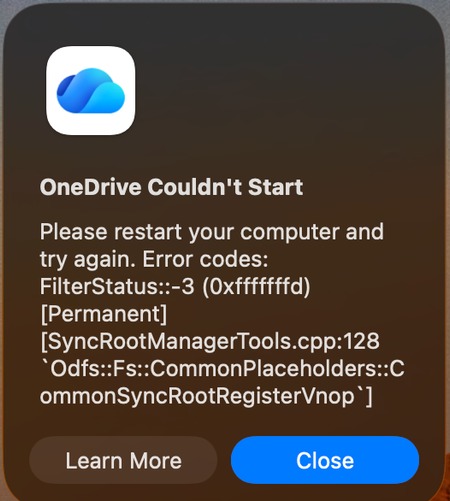
When OneDrive updated on 9/11, with build 26158.0816, I started to get this error: OneDrive Couldn't Start: Please restart your computer and try again. Error codes: FilterStatus::-3 (0xfffffffd) [Permanent] [SyncRootManagerTools.cpp:128 `Odfs::Fs::CommonPlaceholders::CommonSyncRootRegisterVnop`] I have powered off my Mac and rebooted. Restarting OneDrive does nothing. It keeps giving me this error and as a result, I also cannot live edit docs using the thick clients (Word, Excel, etc). Files I have modified with them are stuck on my Mac. I am looking for tips. Please do not ask me to unlink/de-register all of my Onedrive sync'd shares.6.3KViews13likes29CommentsMy printers don't work after I reinstalled Microsoft 365
I recently had to reinstall Microsoft 365. The software now works quite well, but I can't print a document in Microsoft Word or from anywhere in Windows 11. I have two printers: an HP Envy Inspire 7900e AIO and a Brother HL-L2420DW. Both printers worked before the reinstall, and both printers work without any problems on the Mac side of my laptop. (I use a Mac with Parallels to run Windows 11.) When I try to print from MS-Word in Windows 11, I select a printer from the list in the Print dialog. Then I have to wait for a printer connection. A few seconds later, I get a notice that the printer is "in an error state." My first thought was that I'll have to reinstall my printers in Windows 11, but I went looking for help. An AI helper I've consulted a few times walked me through a labyrinth of steps to fix the problem. The steps involved using the Command prompt or PowerShell (Administrator), but so far I've not had any luck. Seems to me I'll do as well by simply removing and reinstalling the printers. But that thought brings up more questions. I installed both printers using the manufacturer's instructions. For example, the HP AIO I installed with the full-feature software. My question: Do I need to do anything special before I reinstall the printers? Do I simply go to Printers & Scanners and delete my printers and then reinstall them? Also, will any of this affect these same printers on the Mac side?258Views0likes2Comments