mac
707 Topics
Mac: OneDrive Couldn't Start: Please restart your computer and try again
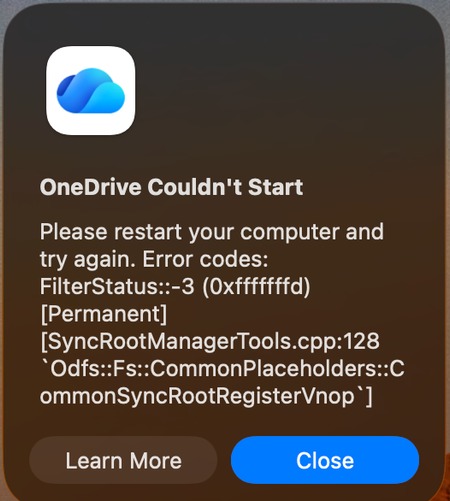
When OneDrive updated on 9/11, with build 26158.0816, I started to get this error: OneDrive Couldn't Start: Please restart your computer and try again. Error codes: FilterStatus::-3 (0xfffffffd) [Permanent] [SyncRootManagerTools.cpp:128 `Odfs::Fs::CommonPlaceholders::CommonSyncRootRegisterVnop`] I have powered off my Mac and rebooted. Restarting OneDrive does nothing. It keeps giving me this error and as a result, I also cannot live edit docs using the thick clients (Word, Excel, etc). Files I have modified with them are stuck on my Mac. I am looking for tips. Please do not ask me to unlink/de-register all of my Onedrive sync'd shares.5KViews11likes29CommentsAutoSave disabled when opening SharePoint-synced files from Finder after macOS Tahoe 26.6 update
Files stored in SharePoint Online and synchronized locally through OneDrive are opened as local documents when launched from Finder. Office applications display "Saved to my Mac" and AutoSave is turned off by default. However, opening the exact same files through Word/Excel > Open > Sites, or via SharePoint "Open in Desktop App", correctly identifies them as cloud documents. In that scenario, AutoSave is enabled and collaboration/version history features work as expected. Troubleshooting already performed: OneDrive reset and re-linked SharePoint library re-synced Signed out and back into both Office and OneDrive Removed Microsoft credentials from macOS Keychain and re-authenticated Recreated local OneDrive sync relationships Verified OneDrive File Provider extensions are enabled Verified Office applications and OneDrive are fully up to date Tested with newly created files and existing files Tested "Always Keep on This Device" with no change in behavior The issue appears to be specific to the Finder-to-Office launch path after upgrading to macOS Tahoe 26.6. Before upgrading to macOS Tahoe 26.6, opening the same SharePoint-synchronized files directly from Finder correctly preserved cloud document identity and AutoSave was enabled as expected. I discussed this issue in detail with Apple Support, but they quickly dismissed it, saying that the problem is not on Apple's side and that I should contact Microsoft instead.2.6KViews11likes27Comments
Mac Teams Client - Main Teams window stops displaying after a few days
I have been running Teams client on my Mac for over a year now, through various updates and versions both of the Teams client and of MacOS. I'm currently on MacOS 10.14.6 and Microsoft Teams Version 1.3.00.4460. What I see regularly is that the main Teams window just stops being accessible. Usually I have it running all the time in the regular display mode - not full screen - and can alt-tab switch between Teams and other apps as normal. Then, after a while, I suddenly find that when I alt-tab to Teams, the app window no longer appears. The menubar shows the Teams menu, and I can go through the menu OK, but most options have no effect. 'About Microsoft Teams' does nothing. Window > Bring All to Front does nothing. Window > Minimize does nothing, etc. The Help options mostly work, but that's about all. The only solution is to Quit Microsoft Teams and restart the app. It's a real pain. I frequently end up missing messages because of this. Has anyone else encountered this issue?22KViews10likes46CommentsMicrosoft To-Do for Mac is here!
Today, we’d like to announce the arrival of a new family member—that’s right, the moment many of you have been waiting for is here—say hello to the Mac app. Can’t wait to get started? Download it from the Mac App Store now, and then read on to find out more.126KViews8likes29Comments