private messaging
71 Topics
Issue with "Edit with Paint 3D" Functionality
I have recently encountered an issue with Paint 3D. When I try to edit a picture using Paint 3D by right-clicking on the photo and selecting "Edit with Paint 3D," I am unexpectedly prompted to choose an app to open the file instead of Paint 3D launching directly. Has anyone else experienced this problem, or does anyone have any insights on why this might be happening and how to resolve it? Thank you for your assistance! Following was done: Reinstall Paint 3D Open Microsoft Store: Go to the Start menu and open the Microsoft Store. Search for Paint 3D: In the search bar, type "Paint 3D." Reinstall Paint 3D: If the app is installed, you can click "Open." If it’s not installed or you suspect it might be corrupted, click "Install" or "Get" to reinstall it. Ensure Paint 3D is Enabled Open Settings: Press Win + I to open Settings. Go to Apps: Navigate to "Apps" and then "Apps & features." Find Paint 3D: Scroll through the list of installed apps to find "Paint 3D." Ensure It’s Enabled: If you find it, make sure it’s not disabled. If it is, re-enable it. Associate Image Files with Paint 3D Manually Right-click on the Image File: Right-click on an image file. Select Properties: Choose "Properties" from the context menu. Change the Default Program: In the Properties window, click the "Change" button next to "Opens with." Manually Find Paint 3D: Click "More apps" if Paint 3D is not listed. Scroll down and click "Look for another app on this PC." Navigate to C:\Program Files\WindowsApps and look for the Paint 3D executable. Note that you may need administrative permissions to access this folder. Use the Default Apps Settings Open Settings: Press Win + I to open Settings. Go to Apps: Navigate to "Apps" and then "Default apps." Reset Default Apps: Scroll down and click "Reset" under "Reset to the Microsoft recommended defaults." Change Defaults Manually: After resetting, try setting Paint 3D as the default app for your image files again. Check for System Updates Open Settings: Press Win + I to open Settings. Go to Update & Security: Navigate to "Update & Security." Check for Updates: Click "Check for updates" and install any available updates. Sometimes updates can fix issues with system apps like Paint 3D. 1. Check if Paint 3D is Installed Correctly Open PowerShell as Administrator: Press Win + X and select "Windows PowerShell (Admin)." Check Installation: Enter the following command to check if Paint 3D is installed: powershell Copy code Get-AppxPackage *Microsoft.MSPaint* | Select Name, PackageFullName If Paint 3D is listed, it’s installed. If not, proceed to reinstall it. Reinstall Paint 3D: Uninstall Paint 3D using PowerShell: powershell Copy code Get-AppxPackage *Microsoft.MSPaint* | Remove-AppxPackage Reinstall from the Microsoft Store: Open the Microsoft Store, search for "Paint 3D," and install it. 2. Reset Paint 3D Open Settings: Press Win + I to open Settings. Go to Apps: Navigate to "Apps" > "Apps & features." Find Paint 3D: Scroll down and select "Paint 3D." Advanced Options: Click on "Advanced options." Reset: Click the "Reset" button. This will reset Paint 3D to its default state. 3. Create a New User Profile Open Settings: Press Win + I to open Settings. Go to Accounts: Navigate to "Accounts" > "Family & other users." Add Someone Else to This PC: Click on "Add someone else to this PC." Create a New User: Follow the prompts to create a new user account. Log In: Log out of your current account and log in with the new user account. Check if Paint 3D works correctly in the new profile. 4. Repair Windows Using DISM and SFC Open Command Prompt as Administrator: Press Win + X and select "Command Prompt (Admin)" or "Windows PowerShell (Admin)." Run DISM: Enter the following command to repair the Windows image: powershell Copy code DISM /Online /Cleanup-Image /RestoreHealth Wait for the process to complete. Run SFC: Enter the following command to check and repair system files: powershell Copy code sfc /scannow Wait for the process to complete and restart your computer.29KViews1like11CommentsWindows 11 Insider Preview 10.0.22623.891 (ni_release) - Download error - 0x800f0806
Hi, It has been weeks of trying to move past this error using the native troubleshooter, Microsoft Support and calling for help via the Insider feedback reporting tool. I have not been able to move past this. Can someone help or point me toward help here, please? Thanks Theo5.4KViews1like2CommentsMessage counter and Pinned conversation
Two questions: 1) Although I have no unread PM's, I can't get rid of the message counter in my avatar that suggests that I do have one. Can delete all messages (incoming and outgoing), but the counter still says I have one unread message. 2) When I'm logged in and navigate to the Excel space, I have a "Welcome to your Excel discussion space" by Cuong, pinned at the top of the conversation list. That's fine. The next item is a "regular" conversation from October 2020 that I must have read and perhaps, accidentally, marked as "to be pinned to the top of my space". Don't even know how to do that. It does not appear when I go the Excel page without logging in. Would like to get rid of the second pinned conversation. Can't find any setting that has an effect on either of these issues. Suggestions on how to fix them?3.5KViews2likes11Comments
Checking the connection to Microsoft. This might take a while.
I have WDS and MDT configured to deploy windows 10 to Lenovo ThinkPad 15 Gen2 along with network driver and all the things needed. Due to a minor misconfiguration right network drivers were not being injected. But when we are doing the same windows 10 installation through Bootable USB, we won't be including any drivers in that, but that still works. What I don't understand is the whole WDS deployment happens on the private network which doesn't need internet which I am being mandated for the process after MDT GUI has done its work the laptop restarts and saying "Checking the connection to Microsoft. This might take a while." as the landing page and getting stuck there for hours not letting me go any further. Please help me understand the part where it says it is trying to connect to Microsoft and getting stuck meaning it is trying to connect to internet when there is no need for that.2.7KViews0likes4CommentsAccess Denied
Hello community!! I have a problem accessing the messages I receive. I have 26 notifications of received messages, but when I click it opens a page with the following message: Access Denied You do not have sufficient privileges for this resource or its parent to perform this action. Click your browser’s Back button to continue. Does anyone know why I don’t have access?”Solved1.8KViews3likes2Comments
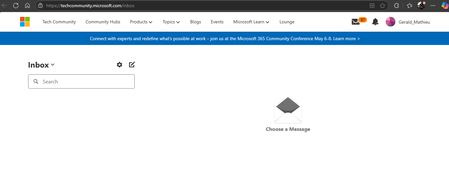
Inbox / Private messages broken on my profile
Hi, I'm trying to get informations regarding a case I opened 2 months ago and they are sent through private messages I can't open. I see that I have 97 unread messages but when I click on the icon, it just open the Inbox, try to load something for a while then just give up, leaving me there. Before someone tries to tell me that this is a cookie or cache issue, it is happening on several browsers, using normal or InPrivate session and on multiple computers so the problem is not there. After searching, it seems that I'm not the only one having this issue. Could someone have a look at it so I can reply to the people from Microsoft asking me informations in PM and not forcing me to ping them on LinkedIn? Kr, Gérald1.7KViews7likes27Comments