office 365
20474 TopicsFeedback to users who report phishing
Hi, is it possible to create a power automate flow to find submissions from users and as soon as MS has added a verdict to a submission as real phish send a notification back to the user who has reported it? Trying to figure out what is needed for such integration and build a flow but I am stuck. Anyone who has built that and like to share learning?815Views0likes1CommentExcel Challenge - Pivoting poorly structured data
This is from an ExcelBI challenge. I thought it may be worth while posting my solution here as a demonstration of modern Excel methods. Challenge Like many of such challenges, the natural solution approach is to use BYROW but that creates the usual 'array of arrays' error. Solution: Gradually I am moving to a point at which I have no formulas showing in the workbook other than calls to Lambda functions. In this case, the worksheet formuloa is = PIVOTBYCATEGORYλ(OrderTbl) The function works row by row apportioning the amounts against the listed categories PIVOTBYCATEGORYλ // Groups and pivots table by category = LAMBDA(table, LET( normalised, BYROWλ(table, APPORTIONλ), // Identify fields from normalised table dimension, TAKE(DROP(normalised,,1),,2), category, TAKE(normalised,,1), partCost, TAKE(normalised,,-1), // Pivot by category return, PIVOTBY(dimension, category, partCost, SUM,,0,,0), return ) ); The function APPORTIONλ divides the amount between categories so each record within the source data returns a number of rows APPORTIONλ // Splits by category and assigns costs = LAMBDA(record, LET( category, TOCOL(REGEXEXTRACT(INDEX(record,4),"\w+",1)), amount, INDEX(record,3) / COUNTA(category), year, YEAR(INDEX(record,1)), region, IF(LEN(INDEX(record, 2)), INDEX(record, 2), "Unknown"), broadcast, B∕CASTλ(HSTACK(region, year, amount), category), return, HSTACK(category, broadcast), return ) ); /* FUNCTION NAME: B∕CASTλ DESCRIPTION: Broadcasts the terms of a vector over the shape of a second array */ B∕CASTλ = LAMBDA(vector, array, IF({1}, vector, array)); The key to making the formula work is the function BYROWλ that I wrote to generalise the inbuilt but over-restrictive BYROW function. The PIVOTBY function returned the required crosstab from the normalised data arraySolved218Views2likes7CommentsOffice v2508 feature update (new vbe7.dll) breaks library compatibility with LTSC VL versions
Since the Jan 2026 updates, some `accde` or `mde` libraries built with the semi-annual enterprise channel (v2508, Build 19127.20484) can no longer be used with the volume-licensed version of Office LTSC (tested with the Jan 2026 release of Office 2024 LTSC VL, v2408, Build 17932.20638). The reason for this seems obvious: The v2508 feature update contains an updated vbe7.dll. Apparently, this change is backwards-compatible (code compiled with the old dll will run with the new dll) but not completely forwards-compatible (code compiled with the new dll might not run with the old dll, even if the new RegExp class is not used). That's a problem for us. We can't just tell our customers to upgrade, because those with an Office 2024 LTSC volume license already use the latest version available to them. Does Microsoft consider this a bug or "by design"? If the latter, what is Microsoft's recommendation for software vendors who want to build software that runs on all currently-supported versions of Access? We currently plan to work around this issue by installing v2502 of the semi-annual enterprise channel on our "build VMs" (32 and 64 bit) and use those to build our software. (Reverting dev machines to an old Office version is not an option for obvious security reasons.) Repro On a PC with v2508 or newer: 1. Create a new mylibrary.accdb with a module with the following code: Public Function GetColorCode() As Long GetColorCode = vbRed End Function 2. File/Save as/Create accde. 3. Copy mylibrary.accde to a PC with v2507 or older (for example, with the current version of Office 2024 LTSC volume license). On a PC with v2507 or older: 4. Create a new database. 5. Create/Module/Tools/References 6. Add a reference to mylibrary.accde 7. Add the following code to the module: Sub Test() Debug.Print GetColorCode() End Sub 8. Debug/Compile Expected result: The database compiles. Actual result: "Compile error: Can't find project or library". The "references" window opens automatically and highlights "mylibrary". Notes We are not library developers, but we are still impacted by this issue, since the software we ship consists of a (modifiable) startup mdb referencing an (unmodifiable) mde containing the business logic. If you want to try to reproduce this issue but don't have a volume license of Office 2024 LTSC lying around (we certainly don't), you can install a trial version with the Office Deployment Tool and the following configuration file: <Configuration> <Add OfficeClientEdition="64" Channel="PerpetualVL2024"> <Product ID="ProPlus2024Volume"> <Language ID="en-us" /> </Product> </Add> </Configuration>26Views0likes0CommentsPrivacy option infinite loop
I have a problem that has just started with all Office 365 Apps. 1. I start the app, e.g. Outlook. 2. A privacy popup appears asking me if I want to send optional data or personalise my experience. 3. I select no to both options & click next 4. I get a message saying that I need to restart Office to apply the Privacy changes? What changes? 5. So I close Outlook. No other Office apps are running. Go back to step 1! This goes on forever. I just want to turn these option off. The fact that Office needs a restart suggests to me that these options are on by default & currently I cannot actually turn them off!4.4KViews0likes6CommentsOrganizing email account folders on PC
Since updating to the new Outlook, I am not able (on my PC or Mac) to drag and drop account folders to arrange them in a priority fashion. I have downloaded the classic version again, but the new version opens up anyway. I have tried on the app AND using a browser. Any help is GREATLY appreciated. I don't know if I am just not doing something correctly, or if that function is not available, except on my mobile devices. TYIA2Views0likes0CommentsAutocomplete not working
I have Microsoft 365 Version 2512: January 13, which is the latest update. I am operating Windows 11 Home Version 25H2. When I try to use the autocomplete facility in Excel it does not work. The 'Enable autocomplete for cell values' tick box & the one below in File; Options; Advanced are both ticked. I have tried this in all existing worksheets and IMPORTANTLY in a new blank worksheet. I have asked a friend to try it on his Windows 11 laptop with the same Excel and his does not work on his either. HOWEVER, it does work on my MacBook which is operating system Monterey Ver 12.7.6 & Excel Version16.89, which is an older version. There it works in both a new blank worksheet AND also if I copy the relevant file and paste into the Apple iOS system. I have posted questions on Q&A but have not had any response that indicates a valid reason for the problem or more importantly how to solve it. I would obviously like to speak to someone but I think this is likely to be impossible. It appears that autocomplete does not function in Excel in Windows 11? Can someone help?6Views0likes0CommentsCorrupted VT+ transaction files
We are a small accounting company using VT+ Transaction on a local drive synchronized with OneDrive for backup and file storage. A few days ago when we tried to open the application, we suddenly started receiving the following error messages: Run Time Error 0 and Run Time Error 440, and the program does not start. According to VT+ support the program files are corrupted and the data can only be restored up to the year 2022, as the more recent backups are also affected. Somehow the system is overriding our backups, which makes the latest ones unusable. Any advice what could cause that and how to resolve the issue. Thanks10Views0likes0CommentsWhat’s New in Microsoft EDU, Bett Edition January 2026
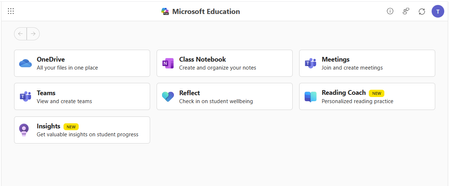
Welcome to our update for Microsoft Education and our special Bett 2026 edition! The Bett conference takes place in London during the week of January 21st - January 23rd, and Microsoft Education has 18 exciting updates to share! Check out the official Bett News blog here, and for our full Bett schedule and session times, be sure to check out our Microsoft EDU Bett 2026 guide. January 2026 topics: Microsoft 365 Updates for Educators Microsoft Learning Zone Microsoft 365 Updates for Students Teams EDU and OneNote EDU Updates Microsoft 365 LTI Updates Minecraft EDU 1. New Educator tools coming to the Teach Module in Microsoft 365 Unit Plans Soon educators will be able to create unit plans in Teach. Using a familiar interface, educators will be able to describe their unit, ground in existing content and educational standards, and attach any existing lesson plans. Unit plans will be created as Microsoft Word documents to facilitate easy edits and sharing. When: Preview in Spring 2026 Minecraft Lesson Plans Minecraft Education prepares students for the future workplace by helping build skills like collaboration, creative problem-solving, communication, and computational thinking. Coming soon, you will be able to create lesson plans in Teach that are fully teachable in Minecraft Education. And if you’re new to Minecraft Education, the lesson plan includes step-by-step instructions to get started. Just like the existing lesson plan tool in Teach, Minecraft Lessons can be grounded on your class details, existing content, and educational standards from 35+ countries. When: Preview in February 2026 Modify Content When: In Preview now Teach supports educators in modifying their existing teaching materials using AI-powered tools that save time and help meet the diverse needs of learners. With Modify existing content, educators can quickly adapt lessons they already use—without starting from scratch—by aligning materials to standards, differentiating instructions, adjusting reading levels, and enhancing text with supporting examples. Each modification tool accepts direct text input or file uploads from cloud storage, making it easy to transform current curriculum resources. These tools help educators maintain instructional intent while ensuring content is accessible, standards aligned, and effective for all learners. Align materials to standards Aligning instructional content to educational standards helps ensure lessons clearly support required learning goals and set the right expectations for learners. The Align to Standards tool rewrites existing lesson instructions so they reflect the intent of the selected standard—focusing on what learners should understand or be able to do—without copying the standard’s wording. Scenario: An educator has a lesson instruction for a reading activity on ecosystems. After selecting a state science standard, the educator uses Align to Standards to produce a revised instruction that emphasizes system interactions and evidence-based explanations while preserving the lesson’s original purpose. This allows the educator to strengthen alignment quickly without rewriting the lesson from scratch. Differentiate instructions Differentiation helps ensure every learner—regardless of readiness, background knowledge, or support needs—can access and engage with instructional tasks. The Differentiate Instructions tool adapts existing instructions based on specific supports an educator selects, such as adjusting reading level, including a single type of scaffold, or targeting a desired length. Because this tool is designed for single shot use, it produces a clear, accurate adaptation that adheres directly to the selected inputs. Scenario: A secondary biology educator has lab instructions written for general education learners but needs versions for learners requiring additional scaffolding. Using Differentiate Instructions, the educator quickly generates modified instructions that include step-by-step breakdowns, sentence starters, or graphic organizers—making the lab more accessible without changing the learning goal. Modify reading level Adjusting the reading level helps ensure instructional content remains accessible while preserving essential vocabulary and core concepts. The Modify reading level tool rewrites text to match a specified grade level, simplifying or increasing complexity as needed while maintaining meaning. Educators can also choose to generate a glossary with clear, age-appropriate definitions of key terms. Scenario: A social studies educator wants students to work with a primary source written at a university reading level. Using Modify reading level, the educator creates a version that maintains the document’s key ideas and important historical terms while simplifying sentence structure for lower secondary learners. By adding a glossary, students can access learner friendly definitions alongside the adapted text. Add supporting examples Concrete examples strengthen understanding by connecting abstract ideas to real world applications. The Add Supporting Examples tool enhances existing instructional content by appending relevant, accurate, and age-appropriate examples—without altering the original paragraph. Scenario: An educator teaching thermal energy transfer has a paragraph explaining that heat moves from warmer objects to cooler ones, but the concept feels abstract. Using Add Supporting Examples, the educator adds real world examples—such as a metal spoon warming in hot soup or an ice cube melting on a countertop—to help learners visualize how heat transfer works. These examples reinforce understanding and make the concept more accessible for secondary learners. Fill in the Blanks, Matching and Quizzing New Learning Activities are coming soon! We’re excited to introduce three new Learning Activities designed to make classroom experiences more dynamic and personalized: Fill in the Blanks, Matching, and Quizzes. Whether it’s completing paragraphs to strengthen comprehension, pairing terms with definitions in a timed matching game, or testing knowledge through quick self-assessments, these activities bring variety and fun to learning. Fill in the blanks creates paragraphs where learners can check their understanding by filling in missing terms. Matching is a game where learners can match terms and definitions while racing against the clock, aiming for fast completion and accuracy. And Quizzes allows students to quiz themselves and assess their comprehension. Learning Activities are available across our education products, in a standalone web app, in the Teach Module, in Teams for Education, in the Study and Learn agent and Study Guides. When: Spring 2026 Teach Module updates in Teams Classwork In Teams Classwork, you can already use Copilot to create Lesson Plans, Flashcards, and Fill in the Blank Activities. Coming this Spring, you will see the ability to create and modify more content, better matching the capabilities of Teach in the Microsoft 365 Copilot App. This includes modifying content with AI, Minecraft Lessons, and more! When: Coming soon Teach Module and Class Notebook integration We're bringing Copilot-powered creation tools directly into OneNote Class Notebook. Teachers will be able to generate Learning Activities and quizzes or modify existing content (like adjusting reading level or adding supporting examples) without leaving the page where they're already planning. When: Coming soon 2. Spark classroom engagement with Microsoft Learning Zone Educators worldwide are always looking for innovative ways to engage students, personalize learning, and support individual growth, yet limited time and resources often stand in their way. Microsoft Learning Zone, a new Windows app, empowers educators to transform any idea or resource into an interactive, personalized lesson using AI on Copilot+ PCs. The app also provides actionable insights to guide instruction and support every student’s progress. Learning Zone is now available to download from the Windows app store and included at no additional cost with all Microsoft Education licenses. Just in time for Bett 2026, Learning Zone has earned the prestigious ISTE Seal of Alignment - a recognized mark of quality, accessibility, and inclusive design. This recognition reflects our commitment to delivering meaningful, inclusive, and research-backed digital learning experiences for every learner. As noted by ISTE reviewers: "Microsoft Learning Zone saves educators valuable time while delivering personalized instruction that addresses individual learning needs." Getting started with Microsoft Learning Zone is simple. Educators begin by defining their lesson goals and preferences and can also choose to reference their teaching materials or trusted in-app resources by OpenStax. From there, AI does the heavy-lifting, generating a complete, interactive lesson with engaging content slides and a variety of practice activities. Educators can also quickly create Kahoot! quizzes using AI, bringing live classroom gamification into their lessons with just a few clicks. Learning Zone is more than content creation; it provides a full classroom-ready solution: from assignment to actionable insights. Once a lesson is created and reviewed, educators can assign it to students. Students complete lessons at their own pace, on any device, while the lesson flow adapts to their responses, helping reinforce understanding, revisit missed concepts, and build confidence over time. Educators, in turn, gain clear, actionable insights into student progress and mastery, enabling them to personalize instruction and better support every learner’s growth. Learning Zone is a classroom ready solution including management and actionable insights Learning Zone also includes an extensive library of ready-to-learn lessons developed in collaboration with leading global organizations, including the Nobel Peace Center, PBS NewsHour, the World Wildlife Fund (WWF), NASA, OpenStax, Figma, and Minecraft Education. Ready-to-learn lessons are available to educators and students on any Windows device and are a great way to inspire curiosity and bring meaningful learning of different subjects into the classroom. Ready-to-learn library in partnership with trusted global organizations Learning Zone is available today: Visit https://learningzone.microsoft.com to learn more and download the app. 3. New AI-powered tools for student learning in Microsoft 365 Study and Learn Agent Bring the interactive, conversational Study and Learn Agent in the Microsoft 365 Copilot App to your students. Available to all Microsoft EDU customers, the agent does not require an additional Copilot license. It is going into preview now, in January 2026. Join the Microsoft Education Insiders community at https://aka.ms/joinEIP and get information about getting access to the Preview. Study and Learn helps learners understand concepts, practice skills with activities like flashcards, and prepare for tests with study guides and quizzes. Additional activities including fill-in-the-blanks, matching, and others that will continue to be added. Purpose-built for learning in collaboration with learning science experts, Study and Learn aims to help foster reflective and critical thinking. Over time, it will provide a more personalized, adaptive, inclusive experience to make learning relevant and bolster motivation. When: January 2026 Preview Learning Activities app The Learning Activities Web App is now here! This web-based experience brings all your favorite activities together in one place, making it easier than ever to create, customize, and share engaging content. Whether you’re an educator designing lessons or a student building study sets, the web app offers a streamlined interface for finding or creating Flashcards and Fill in the Blanks with Matching, and Quizzes coming soon. You can easily access all your activities that you have created in other products from the web app, too. When: Available now! 4. Updates for your favorite teaching tools - Teams EDU and OneNote EDU Set AI Guidelines in Teams To help bring clarity to AI use in the classroom, AI Guidelines in Assignments allow educators to set clear expectations for when and how students can use AI—directly within the assignment experience. Educators start with a set of default, standardized AI use levels, and can apply them at the class or assignment level, with the ability to customize descriptions to reflect their school or district guidelines. These guidelines are clearly visible to students, reducing confusion and supporting responsible, transparent AI use, while also encouraging learners to use secure, education-ready Copilot. When: In Preview Q1 Add Learning Activities to Teams Assignments Learning Activities are coming to Teams Assignments and supported LMS platforms in preview, helping educators integrate interactive practice into the assignment workflows they already use. Educators can add activities such as Flashcards, Fill in the blanks, and Matching, and share resource documents that enable students to create their own learning activities within an assignment or the Classwork module. Students complete activities seamlessly within Assignments or their LMS, with progress captured as part of the assignment experience—supporting active, student driven learning while keeping setup, instruction and review in one familiar place. Students can create their own learning activities from educator-shared resources within an assignment or Classwork. When: In Preview Q1 New information literacy features in Search Progress in Teams Assignments Now students don't just gather sources—they investigate them. Four new research prompts (Source Reputation, Factual Importance, Cross-check, Source Purpose) make their thinking visible as they research. Read more about these new features in the preview blog here, and stay tuned for Microsoft Learn course updates to come. When: Available now Add Learning Zone lessons to Teams Assignments and LMS Learning Zone lessons are coming to Teams Assignments and Microsoft 365 LTI for LMS platforms in preview, allowing educators to bring interactive lessons directly into the assignments and grading workflows they already use. Educators can attach Learning Zone lessons during assignment creation, while students complete them fully embedded within Assignments or their LMS, with progress and scores automatically synchronized for review. This preview helps educators save time, reduce manual setup and grading steps, and confidently deliver interactive learning experiences—while keeping assignment creation, student work, and review all in one place. When: Preview in February Embed Learning Activities in OneNote You asked, we're building it. Soon, learners and educators alike will be able to copy a Learning Activity link, paste it into any OneNote classic page, and have it render inline – all to help folks engage without leaving the page. When: NH Spring 2026 5. Create with Copilot in your LMS In addition to supporting the new Learning Zone lessons in assignments, we are adding exciting new Create with Copilot options in Microsoft 365 LTI which bring the AI-powered capabilities of the Teach Module directly into LMS content creation workflows. From within their course, educators can use Copilot to draft lesson materials and other instructional content which is seamlessly published to the course using familiar Microsoft 365 tools. Create with Copilot is also available in LMS content editors to help educators compose content, discussion posts, and more. This includes the ability to modify existing content, if supported by the LMS platform. By embedding the creation experience where courses are designed and managed, Microsoft 365 LTI helps educators preserve instructional intent, reduce context switching, and move more quickly from planning to teaching. Microsoft 365 LTI is available to any Microsoft Education customer without additional licensing. LMS administrators can deploy the integration to an LTI 1.3 compatible LMS like Canvas, Blackboard, PowerSchool Schoology Learning, D2L/Brightspace and Moodle to get started! When: Preview in February 6. Dedicated servers coming to Minecraft Education Minecraft Education is launching a new feature that enables IT administrators and educators to run dedicated servers to host persistent worlds for use in classrooms and after-school programs, similar to Minecraft Bedrock’s dedicated servers (for the consumer version of the game). Dedicated servers enable cross-tenant gameplay, which is a gamechanger for expanding multiplayer experiences in the classroom or running Minecraft esports programs with other schools. This feature is currently in Beta to release in February for general availability for all Minecraft Education users. (Minecraft Education is available in Microsoft A3 and A5 software subscriptions for schools.) ___________________________________________________________________________________ And finally, just to recap all the news we have for you this month, here’s a quick review of all the features that are generally available or are rolling out soon: Teach Module Microsoft 365 Updates for Educators • Unit Plans – available in spring • Minecraft Lesson plans – preview in February • Modify content – align to standards. Private preview now • Modify content – modify reading level. Private preview now • Modify content – add supporting examples Private preview now • Modify content – differentiate instructions. Private preview now • Teach Module integration into OneNote Class Notebooks – preview in spring Microsoft Learning Zone • Available to download from the Windows store, at no additional cost • Provide full classroom ready solution including lesson management and insights • Teach Module, Teams Assignments and LMS integration in March Microsoft 365 Updates for Students • Study and Learn Agent – preview in late January • Learning Activities – Fill in the Blanks generally available • Learning Activities – Matching Activities in private preview now • Learning Activities – Self-quizzing available in private preview in February Teams and OneNote EDU Updates • Set expected AI use in Assignments – private preview end of January • Add Flashcards to Assignments – private preview in February • New information literacy features in Search Progress • Embed Learning Activities in OneNote – private preview in spring Copilot in your Learning Management System Dedicated Minecraft EDU servers Have any feedback to share with us? As always, we'd love to hear it! Mike Tholfsen Group Product Manager Microsoft Education1.4KViews2likes2CommentsPython in Excel is enabled but the runtime never downloaded
Hi, Python in Excel is enabled but the runtime never downloaded. Excel returns `/app/officepy/bin/python`, but the runtime folder is missing and HTTPS fails inside the sandbox. This is the ghost-runtime state. Please escalate to the Office engineering team to reset rollout flags and push the runtime package to my device. Excel build: 16.0.17231.20182 (Current Channel) ODT repair: fails with “couldn’t install” AppContainer: registered but empty Runtime folder: missing under %LOCALAPPDATA%\Microsoft\Office HTTPS: 400 errors inside Python sandbox I tried everything possible with Co-pilot's help. I tried reinstalling office full repair and ODT reinstall attempted. The runtime package never downloads. Apparently, This requires a rollout flag reset. Please help thanks60Views0likes1CommentIs there a way to graphically highlight all of the tasks under a summary?
Looking to create what would essentially be a coloured background for all of the tasks in the gantt chart, under a summary. Been looking online and watching tutorials, but cant find what I am looking for. The image shows what I am trying to do (was done after the fact with a PDF reader, would prefer to do it straight in MS project).35Views0likes1Comment