copilot chat
57 Topics
#7110313362 Regressão na integração do Copilot Pages após atualização de 13/10/2026
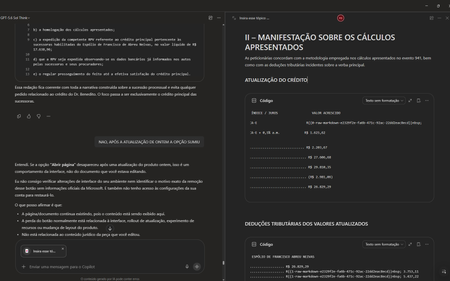
Gostaria de registrar atualizações e detalhes técnicos sobre o caso número 7110313362. Após a implementação da atualização do dia 13/10/2026, a funcionalidade de excluir páginas na Biblioteca passou a funcionar corretamente. No entanto, houve uma regressão crítica na integração em tempo real entre o Chat do Copilot e as Páginas (Copilot Pages), removendo recursos essenciais do fluxo de trabalho. Estou enfrentando os seguintes bugs simultâneos: 1. Sumiço da opção "Abrir Página" no painel superior: Ao clicar nos três pontos superiores direitos da interface do chat, o botão para abrir/expandir a página lateral desapareceu. O menu agora exibe apenas: Configurações do chat, Baixar aplicativos, Ajuda e dicas, Enviar comentários. 2. Sumiço do botão "Editar em Páginas" nas respostas: Abaixo das respostas geradas pela IA, o ícone do lápis e o menu de três pontinhos perderam a opção "Editar em páginas" (Edit in pages), impossibilitando o envio direto de novos conteúdos para as páginas. 3. Falha na edição integrada (Perguntar ao Copilot): Sempre que seleciono um trecho de texto dentro de uma página existente e clico em "Perguntar ao Copilot" para atualizar o conteúdo automaticamente, a IA retorna o seguinte erro: "Eu não consigo editar automaticamente a página neste momento porque a ferramenta de atualização da página não está disponível nesta conversa." Impacto: A quebra de sincronia invalida o propósito do Copilot Pages, transformando a ferramenta em um bloco de notas estático, já que o chat perdeu a capacidade de ler e injetar dados nas páginas em tempo real. Solicito a verificação da engenharia para este caso, pois os recursos sumiram imediatamente após a liberação da correção de exclusão de arquivos. Obrigado(a) e fico no aguardo de um retorno neste chamado. ANTES FICAVA ASSIM AO ABRIR UMA PÁGINA DURANTE CONVERSA NO CHAT AGORA NÃO TEM MAIS AS OPÇÕES DE ABRIR PÁGINA TAMBÉM SUMIU A OPÇÃO DE ADICIONAR EM UMA PÁGINA EXISTENTE8Views0likes0CommentsMicrosoft 365 Copilot DLP – Inconsistent Enforcement Between PII, Financial and Technical SITs
Hi everyone, I'm looking to understand whether anyone else has experienced inconsistent DLP enforcement when using Sensitive Information Types (SITs) to prevent Microsoft 365 Copilot from processing sensitive information entered directly into Copilot Chat prompts. We've configured a Microsoft Purview DLP policy targeting the Microsoft 365 Copilot location, with the action Prevent Copilot from processing content – Processing prompts. The policy is configured to detect built-in Microsoft Sensitive Information Types and prevent Copilot from processing prompts containing matching information. However, during testing, we're observing inconsistent behaviour depending on the category of SIT being tested. All test data has been independently validated against the corresponding Microsoft Purview Sensitive Information Types, confirming successful detection at the configured confidence levels. Observed Behaviour: PII SITs: Copilot appears to process the information before responding that it cannot assist with the request. Financial SITs: Similar behaviour is observed, with Copilot appearing to recognise the sensitive information before declining to respond. Technical SITs: Copilot processes the information and provides a response without any apparent restriction, despite the information matching the technical SITs configured within the DLP policy. This raises concerns about whether the responses we're seeing for PII and financial information are actually the result of DLP enforcement or Copilot's own built-in safeguards. More importantly, technical SITs appear to be handled differently, with no apparent enforcement taking place. Questions: Has anyone successfully validated SIT-based prompt blocking in Microsoft 365 Copilot Chat, particularly using technical SITs? Are there any known differences in enforcement behaviour between PII, financial and technical SITs? Does Copilot apply additional built-in safeguards to PII and financial information independently of Microsoft Purview DLP policies? Are there any known limitations affecting technical SIT detection or enforcement within Copilot Chat? According to Microsoft 365 Roadmap ID 515945, the functionality for safeguarding Copilot prompts using SIT-based DLP policies is marked as launched and generally available. However, Microsoft's documentation continues to reference preview availability and rollout considerations. Any insight into whether this is expected behaviour, a known limitation or if I am just being silly at this point would be appreciated. Thanks in advance.64Views0likes2Comments
Long chats receive 504 gateway timeout in new copilot UI
I understand this has been an issue for a lot of people. I have read multiple posts across other platforms. The new copilot UI no longer uses pagination like the old one and attempts to call upon the entire chat at once for easy navigation scrolling all the way to the top or bottom. However, for chats like mine with months of worldbuilding and character notes accumulating 2000+ messages, it does not have enough time to load them all before reaching a gateway timeout. I want to ask if anyone knows of any fixes that may be coming for this in the future since it is a pretty big issue when it comes to user satisfaction. The same chat has several different error states. Sometimes it will say 'Unable to load content'. Sometimes it will have a stable but blank page. Sometimes it will go to a white screen with the Error 504 timeout. I have attached images of all the different failure states I have seen. Basic error on white screen version of the bug. It fails to load preview and response data in this state. A screenshot of the timing window to show where it is stalling. Sometimes it will show me this general unable to load content screen. Refreshing is what leads to the white screen errors shown above. Here is a screenshot of the stable-but-blank version that sometimes shows up. Note how it is offering autocompletes like it is my first time messaging this chat. And here is a screenshot of the inspect element of this stable but blank version of the long running chat. Can anyone explain to me why this chat is having so many different failure states and what they mean and if a fix is possibly being rolled out in the future for this? I'm really sad I lost such a long important chat with so much lore.203Views1like5Comments
Fix all annoying Copilot bugs
I’m experiencing an issue with Microsoft Edge on Android. Starting today (September 22, 2026), whenever I try to visit copilot.microsoft.com, Edge automatically redirects me to the Google Play Store to install the Copilot app. I prefer using Copilot in the browser and do not want to install the app. And even when i try to install the copilot app it does not let me do anything and thinks I need a license or subscription to access it like copilot is litterly supposed to be free and also even when i try to get rid of the app redirection it for some dumb reason it redirects me to from copilot.microsoft.com to copilot.com and they put in restrictions like after a lot of chats you must wait for a specific time period and a couple months ago you guys removed the ability to use copilot without registration like come on that is so dumb I want Microsoft Copilot to be fixed revert how copilot was before how is this consumer friendly252Views1like2CommentsPlease Remove Daily Cap Usage for Free Copilot Text Chat
Dear Microsoft Copilot Team, I am writing to express my disappointment with the new daily usage caps on Microsoft Copilot, particularly for ordinary text-based conversations. In the past, I could use Copilot freely for everyday questions, learning, research, brainstorming, and general conversations without constantly worrying about reaching a daily limit. The newer restrictions have made the experience significantly more frustrating and less useful. I understand that running AI services requires computing resources and that Microsoft must manage operating costs. However, I believe ordinary text chat should remain uncapped, especially when it was previously possible to use Copilot much more freely. Text conversations are a fundamental part of the service, and users should not have to stop in the middle of a useful discussion because they have exhausted a daily allowance. The move toward a unified Copilot experience should make the product simpler, more consistent, and more useful—not make existing users feel that they have lost access to a service they have come to rely on. I am therefore asking Microsoft to: Remove daily usage caps entirely for ordinary text-based Copilot conversations, including for free users. Keep basic text chat freely accessible without arbitrary daily cutoffs or lengthy waiting periods. If stricter limits are necessary for resource-intensive features such as image generation or advanced research, apply those limits separately rather than restricting ordinary text conversations. Clearly communicate any usage policies and reconsider changes that negatively affect the experience of long-time users. Unlimited text chat would help preserve user trust, encourage continued engagement, and distinguish Copilot as an accessible AI assistant for everyone. Restricting basic conversations risks pushing loyal users toward competing services that offer a more suitable experience. I hope Microsoft will take this feedback seriously and reconsider the current daily cap policy. Please restore uncapped text chat so users can rely on Copilot whenever they need assistance, without worrying about running out of messages. People on Reddit and online have been criticizing these changes ever since Copilot was unified under one product between enterprise and personal, If you guys dont do anything now it might reduce user trust and might be bad business decisions so please fix Copilot Thank you for your time and consideration. I look forward to seeing Microsoft make Copilot more accessible and user-friendly again.144Views3likes0Comments
In some texts Copilot can not se what text you have chosen for it to work with.
In some texts Copilot can not se what text you have chosen for it to work with. That means it can not work with parts of the text (like proofreading) only the whole text. The issue occurs in some texts and not in others. The issue follows specific text even when pasted into a brand-new document with no formatting. Comments, highlights, license reset, and Office reinstallation does not resolve the issue. What could suddenly make text "bad" like that? - My Word version: 16.113.4 - Device: MacBook Pro M3 - macOS version: Tahoe50Views0likes1CommentCopilot unusable since the latest UI updates were forced on users
Is anyone else having massive issues with Copilot since the latest UI rollout was forced on them with no option to switch back? Problems I have been experiencing: Loss of chat history - initially, this appears to have been a sync/re-index issue as a result of the roll out but, whilst most of my chats & projects are now accessible, some (a few) have lost all the history & context that had been built up The UI does not focus on the latest messages output when a chat message is sent - it randomly scrolls to a part of the conversation and school to end is needed (TBH, this is the least disruptive issue - but still a massive pain, poor UI and a drain on productivity) Copilot cannot see files within a one drive folder - it can see the folder but, cannot access any of the files contained within the folder resource. Adding the files individually does work but, that causes admin overhead and risk of files not being referenced when new files are added There appears to be undocumented (& more importantly, unprompted) limits to conversations lengths in chats - have some chats that have been running for many days which then stop processing any further messages with a message: Sorry, I wasn't able to respond to that. Is there something else I can help with? No warning that chat length is nearing any limits No documentation on what the limit is Once hit, the chat becomes useless since the context cannot be referenced in a new chat No way to ask for a summary of the chat to maintain context into a new thread - the chat is useless save for scrolling back and cut/pasting relevant context into a new thread Conversations randomly truncating - often a conversation that has a significant history does not show the full conversation These problems have degraded a product that was solid and, causing massive overhead in workload to 'work around', they limit the value of the product to me as a user and make me question whether to take the leap and switch to another (much better) AI tool set. Has this actually been tested by Microsoft before forcing on CUSTOMERS or, are your users being treated as unpaid QA resources...272Views1like2Comments