User Profile

Flo-KKIT
Copper Contributor
Joined Dec 17, 2022


User Widgets
Recent Discussions
Deploying Microsoft Teams Rooms via Autopilot in Self-Deployment Mode
Description: We are experiencing issues with deploying our Microsoft Teams Room (MTR) systems via Windows Autopilot in Self-Deployment Mode. Despite following the official Microsoft documentation (https://learn.microsoft.com/en-us/microsoftteams/rooms/autopilot-autologin), the device fails to complete the login process. Setup Details: Device: Certified Intel NUC, previously in use. OS Installation: Windows 11 Pro pre-installed. Autopilot Import: The device was successfully imported into Autopilot. Group Assignment: GroupTag "MTR-ConsoleName" has been correctly assigned. Dynamic Group: The device appears in the associated dynamic MTR group. Profiles and Assignments: Deployment Profile and Enrollment Status Page (ESP) are assigned to the device. Teams Room Update App: Deployed via Intune and assigned to the MTR group (also included in ESP). LAPS: Local Administrator Password Solution (LAPS) is active on the device. Teams Rooms Pro Console: The device appears in the console and has been assigned to a resource account with a Teams Room Pro license. Issue: After completing the deployment process, the device hangs on the login screen and cannot connect to the resource account. This prevents the self-deployment process from completing. Steps Already Taken to Resolve the Issue: The device has been completely removed from Intune and Autopilot and re-added. A custom device restriction policy was created to ensure the device is allowed. All Intune and Azure policies were reviewed and optimized to avoid conflicts. Despite these efforts, the issue persists. Questions: Are there specific requirements or limitations that we might have overlooked? Are additional settings or policies required to ensure the device connects to the resource account successfully? Could existing policies, such as LAPS, interfere with the login process? Are there any known issues related to Autopilot and Teams Room deployments, particularly for previously used devices? We urgently request your assistance in identifying and resolving this issue, as these MTR systems are critical for our operations. Thank you for your support!447Views0likes1CommentRe: Teams Room System Autopilot deployment does not work - Error Code: 6, 0x80180014
Here is a suggestion for a suitable response: Thank you for pointing this out! I have now also managed to carry out the process after removing the suspected obsolete entry in Entra ID. With a new MTR device, I was able to complete the autopilot setup and got as far as the login screen. However, automatic login via Teams Rooms Pro still does not work. Does anyone have the same problem or have a solution for it?451Views0likes0CommentsIntune enrollment of a device wiped from Intune
Description of the problem: We are facing an issue with a Windows device that was previously manually deleted from Intune and Microsoft Entra ID. The device was originally configured correctly as Microsoft Entra hybrid joined. Current status: Device status in Microsoft Entra ID: The device was visible in the Entra ID after deletion twice: Microsoft Entra hybrid joined Microsoft Entra registered We deleted the Microsoft Entra registered entry, but the hybrid join entry was still present. Actions taken: The device was connected to the company network. The dsregcmd /leave command was executed to reset the Azure AD status. After a restart, the device was successfully hybrid-joined again (via Azure AD Connect). MDM group policy is enabled: The Automatic enrollment with Azure AD policy is configured and applied. Expectation: The device should automatically re-enroll in Intune after the restart. Result: The device does not reappear in Intune. Enrollment is not triggered automatically, although all prerequisites appear to be met. Objective: We urgently need support to find out: How can we re-enroll Windows devices that were previously deleted from Intune? Is a manual action required, or can this be automated? What additional steps or configurations are necessary to force MDM enrollment? Additional information: Operating system: Windows 11 23H2 Status of dsregcmd /status: AzureAdJoined: YES DomainJoined: YES Group policies: Automatic enrollment with Azure AD is enabled and applied.1.9KViews0likes3CommentsRe: Remote Desktop Client old installer
Hello, it is a 64-bit installation. Yes, of course. Unfortunately, it can no longer find the product and every time it uninstalls or installs a new version, it wants the old installer, which unfortunately is no longer in the Intune cache or anywhere else.4.5KViews0likes5CommentsRemote Desktop Client old installer
Dear Community, We are having a problem uninstalling and reinstalling an Intune package using our own installation routine. In order to successfully complete this process, we need the original installation file of the old package. Specifically, this is the MSI file of the Remote Desktop Client in version 1.2.4153.0. The exact version 1.2.4153.0 is required in order to perform the uninstallation properly. I have already tried everything to get the application off the system. However, only the current versions are available for download on the Remote Desktop Client overview page, and the required older version cannot be found there. Microsoft Support is also unable or unwilling to provide this version, citing the expired version guarantee. Does anyone here have any idea where I can get this MSI installation file version 1.2.4153.0? Or is there a cleanup tool for the RDC? Many thanks for your support.5.4KViews0likes8CommentsTeams Room System Autopilot deployment does not work - Error Code: 6, 0x80180014
Problem: We are attempting to deploy our Microsoft Teams Room (MTR) systems, some of which are already in use, using Windows Autopilot in self-deploying mode. Despite following the official guide, we keep encountering errors. https://learn.microsoft.com/en-us/microsoftteams/rooms/autopilot-autologin Procedure: Device: Certified Intel NUC, previously in use. Installation: Windows 11 Pro installed. Autopilot Import: Device imported into Autopilot. Group Assignment: GroupTag "MTR-ConsoleName" assigned. Dynamic Group: Device appeared in the Dynamic MTR group. Assignments: Deployment Profile and ESP (Enrollment Status Page) assigned. Teams Room Update App: Deployed via Intune, assigned to the MTR group, and integrated into the ESP. LAPS: Local Administrator Password Solution (LAPS) is active. Teams Rooms Pro Console: Device appeared and was assigned to a resource account with a Teams Room Pro license. Error Description: After the setup process, we consistently encounter an error during device registration for mobile management: Error Code: 6, 0x80180014 Attempts to resolve the issue: Deleted the device completely from Intune and Autopilot and re-added it. Created a custom Device Restriction Policy to allow all devices in the group. Additionally, during one attempt where the error did not occur, Teams failed to set up automatically. Questions: Why does error 6, 0x80180014 occur during device registration for mobile management? Are there specific requirements or settings beyond the official guide that need to be considered? What steps can be taken to ensure that Teams sets up automatically when the registration error does not occur? Objective: We aim to ensure that the MTR systems are smoothly deployed via Autopilot in self-deploying mode and that Teams sets up automatically. Thank you for your support!Teams Room System Autopilot deployment does not work - Error Code: 6, 0x801800142KViews0likes5CommentsAssignment of apps to shared devices
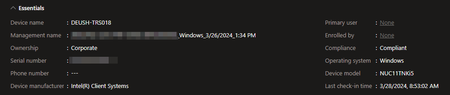
Hello everyone, I have a problem or question regarding the assignment of apps. We have a few Teams Room systems (Windows 11 devices) that are connected via Entra ID and Intune. They were imported into Entra ID via a provisioning package. So they do not have a primary user or enrollment user. So it should be a shared device. The devices also do not have an enterprise portal installed as we have no user interaction here. I would now like to distribute a Win32 app to the device in the device context as Required. To do this, I have created an Entra ID security group and added three Teams Room systems and a normal notebook as devices for testing. I have assigned the app to this group with the devices. However, the installation has not been carried out on any of the Teams Room systems for three days. Even after several synchronizations and restarts, nothing has happened. The device has also been regularly checked in to Intune since then. However, the notebook has already received the software. I thought the assignment of apps directly to the device as a required application also works without users and company portal? Otherwise I don't notice any difference? Do policies also pull normally? Does anyone have any tips?598Views0likes0CommentsBulk update of AutoPilot group tags via Powershell
As the title says, I want to use a command to customize the group tags of many AutoPilot devices. However, I don't want to use a file as a basis first, as described in many tutorials, but access directly the AutoPilot devices in Intune. In other words, change all devices with a group tag named "A" to a new tag named "B". Do you guys have a solution on how I can do this? I've only read something about the Graph API so far? Thanks a lot!13KViews0likes4CommentsRe: Intune registration for existing hybrid Join Windows device
Yes at AVD it works now too. But what do I do with other shared devices like room systems? Ich habe auch folgenden Registry Wert gesetzt und das Gerät dann via Windows Configuration Designer importiert. Leider hatte ich danach auch wieder zwei Geräte im AAD. https://learn.microsoft.com/en-us/azure/active-directory/devices/hybrid-join-plan#handling-devices-with-microsoft-entra-registered-state "Sie können verhindern, dass Ihr domänenverbundenes Gerät von Microsoft Entra registriert wird, indem Sie den folgenden Registrierungswert zu HKLM\SOFTWARE\Policies\Microsoft\Windows\WorkplaceJoin hinzufügen: "BlockAADWorkplaceJoin"=dword:00000001."3.4KViews0likes0CommentsIntune registration for existing hybrid Join Windows device
Hello Community, I am facing a challenge and hoping for your help. I would like to register an existing Windows 10 or Windows 11 device in Microsoft Intune. The device in question is both a Teams Room system and an AVD virtual machine. The device already exists as a device object in on-premises Active Directory (AD) and Azure AD via a hybrid join. SCCM is not present. My goal is to register and manage the device exclusively in Intune without having a duplicate object structure in Azure AD (once hybrid and once Azure AD only). I have already tried three approaches but have not found an ideal solution so far: Integration via a "Windows Configuration Designer" deployment package: this method would be my preferred one, but in doing so I create both a hybrid object and an Azure AD only object in Azure AD. User registration via Intune domain account login: This creates a registered or primary user, which is not ideal for shared devices. Device registration via GPO: I tried to perform device enrollment via GPO (Computer Configuration > Administrative Templates > Windows Components > MDM > Enable automatic MDM enrollment using default Azure AD credentials). Unfortunately, this only displays an error (0x8018001) in the corresponding task, and no enrollment occurs. Can you please help me how to integrate a non-personalized Windows device into Intune cleanly and as easily as possible without creating a duplicate Azure AD object structure? Or maybe the pragmatic solution: May I simply delete the second Azure AD Only entry as described here? https://learn.microsoft.com/en-us/answers/questions/1339674/duplicated-ad-computer-in-the-azure-ad-entra-devic?cid=kerryherger Thanks in advance for your support! With kind regards Flo3.7KViews0likes3CommentsRe: Remote Desktop Client AutoInstall
rahuljindal The installation works that is all no problem. But it should work yes the function with the automatic update without UAC. The app should update itself automatically when closing. But it does not although the registry key is set. https://learn.microsoft.com/en-us/azure/virtual-desktop/users/client-features-windows#update-behavior3.5KViews0likes1CommentAutopilot requires three logins
Hi all, during the project phase for setting up our AutoPilot process, I noticed that Autopilot requires three (!)logins. The first one at the welcome screen The second at the local login The third when connecting to the Azure AD We expect our users to log in, walk away, and come back a few minutes later to find their computers ready to use. After all, that's supposed to be the big advantage and point of AutoPilot. Now it looks like they have to log in again when they come back to complete the account setup. Are these steps intentional or is there a configuration anomaly in my setup as this causes additional difficulty for the user. Is there a way to resolve this issue?2.9KViews0likes4CommentsRemote Desktop Client AutoInstall
Hello togehter, I would like to deploy the remote desktop client for Azure Virtual Desktop to our employees. For performance reasons, we are using the .MSI (Windows Desktop) version of the client here. https://learn.microsoft.com/en-us/azure/virtual-desktop/users/connect-windows?tabs=subscribe The distribution is to be done via Microsoft Intune. It is important that the client should be updated automatically, without the employee needing local admin rights or IT having to constantly deploy a new version. Unfortunately, this does not work even though I set up the deployment cleanly according to the instructions: https://learn.microsoft.com/en-us/azure/virtual-desktop/users/client-features-windows#admin-management I deployed the client in version 1.2.3918.0 x64. Install command: msiexec /i "RemoteDesktop_1.2.3918.0_x64.msi" /qn ALLUSERS=2 MSIINSTALLPERUSER=1 Install behavior: User Assignments: All Users What am I doing wrong? Can someone please help me? The installation should work automatically as described when the user closes the application.3.9KViews0likes5CommentsMicrosoft Store App im Intune Private Store
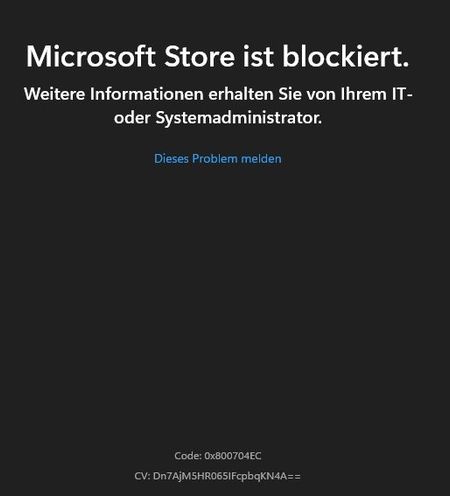
Hello all, As announced by Microsoft, the Microsoft Store for Business will be discontinued in Q1/2023. We are therefore in the process of migrating to the new Microsoft Store. We distribute the apps via Intune. This is also working so far. However, some apps like iTunes or Miro are not available as a repository app. When I add them via the Intune link, the Microsoft Store wants to open. However, we don't want to unlock the entire Microsoft Store for employees. So we have Intune set the setting to "Only the private store is enabled". As described in the documentation. https://learn.microsoft.com/en-us/mem/intune/apps/store-apps-microsoft However, now even links from the company portal do not open because the Store is locked. Questions: 1. how can I use the Microsoft Store in private mode so that I can distribute apps that are not in the repository store? 2. How can I continue to distribute paid apps in the future after the business store is shut down?1.8KViews2likes0Comments

Recent Blog Articles
No content to show