User Profile

rbgibbons
Brass Contributor
Joined Jun 01, 2022


User Widgets
Recent Discussions
Re: When opening OneNote client from SharePoint Notebook, get an error "We couldn't open that location."
In my case it was because of the file name having a space in it and the system reading that space as a break or end of filename. Therefore, there wasn't a file in that location with the truncated name. That's it.4.8KViews1like1CommentWhen opening OneNote client from SharePoint Notebook, get an error "We couldn't open that location."
When attempting to open the OneNote Windows Desktop client from SharePoint, we are getting the error, "We couldn't open that location. It might not exist or you might not have permission to open it. Please contact the owner of onenote:https://companyname.sharepoint.com/sites/SiteName/SiteAssets/Name #1 (V 04, 08, 97 for more information." I gave myself full admin permissions to the site and can fully access it on SharePoint, so it shouldn't be a permissions issue. The original owner of the site is also unable to open this notebook in OneNote. Initially, I thought it might be the way that it was named as the name of the notebook was "Name #1 (V 04, 08, 97 & 377) Notebook." Note that everything after the ampersand in the original error was missing so I thought that maybe just renaming the file would resolve it, but alas, it has not. Now the error reads: "Please contact the owner of onenote:https://companyname.sharepoint.com/sites/SiteName/SiteAssets/Name #1 (V 04, 08, 97 and 377 Notebook/Untitled%20Section.oneDesign%20Kick-Off for more information." The last part is the section name and tab. When attempting to open the Notebook on mobile, I get the error: "OneNote can't open this notebook because it has been deleted or moved. Please check the link address and then try again." I have renamed it multiple times but still cannot open in the desktop app. Other SharePoint Notebooks that I have access to in the tenant I'm able to open just fine. I have run a repair on my office install.Internal user account flagged as "External"
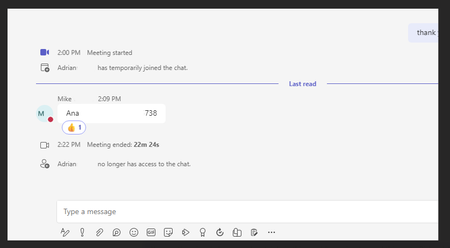
We have a new user that has been added to a few Teams channels and initially most of the people in the team could not @ mention the user. To resolve this, we added the user to the Owner group and then moved the user back to the Member group. When the user initially started the name showed up as <Name> [External] but has since not shown like that. Unfortunately, the user is still being removed from meeting chats immediately after the meeting as if an external user (see below) - which is why I'm looking in that direction. I've examined the user account through the Teams admin center, Microsoft 365 admin center, ADUC, and Azure Admin center and nothing obvious stands out suggesting the user is external. I'm not sure where else to go with this.7.1KViews0likes3CommentsRe: M365 Exchange Admin Center intermittently unavailable.
Discovered what the issue was: It was DNS. Over the course of a couple of months, we had reports of users unable to access certain websites as well. Turns out, a fellow admin applied a change in our DNS to direct traffic to our web server on Azure through an Azure Site-to-Site VPN. This caused all traffic destined for that same web host from our domain to be directed to <zone>.azure.com - including those two sites that were hosted on Azure and admin.exchange.microsoft.com.5.1KViews0likes0CommentsM365 Exchange Admin Center intermittently unavailable.
Been dealing with an issue for about a week now where the Exchange Admin Center becomes unavailable for a few minutes at a time. Then comes back, then is unavailable again. It's only the EAC. All the other admin centers (SharePoint, Teams, Security, etc...) are available and it's only within the local network. When I test outside of the network, EAC is available. When I test through a PowerShell connection, it works. When I lose my connection, my colleagues on the network do as well - so it isn't something local to my computer. The one change to the network that was made within the last couple of weeks is DNS scavenging has been turned on.Solved5.4KViews0likes3CommentsRe: Retrieve the video of a TEAMS meeting
Assia_Louhbaibat Generally the Host of the meeting will be the one that has the recording. If the free version user was the host, then, from what I understand, recording is not available. If someone else with a paid version of Teams recorded it, then the recording will be available on either https://support.microsoft.com/en-us/office/play-and-share-a-meeting-recording-in-teams-7d7e5dc5-9ae4-4b94-8589-27496037e8fa#:~:text=Teams%20meeting%20recordings%20will%20be,a%20set%20period%20of%20time..672Views0likes0CommentsNeed to Disable MFA for Common Area Phone user
I'm configuring a https://learn.microsoft.com/en-us/microsoftteams/set-up-common-area-phones and simply need to create an Azure user that is excluded from MFA requirements. I have the user excluded from the Multifactor authentication registration policy under Security, Identity Protection in Azure, but I'm still getting prompted for the extra security features when trying to log in. We do also use Conditional Access and I have excluded the user from our Block Legacy Authentication policy in there. I know I'm going to feel silly when one of you geniuses tell me it's something simple, but here it is: what am I missing?4.7KViews0likes1Comment
Recent Blog Articles
No content to show