

Forum Widgets
Latest Discussions
Formula Help for Sorting
Hi all! I am looking to find a formula that will do a multitude of things. One is to sort a column of numbers by the last 2 digits of the values input but by a particular order such as 00-14, 15-29, 30-42. Secondly, once sorted by this grouping, I want to assign it to a particular department based on said sort (Dept 1, 2, 3 and so forth. I have attempted to use the VLookup formula that Google AI gave me to no avail. I received an error. Also with a IF formula and haven't been able to figure out how to make this work. Any help would be greatly appreciated!SolvedJenniL0211Jan 13, 2026Copper Contributor80Views0likes4Comments
Automatically adding the date/time to a cell when another cell is updated
I am trying to create a spreadsheet where when a specific cell is updated in anyway, the date/time stamp automatically updates in the cell right beneath the cell that was updated. I only need to have a one to one relationship with multiple cells. IOW, I have 5 cells in a row going across. When any one of the 5 cells is updated, I want an updated date/time stamp to appear in the cell directly below the cell that was updated. Is there a way to do this?Joseph HuismanJan 13, 2026Copper Contributor319KViews2likes53Comments
Top n vs. Others in Excel
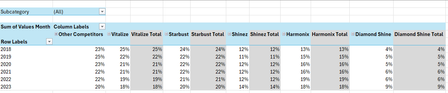
Hi all, I'm seeking some help because I'm kind of new to the more intermediate stuff in Excel. I have an Excel table with the following columns: Subcategory in column A, Brand in column B, Region in column C, Year in column D and Values Month in column E. I want to create a PivotTable and a Pivot line chart from this PivotTable that ranks the Top 5 Brands vs. Other Competitors by each region. For added context: There are 5 subcategories, 3 regions and 25 brands. Currently, I've tried grouping the remaining 20 brands as "Other Competitors" vs. the Top 5 brands within a selected region and possibly all regions (when no selection is made). I'm seeking a solution similar to this... Please mind the colours. I will sort those out later. But, the problem that I'm faced with is that upon selection of a region, the PivotTable won't update to the Top 5 brands of a selected region because they've already been grouped. How can I make this more dynamic so that I'm able to show The Top 5 brands vs. Others? Please help. EDIT: My operating system is Windows 10 (64-bit) and I use Excel 365 (Desktop version). For reference, I've attached a link to a sample file. https://1drv.ms/x/c/b2d878e32a062614/IQC1wcnwLICcQasOfnGcwKn0ASjpXp9xQ6rjnOP10Jal5cc?e=HaXEWd Thank you all once again.Anonymous29007Jan 13, 2026Copper Contributor153Views1like4Comments
Excel crashes whenever file tab is clicked
I have been having a lot of issues with Excel on a vm that we use, and I cannot try and fix these issues due to not being able to click on the file tab. Whenever the file tab is clicked, excel freezes and if anything clicked again goes to not responding. I do not get anything from windows diagnostics. I have also reinstalled Office 365 several times and excel always has this issue. the VM is a 2019 data Center and excel is 32 bit. running in safe mode does nothing. Book.xltx or Sheet.xltx is not in the XLSTART folder, if it was, I would have to wait for plant downtime to restart the vm. Deleted the excel key in HKEY_CURRENT_USER\Software\Microsoft\Office\16.0\Excel, restarted excel and issue still persists.JimmyPeiskerJan 12, 2026Occasional Reader1View0likes0Comments
Separating multiple lines in same cell into separate cells
Hi all, I have an urgent query that I have been working on for hours but to no avail. I have a few hundred separate addresses in excel (say in the range A1-A200), arranged over 4-5 lines within each cell. An example is below in Cell A1; A.N. Other 54 Bee Road Anytown Anywhere LE4 6EY Each of the 200 cells that contain the above addresses need each line of the address to be in a separate cell - so in the example above where this address is in Cell A1, I would need the first line (A.N. Other) to present in Cell B1, the 2nd line of the address (54 Bee Road) to present in Cell C1, etc all the way to there the 5th Line (LE4 6EY Postcode) to present in Cell F1. The issue causing the difficulty - Normally, 'Text to Column' should be able to resolve this. However, these addresses have been imported in csv format from another program and so even though the address is arranged over a number of lines, there is no a line break at the end of each line. Due to there being no line break, I am unable to use the 'Text to Columns' functionality to arrange the data into separate cells in the manner that I would like. Apart from me manually going in and copying and pasting line by line (which will take me at least 1-2 days), is there an easy way of doing this? The key problem is linked to there being no line breaks at the end of each line and so I have been unable to do this with 'Text to Columns' functionality. Any help on this would be gratefully appreciated.SolvedI_need_help_544Jan 12, 2026Copper Contributor6.9KViews0likes6Comments jeason007Jan 12, 2026Copper Contributor52Views0likes1Comment
"Getting Name" bug on my worksheet
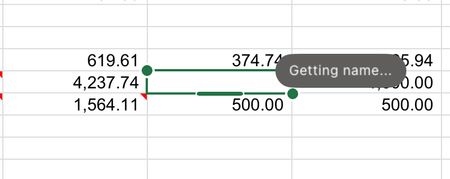
One of the cells in my worksheet has a "Getting Name" bug on my worksheet - I have no idea what this is referring to - I've never seen this in my 40-years of using Excel - there are no Range Names nor Links in this workbook. What is it and how do I get rid of it?Tahoe24x7Jan 12, 2026Copper Contributor379Views1like12Comments
PLEASE HELP ME. Excel Time Formatting Not Working?
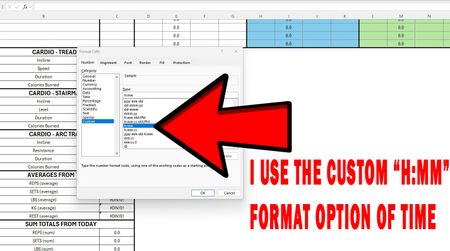
PLEASE HELP ME!!! I created an excel workbook for tracking fitness workouts, I record the data such as weight lifted, number of reps, and rest times between sets. I formatted the cells so they express your rest times in terms of minutes and seconds (I used the custom "H:MM" format of time option). But whenever I record the amount of time you spend during cardio exercise, the formatting gets COMPLETELY SCREWED UP because when I type 28:44 (28 minutes and 44 seconds) of cardio duration, it instantly turns into 4:44 (4 minutes and 44 seconds). But if I type 20:00 (20 minutes) of cardio duration, it stays as 20:00 (20 minutes) and it never turns into something else. Why do some of the numbers like 28:44 transform into a complete different number when I enter them? I uploaded 3 screenshots below to better express what I mean. 'SolvedCGKalexanderJan 12, 2026Copper Contributor119Views0likes4CommentsWelcome to the Excel Community
The Excel Community is a place we've built for all of you. You can learn more about how to do something with Excel, discuss your work, and connect with experts that build and use the product. With over half a billion Excel customers, we want to engage with you in fundamentally different ways and the community is a starting point for that. Our community helps answer your product questions with responses from other knowledgeable community members. We love hearing feedback and feature requests from you which helps us build the best version of Excel ever. If you have found an outage or a bug please post at our Answers forum. We look forward to getting to know you! Sangeeta Mudnal & Olaf Hubel on behalf of the Excel TeamSangeeta MudnalJan 12, 2026Former Employee63KViews29likes84Comments



Resources
Tags
- excel43,516 Topics
- Formulas and Functions25,223 Topics
- Macros and VBA6,530 Topics
- office 3656,255 Topics
- Excel on Mac2,710 Topics
- BI & Data Analysis2,459 Topics
- Excel for web1,991 Topics
- Formulas & Functions1,716 Topics
- Need Help1,703 Topics
- Charting1,682 Topics