word
732 TopicsMac OS 26.7 and M365 Office Applications- upload block errors only on Office applications.
Mac OS 26.7 and M365 Office Applications- upload block errors only on Office applications. When making changes to an Office document like Excel &/or Word using M365 E5 license since September 19th, I have been getting a message stating "Upload blocked" in autosave, the file is being saved to a OneDrive connected services which has a capacity of 5 tb, having a total of about 860,000 items, about 3.2 TB, but the selected items to sync from the OneDrive application is about 180,000. This happens sporadically to only Office application files such as MS Word and Excel. The syncs in the bar menu of OneDrive all show sync and backed up with no errors. As per MS a M365 SharePoint library can hold 30 million items, and view is limited to 5000 items, and I have such libraries with about 20,000 items and I can access them online and have set views to show items in lists less than 5000. MS also states that OneDrive Business can sync up to 300,000 items only even if the capacity is 5 TB and the number of total items cannot exceed 300,000 items. (1) Does anyone know why a OneDrive storage which leases 5tb storage space can only keep 300,000 items, for it to function? (It’s pointless to lease 5tb and be restricted by number of items). (2) Sync is working for PDFs and screenshots but only Office applications are having problems syncing at times or saving with autosave with versions. When I researched with CoPilot Premium running several terminal commands it concluded it is a MS Office bug and MS Support cannot solve the problem despite opening several tickets. The agents as L1 will scope, then it goes to the backend team called “ Escalations” but there remains no solution for crippled services since past 11 days. OneDrive sync logs were provided as well as requested but no followup. (3) If these are hard limitations on M365 to save maximum of only 300,000 items has anyone considered any other cloud services to replace OneDrive for Business? Has anyone else experienced this in the past? Can anyone offer a solution for this? If OneDrive office applications are dysfunctional then how does one operate AI agents or any automation. Any questions please ask. Thank you.115Views0likes4Comments
All Office add-ins broken after Windows update
**All Office add-ins broken after Windows update — "Access denied to catalog" on Microsoft 365 Family (Word, Windows 11 Pro)** All Office add-ins stopped working on my machine this week, immediately following a Windows update. They had been working normally the week before. **Symptoms** 1. Home > Add-ins > More Add-ins > My Add-ins returns: **"Access denied to catalog."** 2. Attempting to load any add-in returns: **"ADD-IN ERROR — You don't have permission to use this add-in. Contact your system administrator to request access."** 3. Status bar intermittently shows: **"Error loading add-ins — One or more add-ins failed to load."** This affects **every** add-in, not one publisher. I first noticed it with Claude for Microsoft 365, but no add-in from any vendor will load, and the catalog itself won't enumerate. **Environment** - Microsoft 365 Family (consumer subscription — there is no tenant and no administrator to contact) - Windows 11 Pro - Microsoft® Word for Microsoft 365 MSO (Version 2608 Build 16.0.20326.20072) 64-bit - Microsoft account uses a custom domain address **Troubleshooting already completed — please don't re-suggest these** - Privacy settings verified: "Turn on all connected experiences," "Experiences that analyze your content," and "Experiences that download online content" are all enabled and **not** greyed out - Cleared the add-in cache at %LOCALAPPDATA%\Microsoft\Office\16.0\Wef\ - Signed out of and back into the Microsoft account inside Word - Office fully updated via File > Account > Update Options - Refreshed the Admin Managed tab in the add-ins pane - **Online Repair of Microsoft 365 completed**, followed by a reboot — error persists on a brand new blank document - Confirmed no work or school account under Settings > Accounts > Access work or school **What I'm asking** Since a clean reinstall of the client did not change the behavior, this looks service-side rather than local. Specifically: 1. Is there a known regression in the recent Windows/Office update affecting the add-in catalog request on consumer subscriptions? 2. "Access denied to catalog" implies an identity or entitlement check failing upstream. Is there a way to see what identity the desktop client is actually presenting to the catalog service? 3. My Microsoft account is a custom-domain address. If that domain has ever had a Microsoft 365 tenant associated with it, could the client be resolving my identity against that tenant and inheriting its Office Store policy, despite my license being Family? I contacted Microsoft Support by chat; the agent confirmed the issue appears broader than a single add-in and referred me here. Happy to provide screenshots, build numbers, or logs. Thanks in advance.191Views0likes1Comment
Error loading add-ins. One or more add-ins failed to load. See your add-ins.
No matter which Office applications I use (Excel, Word, PowerPoint, etc.), if a try to install an add-in. I get the above error message. This happens with any add-in. Does anybody have a solution for this? Thank you.289Views1like2Comments
Word Document Disappeared During Copy/Paste
I experienced an unusual data-loss issue in Windows File Explorer. While copying and pasting a Microsoft Word document within the same folder on my D: drive, the original document suddenly disappeared and was not available in the Recycle Bin. A related Word temporary file (~wrl2248.tmp, 178 KB) was initially visible but subsequently disappeared as well. I restarted the computer, enabled hidden/system files, searched the drive, and checked Word recovery locations without success. I then used Microsoft Windows File Recovery in both Regular and Extensive modes. The document was recovered, but Word reported unreadable content and could not repair or open it. I would appreciate guidance on the cause and any further Microsoft-supported recovery options.162Views0likes3Comments
Word and Excel stuck in Read and Print mode only
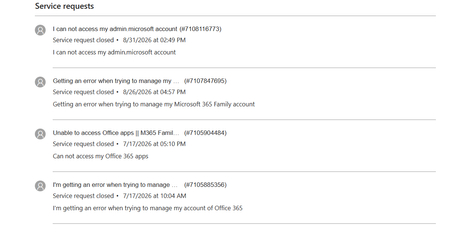
I have M365 Family Plan and one of my devices can't use Word or Excel. App tells me they are in Read and Print mode only. I have attempted multiple times to get support to resolve this via chat sessions, but they are unable to help. They have escalated this to Tier 3 Support and still no help. They recommended I go here for support. Here are some of the details. Case Number: 7108165505 (current one) Microsoft 365 Family subscription Word and Excel opening in Read Only / Print mode on one Windows 11 desktop Error when accessing the subscription management page Previous escalation to Tier 2 and Tier 3 Case marked as Resolved despite the issue remaining unresolved Note that extensive troubleshooting has already been completed and that you believe the issue may be related to subscription validation or account provisioning rather than the local Office installation.278Views0likes2CommentsOneDrive files opened from Finder not recognized as cloud files on Mac
Office for Mac: OneDrive files opened from Finder no longer recognized as cloud files – AutoSave disabled Hi everyone, I am experiencing a persistent issue with Microsoft 365 for Mac and OneDrive that started suddenly around August 10, 2026. The same setup and workflow had worked without problems for more than two years before that. Problem My Office files are stored in OneDrive and synchronized to my Mac via the standard macOS File Provider. When I open an Excel or Word file by double-clicking it in Finder, the Office application opens the file, but it apparently does not recognize it correctly as a OneDrive/cloud file. For example: AutoSave is disabled real-time co-authoring does not work as expected when I try to enable AutoSave manually, Office behaves as if the file were local and asks me to upload/save it to OneDrive – even though the file is already stored and synchronized in OneDrive However, if I open the exact same file from within Excel or Word via the OneDrive/Online Locations option, everything works correctly: AutoSave is enabled immediately co-authoring works changes made by another user appear in real time This behavior is reproducible with multiple files and affects both Excel and Word, so it does not appear to be an issue with one particular workbook or application. Environment MacBook Air M2 current macOS version current Microsoft 365 version current OneDrive version OneDrive Personal files synchronized through the standard macOS File Provider I have also tested opening files directly from: ~/Library/CloudStorage/OneDrive/... The result is the same: when opened from Finder, Office does not appear to recognize the file correctly as a cloud file and AutoSave remains disabled. Troubleshooting already performed I have already: completely reset and reconfigured OneDrive allowed OneDrive to fully resynchronize verified the files and folders in OneDrive on the web confirmed that OneDrive reports everything as synchronized restarted Finder and macOS removed and recreated Finder shortcuts/favorites tested without Finder favorites or aliases tested directly from ~/Library/CloudStorage/OneDrive updated macOS updated all Microsoft 365 applications updated OneDrive None of these steps changed the behavior. Key diagnostic result The following comparison is consistently reproducible: Finder → OneDrive file → double-click → Excel/Word → AutoSave OFF → file appears not to be recognized as an active OneDrive cloud document → co-authoring does not work correctly Excel/Word → Open → OneDrive/Online Locations → same file → AutoSave ON immediately → cloud functionality works → co-authoring works correctly This suggests that OneDrive synchronization itself is functioning correctly. The issue seems specifically related to the handoff between macOS Finder / Apple File Provider / OneDrive and Microsoft 365 for Mac when a OneDrive file is opened from Finder. Important detail This is not a workflow that has never worked on macOS. For more than two years, we routinely opened our synchronized OneDrive Word and Excel files directly from Finder. Office recognized them as cloud files, AutoSave was available, and collaborative editing worked normally. The behavior changed suddenly around August 10, 2026, without us intentionally changing the OneDrive folder structure or our workflow. Question Has anyone else encountered this recently? In particular: Is this a known regression in Microsoft 365 for Mac, OneDrive for Mac, or their integration with Apple's File Provider? Why would Office recognize a file as a OneDrive cloud document when opened through the application's Online Locations, but not when the exact same synchronized file is opened from Finder? Is there a way to reset or repair the Microsoft 365/OneDrive cloud-file recognition or File Provider integration without resetting the entire OneDrive again? Are there any relevant logs, caches or diagnostics that could show why Office considers a Finder-opened OneDrive file to be local? Opening every document through the Office application's Online Locations is a possible workaround, but it is not a practical long-term solution when working with a larger shared folder structure in Finder. I have already contacted both Apple Support and Microsoft Support. Apple referred me to Microsoft, and Microsoft Support subsequently recommended that I raise the issue here in the Tech Community. Any insight from Microsoft staff, MVPs or others familiar with Microsoft 365 for Mac, OneDrive and the macOS File Provider would be greatly appreciated.1.1KViews7likes8Comments