Hi, Insiders! I’m Shireen Salma, a Product Manager on the Office Accessibility team. I’m excited to share that Accessibility Assistant in Microsoft Word for Windows can now flag instances of missing or improper use of headings, making document hierarchy and navigation better for screen reader users.
What’s new
With this update, Accessibility Assistant introduces smarter detection to help identify heading patterns that may reduce clarity or usability. Accessibility Assistant can now suggest improvements when it detects:
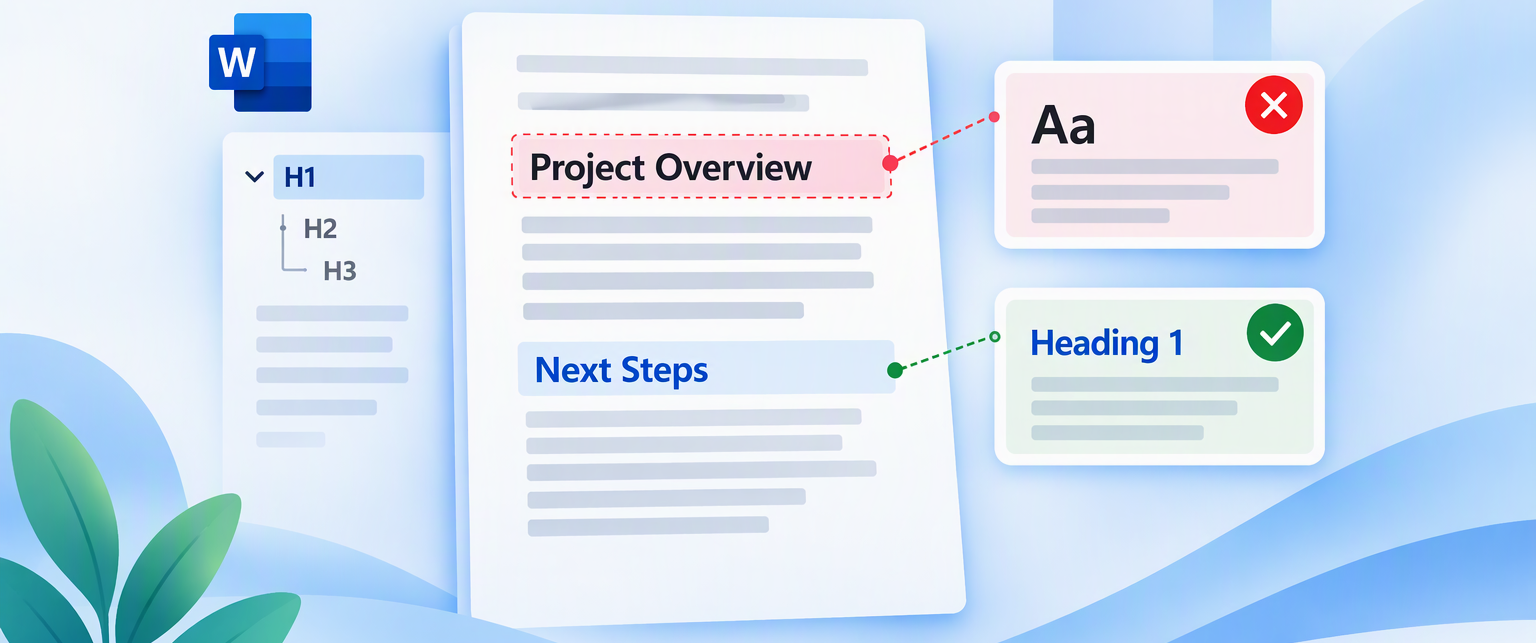
- Text visually styled as a heading but not using built-in heading styles, like when a phrase is bolded.
- Sections that may benefit from a heading to improve organization and navigation.
- Multi-line headings that may have been unintentionally split across lines.
Why it matters
Visual formatting alone doesn’t create structure – it only creates the appearance of it. When documents rely on bold or enlarged text instead of heading styles, screen readers can’t detect sections or hierarchy. As a result, readers lose the ability to navigate by heading and must read linearly to understand the document’s organization. It’s also why these headings don’t appear in your Table of Contents or Navigation Pane unless they’re marked with the appropriate heading styles.
Headings marked with appropriate styles create the semantic structure that both assistive technologies and AI systems like Copilot rely on to interpret content, making documents easier to navigate, summarize, and work with for everyone.
By surfacing helpful suggestions directly in Accessibility Assistant, we aim to make accessible authoring more intuitive while preserving flexibility in how content is created.
Can you imagine how hard it would be to find what you were looking for in a grocery store you are unfamiliar with that did not have aisle signs in each aisle? That’s what it’s like navigating a Word document without headings for those of us who use a screen reader. Sure, you’ll eventually find what you need, but imagine how ineffective and frustrating it would be. That’s why I’m so excited about this new accessibility feature. - Jeff Wissel, VP of Accessibility, AIRA
How it works
- In a Word document, navigate to Review and select Check Accessibility.
- Choose Document Structure, and notice there are now three rules that check for proper use of headings in the document:
-
- Missing required headings: Following a page or section break, if there are three or more consecutive paragraphs with no heading, Accessibility Assistant will nudge you to add a heading.
-
- Visually styled headings: Under this category, Accessibility Assistant flags text with visual formatting such as a larger, bold font that looks like a heading but does not have appropriate heading styles applied, such as Heading 1, Heading 2, etc.
-
- Use of multi-line headings: If three or more consecutive paragraphs are marked with the same heading style, Accessibility Assistant will nudge you to merge them into a single heading.
Availability
This update is available to Word for Windows users with a Microsoft 365 subscription and running Version 2610 Build 20620.20002 or later or later.
Features covered on this blog roll out over time to enable us to monitor quality and performance, so some preview features may not be available to you right away. Also note that features may be paused, adjusted, or removed as part of that process.
Feedback
We’d love to hear your thoughts on how this update is working! Open Accessibility Assistant, then select Give Feedback to provide feedback.
Learn about the Microsoft 365 Insider program and sign up for the Microsoft 365 Insider newsletter to get the latest information about Insider features in your inbox once a month!

 Microsoft
Learn about the Microsoft 365 Insider program at https://aka.ms/MSFT365InsiderProgram
For technical support and break/fix questions, please visit Microsoft Support Community.