teams
1606 TopicsHands on webinar: Build Student Skills with Learning Accelerators in Microsoft Teams
Join us on Wednesday, September 16th @ 8am Pacific Time and discover how Learning Accelerators in Microsoft Teams for Education can help students build foundational and future ready skills while giving educators actionable insights to personalize instruction. In this webinar, we’ll explore the latest capabilities across the Learning Accelerators suite, including: 📖 Reading Progress - Help students build reading fluency with personalized practice and AI-powered feedback 🎤 Speaker Progress – Develop confident presentation and communication skills with real-time coaching ➗ Math Progress – Create, assign, and review math practice while gaining deeper insight into student understanding 🔎 Search Progress – Teach students how to search effectively, evaluate sources, and build information literacy skills 📊 Education Insights – Turn learning activity into actionable data to identify trends and better support individual students We’ll walk through practical classroom scenarios, demonstrate key features, and share tips for getting the most from Learning Accelerators in Microsoft Teams. Join us to see how Learning Accelerators can help educators save time, personalize learning, and give every student more opportunities to practice, improve, and succeed. Wednesday, September 16th @ 8am Pacific time: Register here: https://df.events.teams.microsoft.com/event/df.2cc31453-8761-4442-9b9e-eceb4a80859f@72f988bf-86f1-41af-91ab-2d7cd011db47?source=copyLinkOneEventsShareDialog Mike Tholfsen Group Product Manager Microsoft Education208Views0likes0Comments
What’s the best way to differentiate a SaaS offer from a Teams offer in Microsoft Marketplace?
Hey community! Our app is transactable, and we currently have two offers live in Marketplace: Saas and MS Teams offers. However, some of our customers find it confusing and aren’t sure which one they should choose. We also always prefer them chosing Saas so we can track everything via Partner center. What’s the recommended way to structure or differentiate the two offers so the choice is clear for customers? For example, should we use different naming, descriptions, or positioning for each offer? Would really appreciate any best practices or examples from others who have faced it!What's New in Microsoft EDU - Back to School 2026 webinar
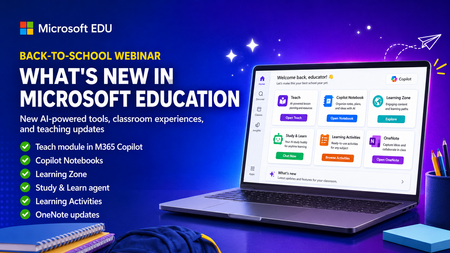
Get ready for back to school (Northern Hemisphere) with the latest product updates from Microsoft Education. In this webinar, we’ll showcase new AI-powered tools, teaching resources, and product updates designed to help educators save time, personalize learning, and support every student. You’ll see what’s new across Microsoft 365 Copilot, Teams for Education, OneNote, and more, including: ✅ Teach module in Microsoft 365 Copilot ✅ Copilot Notebooks ✅ Study and Learn agent ✅ Learning Zone ✅ Teams for EDU updates ✅ The latest OneNote EDU updates And more! Join us for practical demonstrations, helpful tips, and new ideas you can put to work as you prepare for a successful school year. And don't worry if you can't make it live, we will be recorded and posting this on the Microsoft Education YouTube channel afterwards. 📅 When: Wednesday, August 26th @ 8am Pacific Time 🔗 Register here: https://df.events.teams.microsoft.com/event/df.8c4f06fc-399f-4603-8023-f5fd92601bd1@72f988bf-86f1-41af-91ab-2d7cd011db47?source=copyLinkOneEventsShareDialog Mike Tholfsen Group Product Manager Microsoft Education584Views1like1Comment
Make an alert icon of new messages from other accounts/Orgs on top right in TEAMs
The icon of activity in other accounts and orgs moved to bottom left sucks, user would easily miss noticing new messages from other accounts/org. It's better to keep an alert icon next to user icon on top right for easier notification.98Views0likes0CommentsCalling all IT Admins - webinar on configuring Copilot Chat and updates for Students 13+
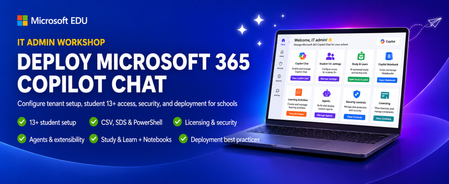
This IT Admin-focused workshop walks through how to configure Microsoft 365 Copilot Chat, from your tenant all the way to the end-user experience. When you enable Copilot Chat for students 13+, they will also get access to the new Study & Learn agent, Copilot Notebooks, Learning Activities and more. We cover the latest features that are available — including the new 13+ student configuration options, CSV, SDS and Powershell uploads, Copilot agents & extensibility, and updated licensing & security controls. By the end, you’ll be able to confidently deploy, manage, and optimize Copilot Chat in your environment so your users can safely harness AI productivity from day one. This 45-minute webinar will be led by Bill Sluss Principal Product Manager from the Microsoft Education team. When: Wednesday, August 19th @ 8am Pacific time Register: https://df.events.teams.microsoft.com/event/df.95feda23-419a-4d99-bfad-f7e4fd52a498@72f988bf-86f1-41af-91ab-2d7cd011db47?source=copyLinkOneEventsShareDialog Mike Tholfsen Group Product Manager Microsoft Education345Views0likes0CommentsHands-on webinar: Set up your classroom in Teams for Education plus the new Study and Learn Agent
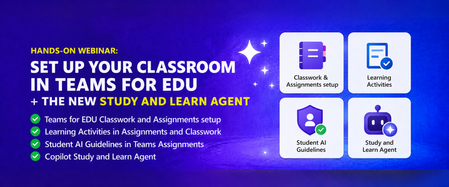
Join us on Wednesday, August 5th at 8:00 AM Pacific Time for a practical, 60-minute webinar to get your Microsoft Teams classroom ready for the new school year in the Northern hemisphere. Get your class set up in Assignments and Classwork, learn about new tools like Learning Activities, use Student AI Guidelines to set the right expectations for your students, and see how the Study and Learn Agent can be a study partner for your students. Follow along with your own Microsoft 365 Education account as we walk through each one. Register here: https://aka.ms/August5Training The session will be recorded and posted to the Microsoft Education YouTube channel so you can watch it later or share it with colleagues. Agenda - Get your Teams EDU classroom ready and learn about the Study and Learn Agent. ✅ Teams EDU Classwork / Assignments setup ✅ Learning Activities in Assignments and Classwork ✅ Student AI Guidelines in Teams Assignments ✅ Copilot Study and Learn Agent We look forward to seeing you on August 5th! Also, be sure to check out and sign up for our Microsoft Elevate Educator community. Mike Tholfsen Group Product Manager Microsoft Education233Views0likes0CommentsRetrieve all Teams transcripts a bot has attended to using Graph API
Hi there, I've been struggling for a lot of time trying to get this done. Has anyone been able to achieve something like this ? I wanted to : 1- Get all the meetings and transcripts of the tenant 2- Filter on those where the bot was attending 3- Get the transcripts when available. 4- Add rules to restrict the bot's access Right now I am stuck with the OAuth : The application 'bot-transcript' asked for scope 'OnlineMeetings.Read.All' that doesn't exist on the resource '00000003-0000-0000-c000-000000000000'. But this permission was added, and really seems to exist. Right ? Thanks in advance for any kind of help you could give me.286Views0likes1Comment
Teams Meeting Add-in Not Appearing in Outlook
The computer was rebuilt from scratch and reinstalled with a clean operating system. After the installation, all required Microsoft applications (Outlook, Teams, etc.) were installed and the user successfully signed in. However, the Teams Meeting add-in is not appearing in Outlook as expected. Within the Outlook Calendar/Appointment window, only the Skype Meeting option is visible, while the Teams Meeting option is completely missing. Checks Performed: New Microsoft Teams is installed and functioning properly. Outlook and Teams are both signed in with the user account. Outlook COM Add-ins have been checked. Disabled Items have been checked. Teams Meeting Add-in for Microsoft Office has been verified. Outlook updates have been checked. Microsoft Teams has been reinstalled. Outlook profile has been verified. Exchange mailbox is active and functioning correctly. Despite all the above checks, the Teams Meeting option is still not displayed in the Outlook Calendar/Appointment window, and only the Skype Meeting integration is available. Expected Behavior: The Teams Meeting button should be available within the Outlook Calendar/Appointment window, allowing users to create Teams meetings and automatically generate Teams meeting invitations. Request: Please why the Teams Meeting Add-in is not being loaded into Outlook and provide assistance in restoring the Teams Meeting functionality within the Outlook Calendar/Appointment interface. Attachments: Screenshot showing the current issue (Teams Meeting button missing) Screenshot showing the expected behavior (Teams Meeting button visible)6KViews7likes15Comments
Add Location to a Webinar
Hello! I appreciate Webinars are designed to be online - but does anyone know if it's possible to be able to add the Location field to Webinars? We often have hybrid meetings and it would be great to include Location. I have tried to add Location within Outlook after it's published, but this location does not then transfer down to those who register for the webinar. If I created a custom template (which I know requires Teams Premium) can I include Location on a custom template?322Views0likes2Comments