reliability
132 Topics
Microsoft Remote Desktop for Mac - Copy and paste works a while then fails
Using Mac OS X 12.6.8 and Remote Desktop 10.9.2. Beginning two versions back (10.9.0?), copy and paste works for a while after launching RD, but it eventually fails when copying from the remote machine to the local Mac. The failure manifests as a spinning beach ball in the application I'm pasting into. The paste operation eventually times out, but the quickest way to recover is to quit Remote Desktop and start the whole operation over again with the copy.5.3KViews22likes19Comments
Microsoft Remote Desktop for Mac repeatedly forgets Windows 365 workspace
In the last week or so, I have repeatedly had to re-add the workspace URL for Windows 365 (the "subscription URL" collected from windows365.microsoft.com) to Microsoft Remote Desktop for Mac. The issue started with the previous version of the app, but has continued to happen about once-a-day since installing the latest version (10.9.0 build 2140) from the Mac App Store. Every time the workspace is re-added, it needs to be reauthorized by signing in via OAuth again and any custom settings for the workspace need to be reconfigured. Is this a known issue or am I the lone recipient of this particular cosmic annoyance? 😂8.5KViews21likes19Comments
Remote Desktop for Mac 10.9.4 often causes spinning wheel of death when copying from Windows machine
Starting in the last version or two, I frequently get the "spinning wheel of death" after using Remote Desktop for Mac to copy from the remote Windows client. This manifests when I switch back to the mac and try to switch to Slack -- Slack will be frozen for 30 seconds to several minutes with the colorful spinning pinwheel. Many people have been experiencing this issue, both recently and in the last several years: https://techcommunity.microsoft.com/t5/azure-virtual-desktop-feedback/copy-and-paste-from-microsoft-remote-desktop-to-mac-causes/idi-p/3947326 https://techcommunity.microsoft.com/t5/azure-virtual-desktop-feedback/microsoft-remote-desktop-for-mac-copy-and-paste-works-a-while/idi-p/3930905 https://learn.microsoft.com/en-us/answers/questions/565240/microsoft-remote-desktop-freezes-constantly-apple Please look into this, it's a productivity killer. And if there's anything I can grab for you that will help (like a snapshot of a process using the Mac activity monitor) please let me know. EDIT: I just attached a sample and spindump of Slack (the macOS process that gets the spinning wheel of death after copying text on the remote windows machine).2.5KViews18likes15CommentsAI-900: Microsoft Azure AI Fundamentals Study Guide
This comprehensive study guide provides a thorough overview of the topics covered in the Microsoft Azure AI Fundamentals (AI-900) exam, including Artificial Intelligence workloads, fundamental principles of machine learning, computer vision and natural language processing workloads. Learn about the exam's intended audience, how to earn the certification, and the skills measured as of April 2022. Discover the important considerations for responsible AI, the capabilities of Azure Machine Learning Studio and more. Get ready to demonstrate your knowledge of AI and ML concepts and related Microsoft Azure services with this helpful study guide.41KViews11likes3Comments
Microsoft RDP client with macOS Sonoma experiences audio input disconnects
I'm having issues after upgrading to Mac OS Sonoma with audio disconnecting when using MS RDP to access a Windows PC and use Teams. When I initially connect to Teams, audio input and audio output is working correctly. After a few minutes, Teams will report audio device microphone is disconnected or not working and then no-one can hear me speak. I can still hear them, but they can't hear me. If I leave the meeting and re-join it works again for a few minutes and then the same issue happens again. Please fix ASAP.1.8KViews10likes2Comments
Workspace is deleted each time MS Remote Desktop quits
Currently I'm working with MS Remote Desktop for macOS Beta 10.9.2 (2147) to use customer workspace. I've left all preferences at default and only configured the workspace user. Each time I quit the app the workspace is deleted and I have to set up again. With previous (beta) versions (i.e. 10.9.0) I did not have similar problems.1.7KViews10likes8CommentsZonas de Disponibilidade no Azure: Entendendo a Diferença entre Zonas Lógicas e Físicas
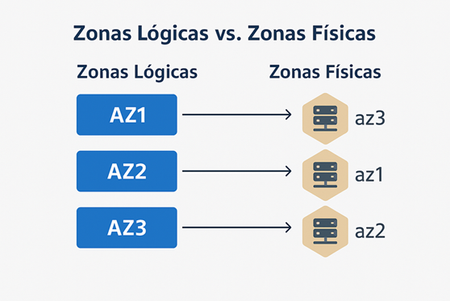
O que é o mapeamento de zonas do Azure (Zona Lógica vs Zona Física) No Azure, as Zonas de Disponibilidade (AZs) são agrupamentos de datacenters fisicamente separados dentros de uma mesma região. Cada zona possui infraestrutura independente - energia, refrigeração e rede - garantindo alta disponibilidade e resiliência. Porém, há uma distinção entre: Tipo de Zona Definição Zona Lógica Identificador exibido no portal do Azure (AZ1, AZ2, AZ3). Zona Física Grupo real de datacenters. O mapeamento entre lógica e física varia por assinatura O mapeamento entre zonas lógicas e físicas não é fixo. Isso significa que: AZ1 na assinatura A pode ser fisicamente igual à AZ3 na assinatura B. Sem verificação, você pode estar executando produção e DR na mesma infraestrutura física, anulando os benefícios da separação. Esse comportamento é intencional e inspirado no modelo da AWS, que também não garante consistência entre zonas lógicas em diferentes contas. Qual o objetivo desse design? A motivação por trás desse mapeamento dinâmico é: Distribuir a carga de consumo de forma mais eficiente entre os datacenters. Evitar hotspots e garantir resiliência operacional. Permitir flexibilidade de alocação conforme a capacidade física disponível. Esse modelo ajuda a balancear o uso da infraestrutura global, sem expor diretamente a topologia física aos clientes — o que também reforça a segurança e abstração da plataforma. Essa distinção é essencial: a zona lógica AZ1 em uma assinatura pode, na prática, ser a mesma zona física que a AZ3 em outra. Sem uma verificação adequada, o cliente pode acabar executando cargas de produção e de DR (Disaster Recovery) na mesma infraestrutura física, o que anula os benefícios esperados da separação entre zonas. Exemplo prático de risco Vamos considerar o seguinte cenário de um cliente: Produção: AZ1 e AZ2 em uma assinatura A DR: AZ3 em outra assinatura B, na mesma região O cliente acredita estar distribuindo suas cargas entre três zonas distintas. No entanto, ao verificar o mapeamento real, encontra a seguinte saída: [ { "logicalZone": "1", "physicalZone": "brazilsouth-az3" }, { "logicalZone": "2", "physicalZone": "brazilsouth-az1" }, { "logicalZone": "3", "physicalZone": "brazilsouth-az2" } ] Neste exemplo, a AZ3 lógica está mapeada para a AZ2 física, que já está sendo usada na produção. Ou seja, não há separação física real. Como verificar o mapeamento de zonas? Para evitar esse problema, é essencial verificar o mapeamento entre zonas lógicas e físicas em cada assinatura. Use o seguinte comando via Azure CLI: az rest --method get \ --uri "/subscriptions/<subscription-id>/locations?api-version=2022-12-01" \ --query "value[?name=='<region-name>'].{displayName: displayName,name: name,availabilityZoneMappings: availabilityZoneMappings }" \ -o json Substitua <subscription-id> e <region-name> (ex: brazilsouth) conforme necessário. Veja abaixo um exemplo de saída obtida no meu ambiente de laboratório, onde tenho duas assinaturas. Vou executar o mapeamento de zonas entre elas para a região Brazil South. Na primeira subscription 1 temos o seguinte mapeamento. Zona lógica: 1 – Zona Física: brazilsouth-az1 Zona lógica: 2 – Zona Física: brazilsouth-az2 Zona lógica: 3 – Zona Física: brazilsouth-az3 Na segunda subscription 2 temos o seguinte mapeamento. Zona lógica: 1 – Zona Física: brazilsouth-az3 Zona lógica: 2 – Zona Física: brazilsouth-az1 Zona lógica: 3 – Zona Física: brazilsouth-az2 Resumindo: Se minha estratégia de DR envolve o uso das zonas lógicas 1 e 2 na subscription 1, pois elas estão mapeadas fisicamente para as zonas AZ1 e AZ2, então, na subscription 2 destinada ao DR, devo utilizar a zona lógica 1 — já que, nessa assinatura, ela está mapeada fisicamente para a AZ3. Boas práticas Sempre verifique o mapeamento entre zonas lógicas e físicas antes de definir sua estratégia de DR. Evite assumir que AZ1, AZ2 e AZ3 representam zonas físicas distintas entre diferentes assinaturas. Considere utilizar regiões diferentes para DR quando a separação física for um requisito crítico. Documente e compartilhe o mapeamento com sua equipe de arquitetura e operações para garantir alinhamento e evitar riscos. Referência oficial Para mais detalhes, consulte a documentação oficial da Microsoft: https://learn.microsoft.com/en-us/azure/availability-zones/az-overview Comparing AWS and Azure regions and zones - Azure Architecture Center | Microsoft Learn511Views5likes0CommentsDevices that are updated to MacOS 15.01 will have frequent disconnects when on RDP sessions
Hi There, We're facing an issue with the Windows App for MacOS devices. When one of our users upgrades to the latest MacOS Sequoia update, version 15.01. They will face constant disconnects on RDP connections to servers. Often with the error code which will be attached to the support ticket. The connection will last from only a couple of minutes, with the longest anyone has managed being around 30 minutes at the most before dropping out. Since we have teams that need connections that last longer than 30 minutes, this is becoming very disruptive. This doesn't impact those on previous MacOS versions or other operating systems. Work around methods when looking online into this suggest turning local firewall settings off, which isn't possible due to company policy. Thank you.594Views5likes6CommentsCertificates are cached too aggressively in RD Web Client
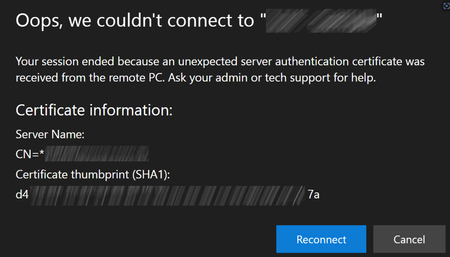
We use the https://docs.microsoft.com/en-us/windows-server/remote/remote-desktop-services/clients/remote-desktop-web-client-admin (Latest version 1.0.27) Normally it works really well, but then once a year we have to update our SSL Certificates. The problem is the Web Client likes to cache the old certificate and not get the latest certificate. This results in people getting the following error: Hitting F5, Ctrl F5 does not resolve this. The following are the instructions we have to give the AVERAGE USER to get them passed it: * Press F12 to open DEVTOOLS * Press F1 to open DEVTOOLS SETTINGS * Under Networking tick Disable Cache (while DevTools is open) * On the tab, refresh the page with F5. * Close the DevTools tab Luckily these instructions more or less work for every major browser. But I think you can see that no end user should have to do anything as crazy as this. This also makes the move towards certificates with a shorter life impossible. Can this please be looked into with urgency? (Note: I know this is the Azure Virtual Desktop Feedback, but It's what the feedback button in the web client links to. If there's a better place to provide this feedback please let me know)3.1KViews5likes13Comments