outlook on the web
693 Topics
Getting the error "Password sign-in isn't available. Try another method"
This is more of a complaint and a vent than a question. I constantly get that infuriating Outlook (web) "error" message when trying to log in: "You've tried to sign in too many times with an incorrect account or password" or "Password sign-in isn't available. Try another method," even though my password was correct. Microsoft, stop forcing us to enable cookies or avoid private browsing just because you are incompetent at securing and scaling your systems. I don't have this problem with Gmail, and I'm thinking about closing my Outlook account. Please fix this error! Who was the genius who had the brilliant idea (100% sarcasm) to force me to open a different email account, find a code, and paste it just to log in, instead of using a method that is MUCH faster, easier, and more convenient for me—like simply typing in my password? I should be the one to decide the "level of protection my account has"; it might be an account with nothing important in it, so I have NO interest in 2FA or using codes sent to alternate email addresses, etc. I think this error stems simply from my refusal to allow Outlook to allow tracking of cookies and history, combined with terrible design where they block access if a high volume of traffic is detected from a single IP address. Hello!!! Most ISPs use IP pools to route hundreds or thousands of users to the internet; there is no way for us users to control that. But I repeat, that I don't deal with this kind of nonsense with other email services. And in case anyone kindly wants to offer suggestions to "resolve this" (which aren't real solutions anyway, just workarounds): I do NOT use VPNs; I always log in from home, from the same computer (nothing changes). I do not use—and will not install—an authenticator app for an email account that holds nothing important; it is a hassle to have to open an app or check an alternate email just to log into my account on a PC. Microsoft, one never expects anything good from you, yet you still manage to disappoint us. PS: Every time I run into this error, I send a message via the "Give Feedback" option; I do this repeatedly, hoping to flood your inbox with this complaint.64Views0likes1Comment
Can I automate performance review forms to be sent automatically through Outlook?
Doesn't even necessarily have to apply to just surveys to be honest. I'm trying to set up a system where our employees automatically receive forms like surveys, performance reviews, or feedback templates in their Outlook so I don't have to be the stereotypical HR lady who constantly chases and reminds them to complete them. Warning: Not a super techy person :)116Views0likes2Comments
How to Recover Data from a Damaged or Corrupted OST File When Outlook Cannot Open It
Hi everyone, I have seen several cases where users still have an old OST file but cannot access the mailbox data inside it. This usually happens after an Outlook profile is removed, a Microsoft 365 or Exchange account is changed, a mailbox is no longer available, or the OST file becomes damaged or corrupted. One common misunderstanding is that an OST file can be opened on another computer in the same way as a PST file. However, an OST file is linked to the Outlook profile and mailbox that created it. If that connection is no longer available, Outlook may not be able to open the file normally. Before trying to recover the OST data, it is worth checking a few things: Is the original Microsoft 365 or Exchange mailbox still available? Can the Outlook profile be recreated and synchronized again? Is the issue related to the OST file itself or only the Outlook profile? Do you need the complete mailbox data or only specific folders/items? If the mailbox is still available, rebuilding the Outlook profile and allowing Outlook to create a new OST may be the better approach. However, if the mailbox no longer exists, the Outlook profile has been deleted, or the OST file is damaged and contains the only available copy of the mailbox data, recovery becomes a different process. In these situations, it is important to first check what information is still readable from the OST file. Scanning and previewing the mailbox data before export can help identify available folders, emails, attachments, contacts, and calendar items before creating a new PST file. A practical OST recovery workflow usually involves: Keeping a copy of the original OST file before making any changes. Checking whether the original mailbox can still be synchronized. Scanning the OST file to identify available mailbox items. Reviewing important folders and messages. Exporting the required data to PST. Validating the resulting PST in Outlook. A detailed overview of the OST to PST conversion process, including scanning, previewing, selecting mailbox items, and exporting recoverable data, is available here: https://www.edbmails.com/pages/ost-to-pst-converter.html One important point to remember is that recovery results depend on the condition and readability of the OST file. A conversion tool can help extract available mailbox information, but it cannot recreate data that is no longer present or readable inside the source file.28Views0likes0Comments
Intermittent “We can’t retrieve the calendar events right now” error in Outlook team calendars
We are receiving an increasing number of reports from users who are unable to view colleagues’ calendars in Outlook. The following error is displayed: “We can’t retrieve the calendar events right now. Wait a few minutes and try again.” The issue appears to be intermittent and inconsistent across Outlook clients: Some calendars work in Outlook on the web but not in New Outlook or Classic Outlook. Other calendars fail in OWA as well. A calendar may work temporarily and then fail again after restarting Outlook or switching between New and Classic Outlook. Some users first experienced the issue yesterday, while others have experienced it for more than a week. One affected user is a manager with nine direct reports. Outlook automatically displays these users under “Team: [Manager name]”. However, the number of visible team members changes after restarting Outlook or switching clients. For example, the group may contain all nine members at one point and only three at another. The Manager attribute and reporting structure have been verified in Active Directory/Entra ID and are correct for all team members. Our Service Desk has already tested the following without resolving the issue: -Outlook on the web, New Outlook and Classic Outlook -Removing and adding the affected calendars again -Adding calendars manually using the users’ primary SMTP addresses -Resetting the Outlook navigation pane -Resetting Outlook views -Creating a new Outlook profile -Verifying the users’ Manager attributes and reporting structure Because the issue also occurs intermittently in OWA and the membership of the automatically generated Manager’s Team Calendar changes, this does not appear to be limited to the local Outlook profile. Has anyone else experienced this recently? Could this be a known Exchange Online issue involving the automatically generated Manager’s Team Calendar, shared-calendar synchronization or mailbox-side calendar navigation data? Are there any additional diagnostics or supported methods for rebuilding the Manager’s Team Calendar configuration in Exchange Online?473Views3likes3Comments
OWA spell checks part of the word
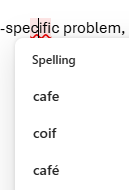
Something strange happened as I was typing an email today. I misspelled "specific" so I quickly fixed it using the spell checker. Then, it underlined the "cifi" part of the word "specific" suggesting spelling corrections as seen in the screenshot. There is no space in the word so I don't know why it focused on the part of the word (maybe because of the previous correction?). Do you know if this is an Outlook bug or an Edge bug? Not sure which spell checker is acting in OWA honestly.118Views0likes2Commentscan't verify my outlook account while logging in on IOS mail app
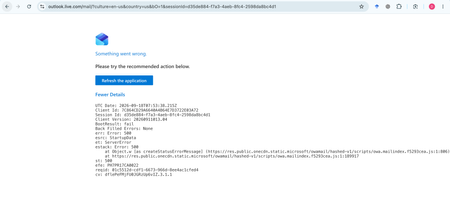
My Outlook.com mailbox cannot be opened on Outlook Web, macOS Mail, or iPhone Mail. Other accounts work normally. Outlook Web shows: HTTP 500, BootResult: fail, esrc: StartupData, et: ServerError. Please check the mailbox provisioning/backend status for my account.212Views0likes1CommentSupport for auto-filing sent emails
I am looking for a solution to this scenario in the New Outlook: I send tens of emails per day The sent emails are stored in the Sent Items folder I need to manually move each of them into the sub-folders in my Archive folder - e.g. one for support cases Is there any way to automate the step (3) - i.e. to automatically file the sent emails into the folders they belong to? The Classic Outlook had "When replying to a message that is not in the Inbox, save the reply in the same folder" which is not present in the New Outlook. Maybe the New Outlook should have something even more powerful? In addition to this feature, a button suggesting into which folder each message should be filed? Finally, the Outlook Rules are very powerful but they do not apply to the sent emails. Maybe time to generalize these?1.4KViews3likes12CommentsNew Outlook autocompletes an address that is no longer in use and I can't seem to delete it
Topic says it all, really. Client of mine has a new company and when I type the start of his name Outlook autocompletes for his old company even though it is no longer in my address book and his contact is updated with new information. I seem to recall there used to be an "x" that would let me delete incorrect autocompletes, but I can't find anything and Copilot has no useful suggestions. The autocomplete comes up in both the web version of Outlook--I basically never use this--on my PC which I primarily use, and IOS.2.9KViews5likes4Comments
new mail-account automatically forwards external mails to internal address
Hi, last week I created a new mail-account to our outlook-users and added a mail-license. Only internal mails was received in the new inbox and after troubleshooting and using mail-trace I discovered that the mails was forwarded to another internal inbox. This is not something that is configured anywhere in the mentioned settings when trying to troubleshoot forwarding-issues. How do I turn this off, so that my new employee can receive external e-mails. We don't have any policies or rules set up, that should trigger this behavior. Regards Lars180Views0likes2CommentsNew Outlook Comes With New Workflows: What Is Still Missing for You?
As a reminder, in March 2027, Enterprise organizations will enter the opt-out stage (Message ID 949965), where New Outlook becomes the default with the option to return to Classic Outlook. That is not too far away, especially if you need time to get your workflows and systems in place. That is why I keep coming back to this: New Outlook comes with new workflows. So I’m curious about where New Outlook workflows still fall short for you. A lot has changed. Users now have mail merge, Quick Parts, Unified Inbox, and partial PST support, with Advanced Mail Merge also on the way. New Outlook also has 30+ features and capabilities that are not available in Classic Outlook. What do you still do in Classic Outlook that you cannot accomplish, or cannot accomplish well, in New Outlook today? And if you tried New Outlook a year or two ago and went back to Classic Outlook, I’d be especially interested in what is still keeping you there now. I’m not looking for “I hate New Outlook.” I already know plenty of people do. I want to know the specific feature or workflow that still matters to you. PS: And be kind to me. I don’t work for Microsoft. I’m an MVP who teaches their products. 😉 traccreations4e-p26 8/26/2026470Views1like2Comments